Creating and managing products lets you draw up invoices and other documents faster — you never have to type a product, price and unit by hand again. It also keeps your inventory under control, and it makes your accounting and your profit and loss account accurate, because you record both the purchase and the sales price and the profit follows from that.
Step 1 — Create the product
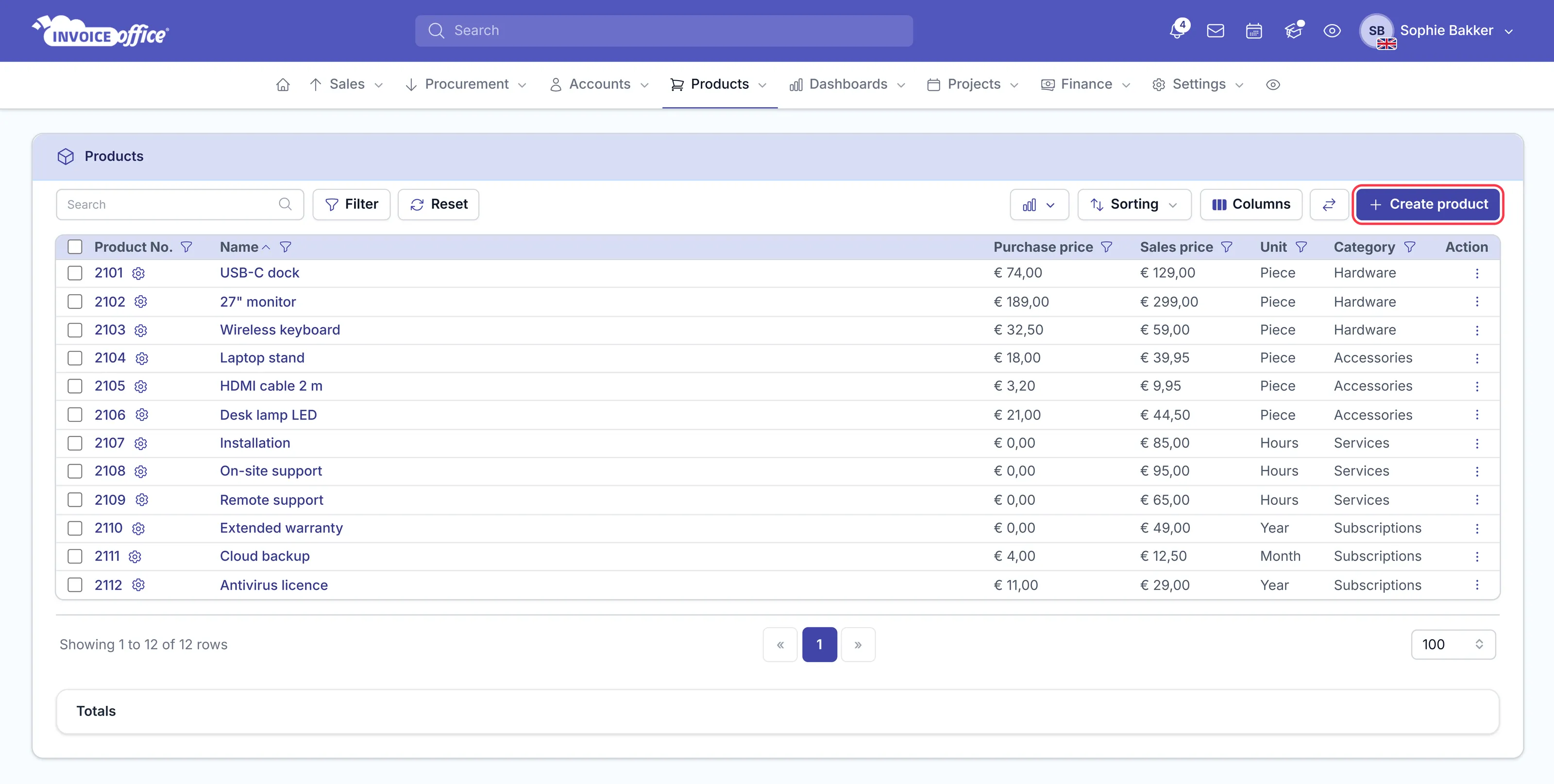
Go to Products → Products and click Create product in the top right corner. The list shows each product’s number, name, purchase price, sales price, unit and category.
Step 2 — Fill in the details
Under Product information, enter the product name, a description, the unit, a default quantity, an article code and a category. Under Price, enter the sales price and the purchase price, each with its own VAT rate and an incl./excl. VAT switch. Or enter a profit margin instead, and the sales price is calculated from the purchase price for you. The more completely you fill this in, the more of your accounting falls out correctly on its own.
When everything is right, click Create in the top right corner.
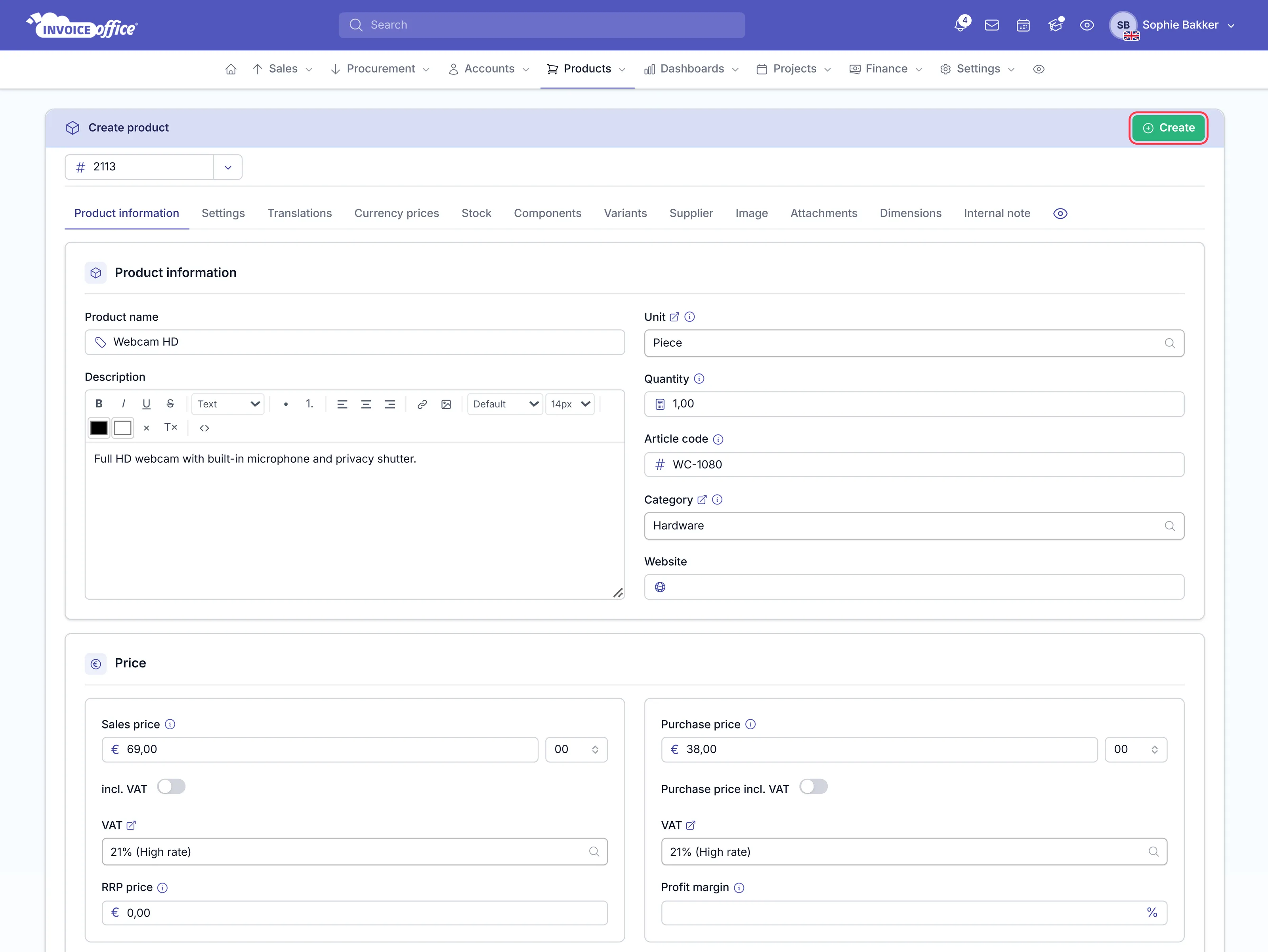
Getting the VAT rate right on the product means you are not changing the VAT on every invoice line later.
The tabs across the top of the form hold the rest: Settings, Translations, Currency prices, Stock (where opening stock lives — it is not on the main form), Components, Variants (see how to set up product variants), Supplier, Image, Attachments, Dimensions and an Internal note.
Group products into categories
You can create your own product groups from Products → Groups on your dashboard menu, and a deeper Category tree sits beside it. See also How to use the product group function.
Add a product to a document
On the screen where you draw up an invoice or any other document, click the magnifying glass in the product line and select the product you want. It is added with the right price and unit already filled in.
Your stock is adjusted automatically once the invoice has been finalised and sent — see How to manage your stocks.
Make products easier to find
In your document settings you can sort products alphabetically, or in various other orders, so the one you want is quick to pick while you are creating a document.
Prices in more than one currency
A product can hold its own sale price per currency, and optionally per country, rather than relying on an exchange rate. That way you charge a round number in each market instead of whatever the day’s rate converted to. See multi-currency invoicing. For customer currencies, exchange rates and foreign currency invoices, see how to manage multiple currencies.
Products in more than one language
A product can carry a translated name and description per language, so the line items appear in your customer’s language rather than only the invoice headings. See multi-language invoicing.
Different prices for different customers
Set up a price list to give a customer their agreed prices — see How to create a price list.
Importing products
Import them in bulk rather than typing them in — see Import customers, suppliers and products.