Manual invoice numbers in Invoice Office let you type your own number on an invoice instead of taking the next number from the automatic sequence. There is no separate “manual mode” to switch on for a whole sequence: you overwrite the number on the invoice itself, one invoice at a time, and Invoice Office keeps the number you typed when you finalise it. A company setting decides whether your users are allowed to do that.
Manual or automatic numbering
| Automatic (sequence) | Manual | |
|---|---|---|
| Where the number comes from | The next number of the invoice’s sequence | What you type in the number field |
| Format | Set by the sequence, for example 2026-0143 | Anything you type, for example INV-2026-0418 |
| Gaps and duplicates | Prevented by the sequence | Up to you — see the caveats below |
| Best for | Day-to-day invoicing | Migrating from other software, matching numbers agreed with a customer |
Allow users to change invoice numbers
- Click your name in the top right corner and choose Company settings.
- On the Settings tab, check that Change sequence numbers is switched on. It is on by default.
- Click Save.
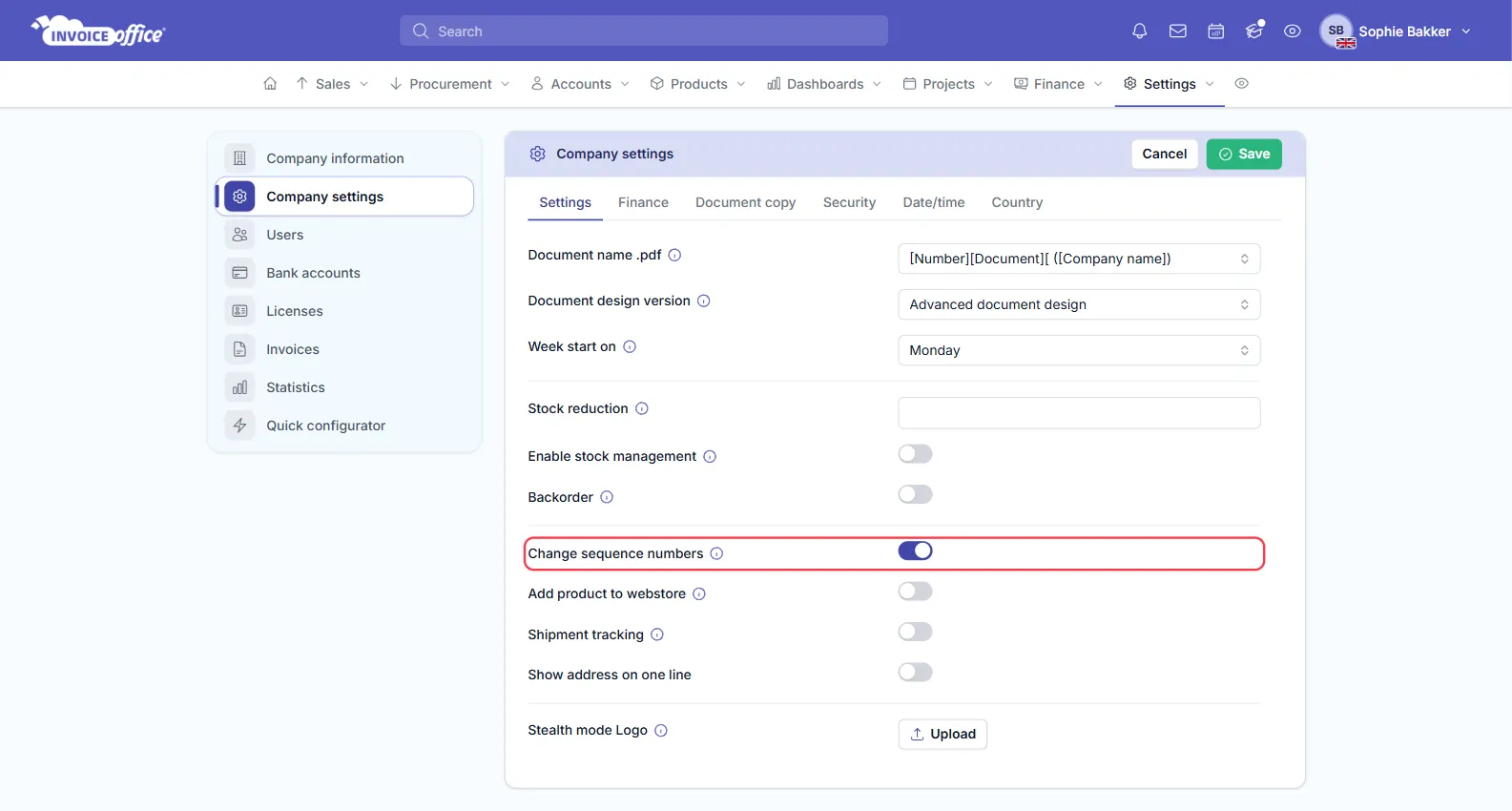
With Change sequence numbers off, the number field on every document is read-only and every invoice gets its number from the sequence. Turn it off once your numbers are in order to stop anyone typing their own.
Type your own number on an invoice
- Create the invoice as usual (Sales → Invoices → Create invoice), or open a draft.
- Click the invoice number at the top left of the card, under the Invoice title, and type the number you want.
- Finish the invoice and finalise it.
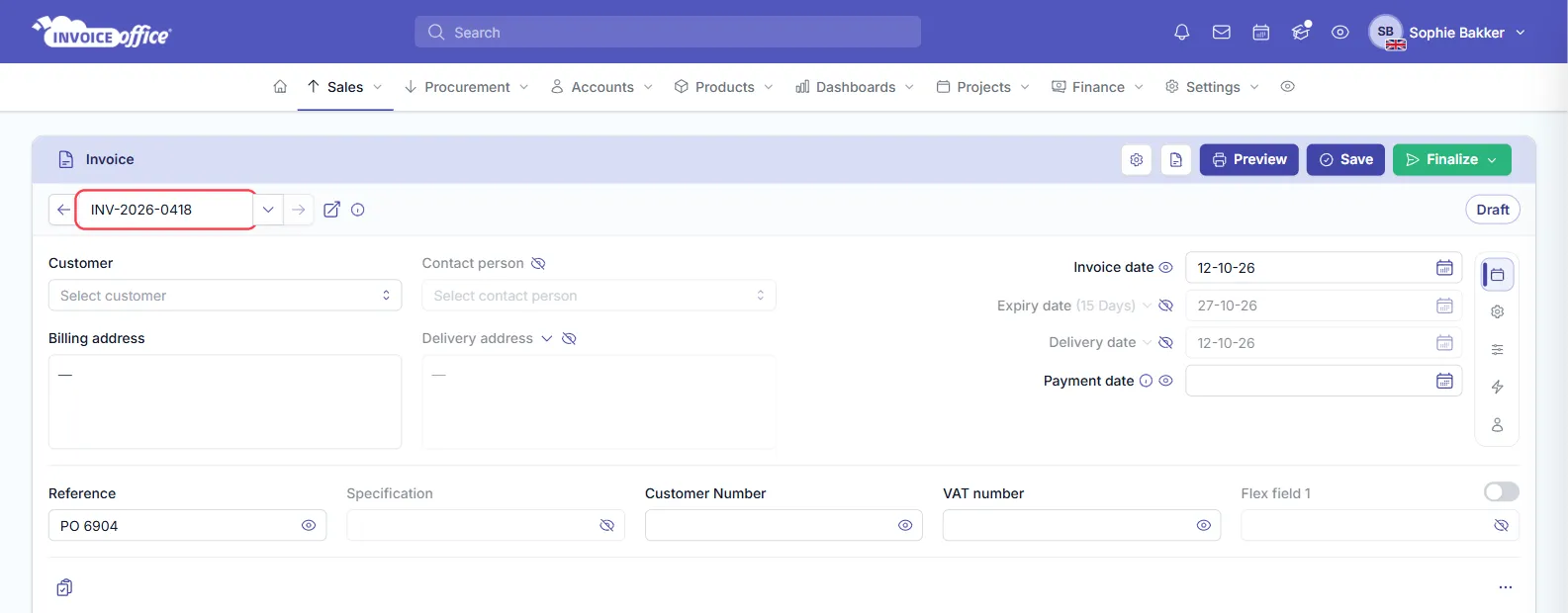
The number a draft shows is provisional; it becomes fixed when the invoice is finalised. After that the number field is locked. To change the number of a single document after the fact, see Change the document number.
Switch back to the automatic sequence
Changed your mind on a draft? Open the arrow next to the number field and pick the sequence. Invoice Office puts the sequence’s next number back in the field, and the invoice is numbered automatically again.
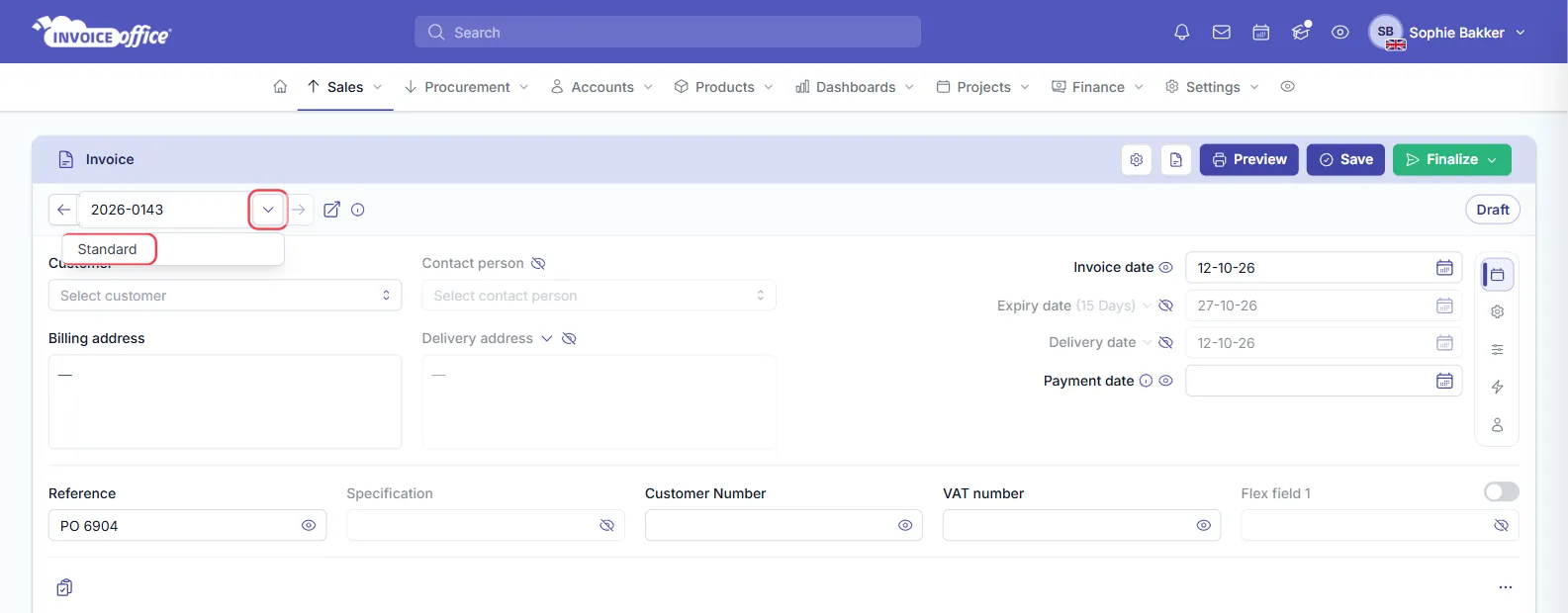
Every invoice you don’t overwrite keeps using the sequence, so you can mix manual and automatic numbers.
Things to know
- A number that is already in use is replaced. If the number you typed already belongs to another invoice when you finalise, Invoice Office does not create a duplicate: it gives the invoice the next number from its sequence instead. Check the number after finalising.
- The sequence does not jump ahead for you. A number you type only moves the automatic sequence on when it is exactly the sequence’s next number. If you type numbers ahead of the sequence, set the sequence’s Current number past them, so the sequence does not run into numbers you have already used. See How to manage invoice sequence numbers.
- Keep the run gapless. In most countries invoice numbers have to be unique and follow on from each other. If you are migrating, the cleanest route is often to set your sequence to continue where your old software stopped, rather than typing every number by hand.