Every invoice in Invoice Office gets its number from an invoice sequence number: a counter
with a format, such as 2026318. You manage it yourself under Settings → Sequence numbers. There
you change the current number, decide what the next invoice number will be, reset numbering every
year, quarter or month, fix a gap after deleting an invoice and choose which sequence is the default
when you have more than one.
A concept invoice only shows a preliminary number. The real number is assigned when you finalize (send) the invoice, so deleting a concept never leaves a gap. To give one invoice a different number without changing the sequence, see how to change the document number on a single invoice.
Your invoice sequences
Go to Settings → Sequence numbers and choose Invoice in the filter at the top. You see every invoice sequence with its Name, Sequences current (the last number used), when it was last changed (Modified on) and whether it Is default.
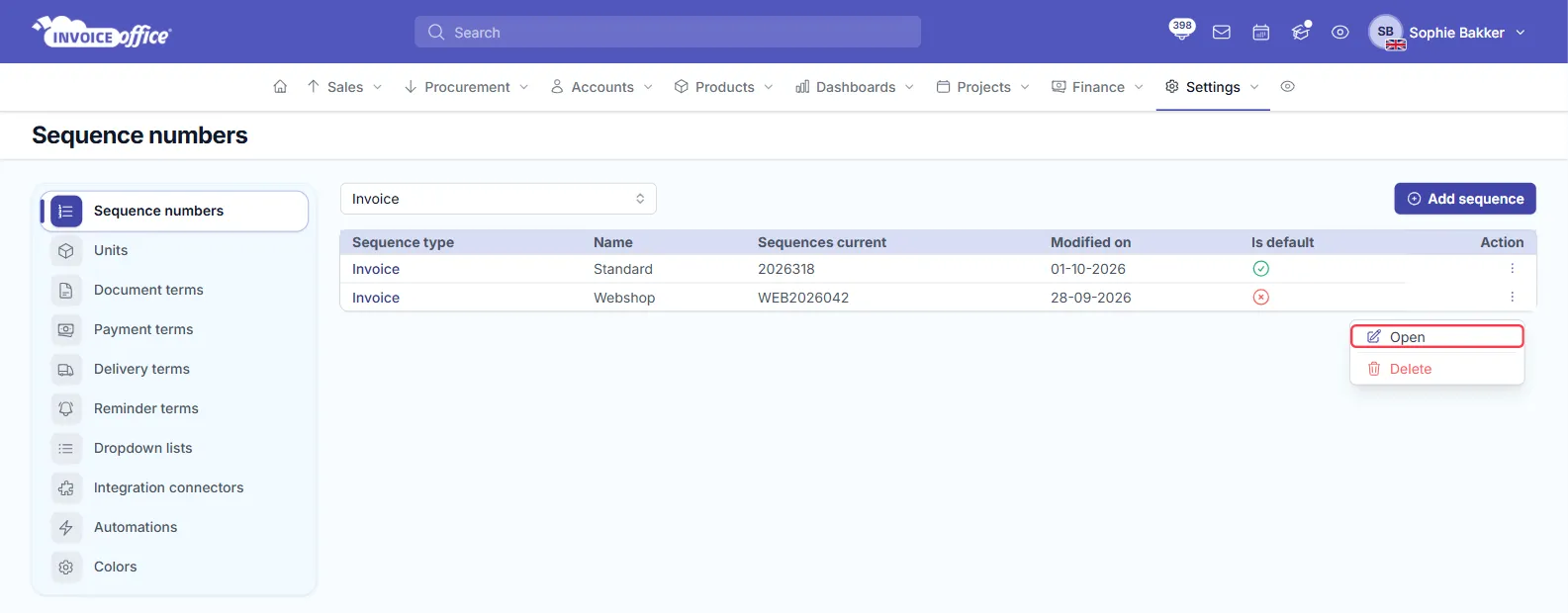
What the check and the cross mean
The icons in the Is default column don’t show whether a sequence is active. They show which one is the default:
- Green check: the default sequence. New invoices get their number from it, unless the customer has a sequence of its own.
- Red cross: not the default. You can still use it, for example for a separate webshop numbering: pick it with the sequence picker next to the invoice number, or set it as a customer’s sequence.
There is one default sequence per document type.
Change the current number and the next invoice number
- Go to Settings → Sequence numbers and choose Invoice in the filter at the top.
- Click the Action menu (⋮) on an invoice sequence and choose Open. The page opens on the default sequence; to change another one, pick it in Name.
- Enter the last invoice number you’ve used in Current number. Only the number counts, without
the year or prefix: for invoice
2026318, enter318. - Check the summary at the bottom: Sequences next is the number your next invoice will get. It’s Current number plus one, or Number start if Current number is lower.
- Click Update to save the new current number.
![The invoice sequence form in Invoice Office for the Standard sequence, with format [Year][Number], Current number 318 outlined in red, Number start 001, Sequences reset period Year and Is default on; the summary shows Sequences start 2026001, Sequences current 2026318 and Sequences next 2026319](/_astro/support-invoice-sequence-numbers-current-number.CVR3WIyN_24dztX.webp)
The other fields on the form:
- Sequences: the format of the number, built from parts such as
[Year],[Sign]and[Number]. Each option shows an example. - Sign: the fixed text in formats with
[Sign], such asFAorWEB. - Number start: the first number of the sequence. Its length also sets the minimum number of
digits, so
001gives001,002and so on. - Same as packing note and Same as quote: an invoice you create from a packing note or a quote takes over that document’s number instead of a new one from the sequence.
Reset invoice numbering every year
Set Sequences reset period to Year, Quarter or Month and numbering starts again at Number start at the beginning of each period. With None, the counter keeps counting up.
Fix a numbering gap after a deleted invoice
Deleting a final invoice doesn’t lower the counter, so the next invoice skips the deleted number. If the deleted invoice was your most recent one, you can close the gap:
- Find the number of the last invoice that still exists, for example
2026317. - Open the invoice sequence (pick it in Name if it isn’t the default) and set
Current number to that number, here
317. - Check that Sequences next shows the deleted number, here
2026318, and click Update.
Your next invoice gets the number of the deleted one. Only do this when the deleted invoice was your most recent one. If it sits between other invoices, Invoice Office skips the numbers that are already in use, so your next invoice would fill the old gap, out of date order with the invoices around it.
A deleted invoice goes to the trash. Once you’ve reused its number, it can’t be restored.
To correct a final invoice without leaving a gap at all, don’t delete it: create a credit note for it and then a new, correct invoice. See how to create a credit note and how to delete documents.
Set the default sequence
When you have more than one invoice sequence, the default one numbers your new invoices.
- Open the invoice sequence and choose the sequence you want in Name.
- Turn on Is default and click Update.
![The invoice sequence form in Invoice Office for the Webshop sequence, with format [Sign][Year][Number], Sign WEB, Current number 042, Number start 001 and the Is default switch turned off and outlined in red; the summary shows Sequences next WEB2026043](/_astro/support-invoice-sequence-numbers-is-default.BV12v5pi_Z1PhfvG.webp)
The sequence that was the default loses its check. You can’t turn Is default off on the default sequence itself (the switch is greyed out): make another sequence the default instead.
To add a sequence, click Add sequence on the Sequence numbers page, or + next to Name. Save as stores the current settings as a new sequence. In both, Save and apply also makes the new sequence the default.
The standard sequence can’t be deleted
The standard sequence your account came with has no Delete in its Action menu: you can only change its settings, or make another sequence the default. Sequences you added yourself can be deleted.