To match a purchase invoice to a purchase order in Invoice Office, you create the purchase straight from the purchase order. Invoice Office copies the supplier and the ordered lines into a new purchase, links the two documents, and you then check each line against the supplier’s invoice before you finalize it. Together with the delivery status on the purchase order, this gives you a three-way match — what you ordered, what you received and what you were invoiced. This article shows both ways to create the purchase — for the whole order or for selected lines — and how to handle discrepancies.
How matching works in Invoice Office
- The purchase is created from the order. There is no separate matching screen: Create purchase on a purchase order is the match. The new purchase gets the order’s supplier and lines, and the purchase order lists it under Related.
- Only finalized purchase orders. Create purchase is offered once the purchase order is finalized. See how to create a purchase order.
- You check the amounts. Invoice Office copies what you ordered; it doesn’t compare the copy with the supplier’s invoice or warn you about a difference. That check is yours, in the draft purchase.
- Create it from the order, not afterwards. A purchase or expense you’ve already entered on its own can’t be linked to a purchase order later. If you haven’t finalized it yet, delete it and create the purchase from the purchase order instead.
Match the whole order
When the supplier’s invoice covers everything you ordered:
- Go to Procurement → Purchase orders and open the purchase order.
- Click Action and choose Create purchase.
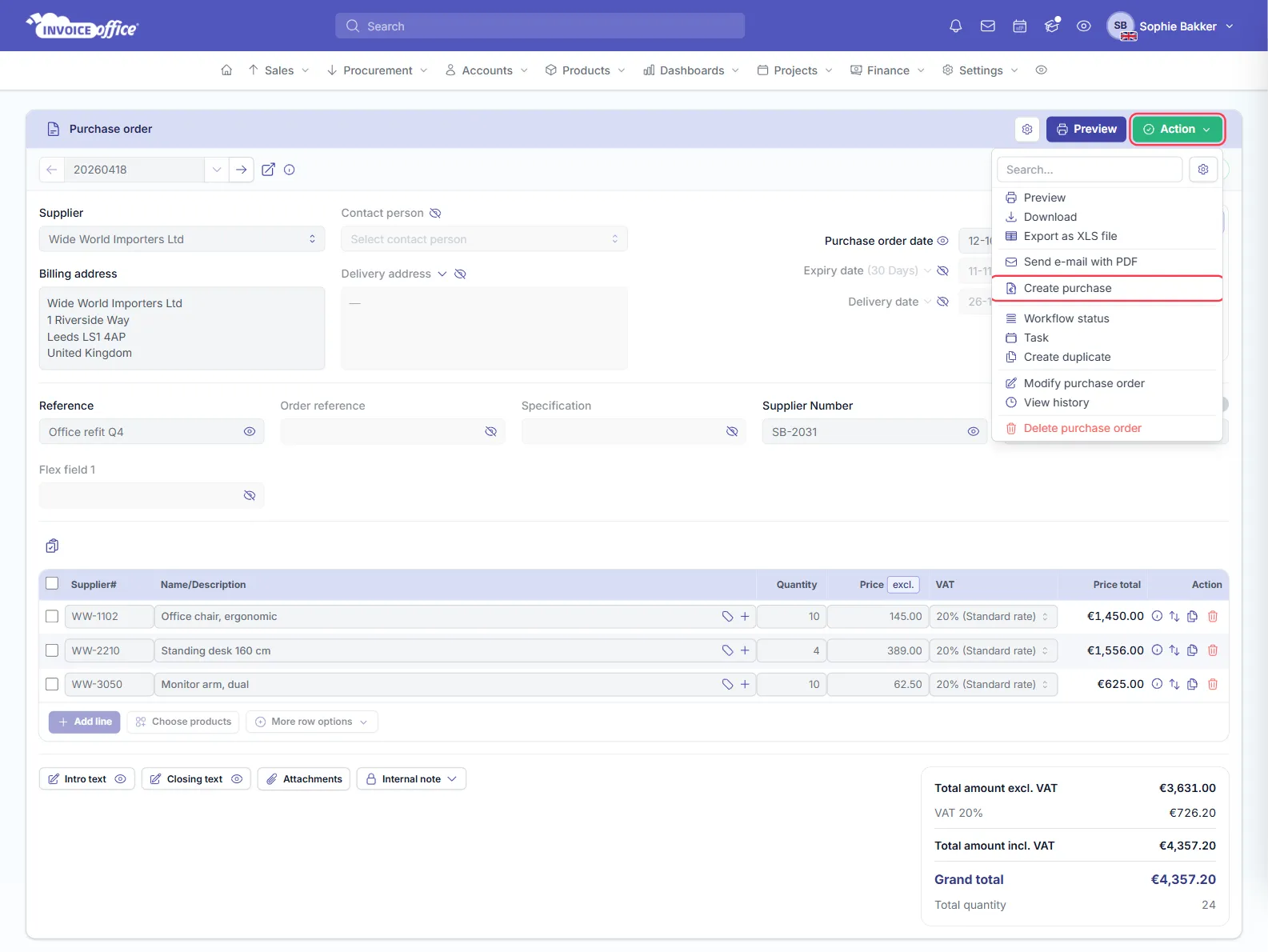
Invoice Office opens a new draft purchase with the supplier and every line of the order: the same quantities, prices and VAT codes. Create purchase is also in the ⋮ (Action) menu of the purchase order in the Purchase orders list.
Match selected lines
When the supplier invoices only part of the order — for example because the rest is delivered later — create the purchase from just those lines:
- Open the finalized purchase order.
- Tick the lines on the supplier’s invoice.
- Click the line actions icon above the lines and choose Create purchase.
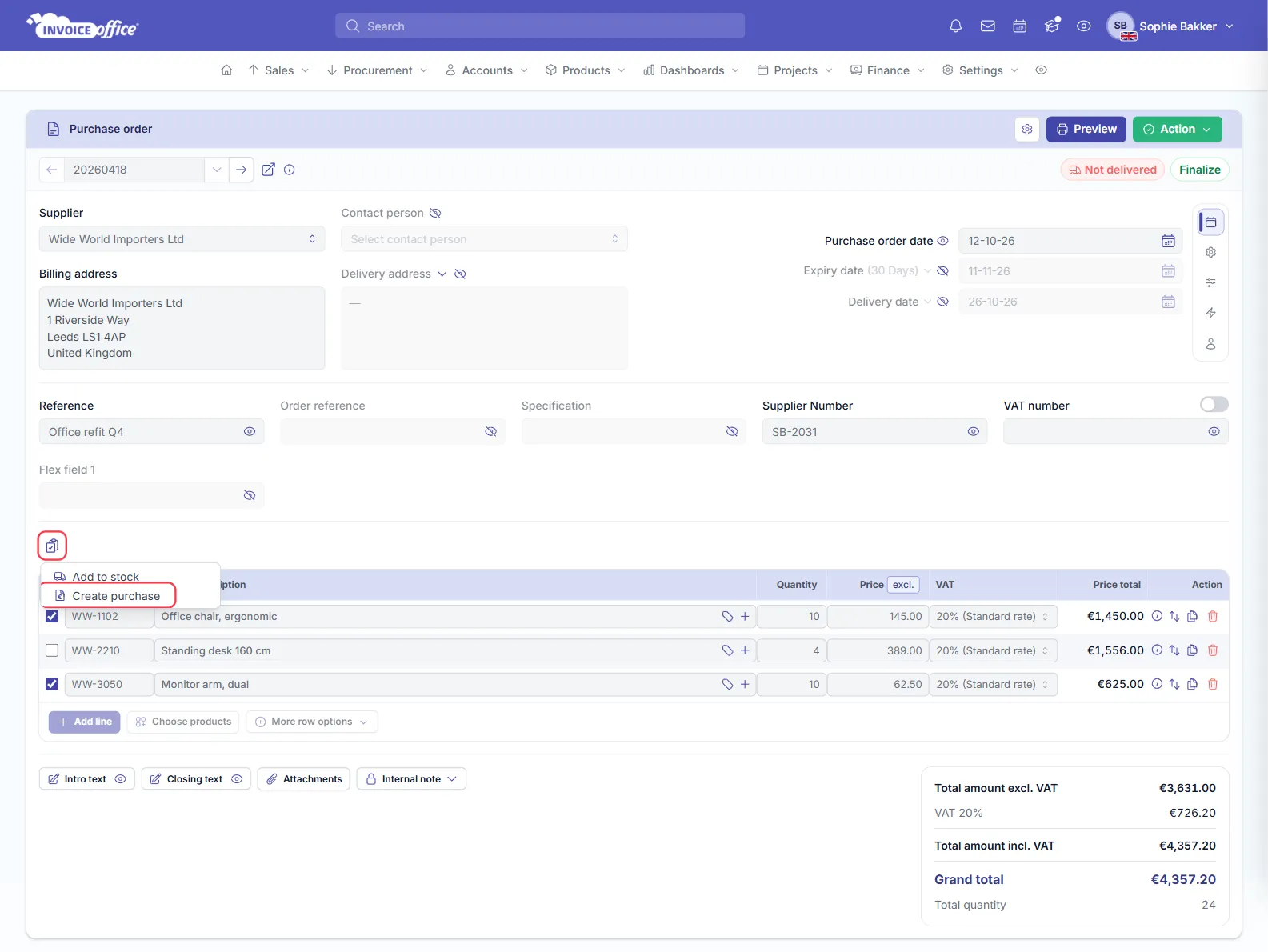
The new purchase holds only the ticked lines. When the next invoice arrives, tick the remaining lines and create another purchase. Selecting lines needs a Pro licence.
Invoice Office doesn’t keep track of which lines you’ve already turned into a purchase, so you can create a purchase from the same line twice. Check the purchases listed under Related on the purchase order before you create another one.
Check the purchase against the supplier’s invoice
The draft purchase is where you reconcile the two documents:
- Enter the Invoice number, Invoice date and Due date from the supplier’s invoice, and upload the invoice with Upload attachment. If you’ve already registered that invoice number for this supplier, Invoice Office warns you, so you don’t book the same invoice twice.
- Go through the lines and compare each Quantity and Price with the invoice. Change any line that differs. In the example, the supplier charged 148.00 for the chairs instead of the 145.00 on the order.
- Check the Cost Category of each line.
- Compare Total amount incl. VAT with the total on the supplier’s invoice. When they match, click Finalize, or Save to finish later.
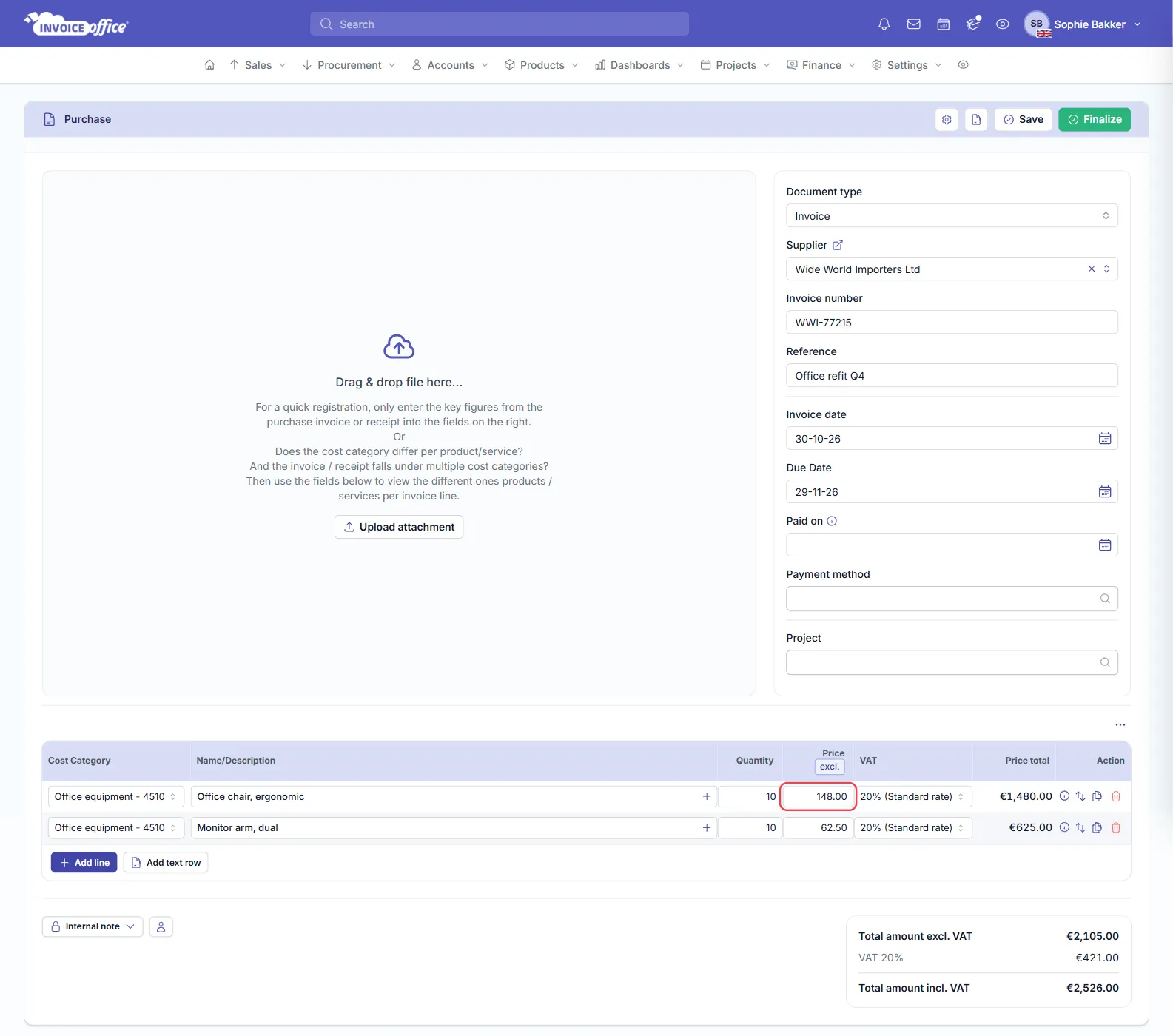
Changing the purchase doesn’t change the purchase order, so the order keeps showing what you agreed. More on the purchase form itself in how to create an expense.
Handle discrepancies between the order and the invoice
| What’s different | What to do |
|---|---|
| The invoice covers only part of the order | Create the purchase from the invoiced lines only, as in Match selected lines. Create the next purchase when the rest is invoiced. |
| A quantity is lower or higher | Change the Quantity on the purchase line to what the supplier invoiced. Check it against what you received first. |
| A price is different | Change the Price to the invoiced price if you accept it. If you don’t, ask the supplier for a corrected invoice or a credit note, and register a credit note by setting Document type to Credit Note. |
| The invoice adds costs | Add a line for shipping, packaging or other charges with Add line. |
| A line wasn’t invoiced | Delete it from the purchase with the bin icon in its row. |
Fix the difference before you finalize: a finalized purchase is posted to your ledger and VAT return, and it’s the amount you pay the supplier.
Check what you received
The third side of the match is the delivery. When goods arrive, use Add to stock on the purchase order — for the whole order from Action, or for ticked lines from the line actions icon — to add them to your stock. The purchase order’s delivery status shows how far the delivery has got, in the order itself and in the Delivery status column of Procurement → Purchase orders:
- Not delivered — nothing has been received yet.
- Partial delivery — some of the ordered quantity is in.
- Full delivery — everything has been received.
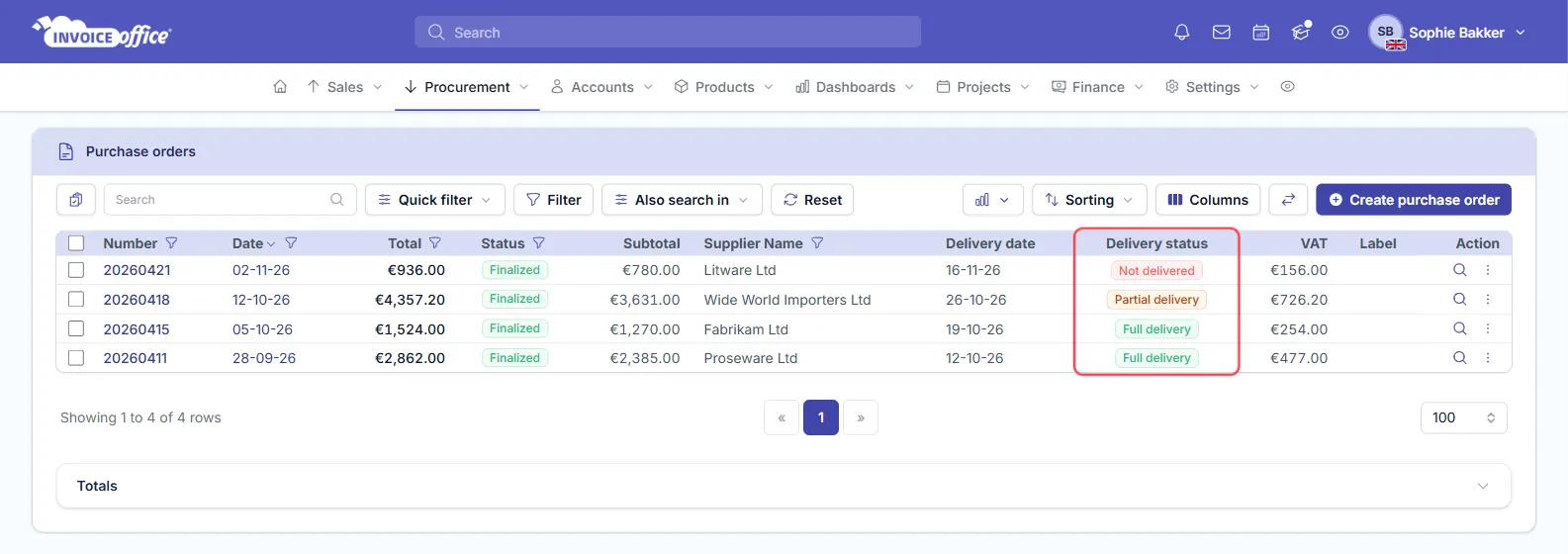
Before you pay a supplier’s invoice, check that what they invoiced has been received. A purchase order on Partial delivery whose invoice covers the full order is a reason to ask the supplier before you pay. Add to stock works for products you keep stock of and needs a Pro licence.