Stock minimum levels and low-stock alerts in Invoice Office warn you before a product runs out. You set a Minimum stock on each product. When an invoice or another document takes the stock below that level, Invoice Office sends you a low-stock alert: a notification in the app, an email to your company address, and, if you want, an automation. You then reorder from the product or correct the stock after a count.
This guide covers where to set the minimum stock, when the alert is sent, and what to do when you get one. Low-stock alerts are part of stock management, which needs a Pro licence.
Step 1 — Open the product
- Go to Products → Products.
- Click the ⋮ (Action) button at the end of the product’s row and choose Information.
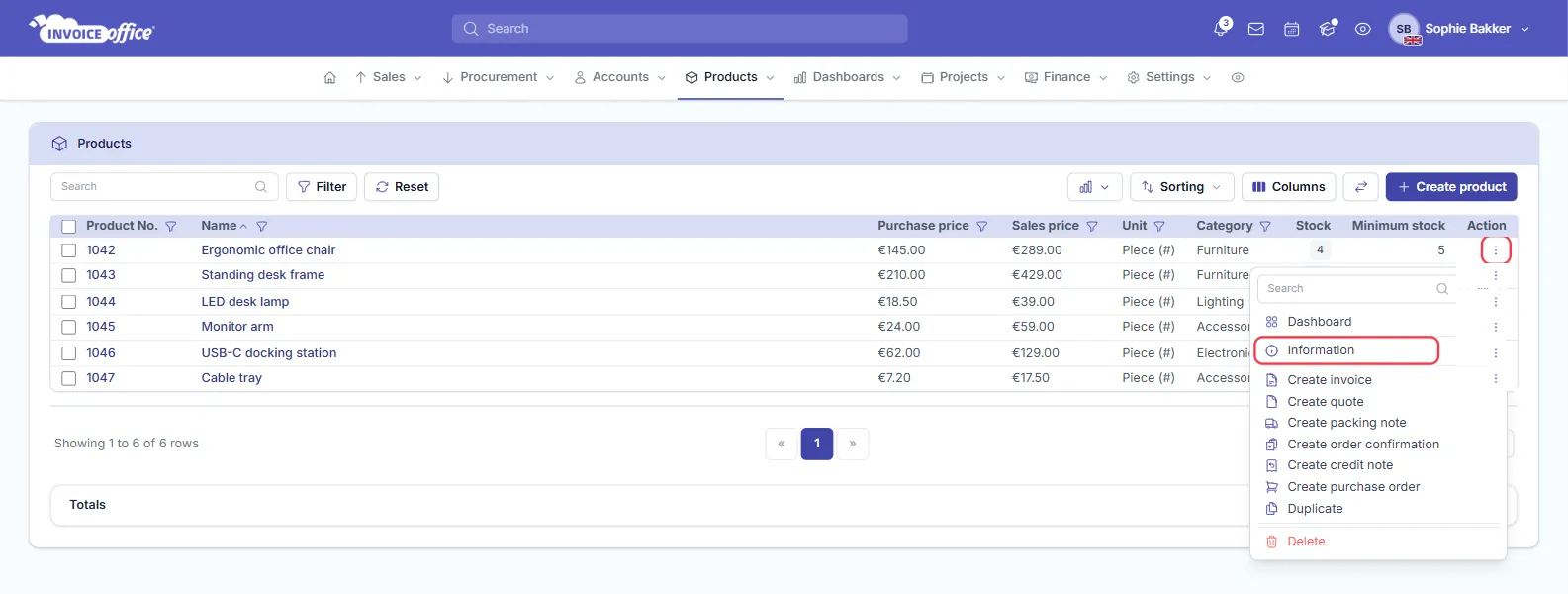
Step 2 — Set the minimum stock
- Open the Stock tab.
- Switch on Enable stock management if it is off. The stock fields appear.
- Enter the Minimum stock: the level at which you want to be warned.
- Click Save.
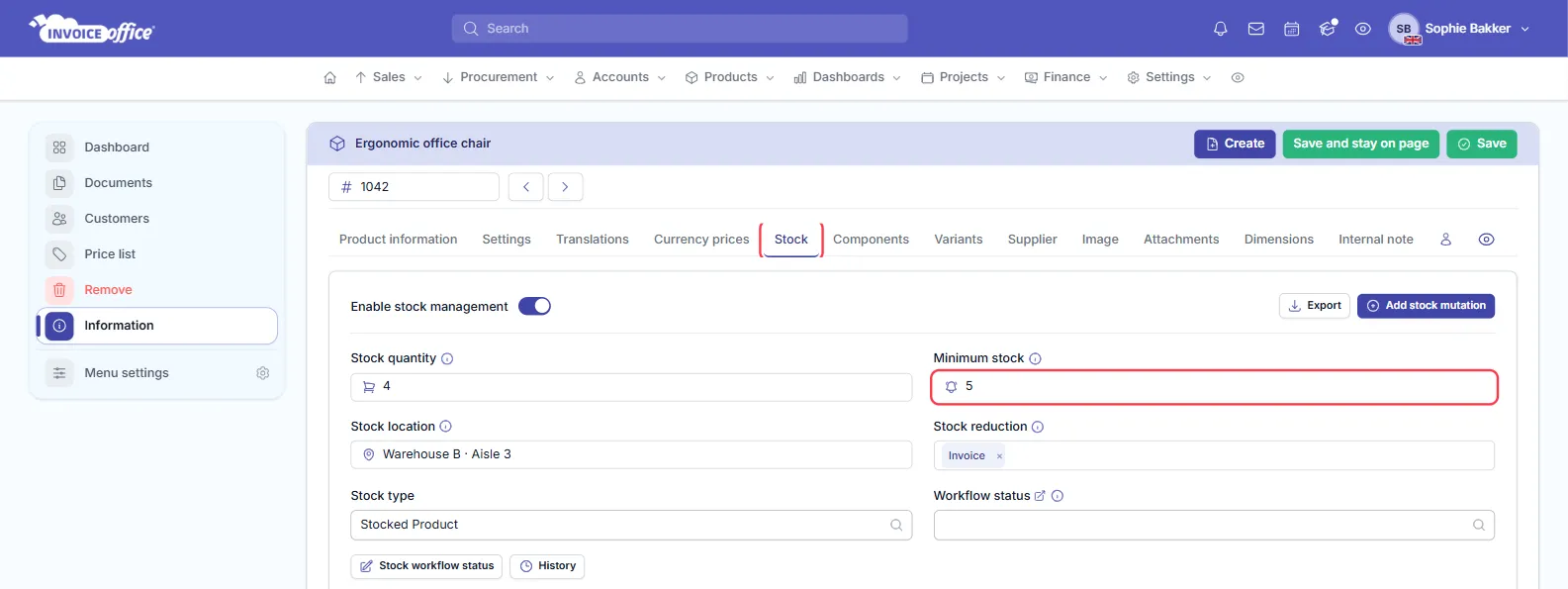
Choosing a level. Set the minimum stock to what you sell while you wait for a new delivery, plus a little extra. If you sell about 5 chairs a week and your supplier delivers in a week, a minimum stock of 6 or 7 gives you time to reorder.
Many products at once? The product import has a Minimum stock column, so you can set the level for all your products in one file. See import customers, suppliers and products.
When a low-stock alert is sent
Invoice Office checks the stock every time a document takes stock out, for example when you finalise an invoice. If the stock is then below the minimum stock, you get the alert. With a minimum stock of 5, the alert comes when the stock drops to 4, not at 5.
- It comes from documents only. A correction you make on the Stock tab, such as Add stock mutation or changing the Stock quantity, never sends an alert.
- It repeats. Every document that takes stock out while the product is still below its minimum sends a new alert, until you restock.
- Which documents count depends on the product’s Stock reduction: Invoice unless you chose another document. See how stock management works.
What the alert looks like
Each low-stock alert reaches you in three ways.
In-app notification
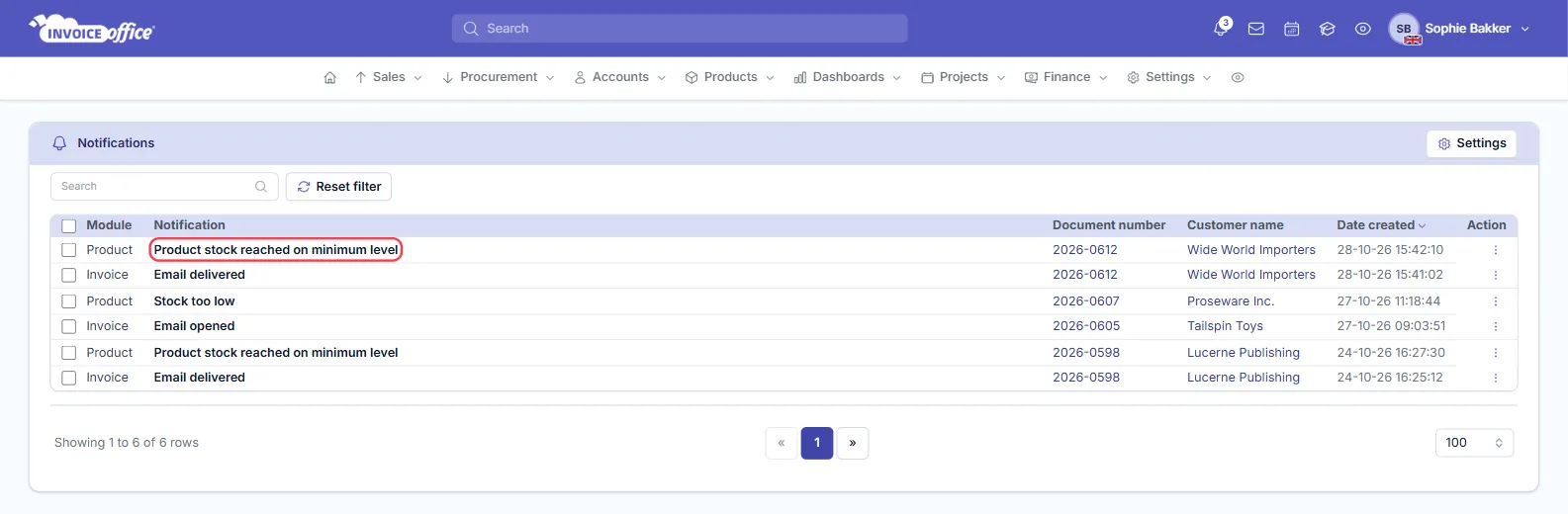
The notification Product stock reached on minimum level appears under the bell icon at the top of the app. It goes to the user who created the product. The row shows Product as the module, and the number and customer of the document that took the stock below the minimum. Click the document number to open the product.
When the stock drops below zero, you also get the notification Stock too low.
Invoice Office also emails your company email address with the subject Product stock has reached minimum level. The email names the product and links to it. Check the email address under Settings → Company → Company information if you don’t receive it.
Automation (optional)
To send the alert to someone else as well, for example the person who orders your stock, create an automation with the Product stock alert trigger. Add a Send in-app notification or Send internal email notification action and choose who gets it. See how to use automations. Automations need a Pro licence to run.
Check which products are low
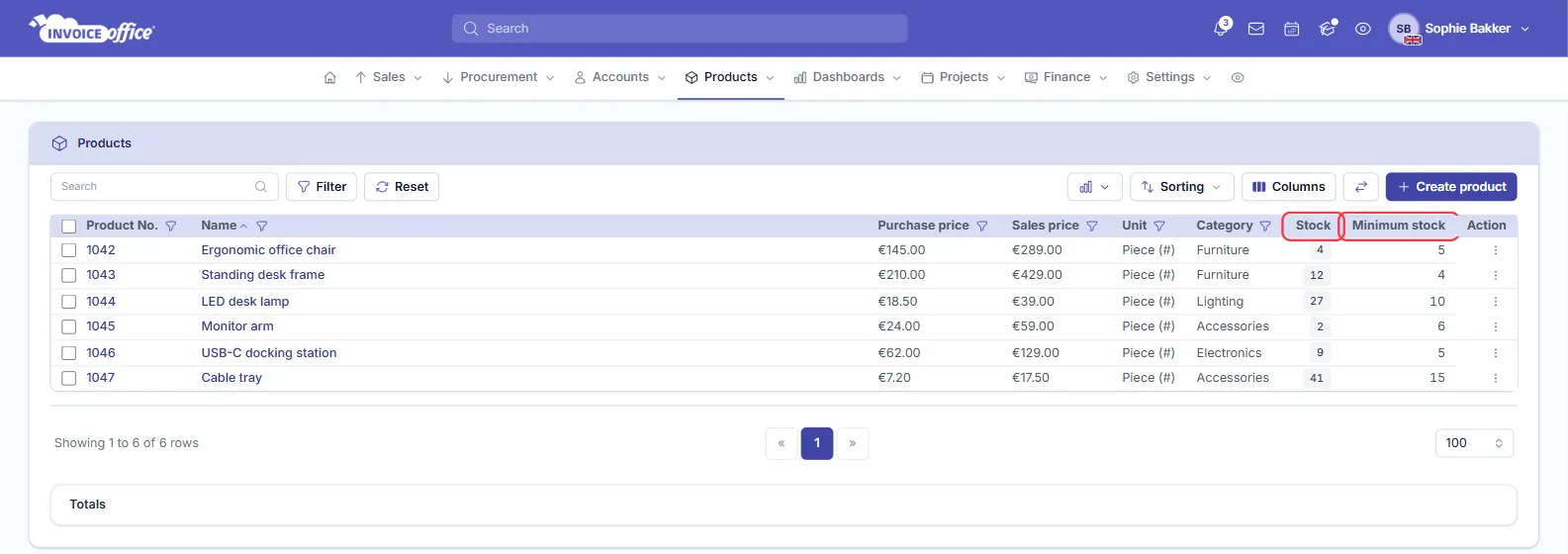
To see all your stock levels at once, go to Products → Products, click Columns, open the Stock tab and add Stock and Minimum stock. Each product then shows its stock next to its minimum, so you can spot the ones that need reordering. Stock below zero is shown in red.
The stock dashboard under Dashboards → Stock lists the Minimum stock of every product too.
Act on a low-stock alert
Reorder from the product
Open the product’s ⋮ (Action) menu in Products → Products and choose Create purchase order. A new purchase order opens with the product on it. Choose the supplier, set the quantity and send it. See create a purchase order.
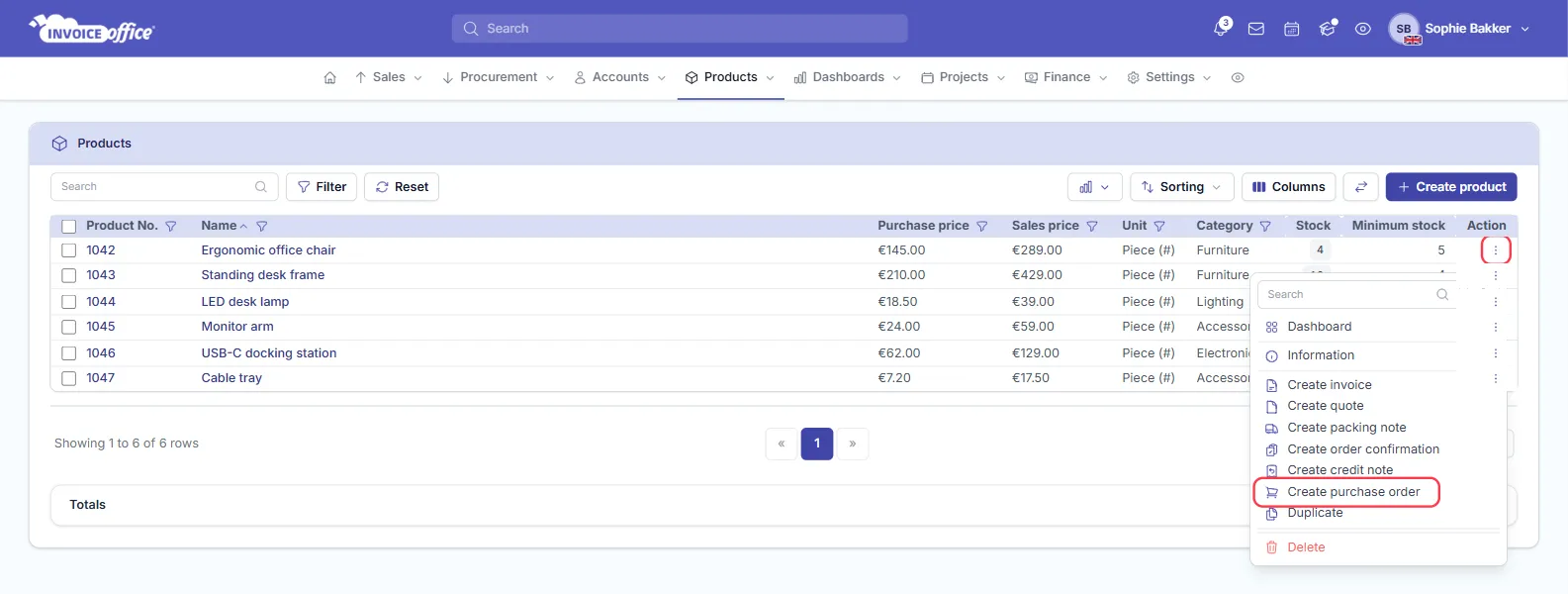
When the goods arrive, open the finalised purchase order and choose Add to stock in its Action menu, so the stock goes back up. Finalising a purchase (your supplier’s invoice) adds stock too. Use one of the two, not both, or the delivery is counted twice.
Correct the stock after a count
If the alert came because the stock in Invoice Office was wrong, correct it on the product’s Stock tab:
- Click Add stock mutation.
- Enter the Quantity. It is added to the stock, so use a negative number to take stock off.
- Fill in the Delivery number, Order number and Description if you want, and click Save.
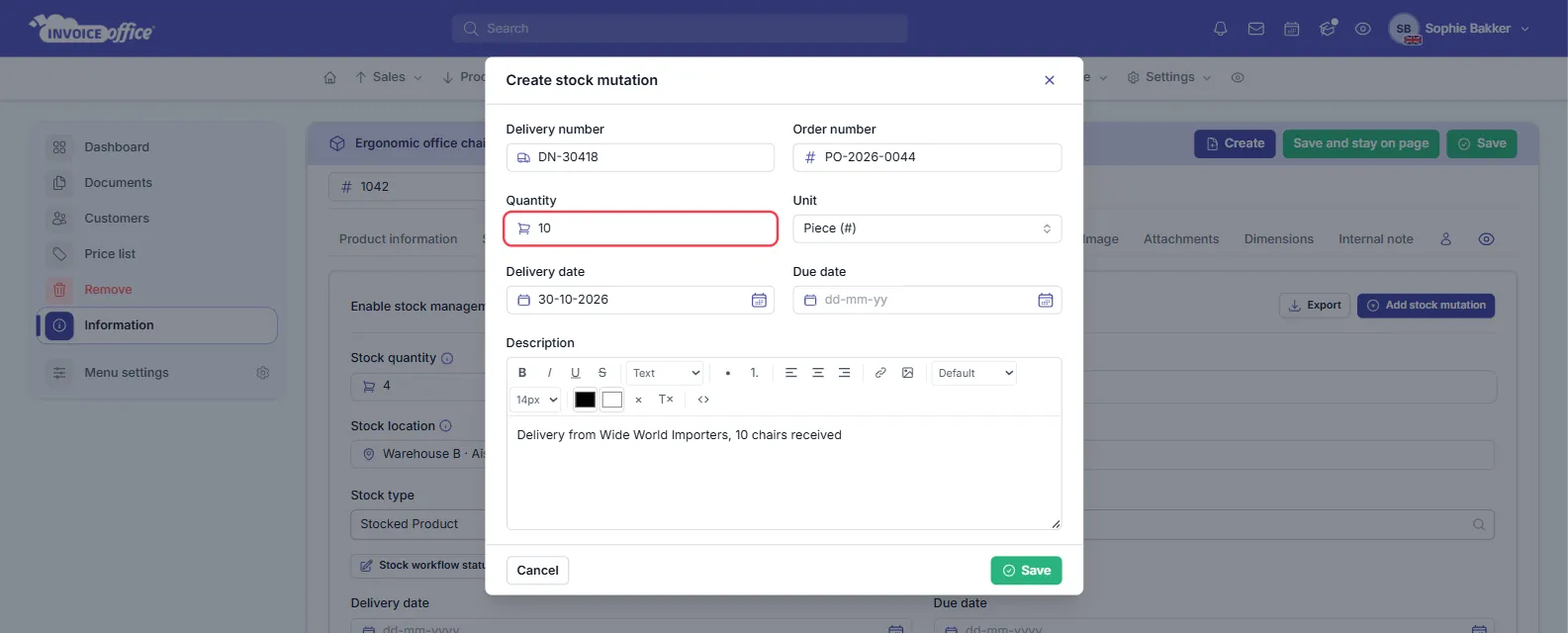
You can also change the Stock quantity on the Stock tab and click Save. The difference is logged as a mutation called Manual.
Troubleshooting
I didn’t get an alert. Check that:
- Enable stock management is on for the product and a Minimum stock is filled in;
- the stock went below the minimum, not just down to it;
- the stock was lowered by a finalised document of a type selected under Stock reduction, not by a manual correction;
- your account has an active Pro licence.
The alert email doesn’t arrive. It goes to the company email address, not to your own login. Check that address in your company information, and look in your spam folder.
Any doubts? Contact us and we will help.