A document showing 0.00 prices in Invoice Office almost always takes that price from somewhere you can fix: the product itself, a price for another currency, the customer’s price list, or a quantity that was rounded away. When you add a product to an invoice, quote or other document, Invoice Office fills in the line’s Price from the product — so a 0.00 on the document usually means a 0.00 at the source. Work through the checks below in order.
1. The product has no sales price
The price on a line comes from the product’s Sales price.
- Go to Products → Products, open the product’s Action menu and choose Information.
- On the Product information tab, look at Sales price under Price. If it is 0.00 or empty, enter the price.
- Click Save.
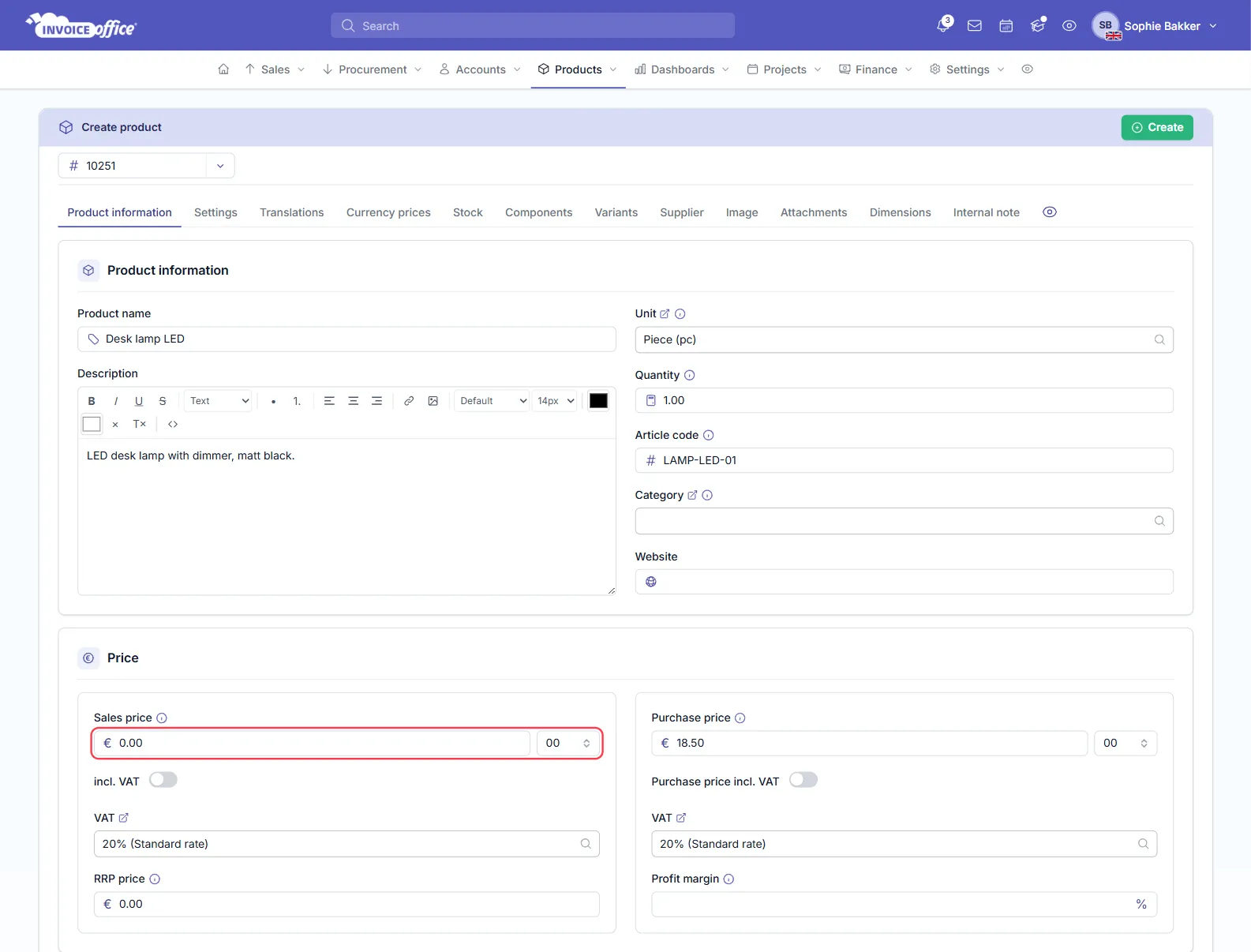
On purchase documents — purchase orders, purchases, recurring purchases and consignments — the line takes the product’s Purchase price instead. If the product has no purchase price, the line gets the Sales price, or 0.00 if the purchase price is set to 0. Either way Invoice Office warns you when you add the product: ”… has no purchase price. Check the amount before saving.”
See how to create and manage products for the other price fields.
2. A currency price of 0.00 is used
A product can have its own prices per currency on the Currency prices tab. When the document is in that currency, the currency price is used instead of the Sales price — first a price for the currency and the customer’s country, then one for the currency alone. A currency price of 0.00 therefore gives a 0.00 line, even if the Sales price is filled in. Currency prices apply to sales documents; purchase documents use the product’s Purchase price.
Open the product’s Currency prices tab and fill in the price for the document’s currency, or remove the line you don’t need.
3. The price list lowers the price to 0.00
If the document has a Price list — usually the customer’s own list, filled in when you choose the customer — that list sets the price of every product line. To see which list is used, click the Price list icon in the column of icons at the top right of the document; it shows the document’s Language, Currency, Price list and Project.
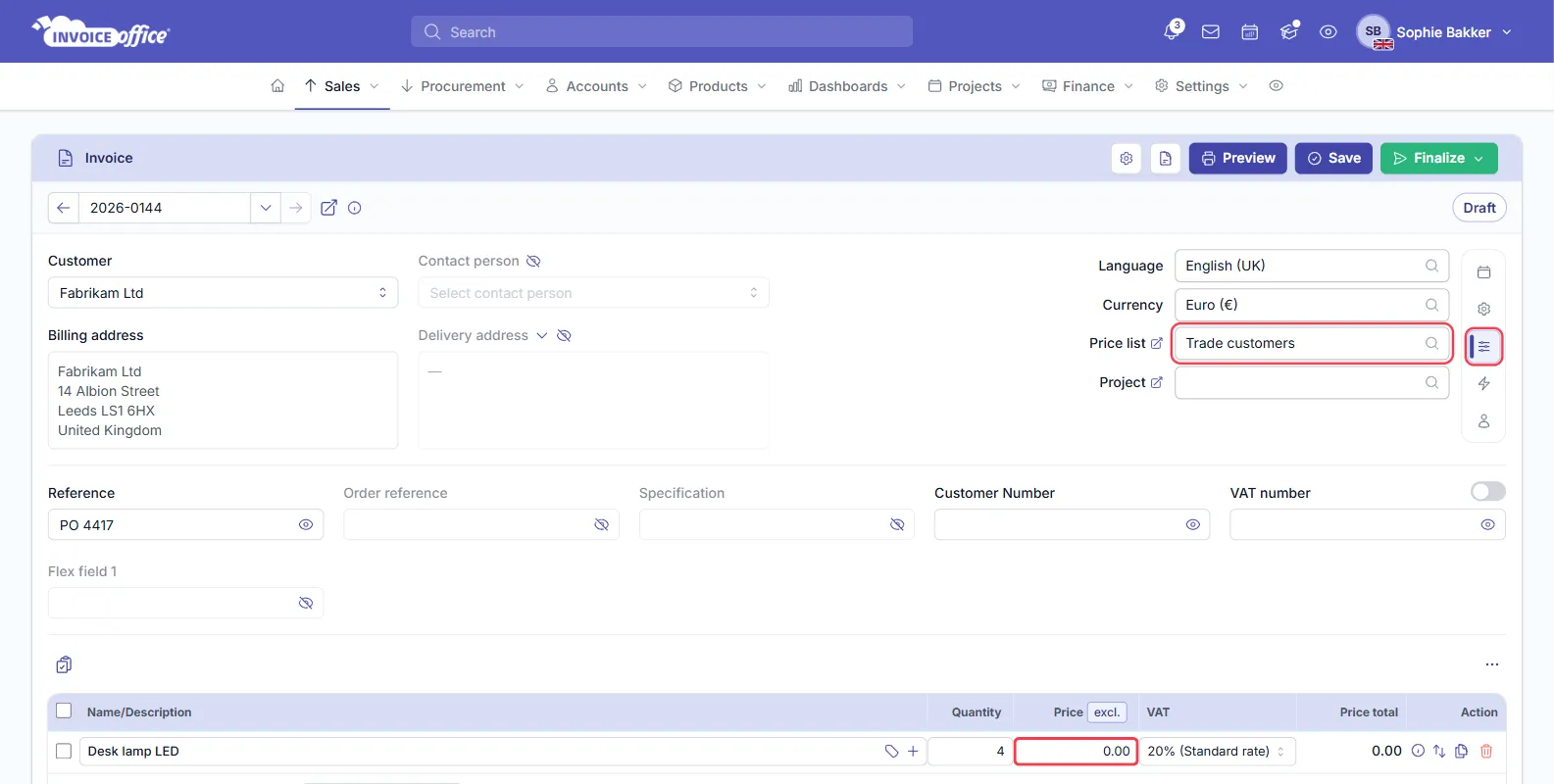
How the list sets the price:
- A product with its own price in the list gets that price, chosen by the line’s quantity when the list has quantity breaks. A list price of 0.00 isn’t used: the product’s default price in the list is used instead — so if both are 0.00, the line shows 0.00. Check both prices for the product in the list.
- A product that isn’t in the list gets its own price minus the list’s Discount: a % discount of 100% leaves 0.00, and a fixed discount that is as large as the price (or larger) brings it down to 0.00 — never below.
Check the list under Products → Price lists, or see how to create a price list. To leave the list out of one document, clear the Price list field: lines whose price the list changed while you were editing go back to the products’ own prices. On a document you open again later, retype the price or use Sync product prices (see below).
If the price list is in another currency than the document, its prices aren’t used at all and Invoice Office tells you so: “The selected price list uses a different currency than this document, so its prices were not applied.”
4. The quantity was rounded to 0
A unit doesn’t change the price, but it sets how many decimals the Quantity has. A unit with no decimals — such as pieces — rounds a quantity like 0.25 to 0, and the line amount becomes 0.00 even though the price is right. The quantity is rounded when you leave the Quantity field or pick the unit.
Check the quantity on the line. If you need fractions, pick a unit with decimals, or change the Decimals of the unit — see how to set up units of measure.
5. A product group without prices
A product group added as one line gets the total of its products’ sales prices, and you can’t edit that price on the line. If none of the products in the group has a sales price, the line shows 0.00. Give the products in the group a Sales price. A group added as separate lines fills each product’s own price, so check 1 applies to each of them.
Update lines that are already on the document
Changing a product’s price, its currency prices or a price list afterwards doesn’t change the lines already on a saved document by itself. On a document that isn’t finalized yet, open the … menu above the lines and choose Sync product prices: every product line takes the product’s current price, name and description again. A price list isn’t applied by this. You can also type the correct price on the line, or remove the line and add the product again. A finalized document can’t be changed this way.