The session timeout setting in Invoice Office decides how long you can be inactive before you are logged out automatically. It is called Session validity time, it is set in minutes, and it starts at 25 minutes. If you keep getting logged out in the middle of your work, raise it — anywhere up to 500 minutes.
Open your account settings
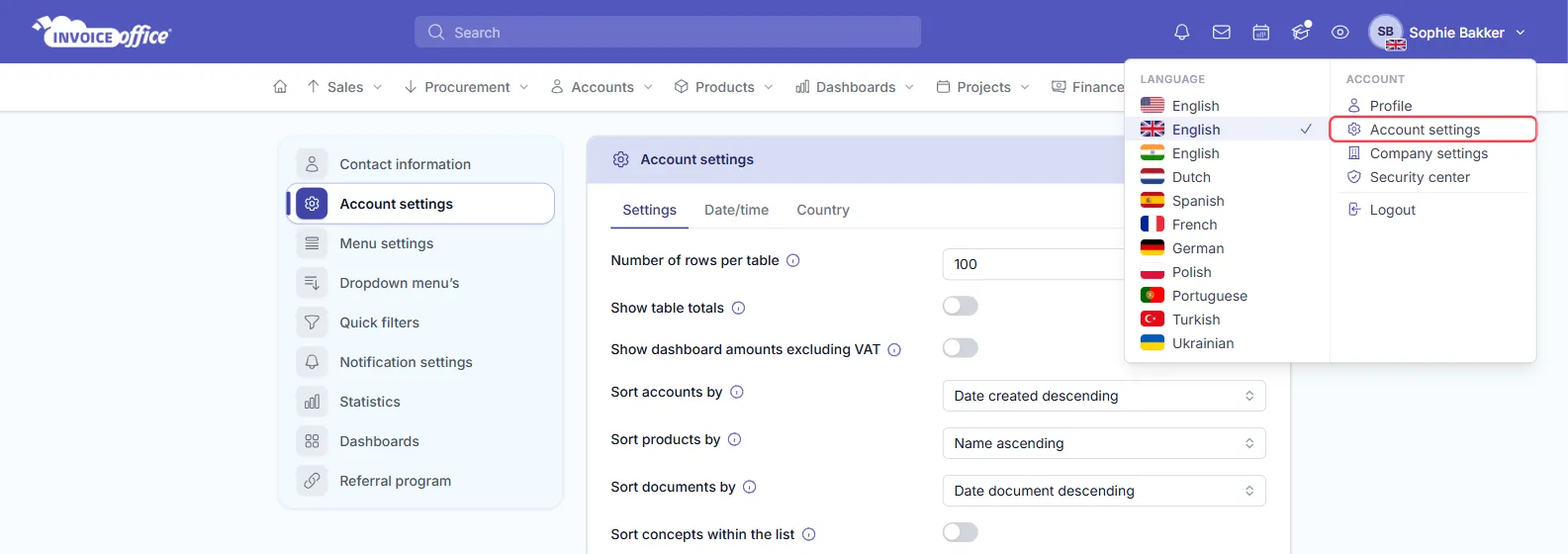
- Click your name in the top right corner.
- Under Account, choose Account settings.
Change the session validity time
- Stay on the Settings tab.
- In Session validity time, enter the number of minutes you can be inactive before you are logged out — any whole number from 1 to 500.
- Click Save in the top right of the card.
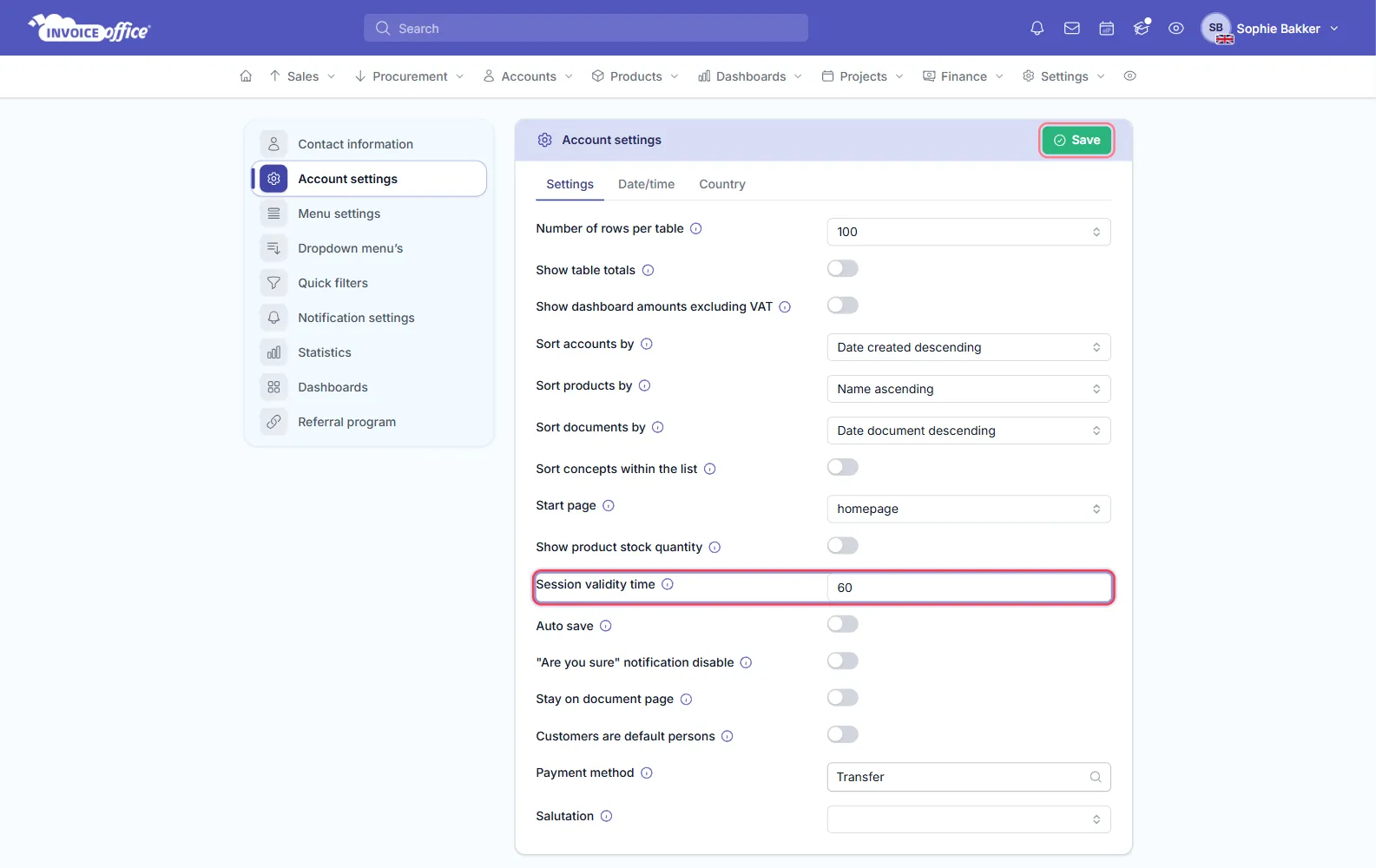
The new time applies straight away — you do not need to log out and back in.
Some sensible values:
| You work… | Session validity time |
|---|---|
| On a shared or public computer | 10–25 minutes |
| At your own desk, stepping away now and then | 60 minutes |
| In long sessions with the app open all day | 240–480 minutes |
Want to stay logged in all day on your own computer? Tick Remember me when you log in — see how to stay logged in longer.
Per user, not per company
Session validity time is one of your personal account settings, so it only changes your own session. Every user in your company sets their own — raising yours does not change anyone else’s. See How to create and manage your users for adding colleagues.
The warning before you are logged out
About three minutes before your session runs out, a Session expired warning appears at the bottom of the screen:
- Continue keeps you logged in and starts the timer again.
- Increase your session timeout takes you straight to Session validity time in your account settings.
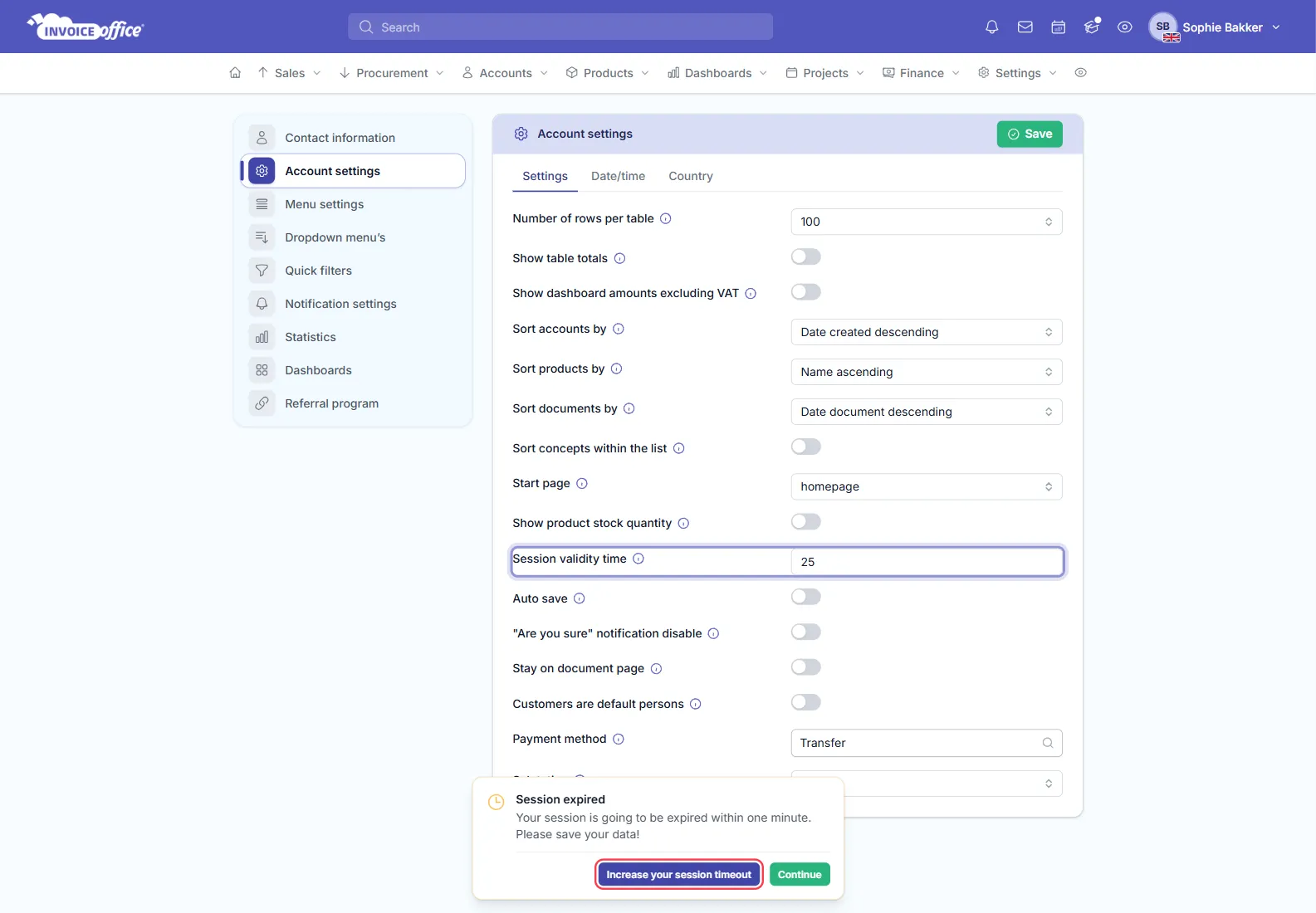
If you miss it and the session does expire, a window asks you to log in again. Unsaved changes on the page you were working on can be lost, so save before you step away. Auto save, a few rows below Session validity time, saves your document changes at regular intervals while you edit.
Why there is a session timeout
A timeout logs out a session nobody is using — a laptop left open in a café, a shared office computer — so nobody else can see or change your invoices, customers and bank details. That is why the default is a cautious 25 minutes, in line with the PCI DSS security standard.
Choose a longer time only on a computer you control, and lock your screen when you walk away. For extra protection, turn on two-factor authentication as well.