You can change the sort order of products, customers, invoices and other lists in Invoice Office yourself. Each user chooses their own default under Account settings: which column a list is sorted by and in which direction. Your lists then open in that order every time. Your colleagues keep their own settings, so changing yours doesn’t change their lists.
Set your default sort order
- Click your name or profile picture at the top right and choose Account settings.
- Stay on the Settings tab.
- Choose a column and direction for Sort accounts by, Sort products by and Sort documents by.
- Click Save at the top right. The new order applies straight away.
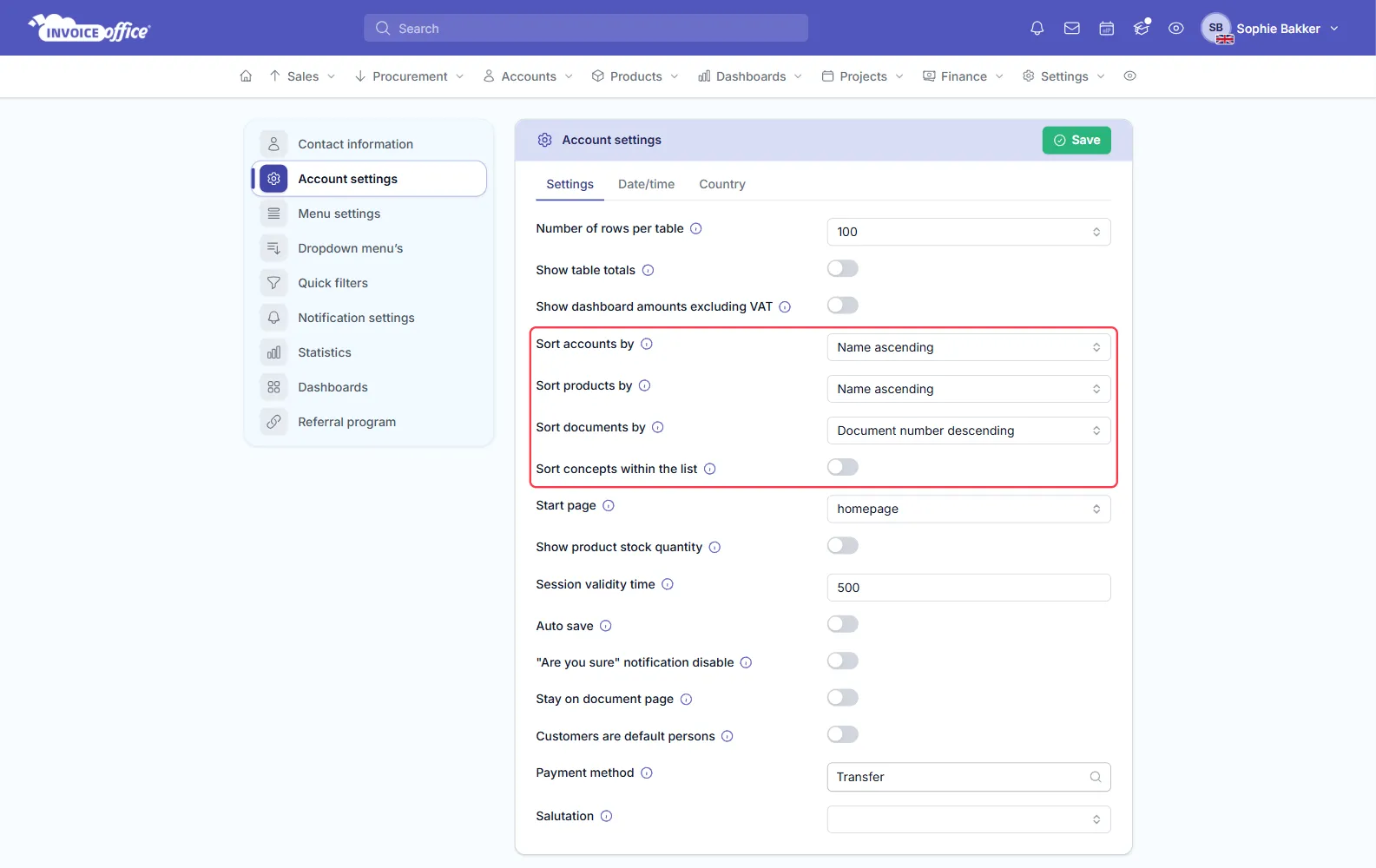
What each setting covers:
- Sort accounts by: your customers and suppliers.
- Sort products by: your products.
- Sort documents by: invoices, quotes, order confirmations, packing notes, credit notes, payment reminders, purchase orders, purchases and the other document lists.
Each option combines a column and a direction, for example Name ascending (A to Z) or Document number descending (highest number first). The columns you can choose from:
- Accounts: Date created, E-mail address, Name, Number and Phone office.
- Products: Buy price, Date created, Description, Name, Number, Sell price (the Sales price column in the list) and Supplier number.
- Documents: Amount Sub total, Amount total, Customer name, Date created, Date document, Document number, Payment status and Status.
The same order is used when you search for a customer or product to add it to a document. Favourite customers always appear first.
Concepts at the top or in the list
By default, concept documents stay pinned at the top of a document list, whatever the sort order. Turn on Sort concepts within the list to sort them in with the other documents by the column you chose.
Sort a list from the toolbar
You can also sort a list straight from the list itself, with Sorting in the toolbar above it:
- Click Sorting.
- Choose the direction: A-Z (ascending) or Z-A (descending).
- Choose the column under Sort by. The list re-sorts straight away.
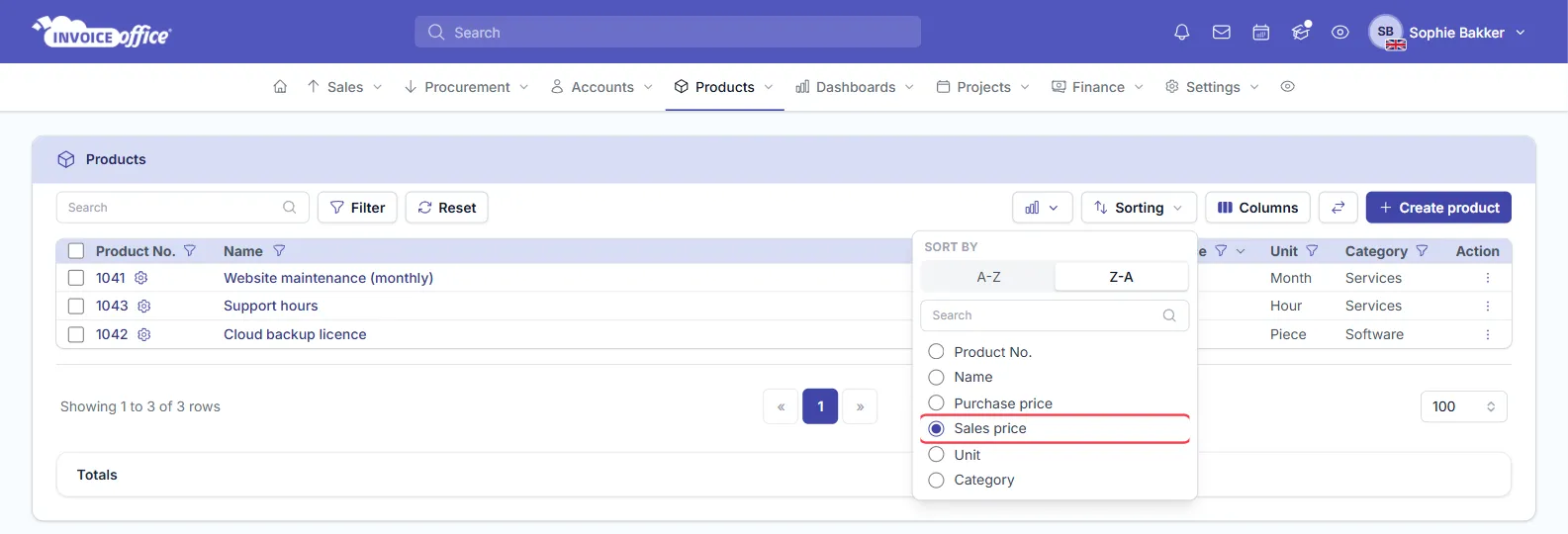
What happens next time depends on the list:
- Products and customers: the next time you open the list, your default from Account settings applies again.
- Documents: on invoices, quotes, purchases and the other document lists, the order you pick is saved as your Sort documents by setting, so the list keeps opening in that order. Clicking a column header does the same.
- Suppliers: the order you pick is also used for your customers, because both lists share Sort accounts by.
To change your default back, set it again under Account settings and click Save.