To change the login email address of a user in Invoice Office, you change their username: that is the email address they sign in with. An administrator can do it for any user in the Users list in Settings, without a verification code and without contacting support. That’s the way to go when the colleague who set up the account has left the company and their mailbox no longer works. Users can also change their own login email in the Security center.
Change another user’s login email
You need the right to modify settings to do this; see how to manage user roles and permissions.
-
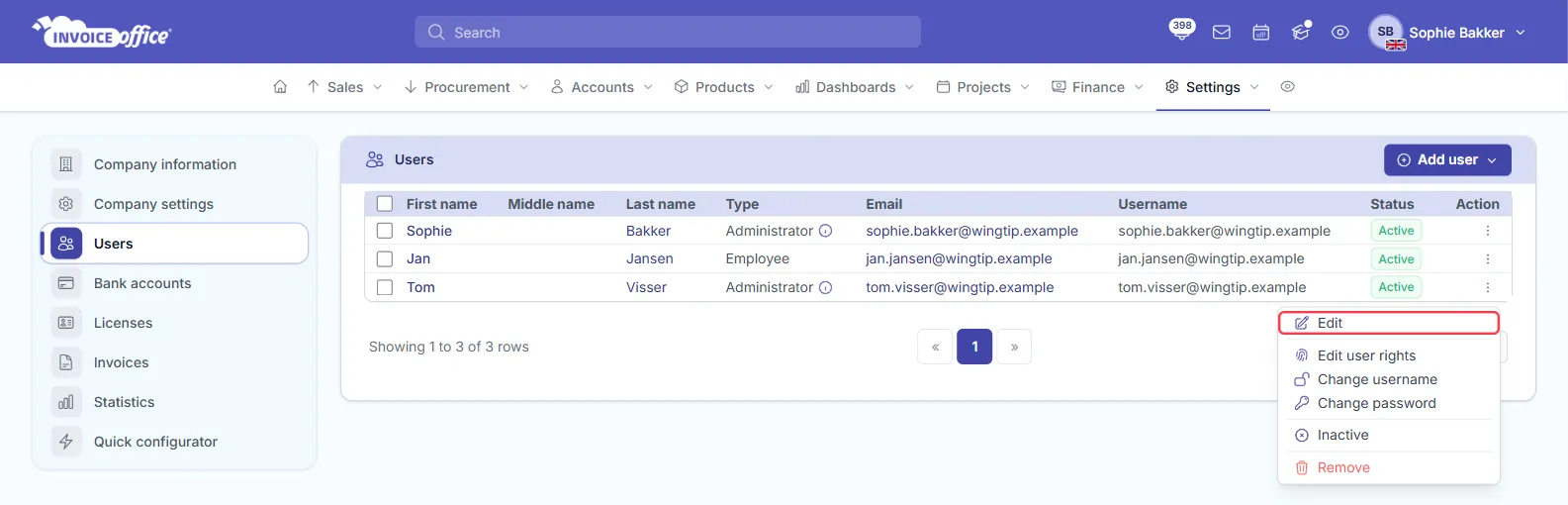
Go to Settings → Company information and click Users in the left-hand menu. The list shows each user’s Email and Username; the username is the address they sign in with.
-
Click the Action menu (⋮) at the end of the user’s row and choose Edit.
-
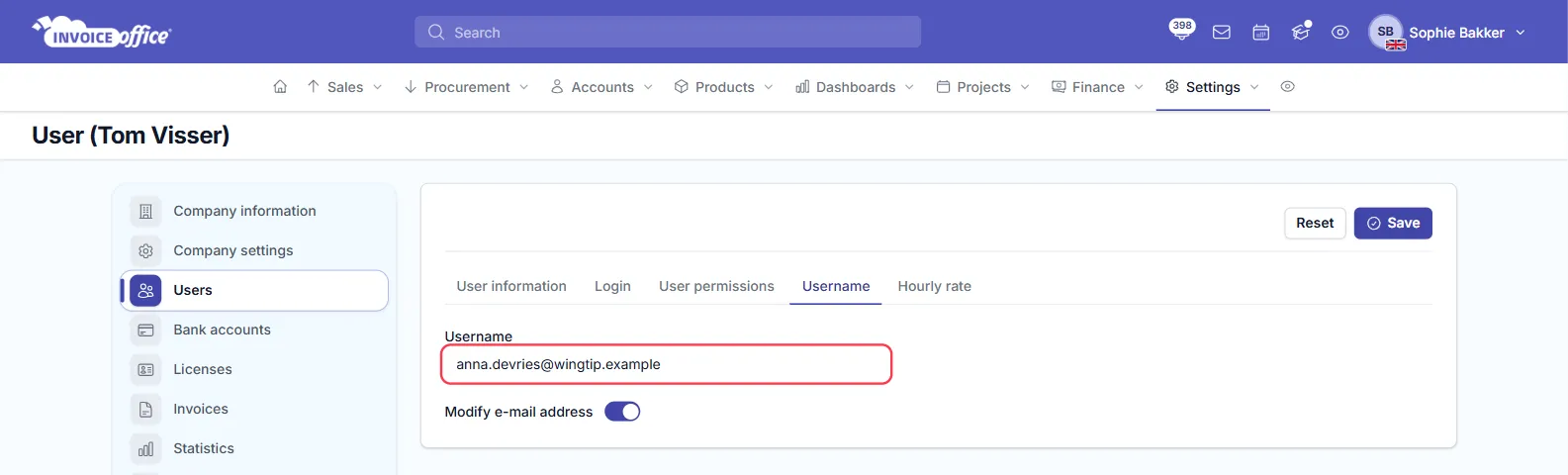
Open the Username tab and type the new email address in Username. Turn on Modify e-mail address to also replace the user’s Email with the new address.
-
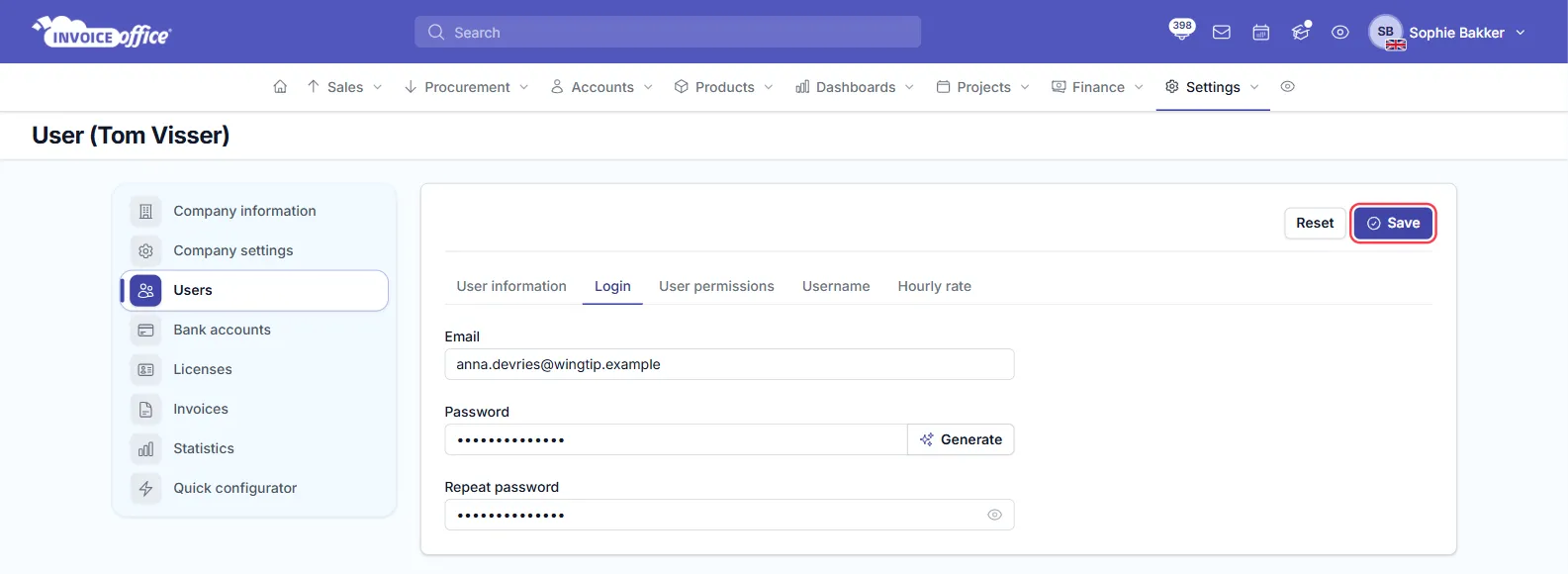
If nobody knows the current password, for example because a former employee set it, open the Login tab and enter a new Password twice, or click Generate to create one.
-
Click Save. Invoice Office confirms with the message User successfully updated.
If someone else takes over the login, also update the name on the User information tab, so their own name shows in the app.
Only change the username
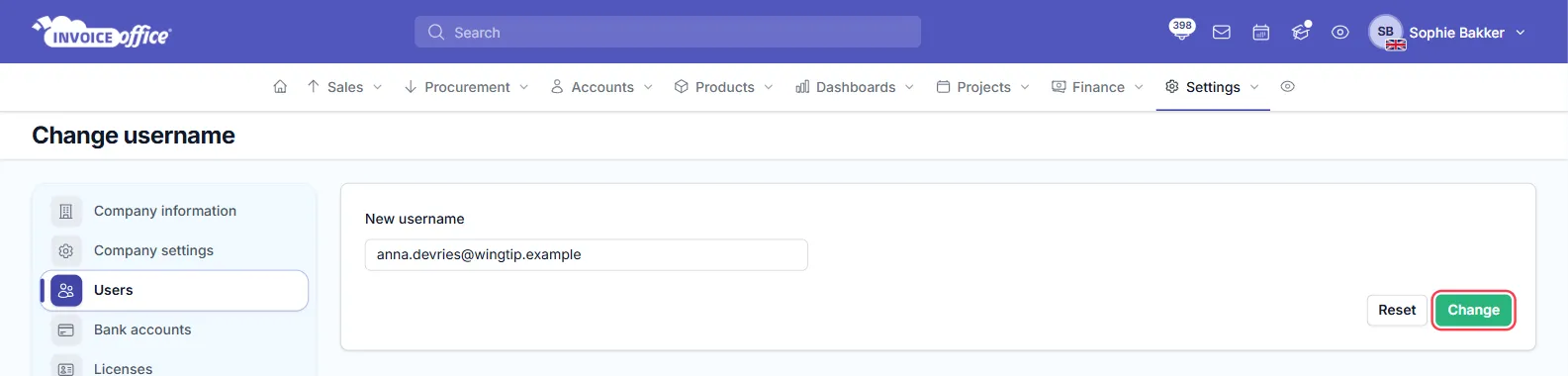
To change the login address and nothing else, choose Action → Change username on the user’s row. Enter the New username and click Change. The page doesn’t show the user’s name, but New username opens with their current username filled in, so check it before you type over it. This leaves the user’s Email and password as they were.
Change your own login email
-
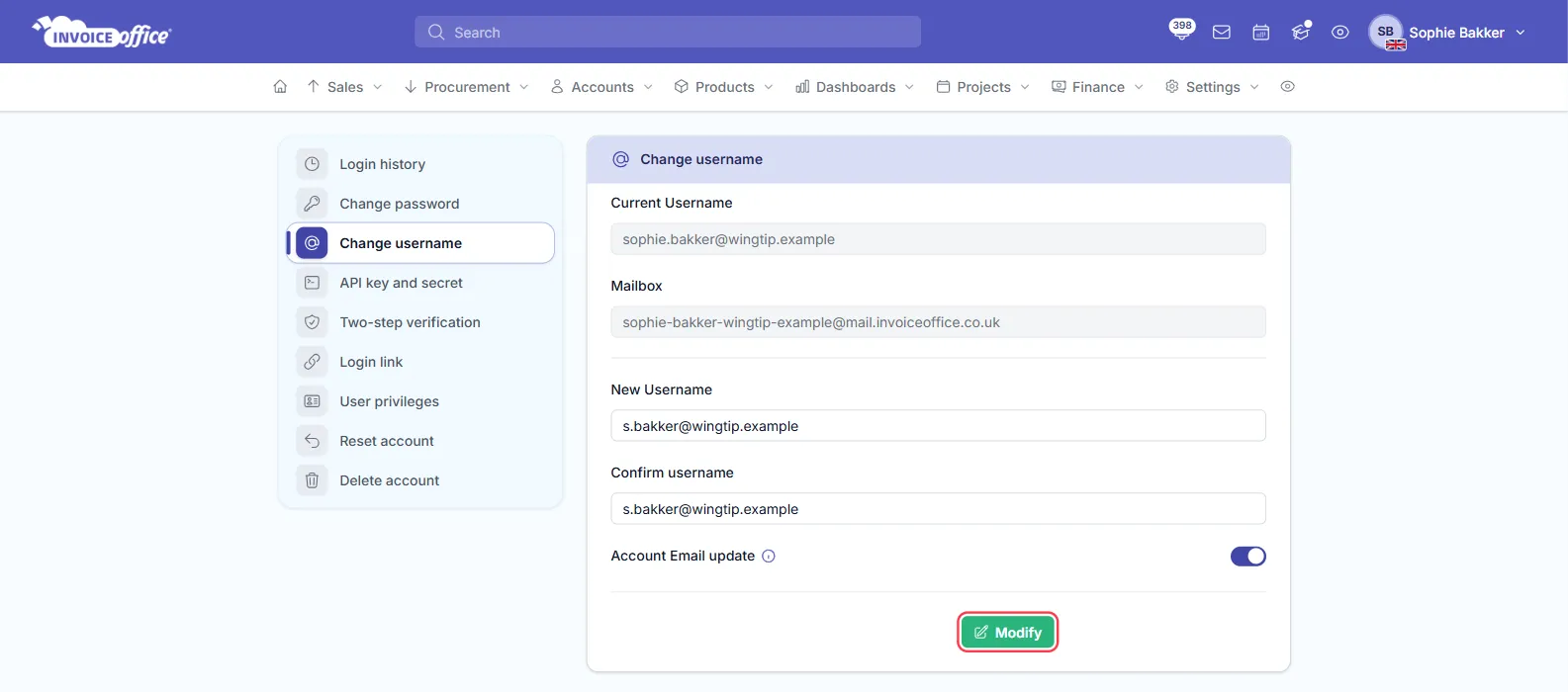
Click your name at the top right, choose Security center and then Change username.
-
Enter the new address in New Username and again in Confirm username.
-
Turn on Account Email update to also change the email address of your account.
-
Click Modify. A verification code is sent to your current login address.
-
Enter the code in Verification code and click Approve. The code is valid for 5 minutes; use Resend code to get a new one.
Because the code goes to your current address, this only works while you can still read that mailbox. If you can’t, ask an administrator to change it for you as described above.
What happens after the change
- The user signs in with the new address from now on. The old address no longer works as a login. Let them know, together with the new password if you set one.
- No confirmation email is sent when an administrator changes a username. The success message on screen is the confirmation.
- The address must be unique. An email address that is already used as a login in Invoice Office can’t be used again.
- The Mailbox address changes too. It’s built from the username, as you can see on the Change username page in the Security center.
- It stays the same user. Documents, permissions and the licence seat stay with the user, so you don’t need an extra licence.
A former employee: change the login or add a new user?
Changing the login, as above, hands the existing user, with their permissions and history, to a current colleague. Their earlier work stays recorded under the same user. If you’d rather keep the former employee’s user apart, add the new colleague as a separate user instead:
- On a paid licence, every user except guests and team members takes a licence seat; see how to add an extra licence.
- A user set to Inactive (in the Action menu) still counts as a seat; Remove frees it.
- Inactive and Remove aren’t available for the user who registered the account. If that’s the person who left, change the login as described above.