When your session expires in Invoice Office, you are asked to log in again because you were inactive for longer than your session duration — 25 minutes unless you changed it. There are two ways to stay logged in longer: tick Remember me when you log in, or raise your Session validity time.
Why your session expires
A session that nobody is using is a risk: a laptop left open, a shared office computer, a browser on a phone that went missing. Logging out an idle session means nobody else can open your invoices, customers or bank details from it. That is why Invoice Office logs you out after a period of inactivity, and why the default is a cautious 25 minutes, in line with the PCI DSS security standard.
The timer starts again each time you open or reload a page in the app. Simply having Invoice Office open in a tab does not count as activity — and neither does working inside one page for a long time, such as editing a long invoice, which is when the warning below comes in handy.
Stay logged in with Remember me
The Remember me box on the login page is the quickest fix on a computer you trust.
- Log out, or wait for the login page.
- Enter your email address and password.
- Tick Remember me and click Login.
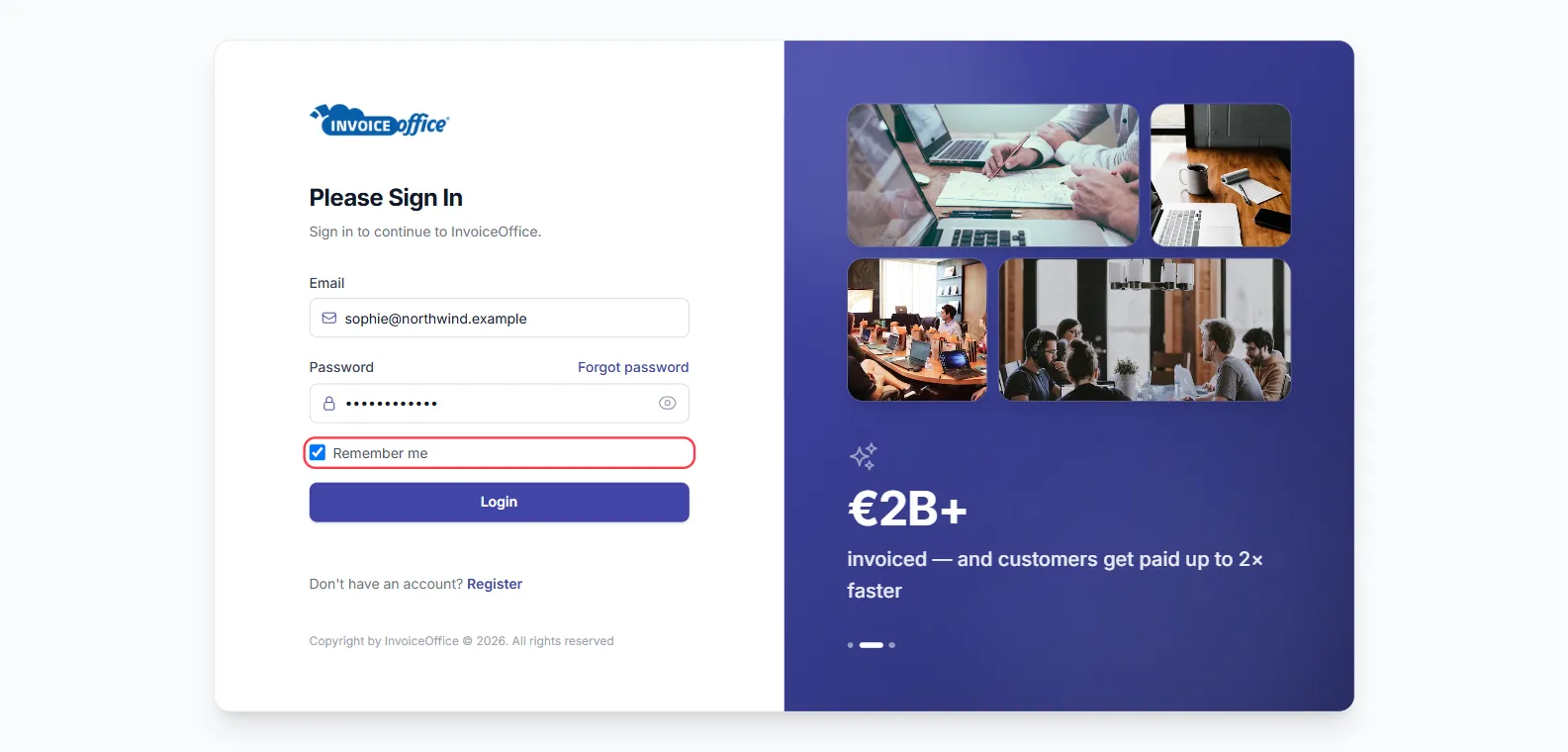
While Remember me is on, Invoice Office does not log you out for inactivity — you can leave the app open all day. The login is remembered for 7 days in that browser; after that, log in again.
Only tick Remember me on your own computer. Anyone who uses that browser during those 7 days is logged in as you. Logging out with Logout in the menu under your name ends it straight away.
Make the session last longer
Without Remember me, the time you can be inactive is your personal Session validity time:
- Click your name in the top right corner and choose Account settings.
- On the Settings tab, enter a number of minutes in Session validity time — anything from 1 to 500.
- Click Save. The new time applies straight away.
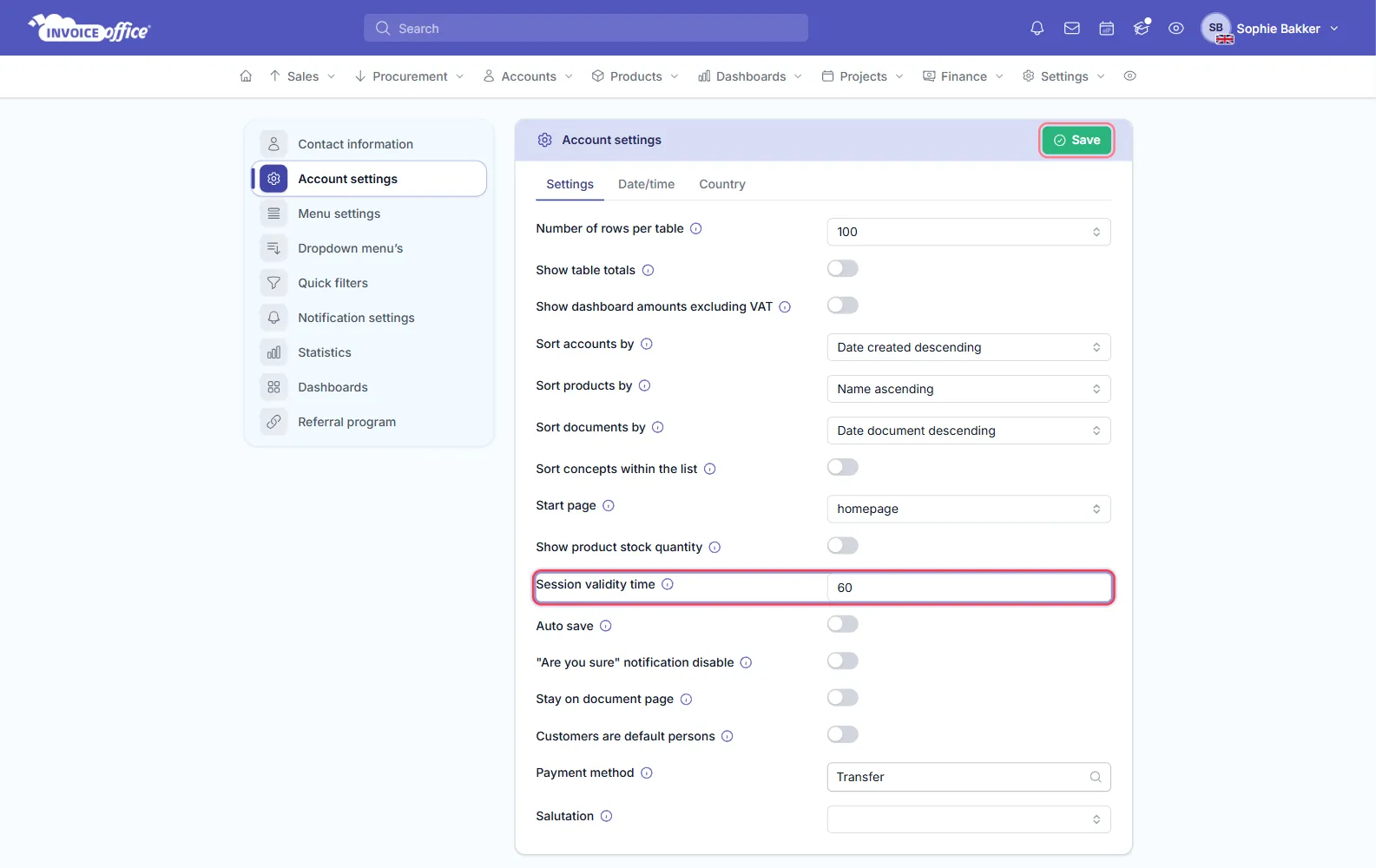
Each user sets their own. The full walkthrough, with sensible values per way of working, is in How to change the session timeout setting.
Can I turn the session timeout off?
Not completely. The longest Session validity time is 500 minutes — a little over eight hours, a full working day. For longer than that on your own computer, use Remember me.
Don’t lose your work when the session expires
- Watch for the warning. About three minutes before you would be logged out, a Session expired warning appears at the bottom of the screen. Click Continue to stay logged in.
- Save as you go. Changes you have not saved can be lost when a session expires. Save a draft invoice before you step away.
- Turn on Auto save. Auto save, on the same Settings tab as Session validity time, saves your document changes at regular intervals while you edit.
Keep your account safe
A longer session is more convenient, so balance it with the other protections: lock your screen when you walk away, and turn on two-factor authentication so a password alone is never enough to get into your account.