To submit and approve a timesheet in Invoice Office, you send the logged hours of a project to your customer for approval. The customer gets an email with a link, checks the hours, signs and approves them — or rejects them with a reason. You see the result under Projects → Approvals, the approved hours are locked, and you can invoice them straight from the approval. This guide covers submitting the timesheet, the approval workflow and what happens after approval.
The approval is done by your customer, through the link in the email. Inside Invoice Office there is no separate approval step for a manager; see mark entries as approved yourself for the internal marker.
Step 1 — Submit the timesheet for approval
Log the hours first — see how to record time on a project using the timesheet. Then start the approval in one of these places:
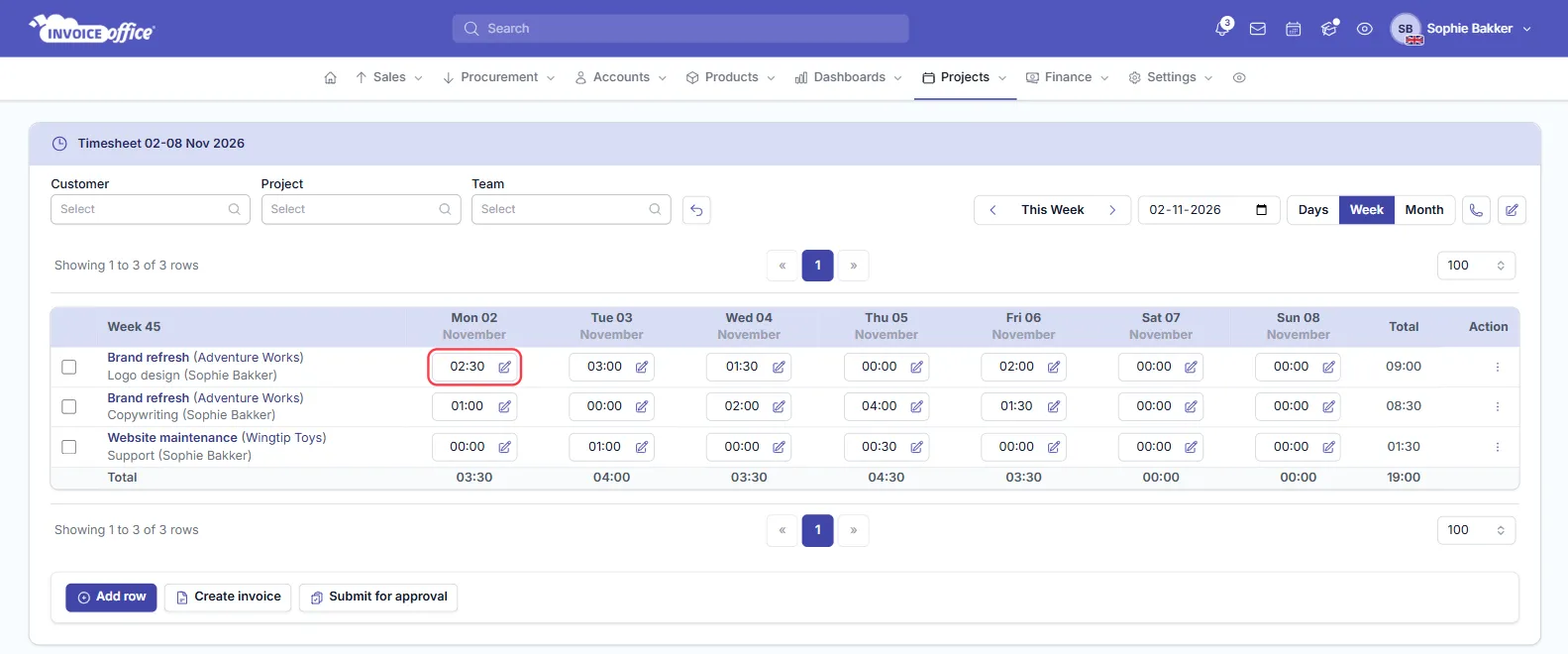
- Projects → Timesheets — click Submit for approval below the timesheet and pick the customer, or open the Action menu at the end of a row and choose Submit for approval for that project.
- Projects → Projects — open the project’s Action menu and choose Submit for approval. It appears for projects that have a customer.
Create approval on the Projects → Approvals page takes you to the timesheet to start from there.
Step 2 — Choose the hours
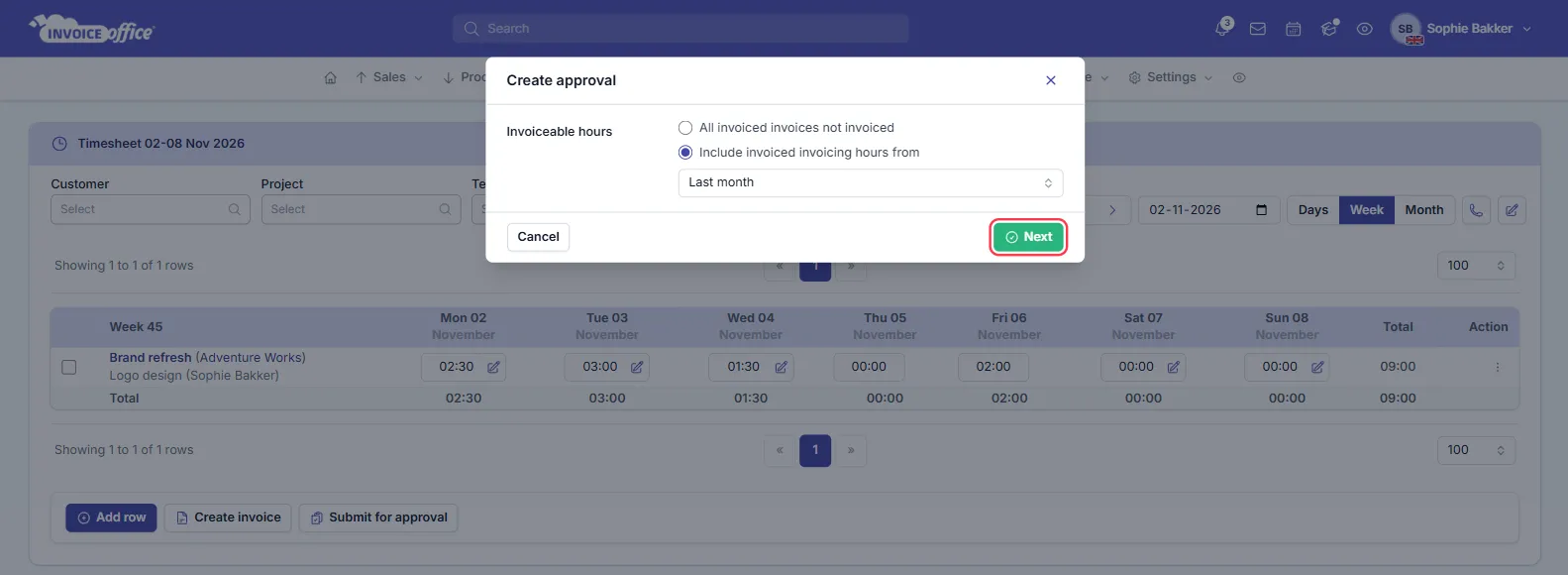
The Create approval window asks which hours to send under Invoiceable hours:
- All invoiced invoices not invoiced — every hour that hasn’t been invoiced yet.
- Include invoiced invoicing hours from — the hours of a period: This month, Last month, This quarter, Last quarter, This year, Last year, or Custom with a From and To date.
Despite their wording, neither option checks whether hours were invoiced: both take the hours that aren’t in an approval yet (or whose approval was rejected) — all of them, or only those in the chosen period. Click Next.
If none of those hours are new, Invoice Office says This timesheet is already submitted for approval, or Timesheet has been approved once the customer approved them.
Step 3 — Send the hours to your customer
The Timesheet approval page lists the hours per week, with who did the work and for whom. Check them, then click Submit for approval. In the Send hours for approval window:
- Check To — it is filled in with the customer’s email address — and add a Cc if you like.
- Check the E-mail sender, Sender Name, Topic and Description. The text comes from your email template for timesheet approvals, including the link to the hours.
- Click Send to.
You land on Projects → Approvals. The approval now has the status In progress, and the hours in it are locked: in the Week view their cells turn yellow and can’t be changed.
Step 4 — Your customer approves or rejects
The customer opens the link in the email and sees the hours. To approve, they enter their name under Approver name, sign in the box (or upload a signature with Signature upload), optionally add a Note, and click Save and approve. To reject, they untick Disapprove/Approve, fill in the Reason for disapproval — which days and hours are wrong and what needs to change — and click Save and reject.
You get a notification either way. Under Projects → Approvals, the Approved column shows each approval’s status:
| Status | Meaning |
|---|---|
| In progress | Sent to the customer, waiting for an answer. |
| Approved | The customer approved the hours. |
| Not approved | The customer rejected the hours; open the approval to see their reason. |
The list also shows the Name approver and the Approval date. Open in a row’s Action menu shows the hours and, once the customer answered, their name, note or reason and — when approved — their signature. Its Action menu lets you download the approval as a PDF.
If the hours are rejected
In the Week view, the cells of a rejected approval turn red and can be changed again. Correct the hours, then send the approval again: in Projects → Approvals, open the row’s Action menu and choose Send Email. The approval goes back to In progress.
To start over instead, choose Delete in the same menu. The hours are released from the approval and can be submitted again.
What happens after approval
- The hours are locked. In the Week view the cells turn green and can no longer be changed.
- The approval can be downloaded. Once approved, the customer can download it as a PDF from the same link.
- You can invoice the approved hours. In Projects → Approvals, open the row’s Action menu and choose Create invoice, then Next. Choosing the hours and checking the invoice work as described in how to invoice a customer for hours worked on a project.
Mark entries as approved yourself
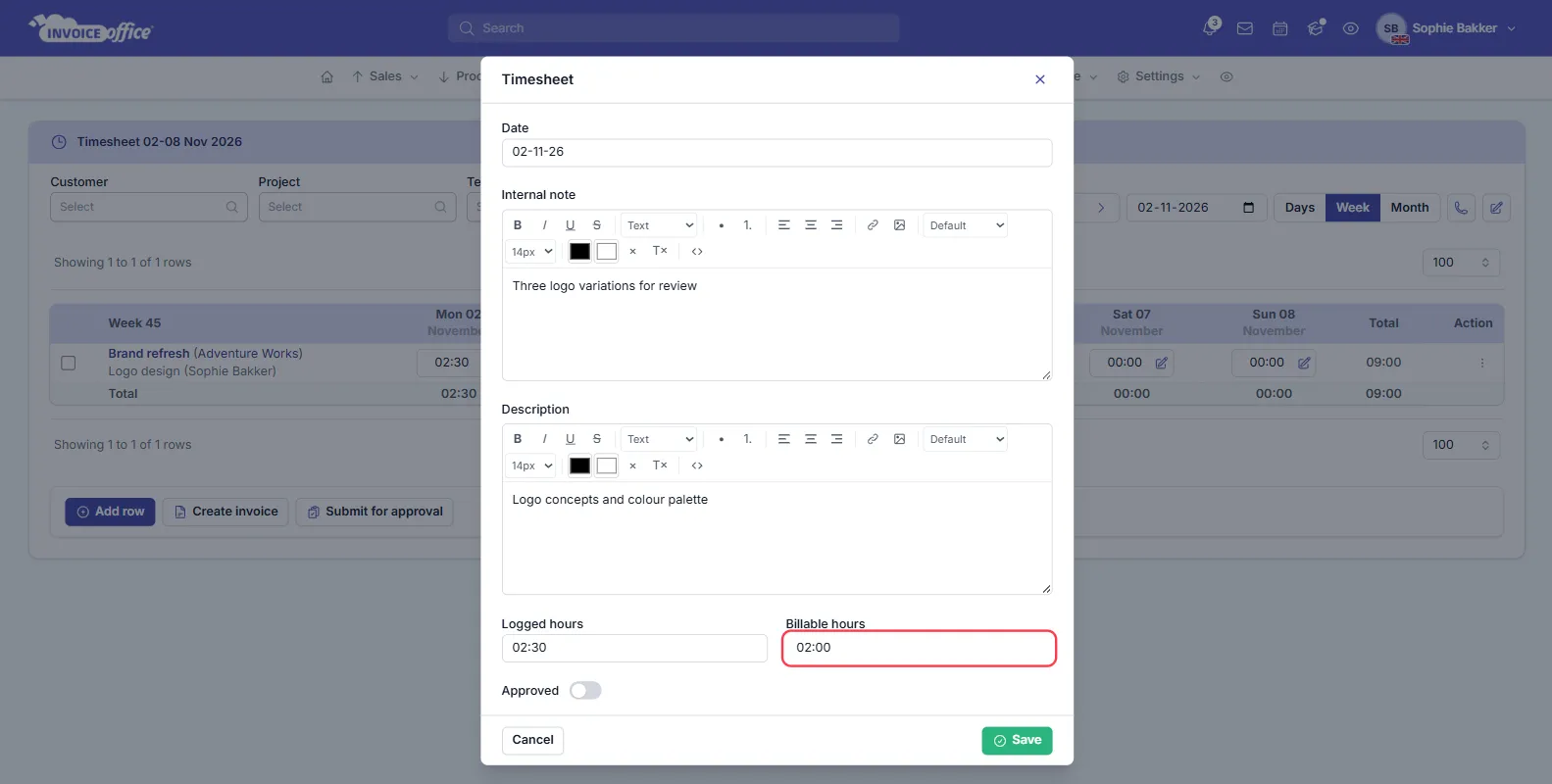
Each timesheet entry also has an Approved switch, in the Timesheet window you open with the pencil icon in a cell of the Week view. It is a marker for your own team: it doesn’t send anything to the customer, and it doesn’t lock the entry. When you submit hours for approval, Invoice Office switches it on for those entries.