Projects in Invoice Office are the built-in project management for client work — they bring it together in one place: the customer, the dates, the budget, the tasks and the team, the hours logged against it and the invoices sent for it. You set a project up once, your team books time against it, and its dashboard shows at a glance how much of the budget is left and what has not been invoiced yet.
Everything lives under the Projects menu: Projects, Tasks, Employees, Teams, Timesheets, Timesheet Corrections and Approvals.
Step 1 — Create a project
-
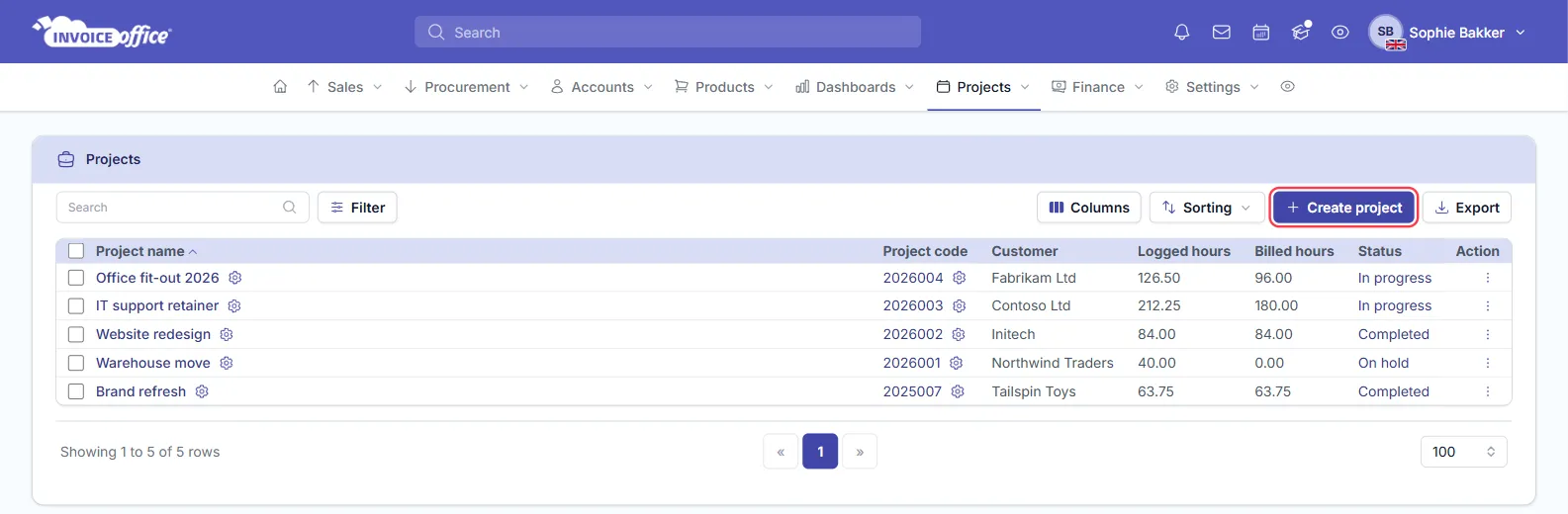
Go to Projects → Projects and click Create project — or the + beside Projects in the menu.
-
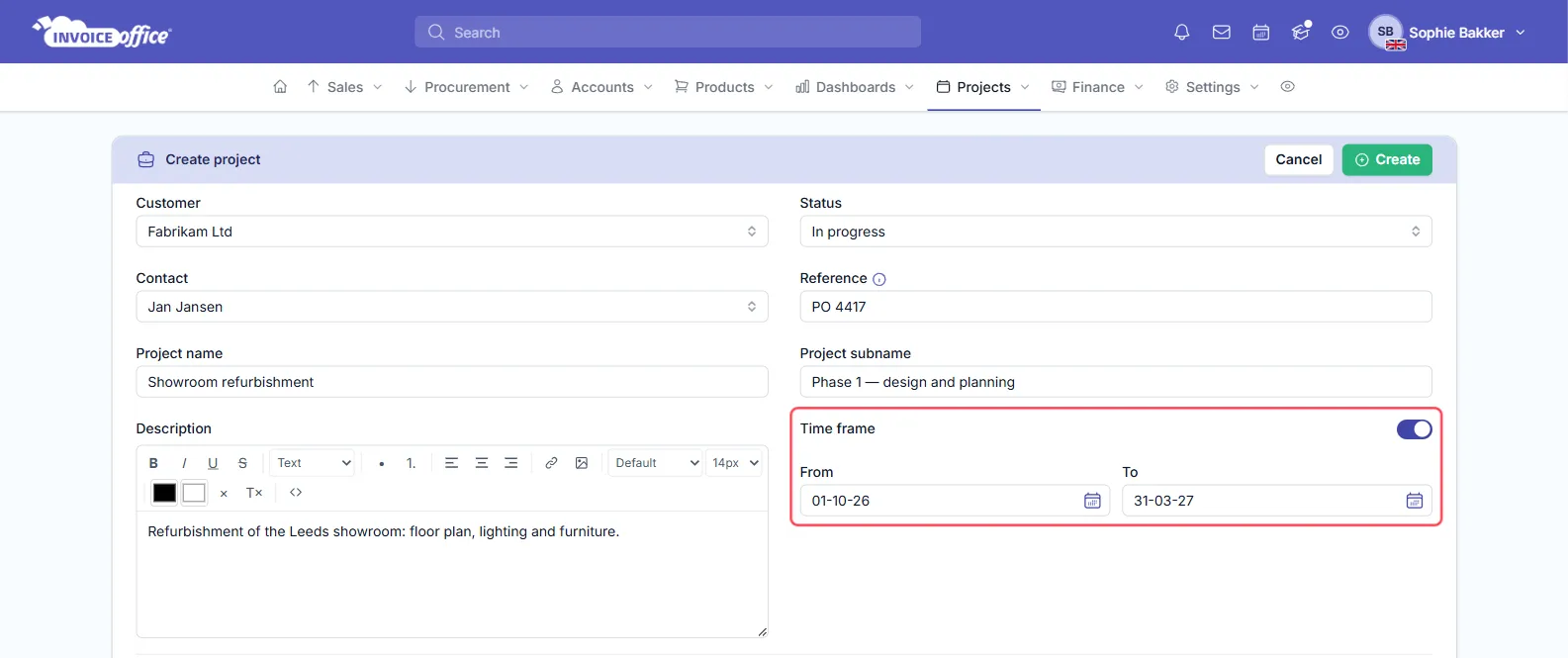
Choose the Customer and, if you like, a Contact at that customer.
-
Give it a Project name, and a Project subname if you want to name a phase.
-
Leave Status on In progress for a project you are starting now.
-
Add a Reference — it is copied to the invoice reference when you create an invoice from a timesheet.
-
To give the project a start and a deadline, switch on Time frame and set the From and To dates.
Step 2 — Set the budget
Under Project budget hours, pick the kind of project:
- Time and Material — you bill the hours you work.
- Fixed Fee — a set price for the work.
- Non-Billable — internal work you do not invoice.
For a Time and Material project, choose how time is priced in Hourly rate — No billable rate, Project hourly tariff, Person hourly tariff, Person daily tariff or Task hourly tariff. For a Fixed Fee project, enter the price in Project Fees instead. Then choose how the budget is measured in Budget: No budget, Total project compensation, Task compensation, Total project hours, Total project days, Hours per task or Hours per person.
Step 3 — Add tasks and team members
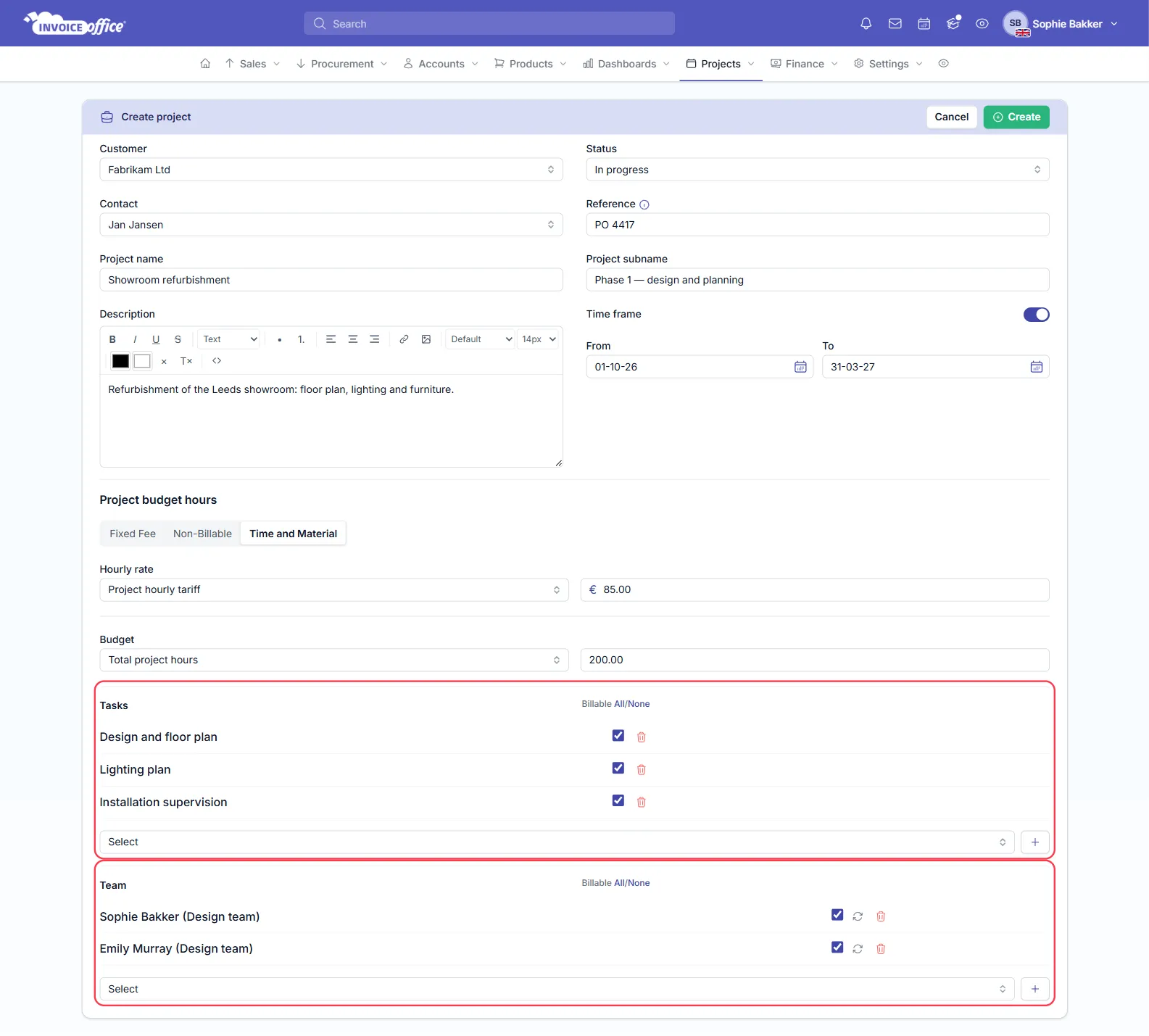
At the bottom of the form:
- Tasks — pick the tasks your team will book time against. Each one you pick is added as a row, with a checkbox for whether it is billable.
- Team — pick a team, and each of its members is added as a row.
In each section, Billable All/None ticks or clears the billable box on every row.
Teams are set up under Projects → Teams with Create team, and the people in them are your users — see How to create and manage your users. Once the project exists, Action → Show tasks on its row opens its task list, where Create task adds more.
Click Create at the top of the form to save the project. It gets its own Project code.
Step 4 — Log time
Your team books hours under Projects → Timesheets, picking the project, task and team member. The timesheets only offer projects that are In progress. See How the Invoice Office timesheet works for the timer, the week and month views, and sending hours to your customer for approval.
Track client project progress
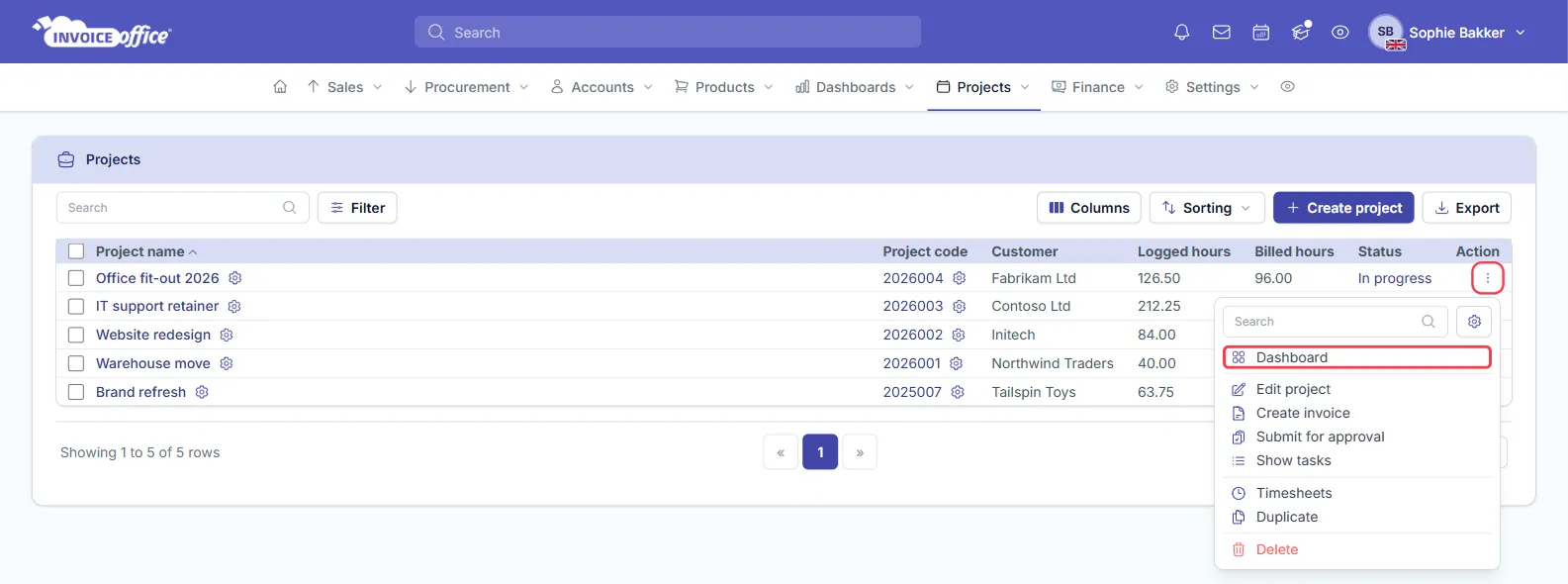
Open a project’s Action menu on Projects → Projects and choose Dashboard.
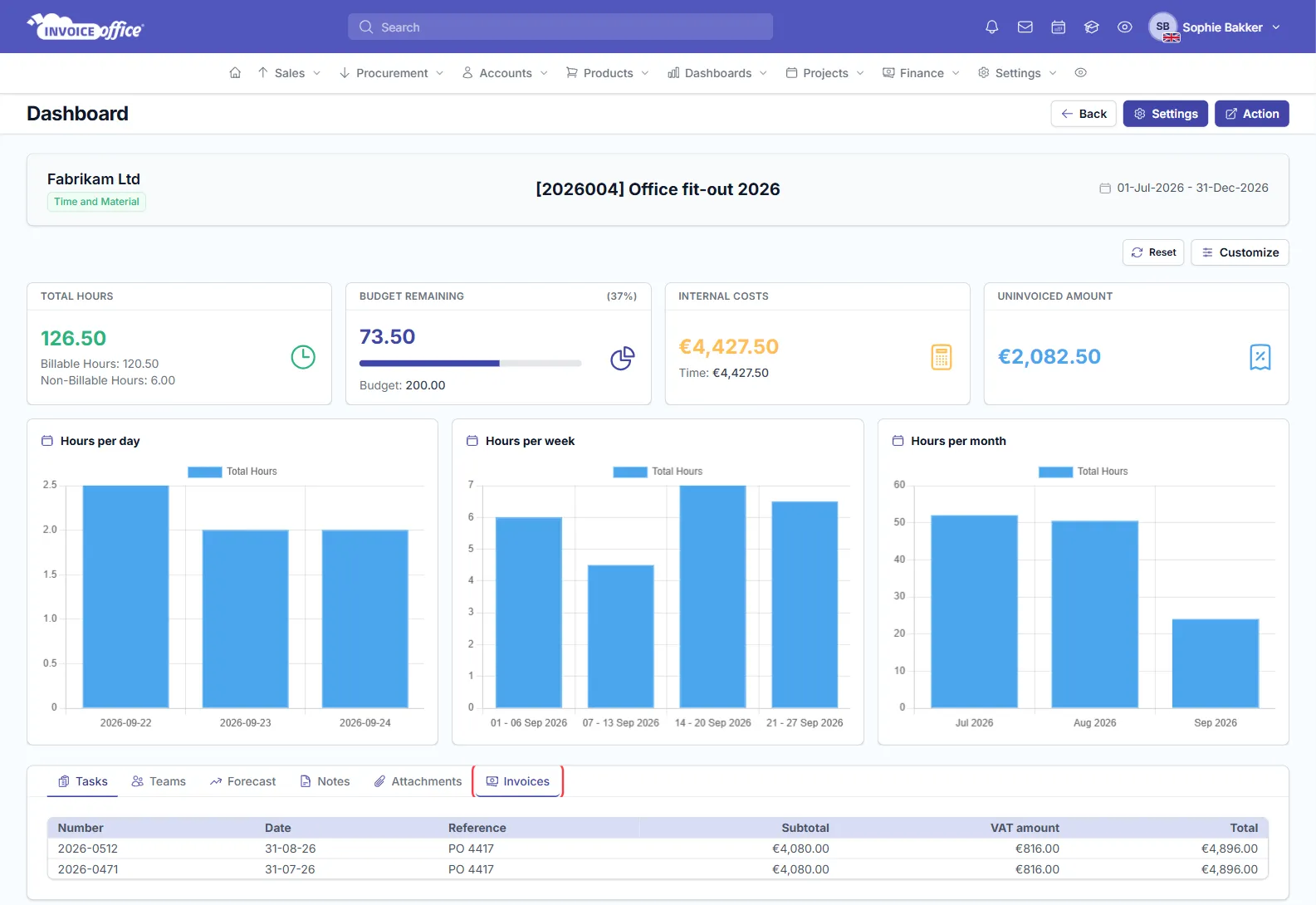
The dashboard shows the customer, the project type and the time frame at the top, then four tiles:
- Total Hours — split into billable and non-billable hours.
- Budget Remaining — what is left of the budget, with the percentage — see how to track a project budget.
- Internal Costs — the cost of the time logged.
- Uninvoiced Amount — the value of logged hours that have not been invoiced yet (for a Fixed Fee project, the project fee).
Below them, Hours per day, Hours per week and Hours per month chart the time logged, and the tabs underneath hold the project’s Tasks, Teams, Forecast (when the project has a time frame), Notes, Attachments and Invoices.
Link invoices to a project
The Invoices tab lists every invoice linked to the project. To link one, open the invoice and, on the Price list tab of the panel on the right (the third icon), choose the project in Project.
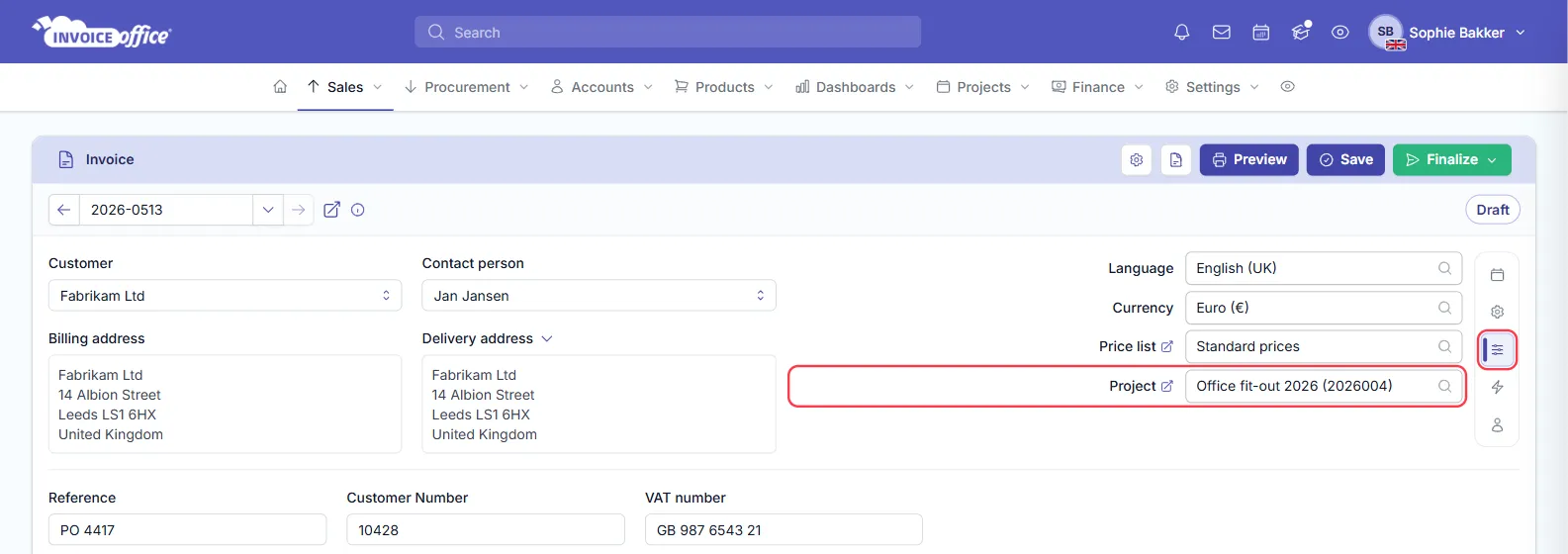
The Project field only appears once you have at least one project. Quotes do not have a project field; on the sales side, only invoices can be linked to a project.
To invoice the hours logged on a project, use Action → Create invoice on the project; the timesheet guide walks through it.
Close a completed project
There is no separate archive: you close a project by changing its status.
-
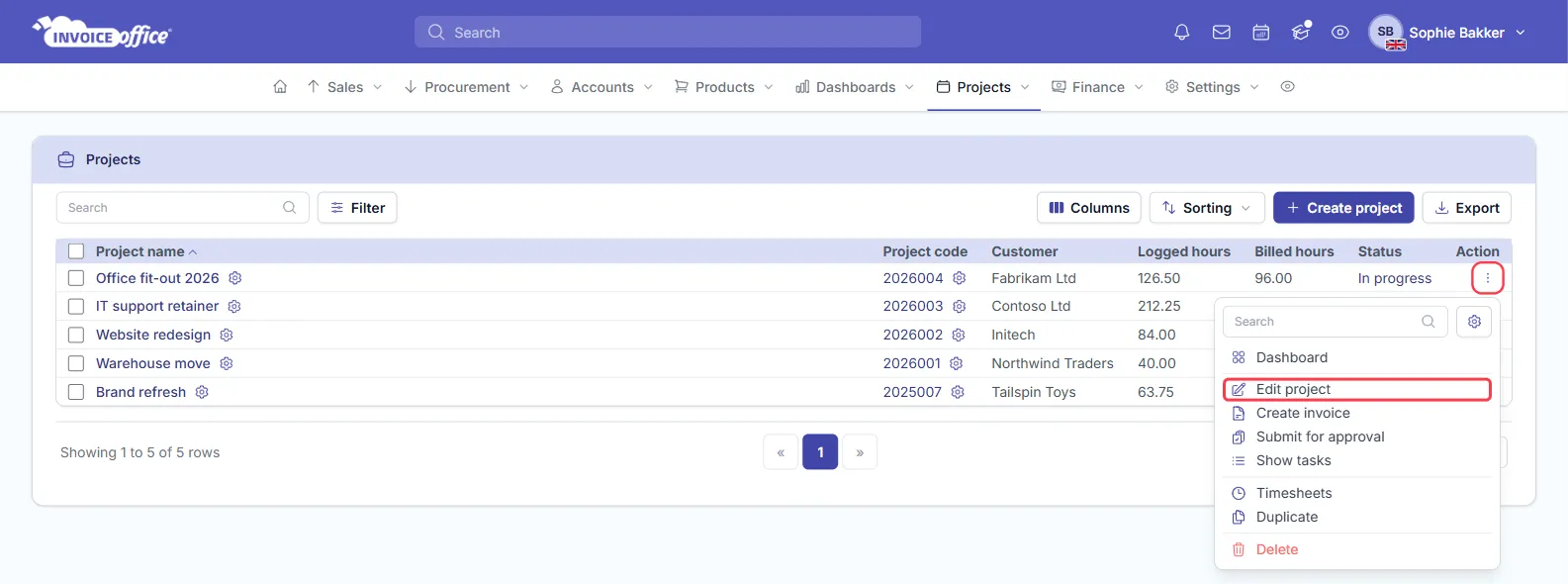
Open the project’s Action menu and choose Edit project.
-
Set Status to Completed — or Inactive or On hold — and click Save.
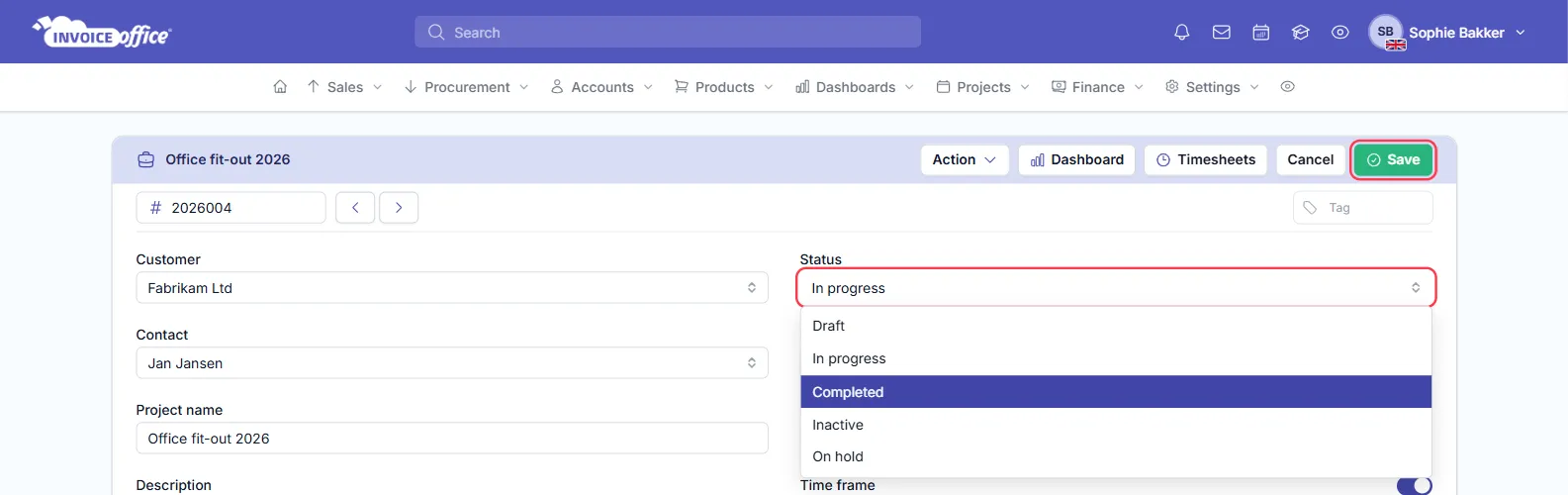
Once it is no longer In progress, the project drops out of the timesheets, so it can no longer be picked when logging hours. It stays in the Projects list, where the Status column shows its new status. Set it back to In progress to reopen it.