You can update the Peppol customer information on a finalised invoice in Invoice Office without voiding it or creating a new one. A finalised invoice is locked, but its Peppol section stays editable: correct the customer’s Peppol identifier there and send the invoice to Peppol again. This is the fix when an e-invoice failed or went to the wrong Peppol address.
Open the Peppol section of the invoice
- Go to Sales → Invoices and open the finalised invoice.
- In the strip of icons on the right of the invoice, click the paper-plane icon. The Peppol section opens at the top right.
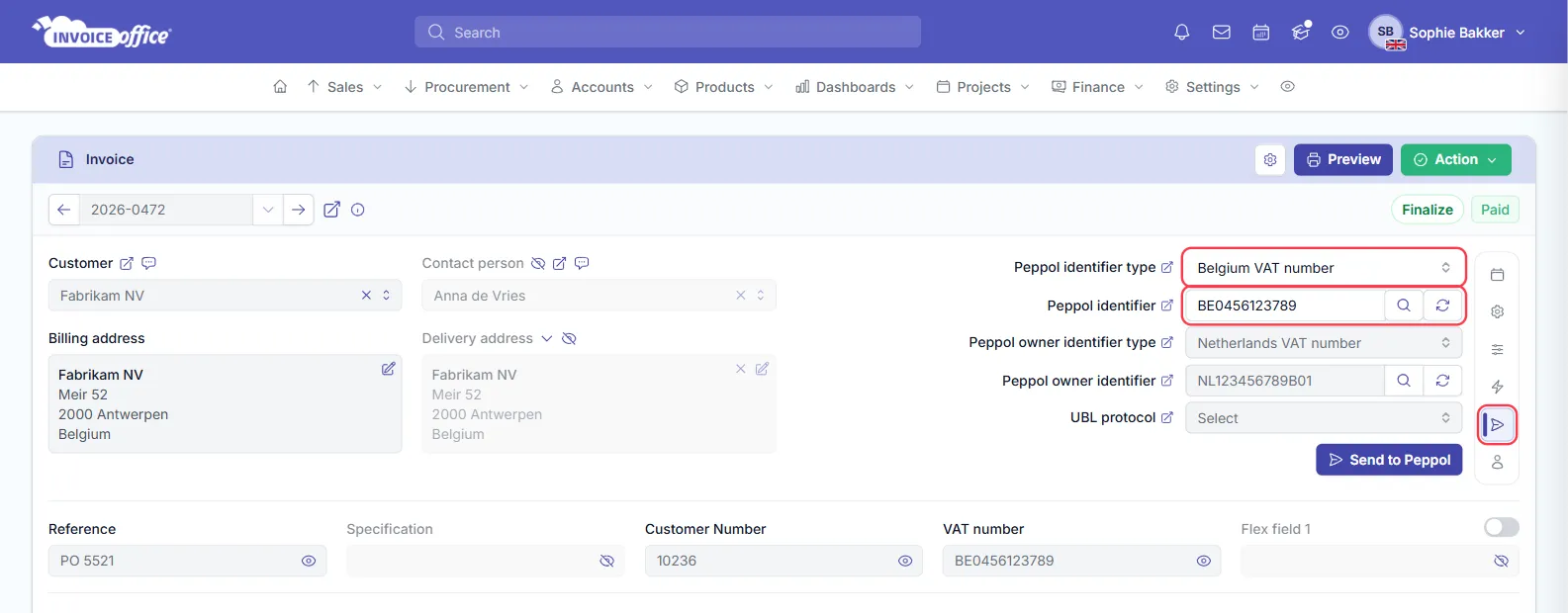
The section only appears on invoices that carry a Peppol identifier, and the Send to Peppol button needs the Peppol connector to be active and a paid licence — see Set up Peppol e-invoicing.
What you can change
| Field | On a finalised invoice |
|---|---|
| Peppol identifier type | Editable — the scheme, such as Belgium VAT number or Netherlands Chambers of Commerce number |
| Peppol identifier | Editable — the customer’s number in that scheme |
| Peppol owner identifier type | Read-only — your own company’s Peppol scheme |
| Peppol owner identifier | Read-only — your own company’s Peppol number |
| UBL protocol | Read-only — set in your company settings |
The customer’s name, address and the invoice lines stay locked; only the Peppol address the invoice is delivered to can be corrected here. The link icon next to each label opens the place where that value is managed for good — the customer, your company information or your company settings.
Correct the customer’s Peppol identifier
There are two ways to get the right identifier into the invoice:
- Type it in. Choose the Peppol identifier type and enter the Peppol identifier, then click the magnifying glass (Peppol look up tool). If the number is registered on Peppol, the name it belongs to appears under the field — Peppol id belongs to: … — so you can check it is the right customer.
- Refresh from account. If you have already corrected the identifier on the customer, click the refresh button next to the magnifying glass. The invoice takes over the identifier currently saved on the customer.
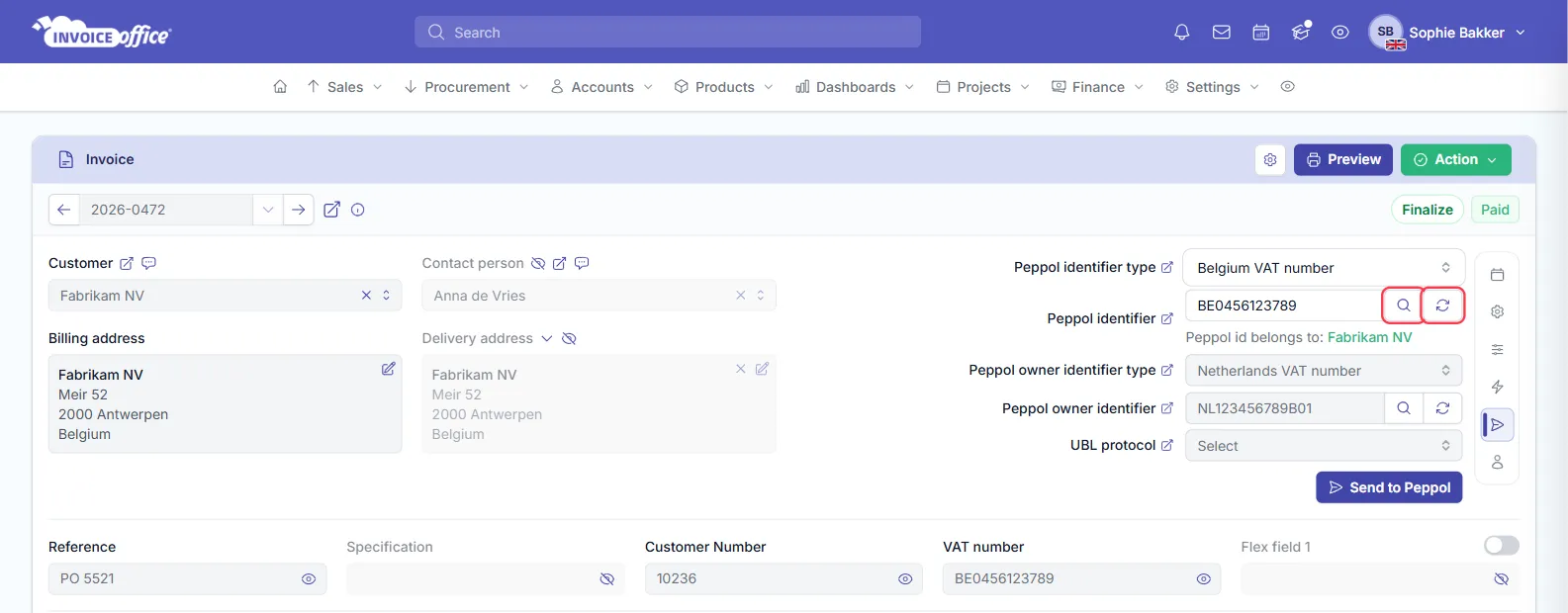
Correct the customer as well (Accounts → Customers), so your next invoices go to the right address from the start.
Save the correction and send the invoice again
- Click Send to Peppol under the Peppol section.
- Confirm with Are you sure?.
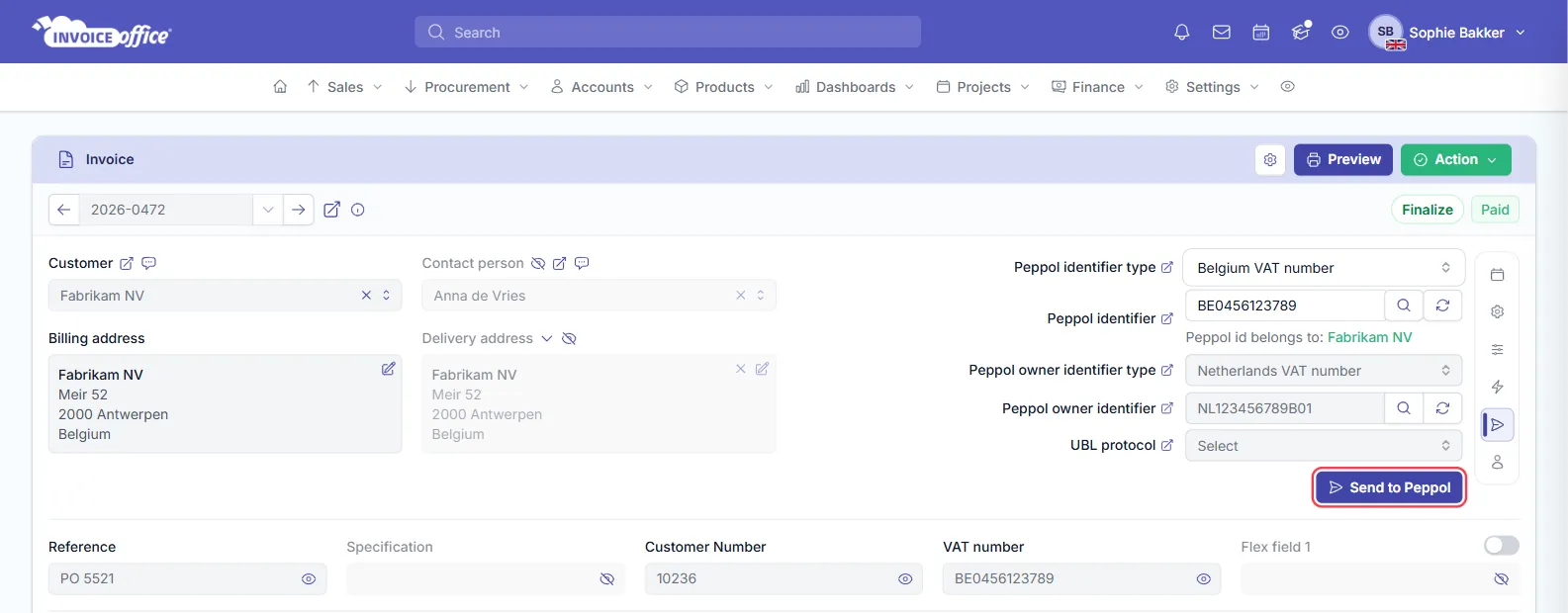
Send to Peppol does two things in one step: it saves the corrected Peppol fields on the invoice and sends the invoice over Peppol again, to the new identifier. There is no separate save — a change you make in the Peppol section and do not send is not kept.
Only the delivery changes. The invoice keeps its number, date, lines and amounts, and its payment status is untouched. Check the result on the Peppol outbound dashboard, as described in Set up Peppol e-invoicing.
Need the e-invoice as a file instead, for example to upload it to your customer’s portal? See How to download an invoice in UBL or XML format.