To add a background image to your invoice design in Invoice Office, you upload it once on the Page tab of the document design editor. The image then prints behind the content of every invoice made with that design — a branded letterhead, a coloured band or a light watermark — and you decide how faint it is with a Transparency slider.
Upload the background image
- Go to Settings → Documents → Document designs and open the design — Invoice for your invoices, or another document type.
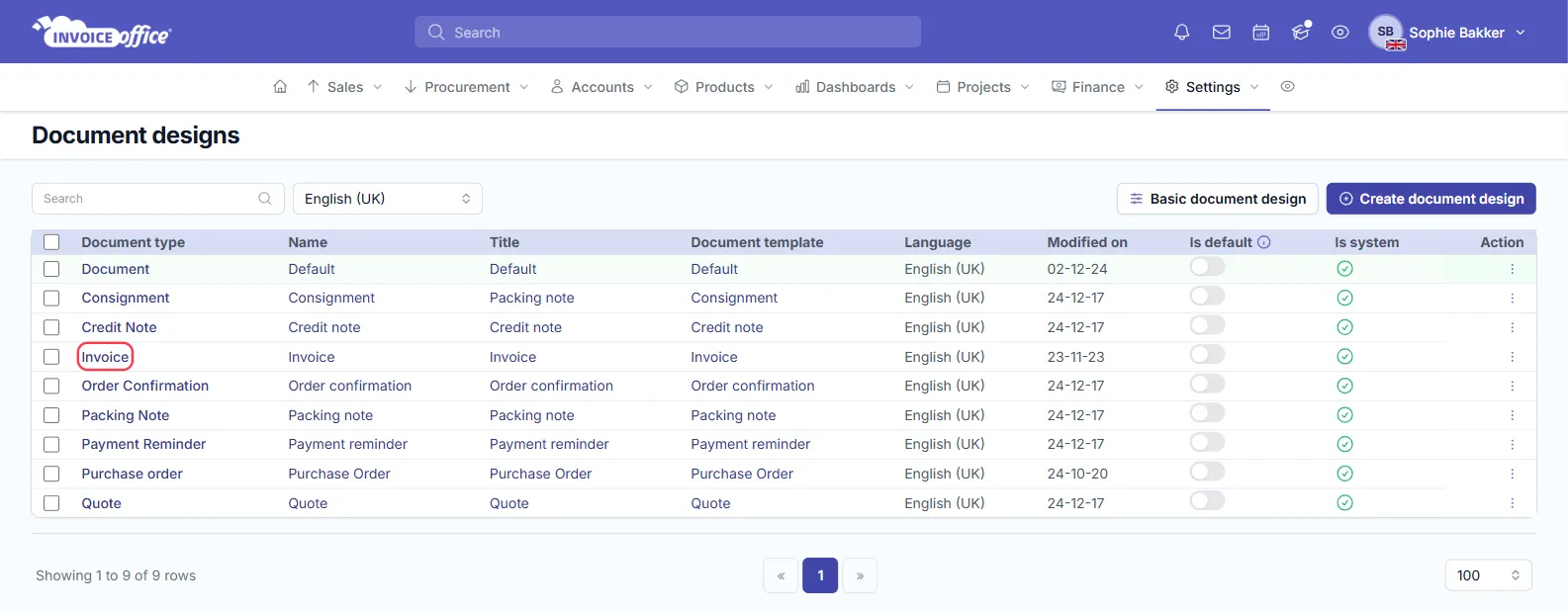
- Open the Page tab on the left.
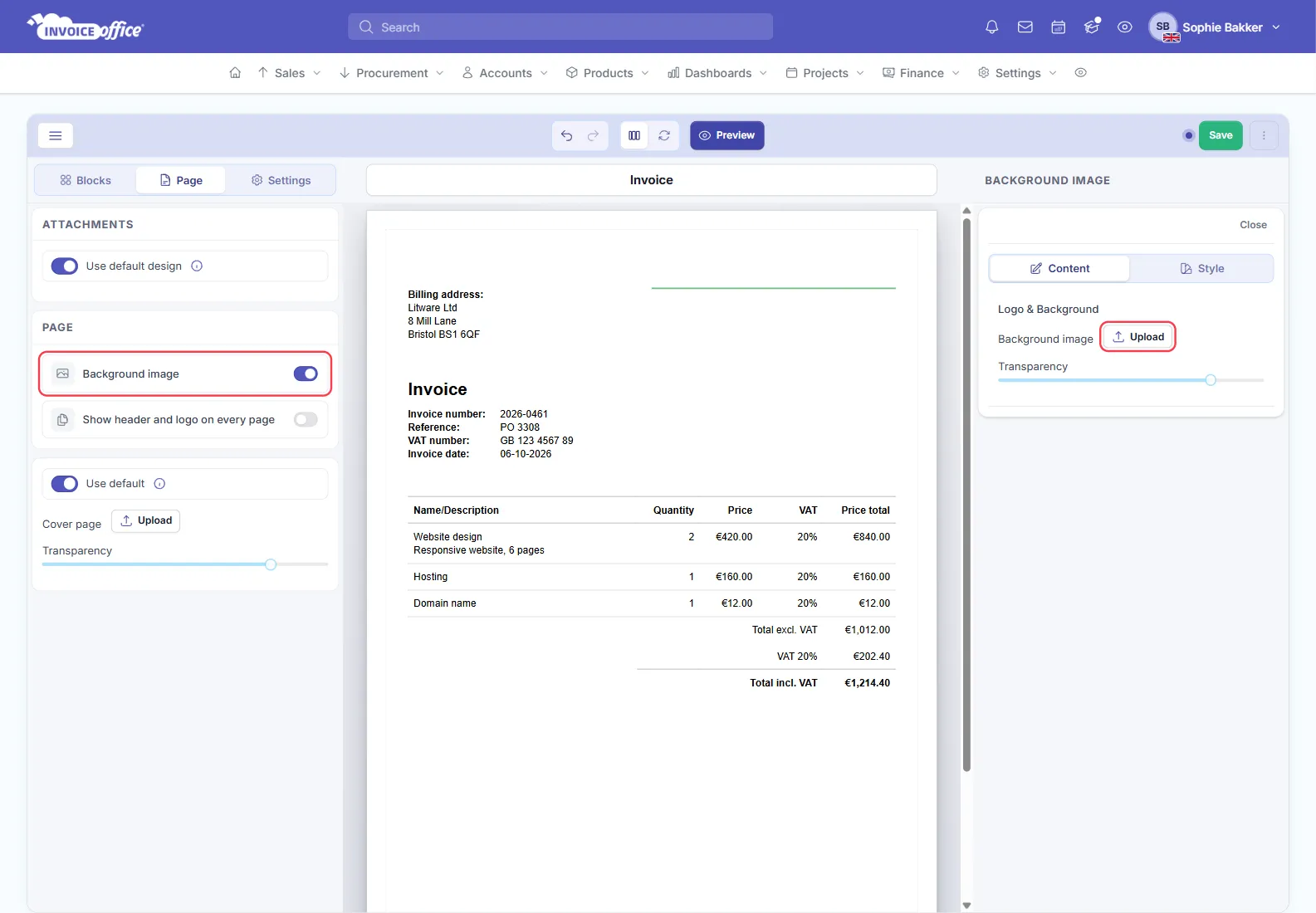
- Switch on Background image, or click its name. Its settings open on the right.
- Under Background image, click Upload and choose your file.
New to the editor? How to customize the document layout walks through the Blocks, Page and Settings tabs.
Set the transparency and save
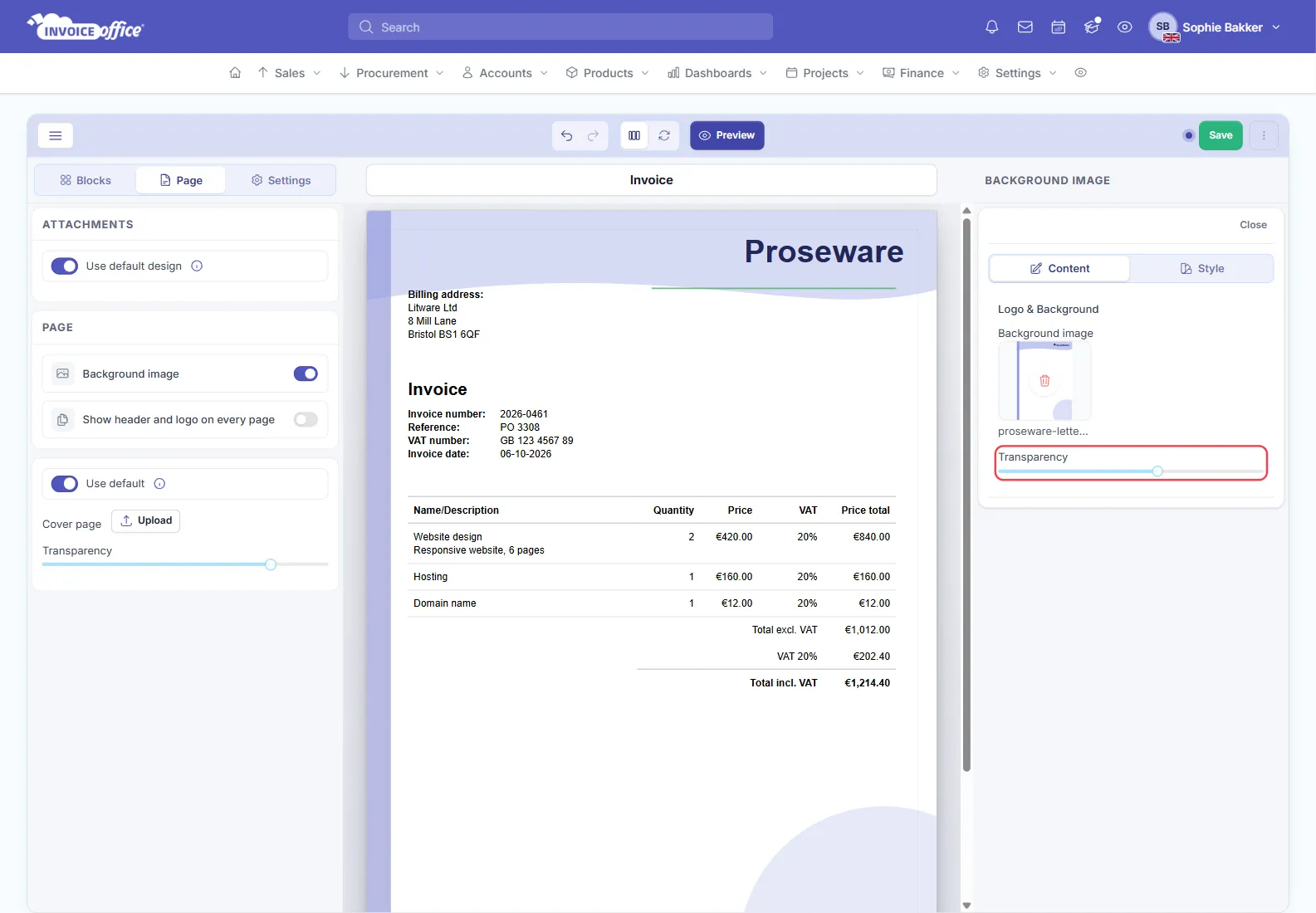
Once the file is uploaded, the canvas shows it behind your invoice and the uploader shows a small preview of it.
- Drag the Transparency slider. It runs from 0 to 100 and starts at 80: the higher the value, the fainter the image. At 80 the image prints at a fifth of its strength; at 0 it prints at full strength.
- Click Save in the top right.
Keep text-heavy areas light. Your totals and addresses print on top of the image, and strong colours behind them make the invoice harder to read — especially once it is printed in black and white.
Choosing the right image
- Format: JPG or PNG.
- File size: up to 5 MB.
- Shape: make the image the shape of your page. An A4 portrait page at print quality is 1654 × 2339 pixels (A4 at 200 dpi); use 2339 × 1654 for a landscape design.
- Content: design it as a full page, with the empty space where your invoice content goes.
How the background appears on the PDF
- It fills the page width, anchored at the top-left corner, behind all the content.
- A taller image is cut off at the bottom of the page, and a shorter one stops early, leaving the bottom of the page white. It is never stretched or repeated, which is why a page-shaped image works best.
- It prints on every page of the document, not only the first.
- Photos keep their orientation — a portrait photo taken on a phone prints upright, the way it shows on the canvas.
Remove or replace the background image
A design holds one background image. To swap it, delete the current one first:
- Open the design and the Background image settings on the Page tab.
- Click the red Delete button on the image preview.
- To replace it, Upload the new file. Otherwise leave it empty.
- Click Save.
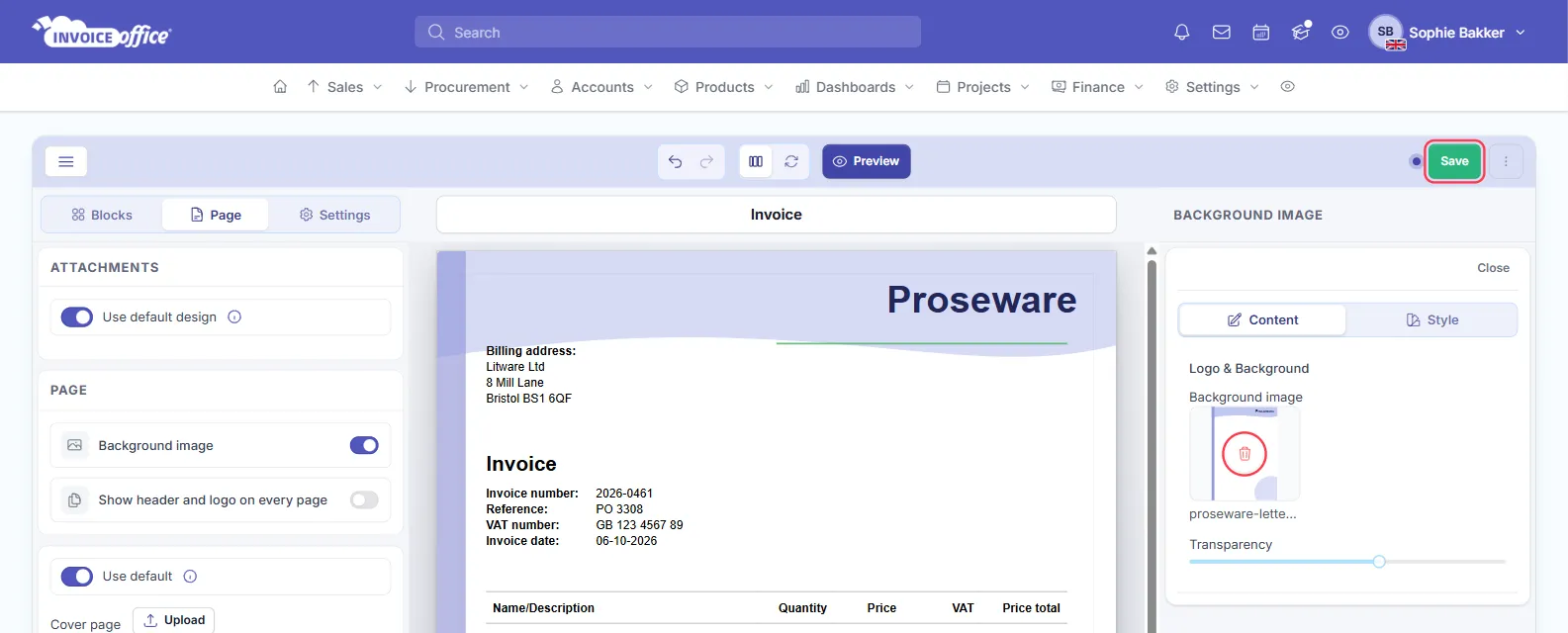
Delete the file to take the background off — switching Background image off on its own is not enough to remove an image that is already uploaded.
Documents you have already made
A document takes its design — background included — at the moment it is created. New, duplicated and converted documents use the new background; invoices you created earlier keep the one they were made with.
Background image, logo or cover page?
- Logo — your logo on the document, positioned in its own block. See Upload logo.
- Background image — behind the content of every page, as described here.
- Cover page — a separate first page that carries only the image, with its own Upload and Transparency further down the same Page tab. The cover page is a Pro feature.