A logo missing from the PDF is nearly always a question of which design the document is using, or of the logo settings inside that design. Work through these in order.
1. Check which design the document is using
First confirm the document is using the document design you think it is. Open the document, click Settings in the editor’s header, and check the Document design chosen there — that is the design the PDF is built from.
2. Open that design
Go to Settings → Documents → Document designs and open the design from its row’s ⋮ → Open. Match its Name in the list to the one selected on the document. It is easy to edit one design and preview another.
3. Cannot find the design in the list? Check the language
Document designs are held per language. If the design is not in the list, you are probably looking at a different language — use the language selector at the top of the list, and pick the same language as the one selected on the document. A language you have never set up shows No document design found.
4. Check the Logo block is switched on
The logo is a block, and a block can be turned off. In the design’s Blocks tab, look at Logo at the top of the list — its switch has to be on.
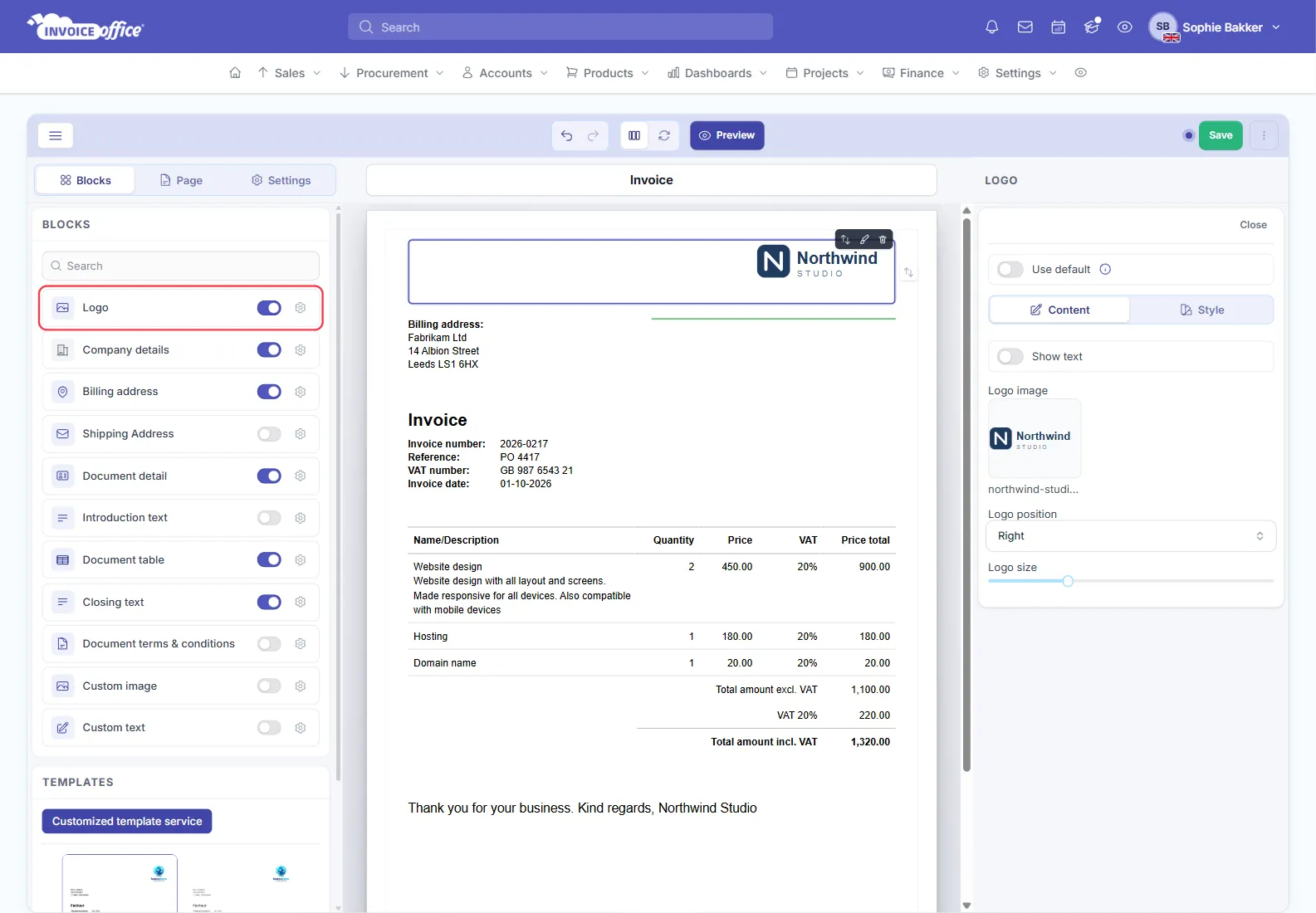
While you are there, the Page tab has Show header and logo on every page — worth switching on if the logo only appears on page one.
5. Check the logo itself
Click the logo on the page, or the gear icon next to Logo, and open the Content tab:
- Logo image — upload your file here. If nothing is uploaded, there is no logo to print.
- Logo position — Left, Center or Right.
- Logo size — drag the slider up if the logo is there but too small to notice.
See Upload logo and background image for the upload itself.
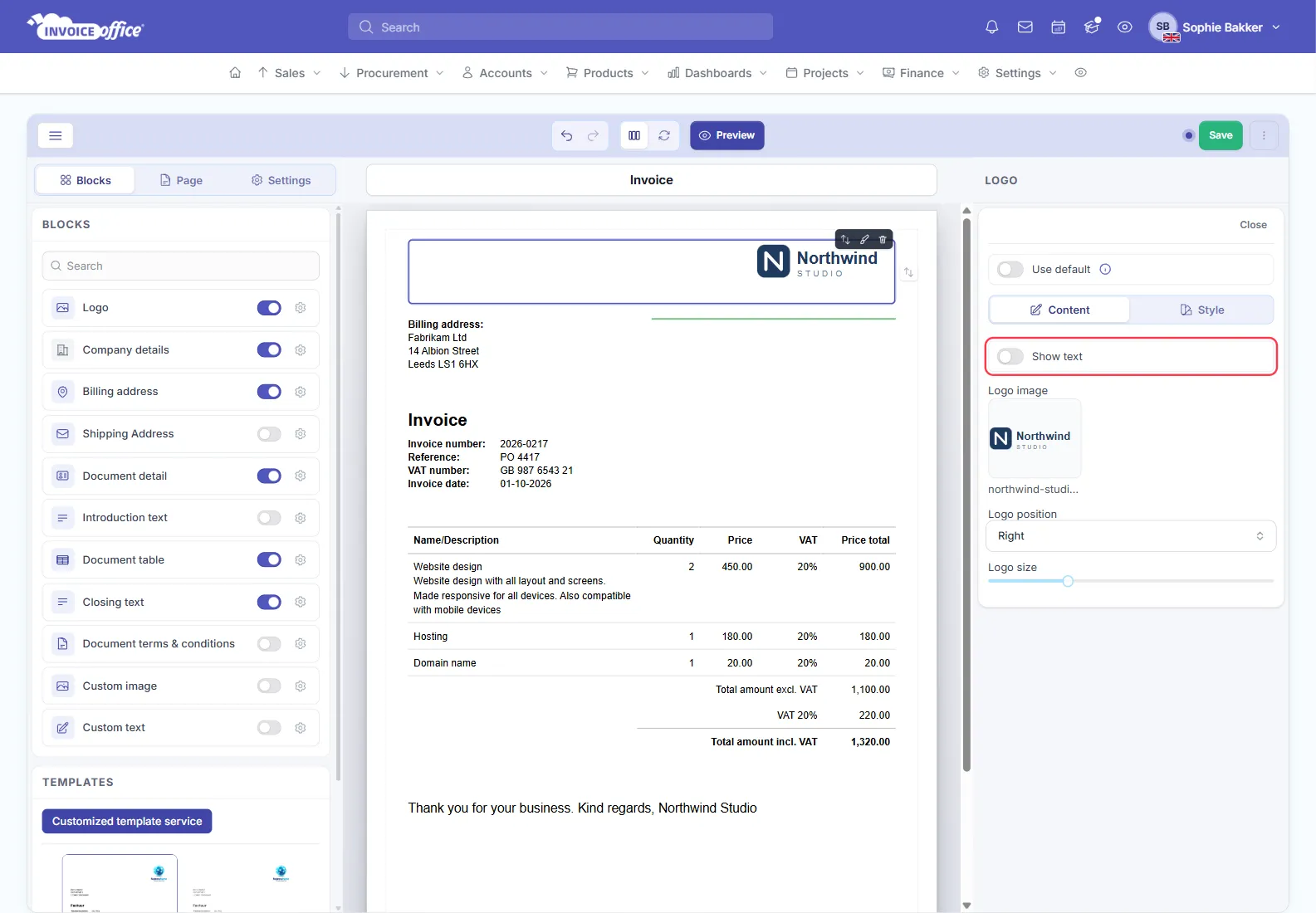
6. Check whether “Show text” is switched on
Show text at the top of that same tab prints a Logo text instead of the logo image. If it is on, that is what you get. Switch it off when you want the logo image to show.
7. Check Use default
On an invoice, quote or other design, the Logo panel can have Use default at the top. While it is on, the design shows the logo of your base Document design — so a logo uploaded or removed there is what you get. Switch Use default off to give this design its own logo. In the basic editor, the Use default design switch at the top of the Settings tab does the same for the whole design.
8. Preview the document
Use Preview in the middle of the editor’s toolbar, then preview the document itself — your uploaded logo should now be visible in the PDF.
Still nothing?
If the customer has their own design assigned, that one is used instead of your default — check the logo on that design too, see Choose a design template per customer.