Your own logo is what makes an invoice look like it came from your company. You upload it on the Logo block of a document design. Upload it on the base design — the one whose document type is Document — and every other design that follows it carries the same logo.
Upload your logo
- Go to Settings → Documents → Document designs, pick the language and open a design.
- Click the logo on the page, or the gear icon next to Logo in the Blocks list. The right-hand panel shows the Logo settings; open the Content tab.
- Upload your file under Logo image.
- Set the Logo position — Left, Center or Right — and drag the Logo size slider until it looks right on the page.
- Click Save.
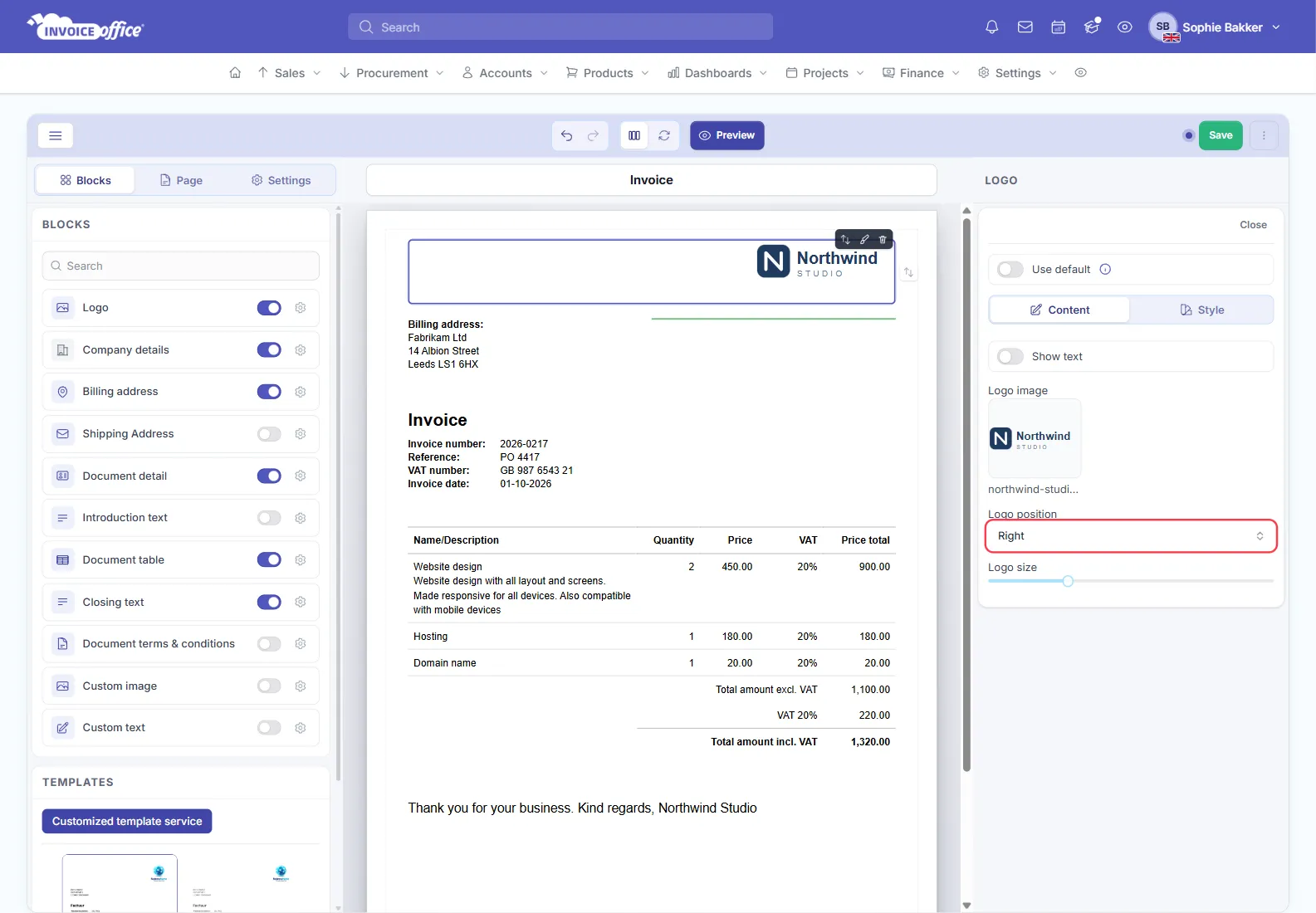
Show text, at the top of the same tab, prints a Logo text instead of the image — useful when you have no logo file yet. Leave it off to show your logo.
On an invoice, quote or other design with Use default switched on for the logo, the logo comes from your base design and the settings are locked. Switch Use default off to give this design its own logo, or change the logo in the base design. In the basic editor, an invoice, quote or other design can also have Use default design at the top of the Settings tab. While it is on, the whole design — layout, blocks and styles — follows your base design and the Blocks and Page tabs are locked; switch it off first.
In the advanced editor, the logo settings are on the Document template side of the switch in the toolbar.
Show header and logo on every page, on the Page tab, repeats the header and logo on page two onwards rather than only on the first page.
Choosing a file
- Format — the logo takes JPG or PNG files. Use PNG when the logo needs a transparent background; a JPG shows a white box behind it.
- Size — upload something larger than it needs to be, then scale it down with the slider. A small image stretched up looks blurred on a printed invoice.
- Proportions — the slider scales the image as it is. If the logo needs cropping or padding, do that in your image editor before uploading.
If the logo does not appear on the PDF
- Check the Logo block is switched on in the Blocks list — a hidden block prints nothing.
- Check Use default. A design that follows the base design shows the base design’s logo.
- Check the language. Designs are per language, so an English invoice can be using a design you never touched.
- Save. The dot beside Save means the change is still only in the editor.
More causes are in Why is my logo not showing on the PDF?