To auto-update the workflow status on document events in Invoice Office, you build an automation: a document event as the trigger, and the Set workflow status action that fills in one of your own statuses. This guide shows which document events an automation can react to today, how to set one up step by step, and what to do for the events it can’t react to yet, such as an invoice being sent or paid.
Which document events can update a workflow status
Open Settings → Company → Automations, click Create and click the trigger card. The Trigger list shows every event an automation can start from:
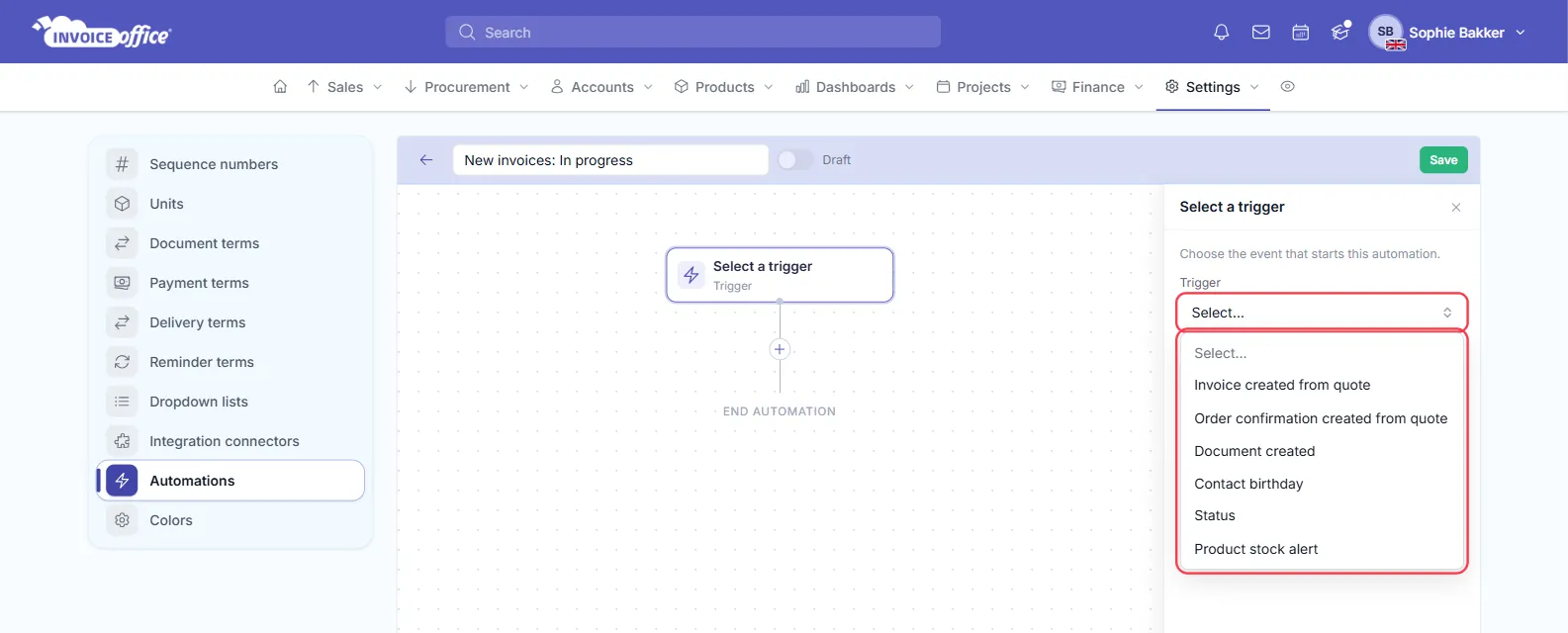
For workflow statuses on documents, three of them matter:
| Trigger | Runs when… | Status is set on… |
|---|---|---|
| Document created | a document of the type under Applies to is created | the new document |
| Invoice created from quote | a quote is turned into an invoice | the quote, not the new invoice |
| Order confirmation created from quote | a quote is turned into an order confirmation | the quote |
Status isn’t an event: it’s where you define the list of workflow statuses for a document type. See how to use workflow statuses.
There is no trigger for an invoice being sent, emailed, paid or overdue. So an automation can’t switch a workflow status to Sent or Paid at that moment. See Sent and paid below for what to do instead.
Before you start
- Your workflow statuses exist. Set workflow status only offers statuses from an active Status automation for the same document type (or for Any document).
- Automations are managed by company administrators, and their actions only run with an active Pro license.
Step 1: Choose the document event
- Give the automation a name, such as
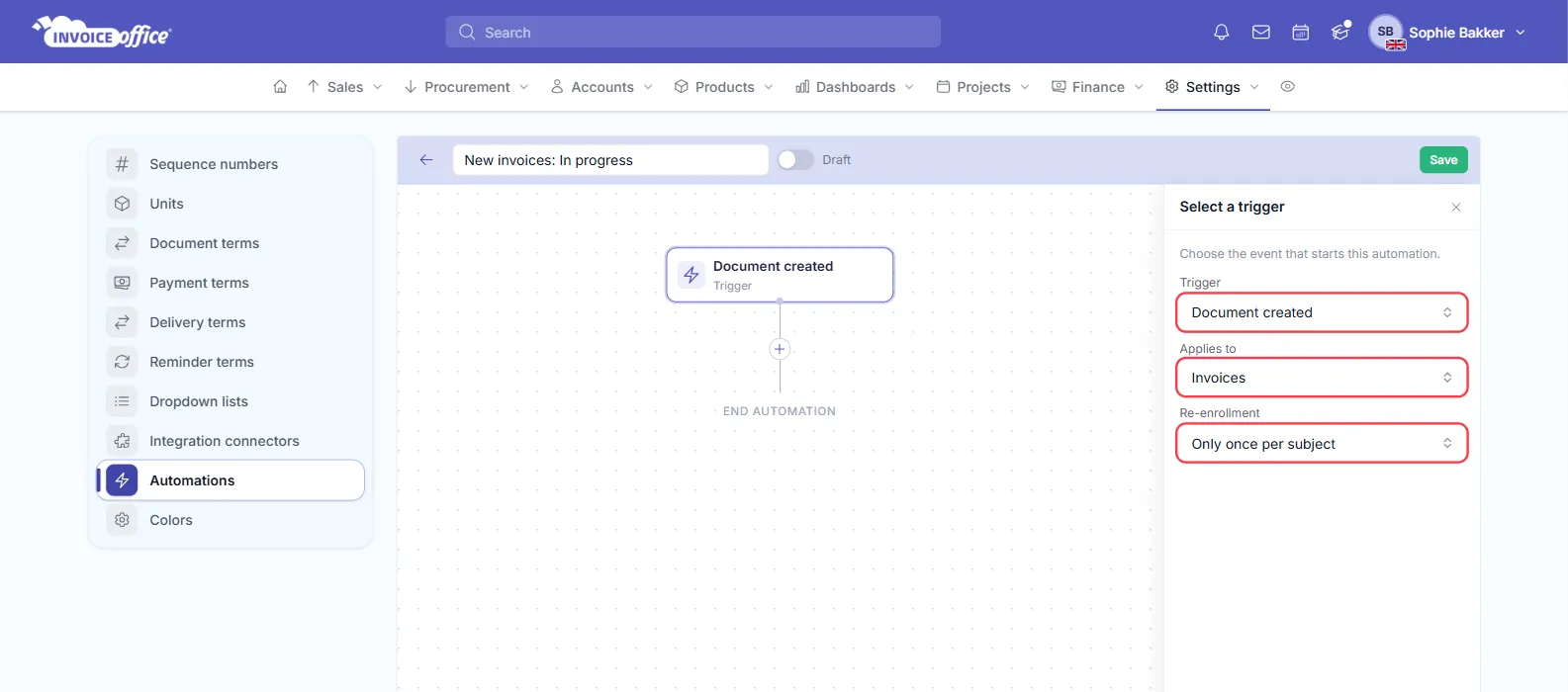
New invoices: In progress. - Under Trigger, choose Document created.
- Under Applies to, choose the document type, for example Invoices.
- Under Re-enrollment, choose Only once per subject, so each invoice is only handled once.
Step 2: Set the workflow status
- Click the + under the trigger and choose Action.
- Under Action, choose Set workflow status.
- Under Workflow status, choose the status the documents should get, for example In progress.
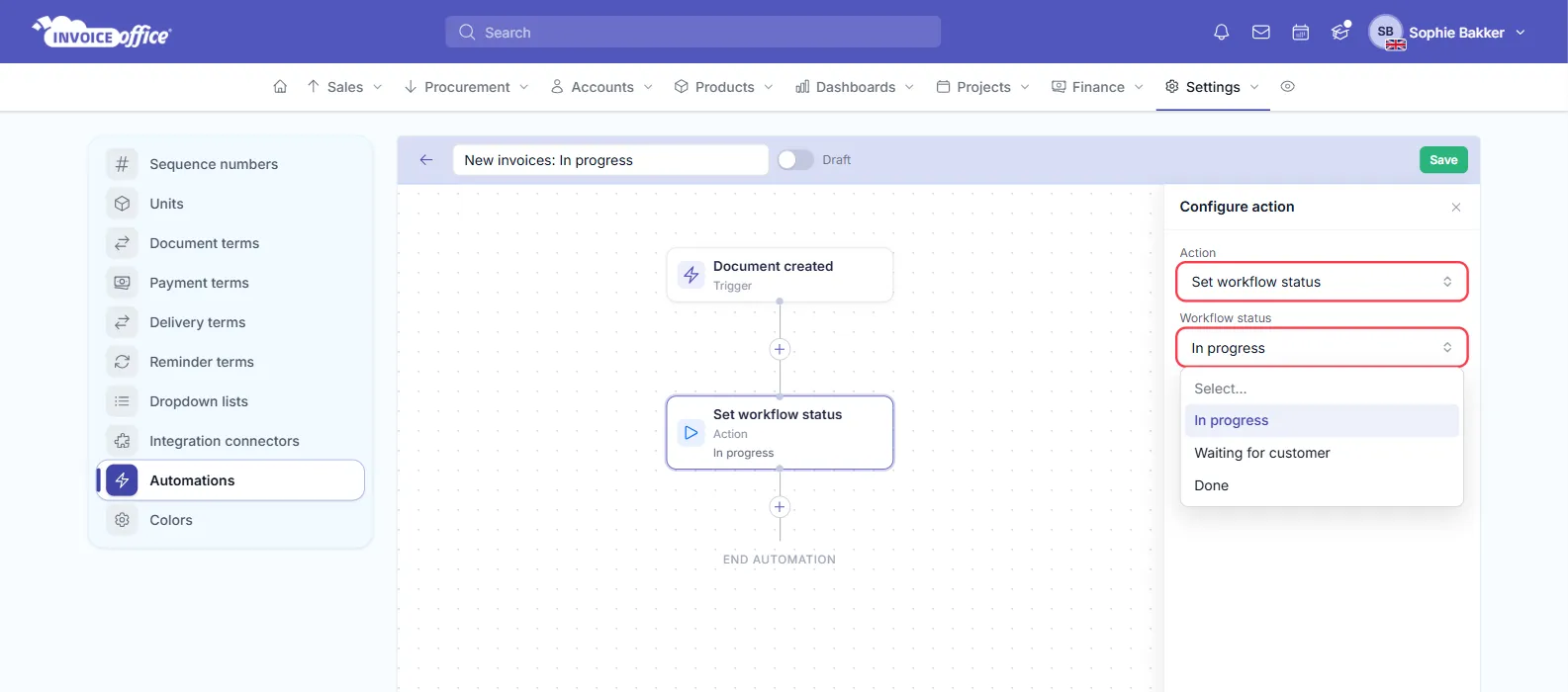
Set workflow status only fills in a status on a document that doesn’t have one yet. It never overwrites a status that you or a colleague already chose. That’s why it works for a starting status, but not to move a document on to a next status.
Step 3: Activate the automation
- Switch the automation on with the switch next to its name. The label changes from Draft to Active.
- Click Save.
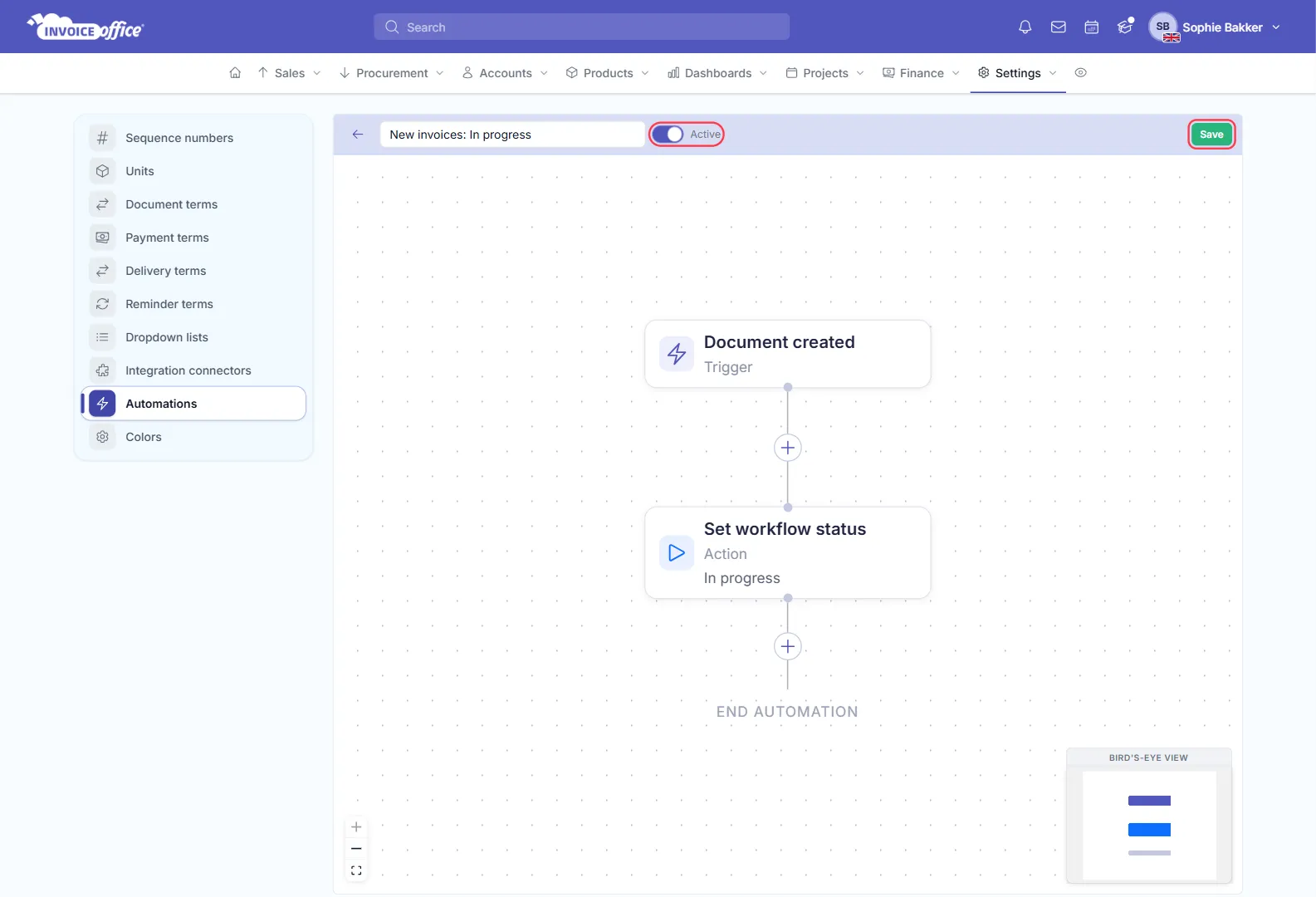
From now on, every new invoice gets the workflow status In progress. You can check the runs under History in the automation’s menu on the Automations page.
Sent and paid: what to do instead
Use the statuses Invoice Office already keeps. You don’t need a workflow status to see whether an invoice was emailed or paid:
- The Status column in Sales → Invoices shows Email sent as soon as you email an invoice.
- The payment status shows Open or Paid, and Expired once an unpaid invoice is past its due date.
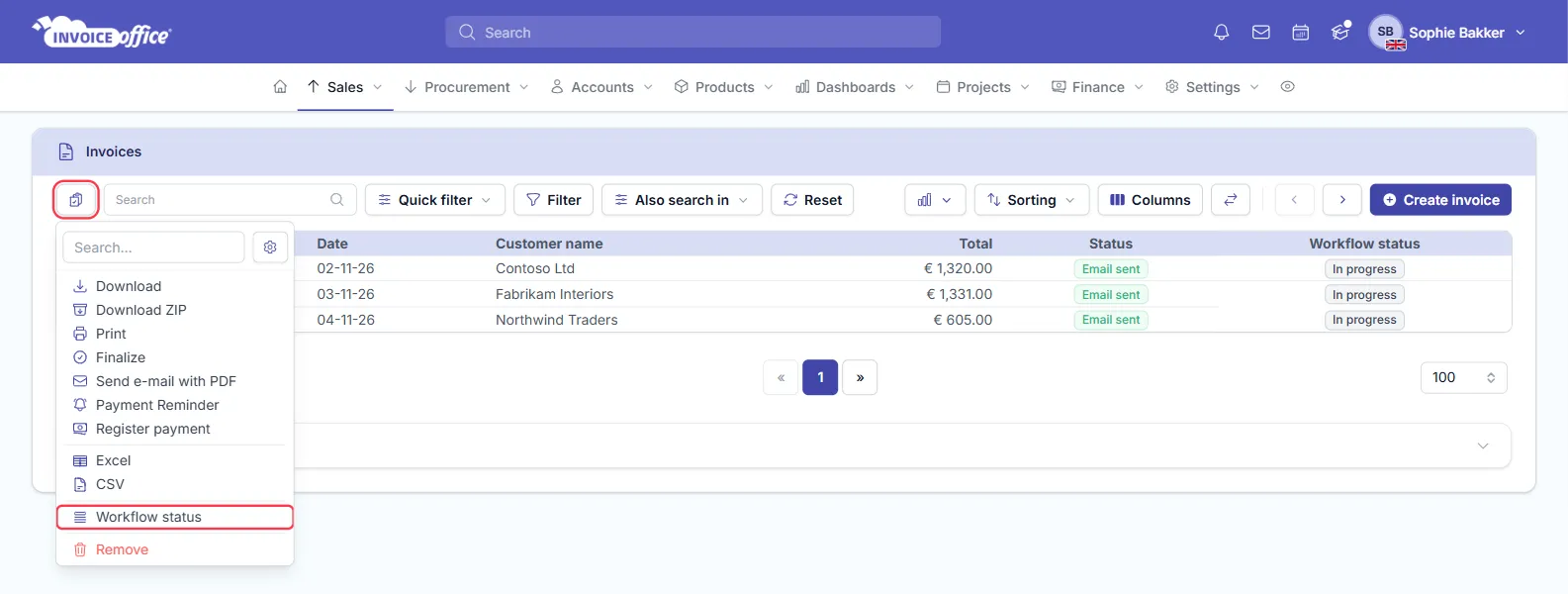
Set the workflow status by hand for the rest. To move several invoices on at once, tick them in Sales → Invoices, open the menu with the selection button at the top left and choose Workflow status (Pro licence). For one invoice, use Workflow status in its Action menu in the list (Pro licence too).