To set a workflow status automatically in Invoice Office — on an invoice, a quote or another document — you use an automation: a trigger such as Document created, followed by the action Set workflow status. Workflow statuses and automations are closely linked — the statuses themselves are also created in an automation — so if you are looking for the place where you used to create and assign workflow statuses, this is it. This guide recaps where workflow statuses live, shows how to build an automation that sets one, and explains what can and cannot be automated today.
Where workflow statuses live now
Workflow statuses are no longer managed on a page of their own. Everything happens under Settings → Company → Automations:
- Creating the statuses — an automation with the Status trigger holds the list of statuses for one document type, in an Add workflow status step. See how to use workflow statuses, step 1.
- Setting a status automatically — a second automation, with an event trigger and the Set workflow status action. That is what this guide covers.
Names and colours are covered in how to customise workflow status names and colours. You can also still set a status by hand on any document, from the document editor or the list.
Create an automation that sets a workflow status
Make sure the statuses exist first: the Set workflow status action only offers statuses from an active Status automation for the same document type (or for Any document).
-
Go to Settings → Company → Automations and click Create.
-
Type a name at the top, for example New invoices in progress.
-
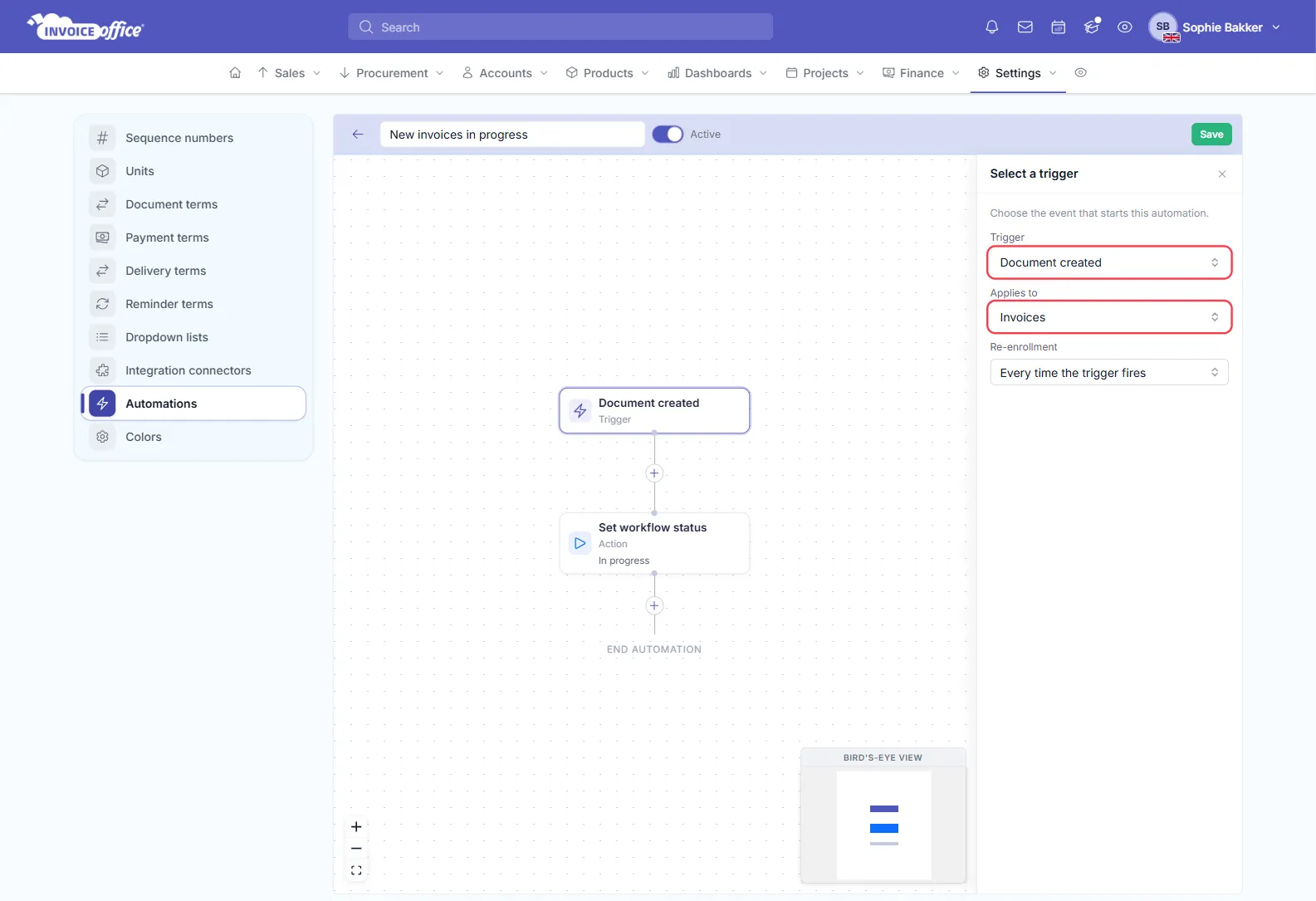
Click the trigger card and choose Document created under Trigger.
-
Under Applies to, choose the document type — Invoices, Quotes, Order confirmations, Packing notes, Credit notes, Purchase orders or Any document.
-
Click the + under the trigger and choose Action.
-
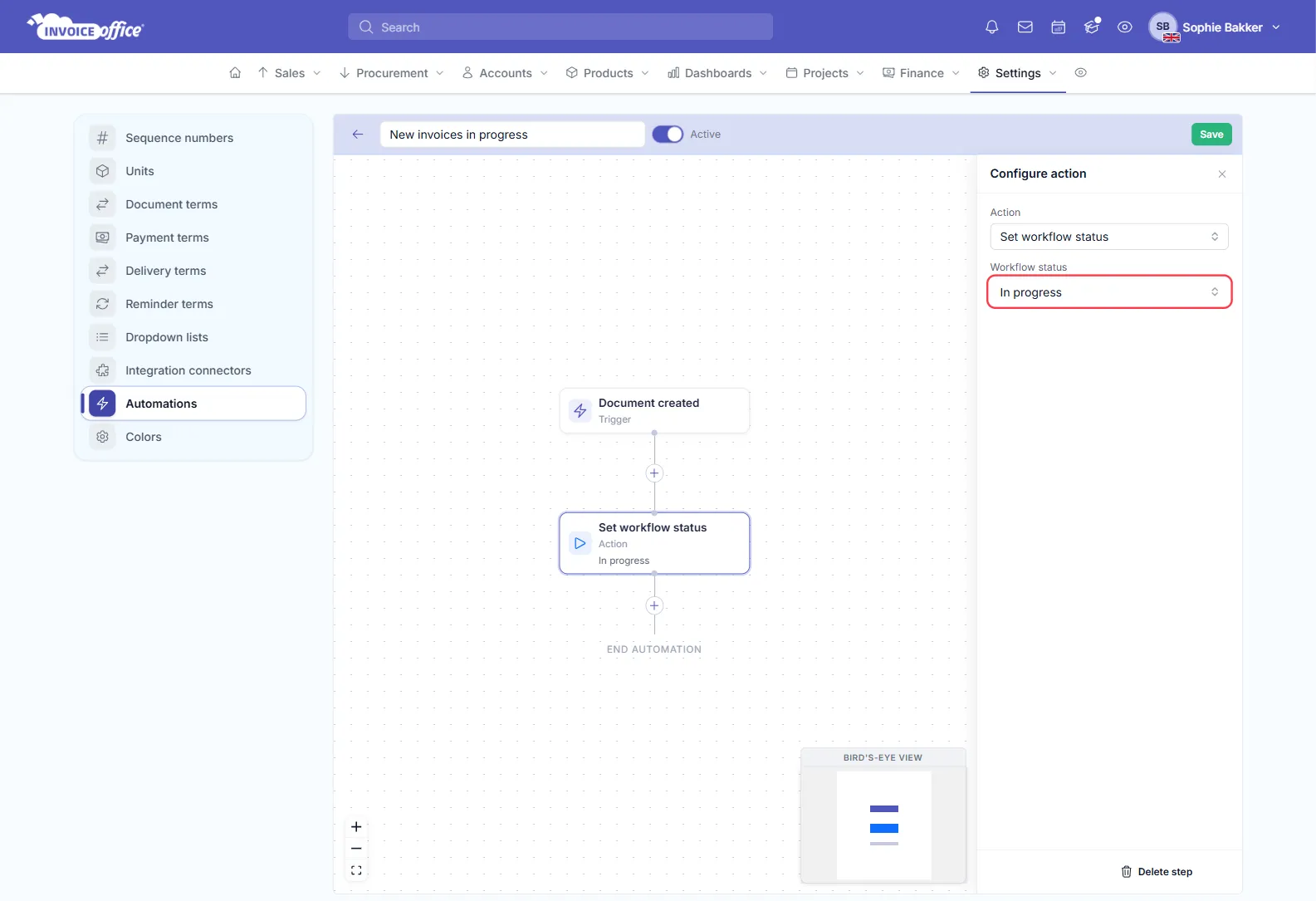
Under Action, choose Set workflow status.
-
Under Workflow status, choose the status the document should get, such as In progress.
-
Switch the automation from Draft to Active with the switch next to its name, and click Save.
For more on the editor itself — steps, waits and conditions — see how to use automations.
What happens once it is active
- New documents you create of that type open with the workflow status already filled in. You can still pick another one before you save.
- Documents created another way — by duplicating or converting a document, for example — get the status too, but only if they do not already carry one. A duplicate or conversion keeps the workflow status of the document it was made from, so it only gets the automated status when the original had none.
- An existing status is never overwritten. Set workflow status only sets a status on a document that does not have one yet, so a status you or a colleague chose deliberately stays as it is.
Running automation actions needs an active Pro license. Without one you can still build and save the automation, but its actions are skipped.
Examples
Every new invoice starts as “In progress”. Trigger Document created, Applies to Invoices, action Set workflow status → In progress. This is the automation in the screenshots above.
Mark a quote once it has been invoiced. Trigger Invoice created from quote, action Set workflow status → for example Invoiced. This trigger runs on the quote, not on the new invoice, so the status lands on the quote — as long as the quote has no workflow status yet. The trigger Order confirmation created from quote works the same way. The status must exist in an active Status automation for quotes (or for Any document).
An invoice converted from a quote keeps the quote’s workflow status, so the first example only applies to it if the quote had none. Likewise, the quote example does nothing if the quote already got a status — for example from a Document created automation for Quotes or Any document.
What cannot be automated yet
The available triggers are Document created, Invoice created from quote, Order confirmation created from quote, Contact birthday and Product stock alert, plus Status for defining the statuses. There is no workflow status trigger yet for an invoice being sent, a payment being registered or an invoice becoming overdue, so a status such as Sent or Paid cannot be set automatically at that moment.
For those steps, set the status by hand: open the document’s Action menu in the list and choose Workflow status, or select several documents and use Selected lines → Workflow status — see how to use workflow statuses, step 3.
Missing a trigger you need? Automations are being extended, and you can ask for one by creating a ticket on the helpdesk.
For any other information, contact us.