You can customise workflow status names and colours in Invoice Office so the stages of your invoices and quotes use your own words and your own colour coding. A status such as In progress can be renamed, given a different colour or joined by new statuses of your own. This guide shows where workflow statuses are managed, how to rename one, how to add one, how to change a status colour and which document types the statuses apply to.
New to workflow statuses? Start with how to use workflow statuses, which covers setting them up and applying them to documents.
Where workflow statuses are managed
Two settings pages control how a status looks:
- The name comes from an automation with the Status trigger. Go to Settings → Company → Automations and open the automation for the document type. Editing automations requires a company admin role.
- The colour is set on the Colors page. Open any settings page that has the settings menu on the left, such as Automations, and click Colors in that menu.
Invoice Office has no built-in workflow statuses. Every workflow status, including In progress, is one that you or a colleague created. You can change all of them.
Which document types a status applies to
Each Status automation has its own list of statuses. Click the Status trigger card in the automation editor to see which document type the list belongs to under Applies to: Quotes, Invoices, Order confirmations, Packing notes, Credit notes, Purchase orders, Products or Any document. Any document adds its statuses to every document type and to products.
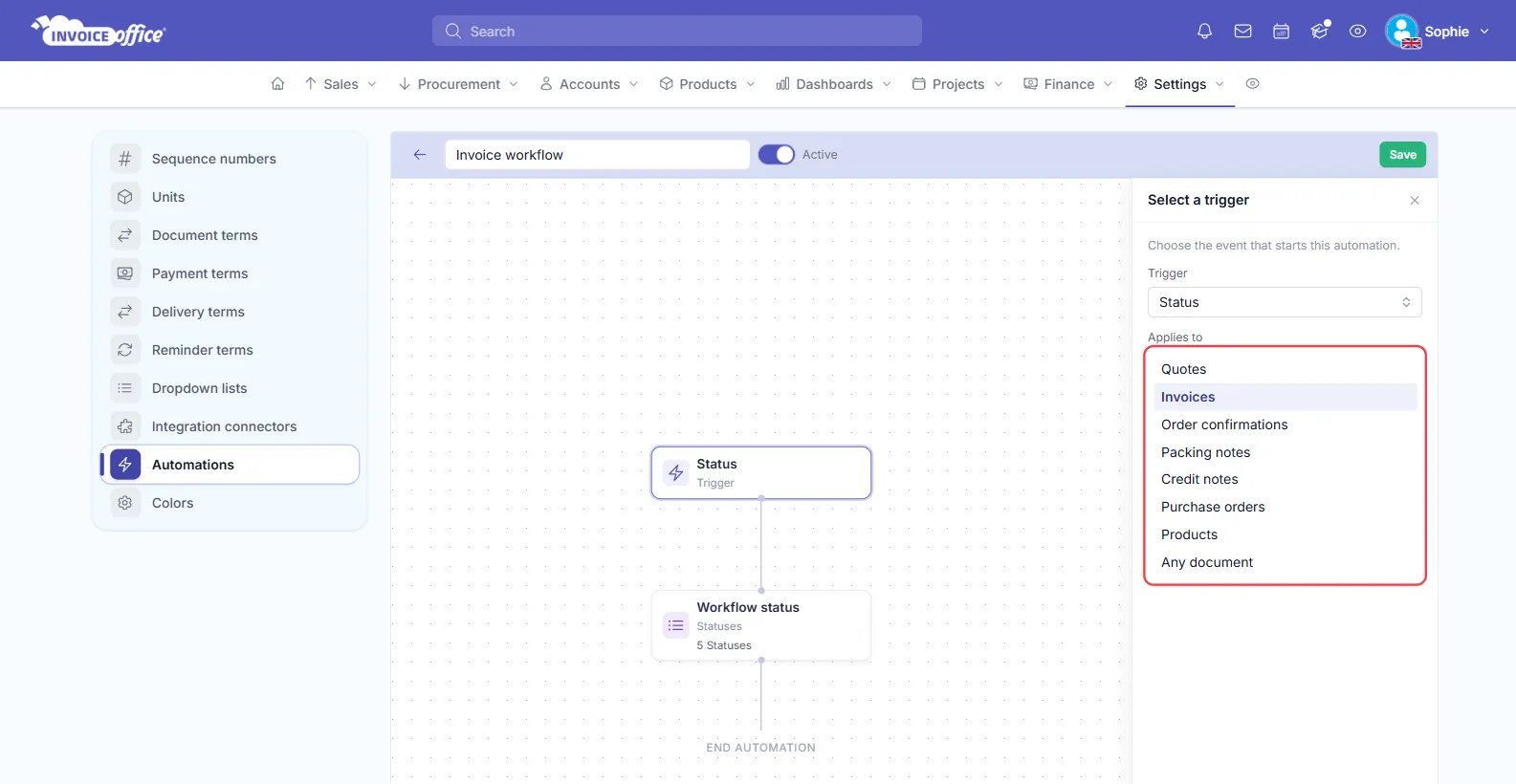
Each document type can have one Status automation. To give quotes different stages from invoices, use one automation for Quotes and another for Invoices. A document type that already has a Status automation is no longer offered under Applies to.
Rename a workflow status
- Go to Settings → Company → Automations and open the Status automation for the document type, for example Invoice workflow.
- Click the Workflow status step. The Add workflow status panel opens on the right.
- Under Statuses, click in the box of the status you want to rename, for example In progress, and type the new name.
- Check the Default status. If the renamed status was the default, choose it again.
- Click Save.
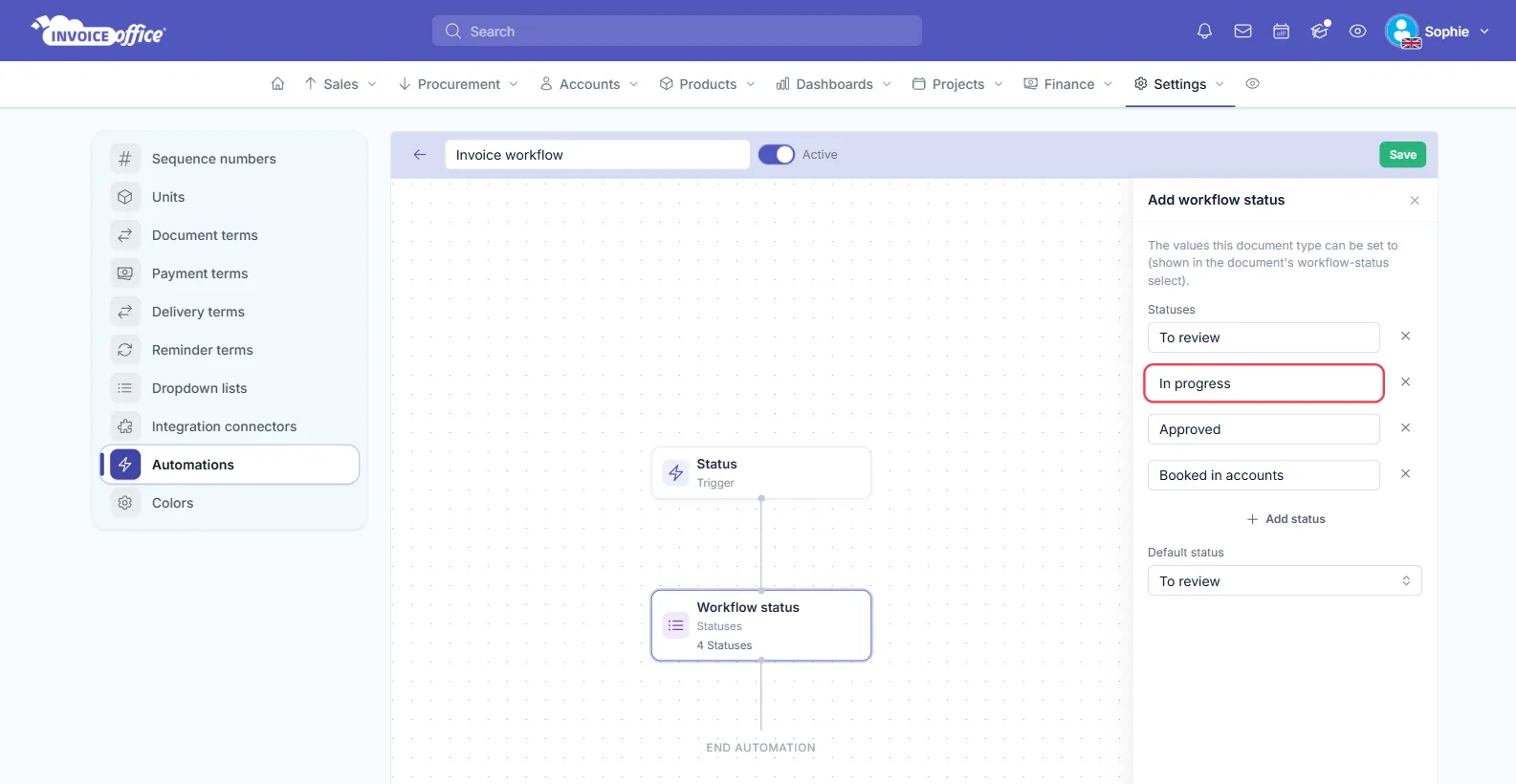
Two things to know after a rename:
- Documents keep the name they already have. A workflow status is stored on each document as text, so invoices that already show In progress keep that name. Set the new status on them if they should match.
- The colour follows the name. Colours are linked to the status name, so a renamed status starts out without a colour. Give it a colour on the Colors page as described below.
Add a new custom status
- Open the Status automation and click the Workflow status step.
- Click Add status. An empty Status name box appears at the bottom of the list.
- Type the name of the new status, for example Waiting for customer.
- Click Save.
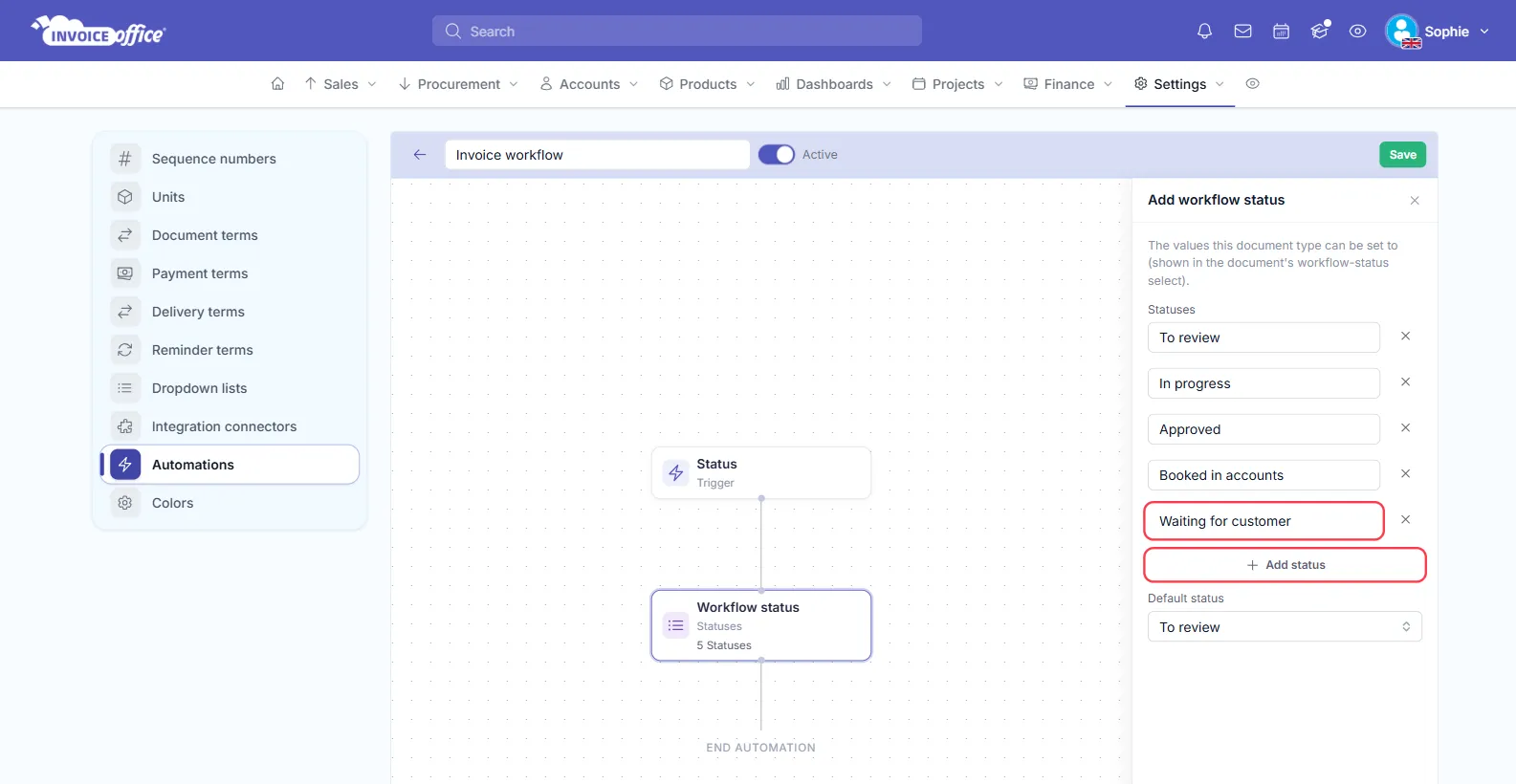
The statuses are only offered on documents while the automation is switched to Active. To remove a status, click the cross next to its name.
Change the colour of a workflow status
- In the settings menu on the left, click Colors.
- Open Workflow colors. Every status from your active Status automations is listed here.
- Next to the status, for example In progress, click one of the preset colours (Default,
Blue, Green, Orange, Red, Sky or Purple). You can also pick your own colour
with the colour picker or type a hex code such as
#6f42c1. The cross clears the colour again. - Click Save.
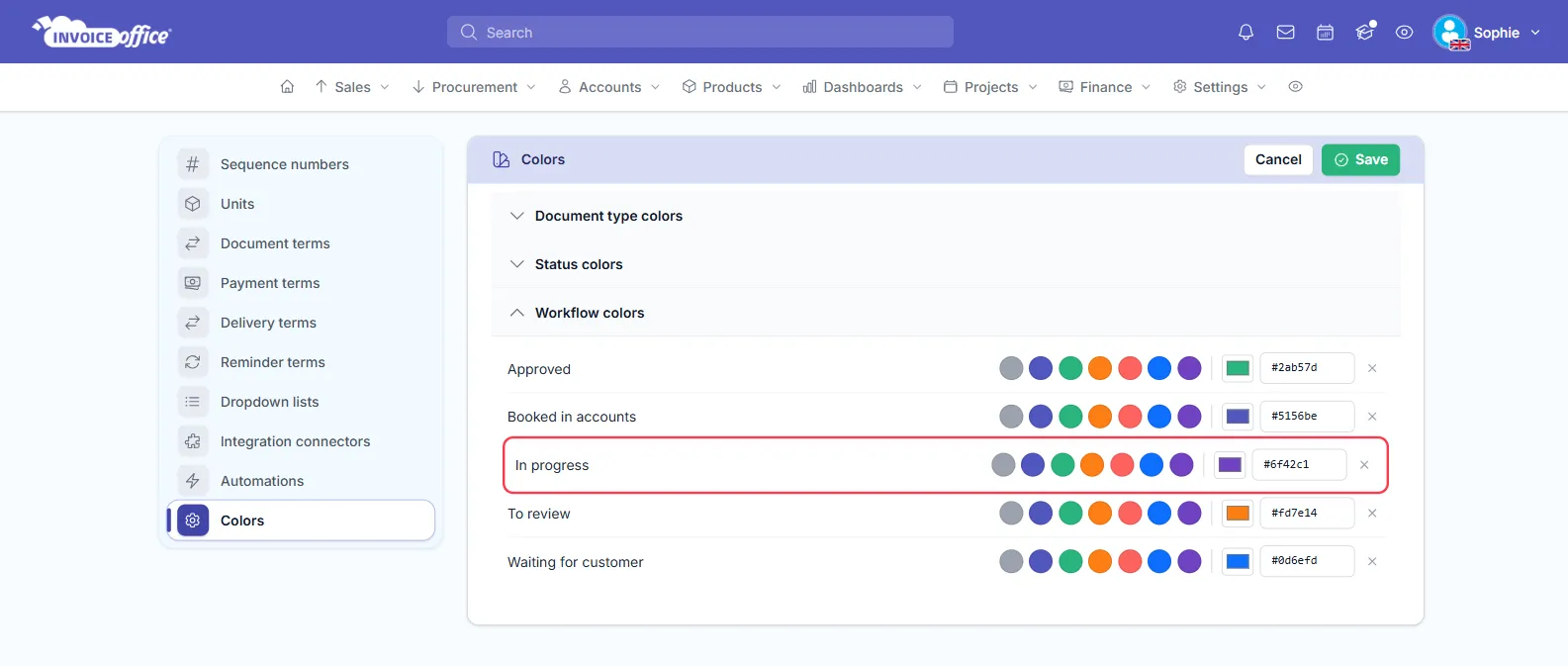
The colour is used for the status badge in the Workflow status column of your document lists. A status without a colour shows in grey. If Workflow colors says No workflow statuses defined yet., there is no active Status automation yet.
Rename or recolour a document status
Next to your own workflow statuses, every invoice, quote and other document has a fixed status: Draft, Finalized, Email sent, Recurring and the Peppol statuses. You can rename and recolour these too:
- On the Colors page, open Status colors.
- Type your own name in the box next to the status, for example Emailed instead of Email sent. A name can be up to 24 characters. Leave the box empty to keep the standard name.
- Choose a colour in the same way as for workflow statuses.
- Click Save.
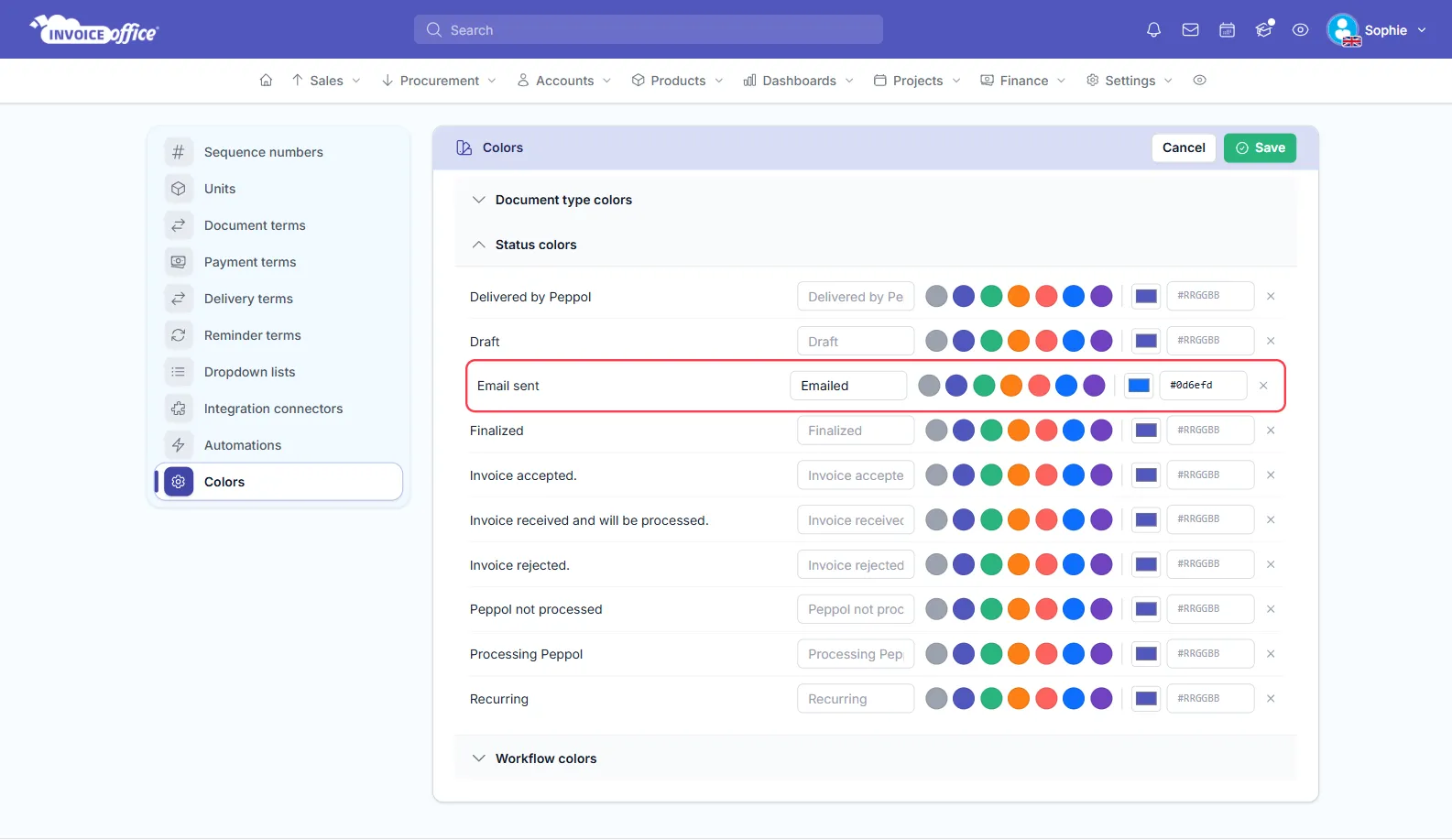
The new name and colour appear on the document status badges in your document lists. This only changes how the status is shown. The status itself, and what moves a document from draft to finalized, stays the same.
To change the words printed on the document itself, such as Invoice number or Due date, see how to change the label name.