Automations in Invoice Office are automation rules that do routine work for you. Each one starts with a trigger — an event such as a document being created — and then runs the steps you add underneath: actions that send an email or update a field, waits, and conditions that split the flow in two. You build the whole rule on a canvas, from the trigger at the top down to End automation. This guide covers creating a rule, the triggers and actions you can choose from, adding a condition, and enabling, pausing and deleting rules.
Automations are managed by company administrators. You can build and save them on any plan, but their actions are only carried out with an active Pro license; without one the action steps are skipped.
Step 1 — Create an automation rule
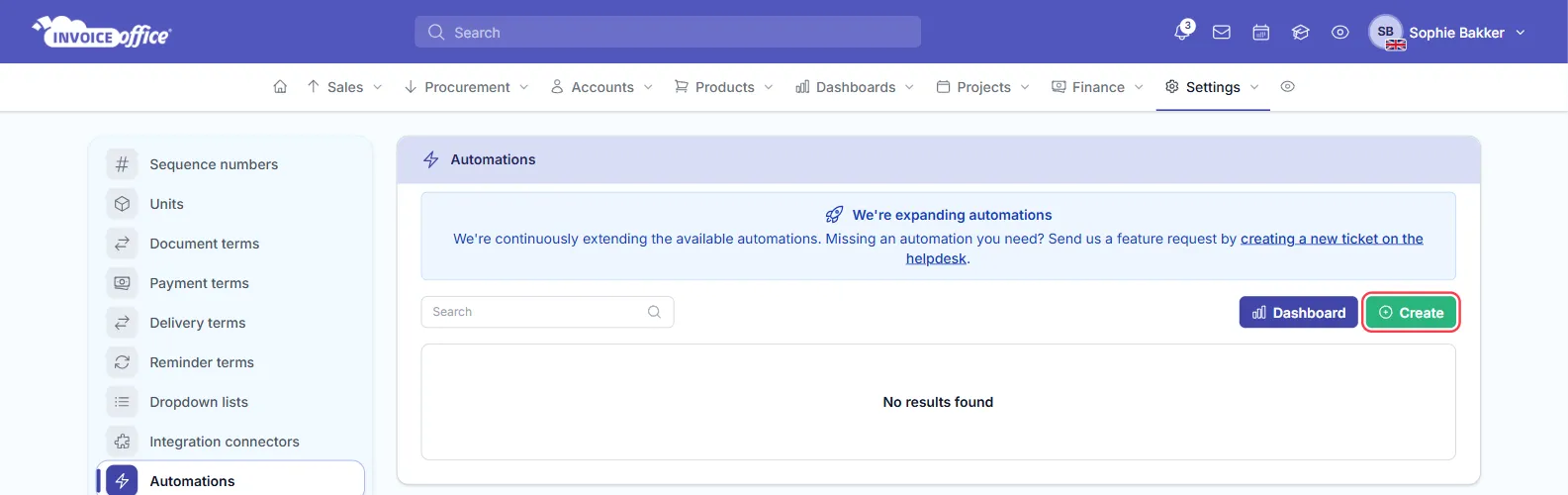
- Go to Settings → Company → Automations.
- Click Create. A new automation opens in the editor as Untitled automation, with the status Draft.
- Type a name in the field at the top.
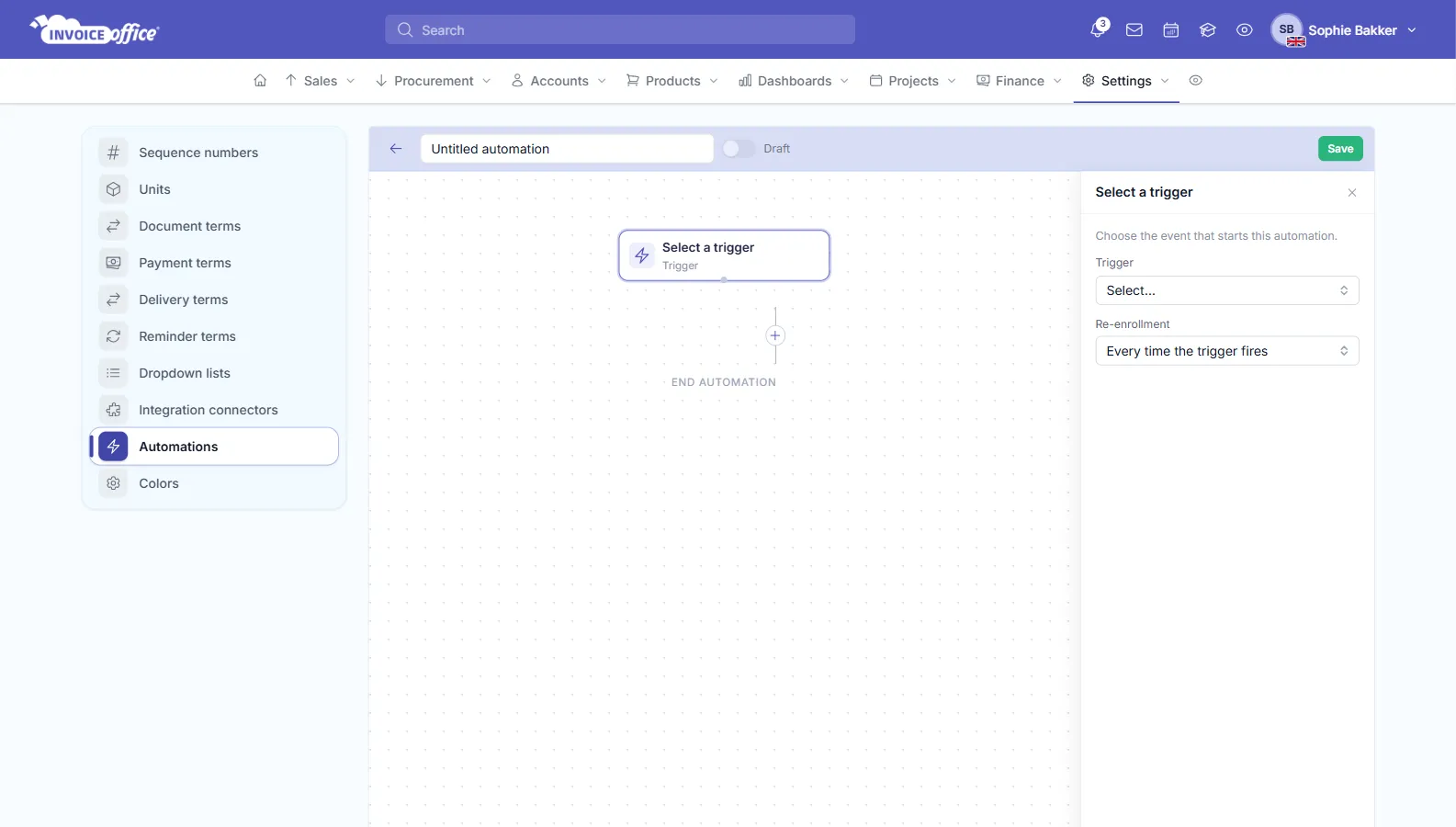
The editor has three parts: the bar at the top with the name, the status switch and Save; the canvas with the steps; and a panel on the right that shows the settings of the step you click.
Step 2 — Choose a trigger
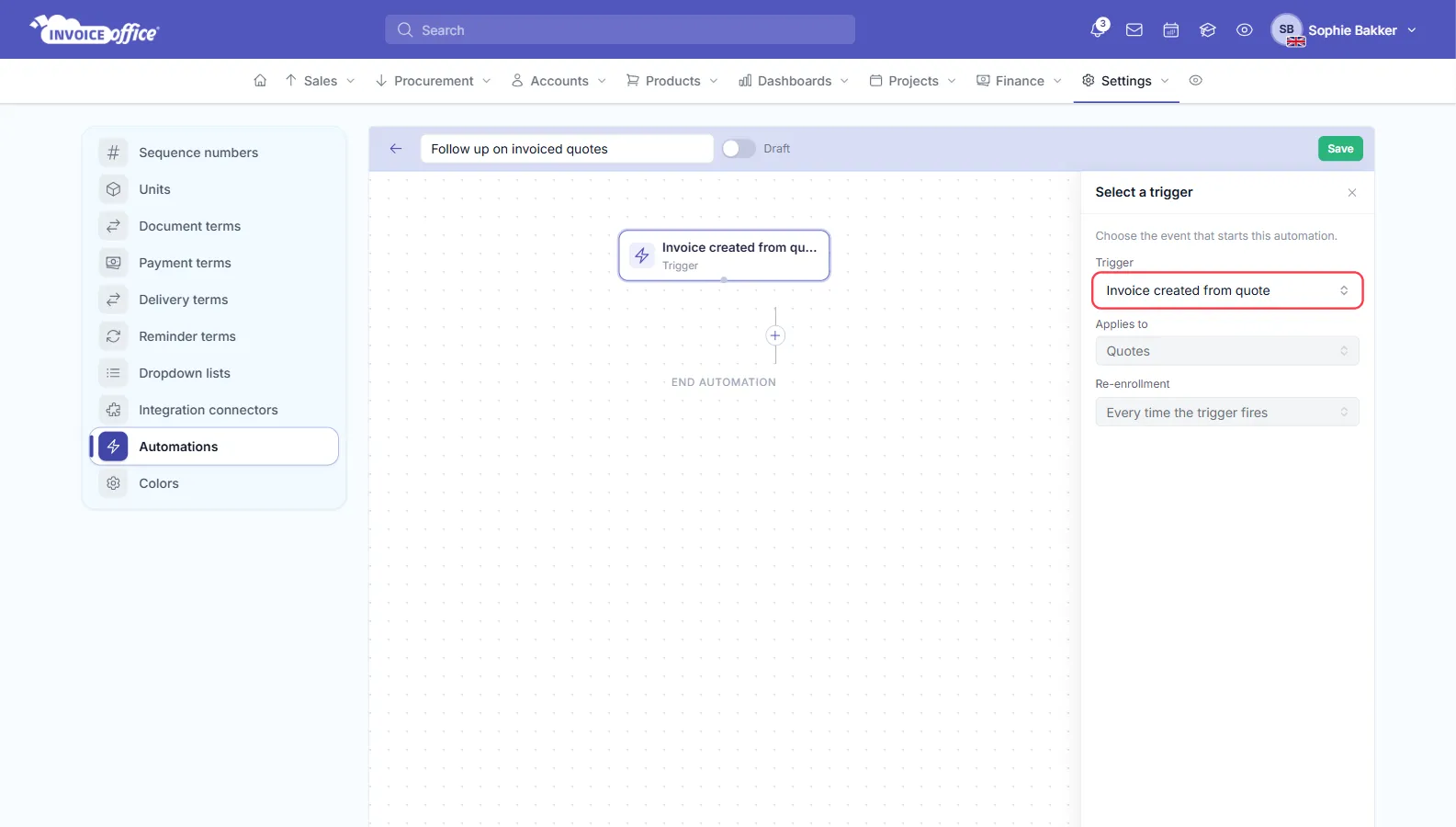
Click the trigger card at the top of the canvas and pick the event under Trigger:
| Trigger | Starts when… |
|---|---|
| Invoice created from quote | a quote is turned into an invoice |
| Order confirmation created from quote | a quote is turned into an order confirmation |
| Document created | a document is created — choose quotes, invoices, order confirmations, packing notes, credit notes, purchase orders or Any document under Applies to |
| Contact birthday | a contact has their birthday |
| Product stock alert | a document brings a product’s stock below its minimum stock level |
| Status, under Workflow status | nothing happens by itself — see workflow statuses |
Applies to shows what the automation works on — quotes, a document type, products or customer contacts. For most triggers it is filled in for you.
Re-enrollment decides whether the same document can go through the automation Every time the trigger fires or Only once per subject. You can choose this for Document created; the other triggers always run every time.
Step 3 — Add actions
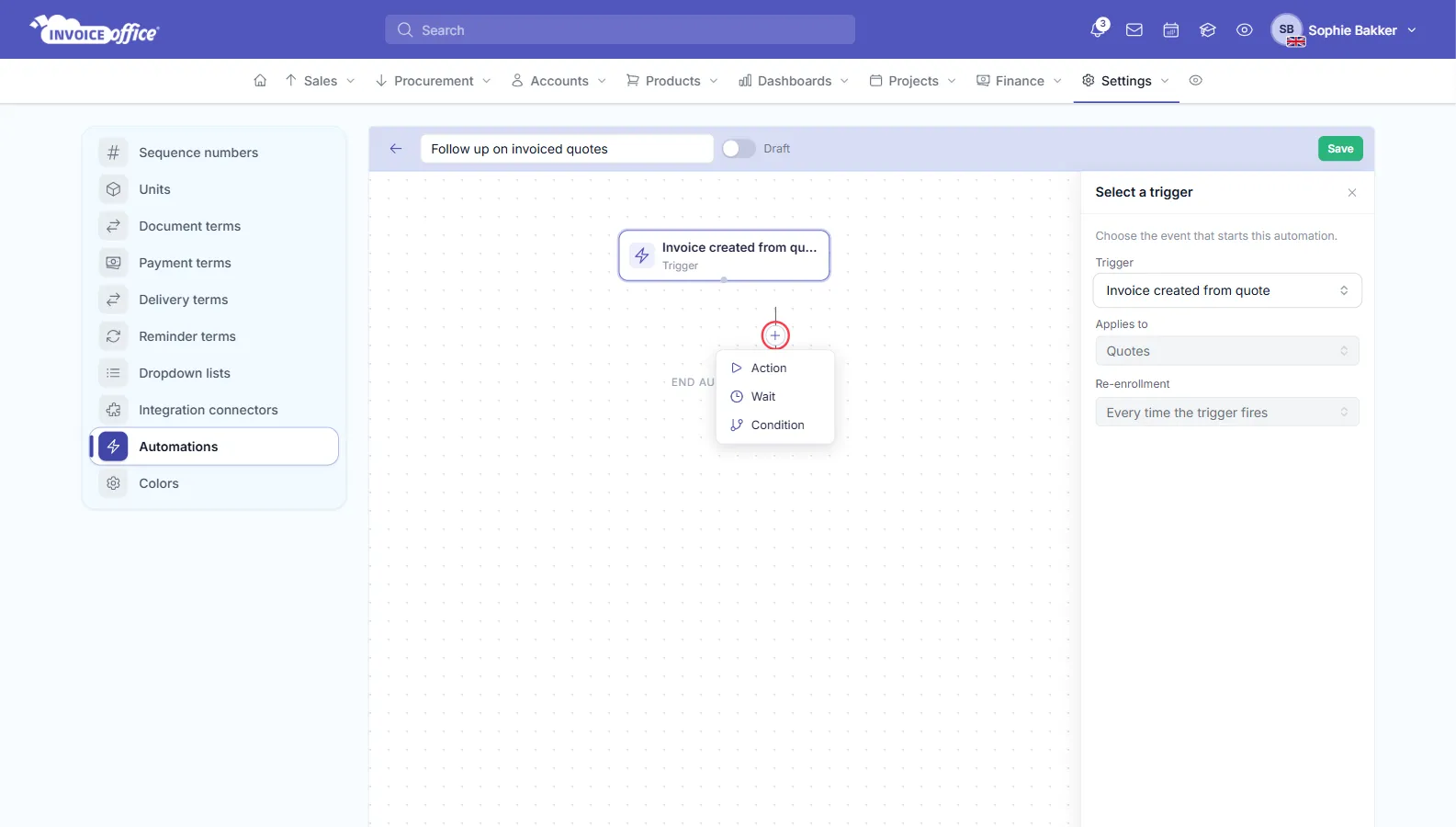
- Click the + under a step. A menu offers Action, Wait and Condition.
- Choose Action, then pick what it does under Action in the panel on the right.
- Fill in the fields the action asks for.
These are the actions. Which ones you see depends on what the automation applies to:
| Action | What it does |
|---|---|
| Send email | sends an Email design with the Subject you enter to the contact on the quote or invoice, or to the contact whose birthday it is |
| Set field value | fills the Reference, Specification or Flex field 1 of a document, if it is still empty, with the first or full name of the user who created it, or your own Custom text |
| Set workflow status | sets the document’s workflow status to one of the statuses you have defined, if it has none yet |
| Set quote status | sets a quote to Agreed, Not agreed, Discussion, Negotiation or Partially agreed |
| Set related-document color | colours the badge that other documents show for this document under related documents: Default, Blue, Green, Orange, Red, Sky or Purple |
| Send in-app notification | shows a Message to All users, Specific users or the Record owner |
| Send internal email notification | emails a Subject and Email body to the same choice of recipients |
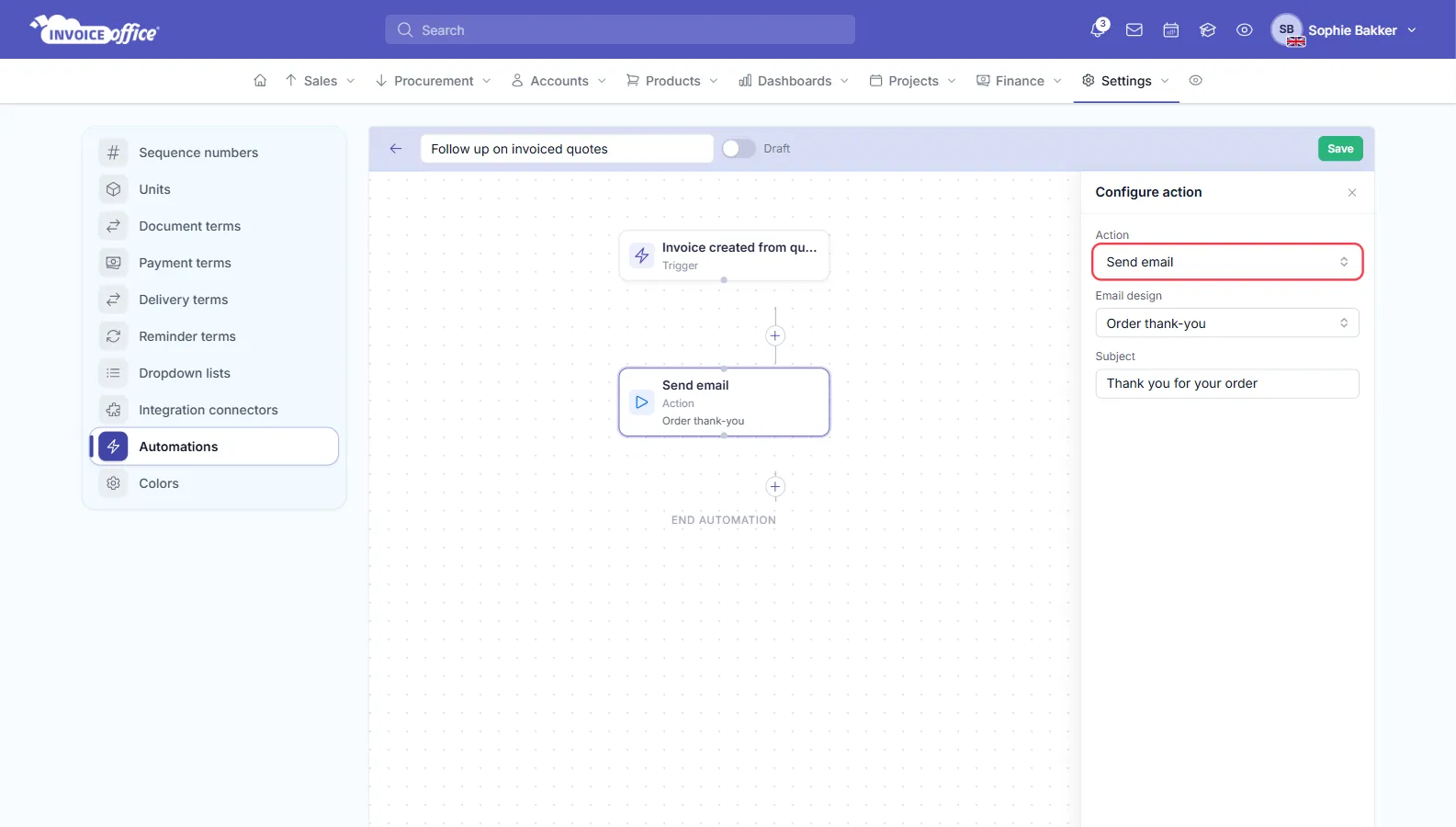
Record owner only reaches someone on a Product stock alert automation, where it is the user who created the product.
Send email uses the email designs you build in the email template editor. To send invoices on a schedule rather than in reaction to an event, see how to send invoices scheduled and repeating.
To let time pass between two steps, add a Wait and set how long it lasts in Minutes, Hours, Days, Weeks or Months. To remove a step, click it and choose Delete step at the bottom of the panel.
Step 4 — Add a condition
A condition splits the automation into a Yes path and a No path, and each path continues with its own steps.
- Click the + where the check should happen and choose Condition.
- Under Condition, choose Quote status is, and pick the status under Quote status equals.
- Add the steps for each outcome with the + under Yes and under No.
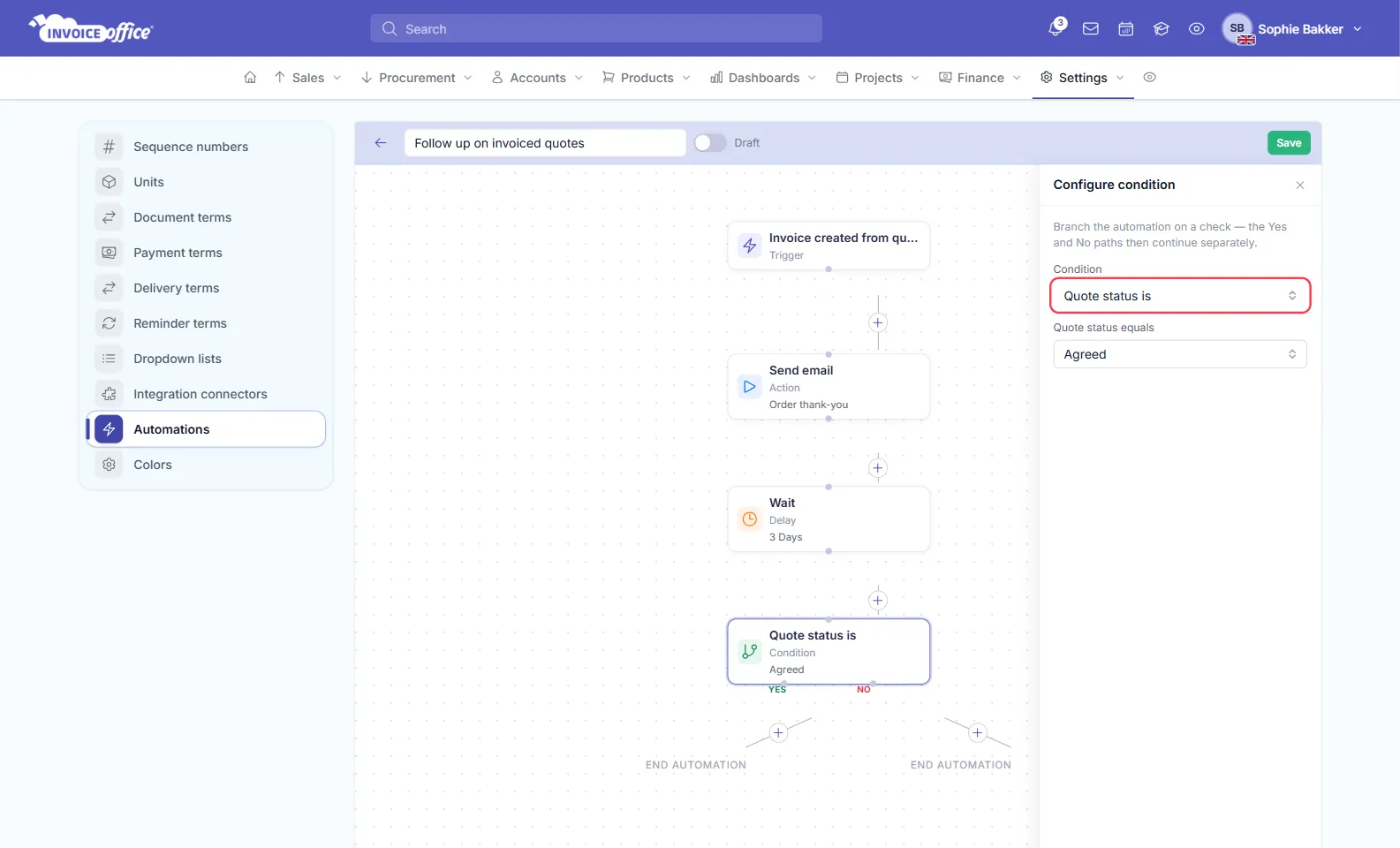
Quote status is is the condition available today.
Step 5 — Save and enable the rule
- Switch the rule on with the switch next to its name. The label changes from Draft to Active. The switch only works once the automation has a trigger and every step is filled in.
- Click Save. The switch only takes effect once you have saved.
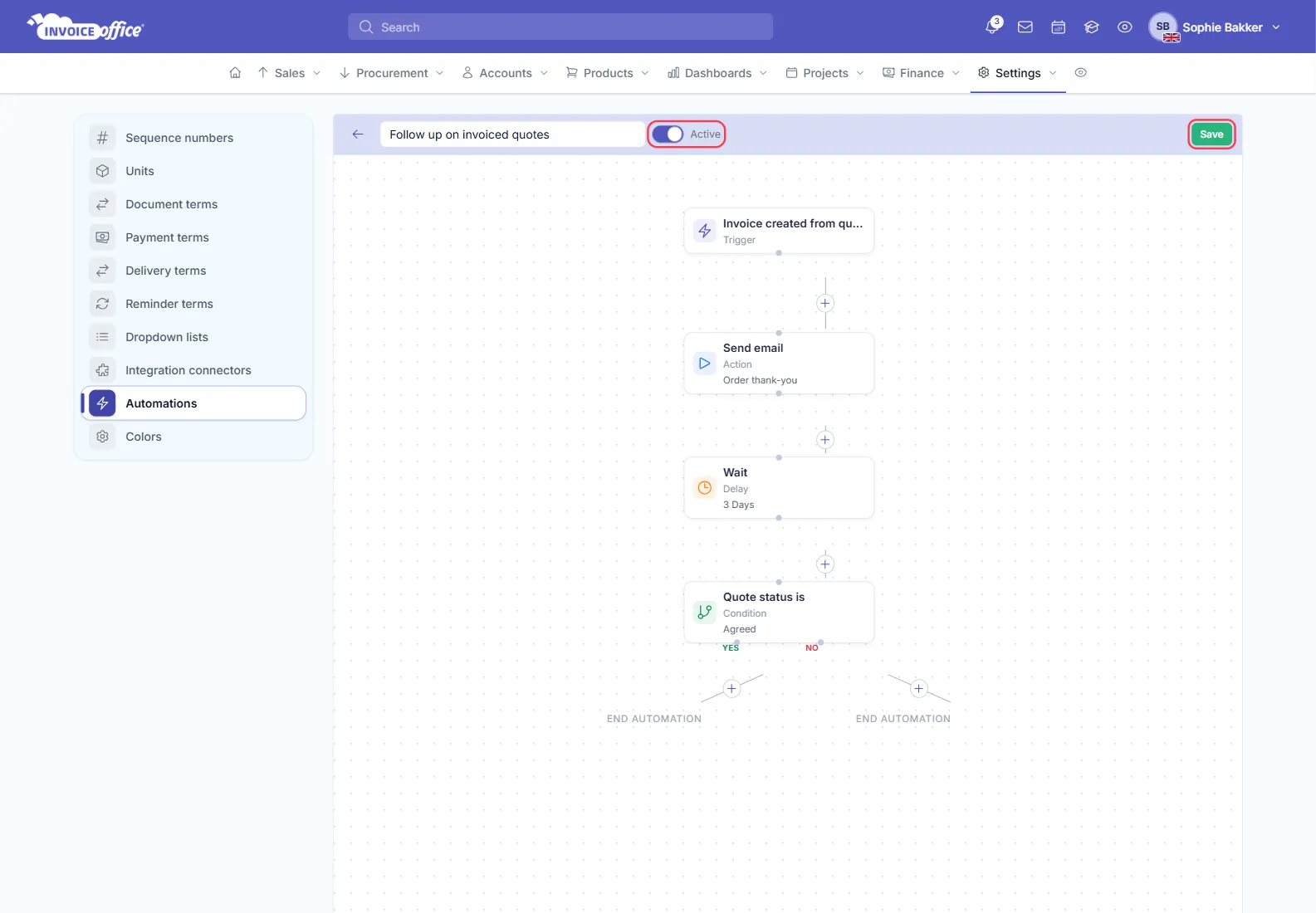
The arrow at the left of the bar takes you back to the list.
Pause, edit and delete rules
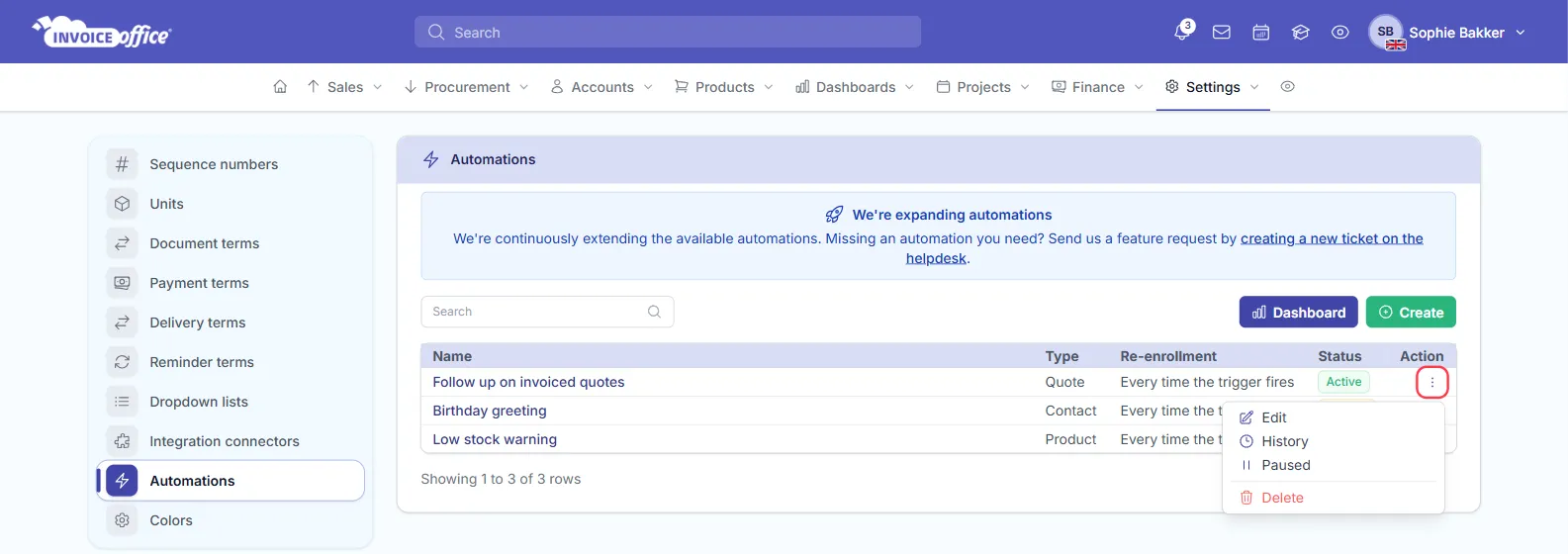
The Automations page lists every rule with its Name, Type, Re-enrollment and Status — Draft, Active or Paused. Open the Action menu at the end of a row:
- Edit opens the rule in the editor.
- History shows the runs of the rule.
- Paused pauses an active rule straight away; on a paused or draft rule the same place reads Activate.
- Delete removes the rule. Invoice Office asks you to confirm first.
Dashboard, at the top of the list, shows how your automations are doing: the number of runs, active automations, completed, failed and in-progress runs, and the success rate.
Workflow statuses
The Status trigger does not react to an event. It defines the workflow statuses a document type can be set to — the values in the document’s workflow-status field.
- Choose Status as the trigger and pick the document type — or Products or Any document — under Applies to.
- Click the + and choose Workflow status. In the Add workflow status panel, list your statuses, one Status name each, with Add status. Optionally pick a Default status.
- Switch the automation on and click Save.
You can have one such automation per document type. Once it is active, the Set workflow status action in your other automations can set those statuses. To colour them and set them on your documents, see how to use workflow statuses.