To set hourly rates per project or team member in Invoice Office, you choose how each project prices its time: one default hourly rate for the whole project, or a different rate for each team member who works on it. That project billing rate is then used as the price when you turn the project’s logged hours into an invoice. This guide covers your time billing setup: the project rate, the rate per team member, and how both show up on the invoice.
Where the hourly rate is set
Rates belong to the project. Open it with Projects → Projects, then the project’s Action menu and Edit project — or set them straight away when you click Create project. Under Project budget hours, choose Time and Material; the Hourly rate list then decides how time is priced:
- Project hourly tariff — one rate for the whole project.
- Person hourly tariff — a rate per team member.
- Task hourly tariff — a rate per task.
- Person daily tariff — a day rate per team member.
- No billable rate — no rate at all.
Only one applies at a time. For the rest of the project form, see how to create and manage projects.
Set a default hourly rate for the project
- Go to Projects → Projects, open the project’s Action menu and choose Edit project.
- Under Project budget hours, choose Time and Material.
- Set Hourly rate to Project hourly tariff and enter the rate in the field next to it.
- Click Save.
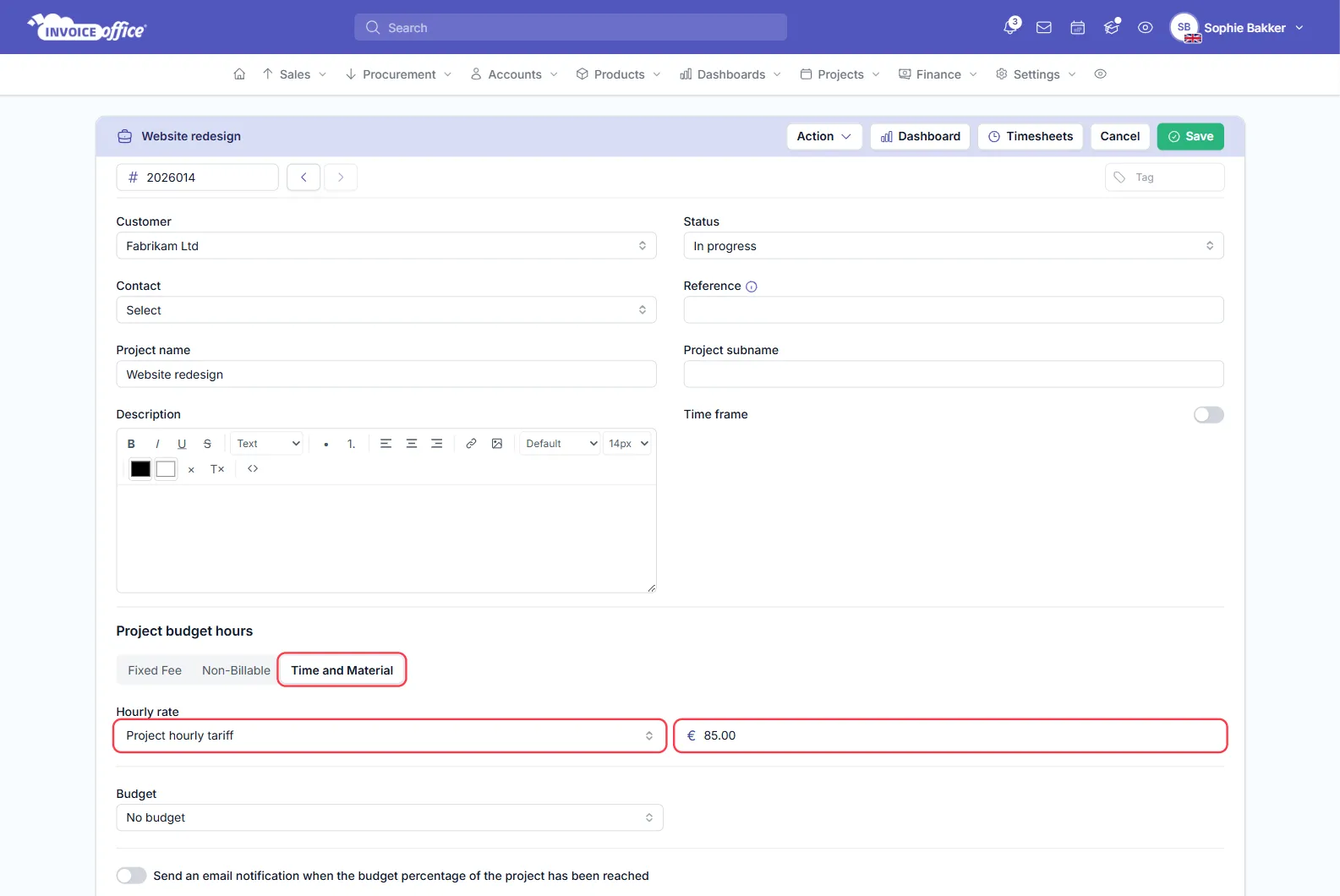
Every billable hour on the project is now invoiced at this rate, whoever logged it.
Set a different hourly rate per team member
- Go to Projects → Projects, open the project’s Action menu and choose Edit project.
- Under Project budget hours, choose Time and Material and set Hourly rate to Person hourly tariff.
- Under Team, pick a team in the Select list. Each of its members is added as a row with an Hourly rate field.
- Enter each person’s rate in the Hourly rate column, or keep the rate that was filled in from their own Invoice Rate.
- Click Save.
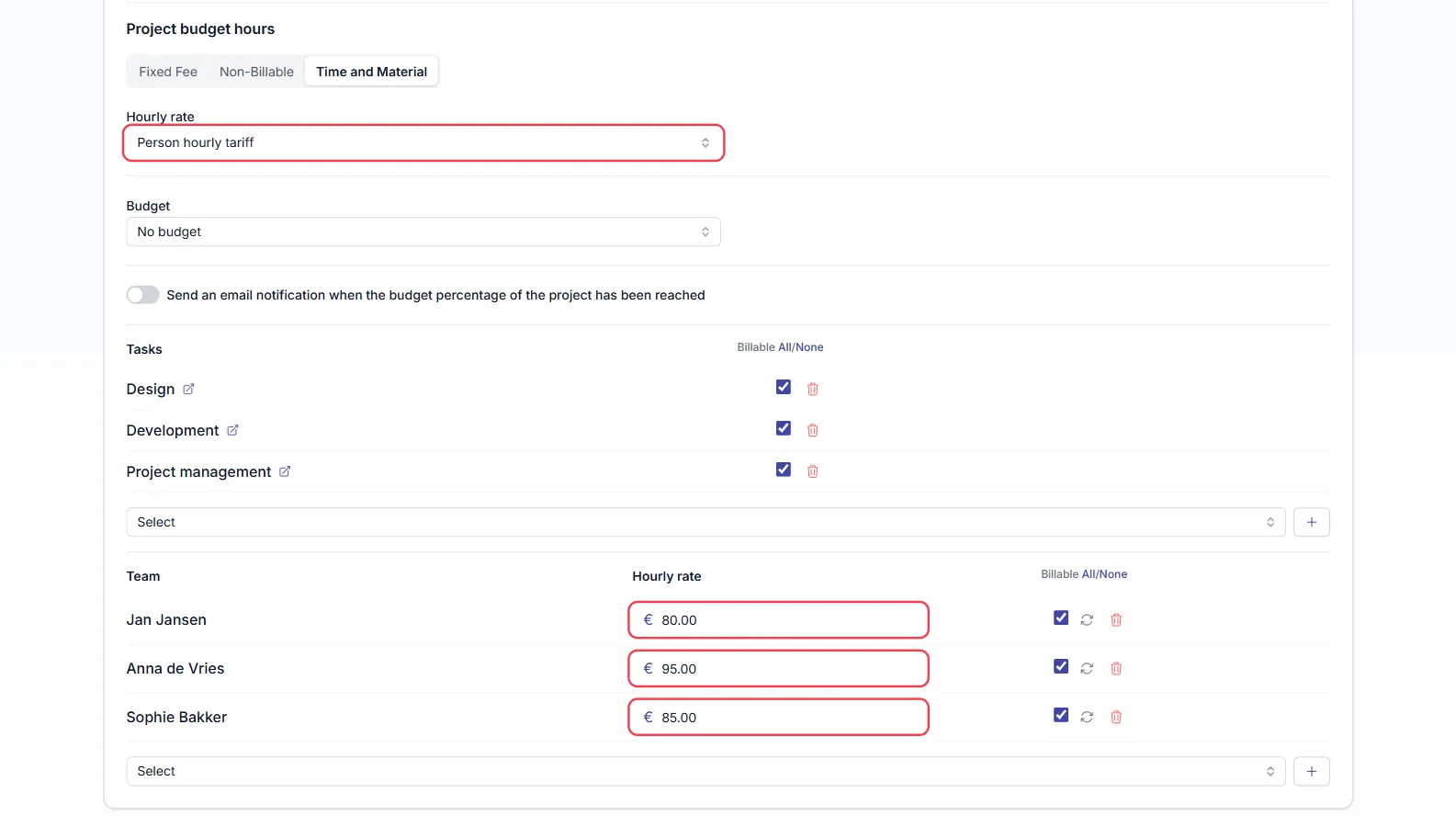
The rates you enter here apply to this project only, so the same person can bill €95.00 an hour on one project and a different rate on another.
Give each team member a standard hourly rate
When you add a team to a project, each member’s row is filled in with their own Invoice Rate. Set it once per employee and you rarely need to type a rate on the project:
- Go to Projects → Employees (or Settings → Users), open the person’s Action menu and choose Edit.
- Open the Hourly rate tab and enter their Invoice Rate — what you charge for an hour of their time. Cost Rate is what that hour costs you.
- Click Save.
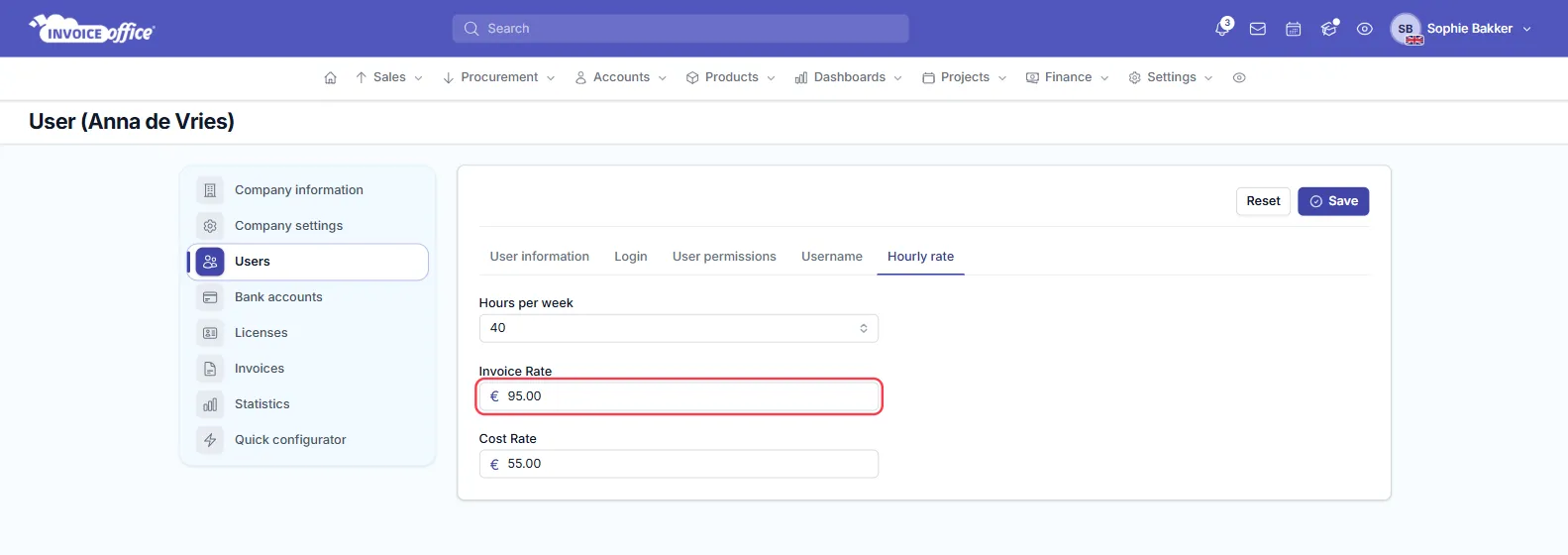
If a person has no Invoice Rate or Cost Rate, their row is filled with the Default project invoice rate from Settings → Company settings → Finance. That tab also holds Default project hourly rate — the Hourly rate option every new project starts with. A new project’s own rate field is filled with your Invoice Rate, or that company default if you don’t have one.
The project keeps the rate on its own team row. Changing someone’s Invoice Rate later doesn’t change the projects they are already on; edit the rate on those projects if it should change there too.
How the rates appear on the invoice
When you invoice the project’s hours with Action → Create invoice on the project — the option appears once the project has a customer — Invoice Office prices each line from the project’s Hourly rate:
- The Quantity is the billable time in hours, and the Price is the hourly rate.
- With Project hourly tariff, Task hourly tariff or Person hourly tariff, the matching Invoice type — Summary by project hours, Summary by task hours or Summary by team hours — is selected for you.
- With No billable rate or Person daily tariff, the lines are created with a Price of 0.00. Choose an Invoice type yourself and enter the prices on the invoice.
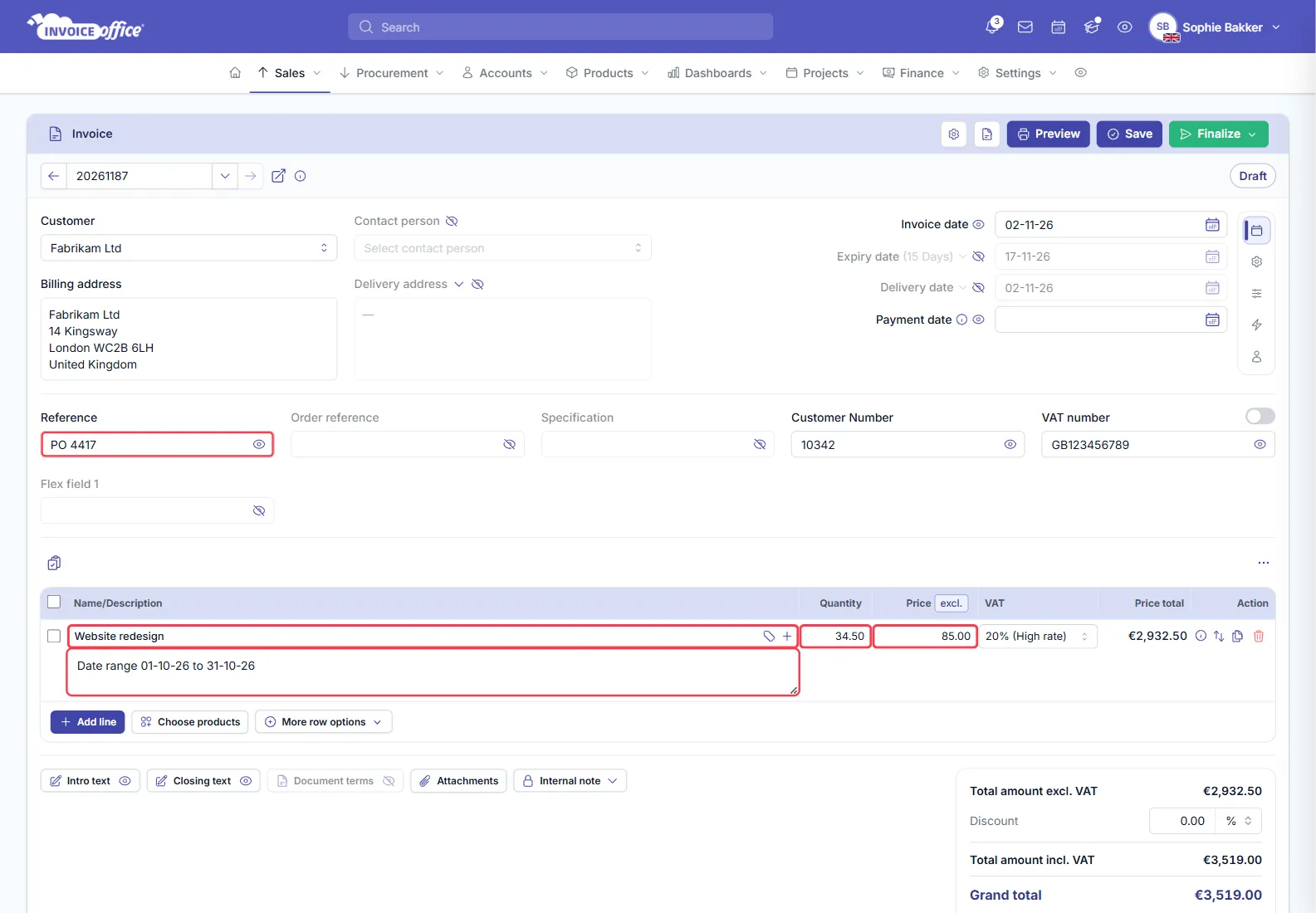
Check the prices with Person hourly tariff. In the current version, every line on the invoice can get the same rate — taken from one of the project’s team members — even when the members have different rates. Summary by team hours also adds one line per team the hours were logged under, so a shared team gets one line rather than one per person. Check the Price on each line against the rates on the project and correct it before you finalize the invoice.
The price is set when the invoice is created. Changing a rate afterwards affects the next invoice, not the ones you already made. For choosing which hours to bill and sending the invoice, see how to invoice a customer for hours worked on a project.