Workflow statuses in Invoice Office are the steps of your own document workflow, such as To review, Approved or Booked in accounts. They sit next to the document’s own status (draft, finalized, email sent), so you can track where an invoice or quote is in your internal process without touching the document itself. This guide covers creating a custom status, setting status colours, applying a status to a document and setting it automatically with an automation.
Step 1 — Create your workflow statuses
You define the workflow statuses for a document type with an automation that uses the Status trigger.
- Go to Settings → Company → Automations and click Create.
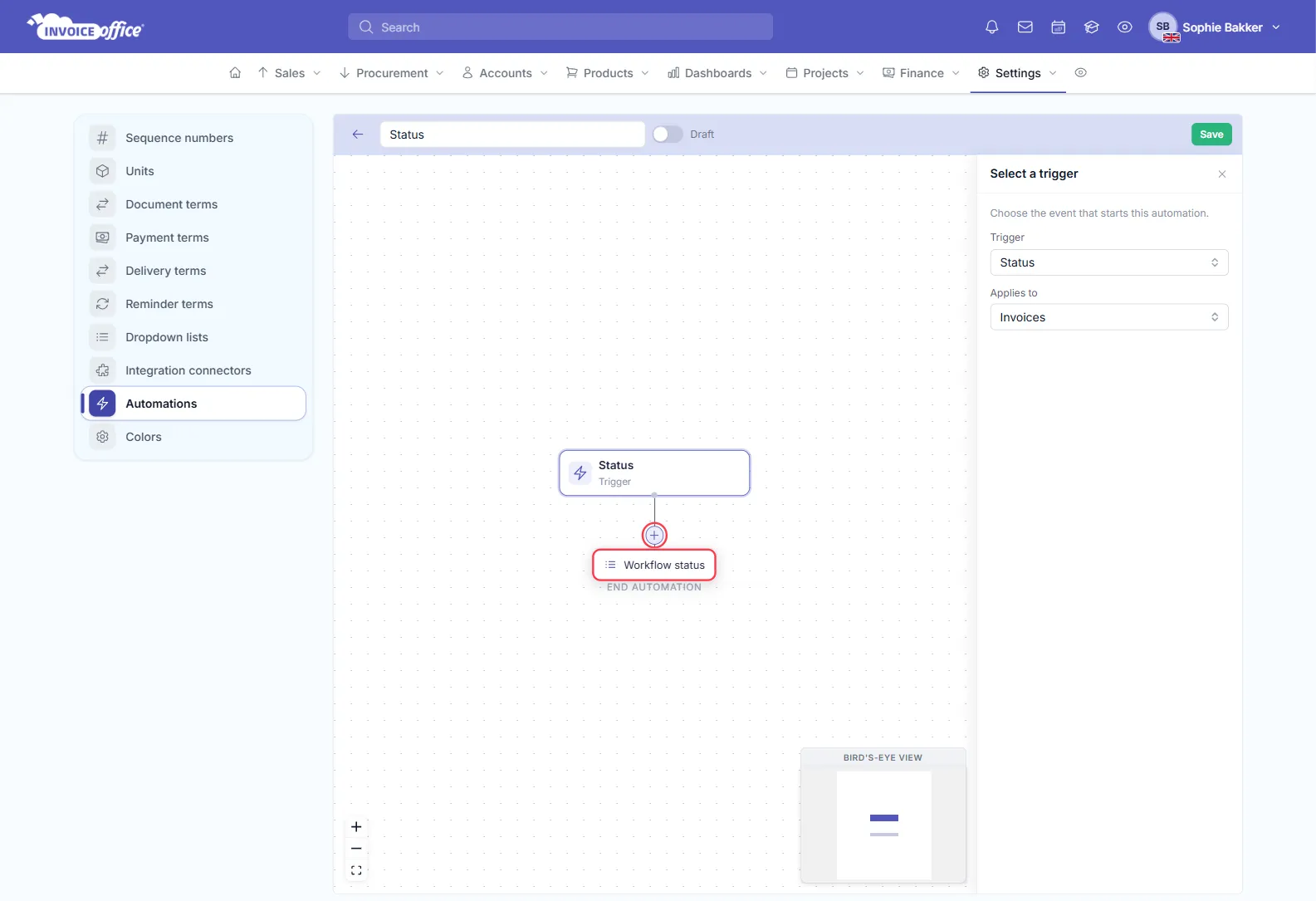
- Click the trigger card and choose Status under Trigger.
- Under Applies to, choose the document type the statuses are for: Quotes, Invoices, Order confirmations, Packing notes, Credit notes or Purchase orders. Any document adds its statuses to every document type and to products, and Products sets the workflow statuses for your products.
- Click the + under the trigger and choose Workflow status.
- In the Add workflow status panel, click Add status and type a Status name. Repeat for each step in your process. The cross next to a name removes it.
- Optionally choose a Default status. Documents of this type that you import get this status; if you don’t choose one, they get the first status in the list.
- Give the automation a name, switch it from Draft to Active and click Save.
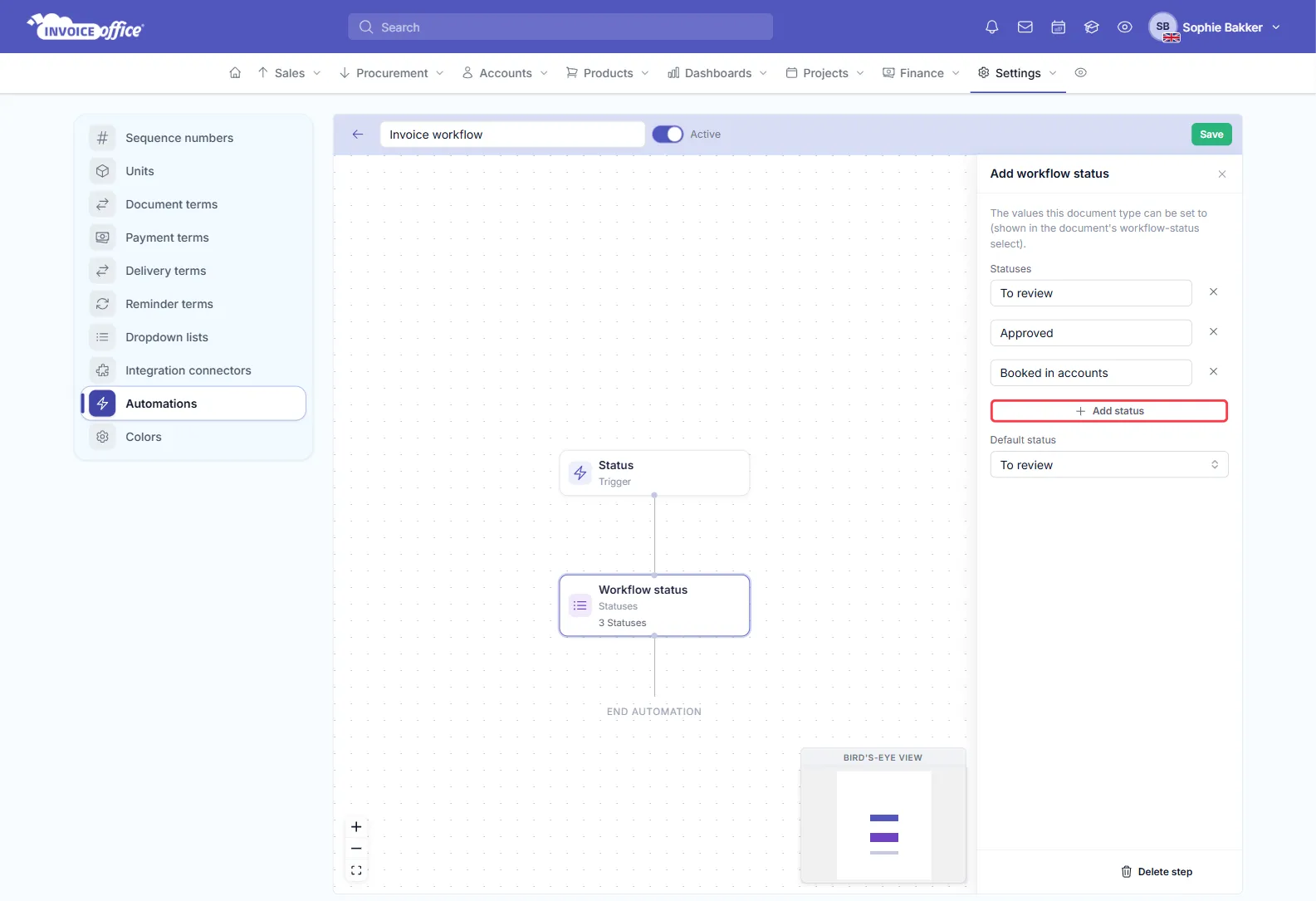
The statuses only become available once the automation is Active. Each document type can have one such automation; to change the list later, open it again from the Automations page.
Step 2 — Set status colours
- Open any settings page with the settings menu on the left — Settings → Company → Automations, for example — and click Colors in that menu.
- Open Workflow colors. Every status from your active Status automations is listed here.
- For each status, click one of the preset colours or pick your own with the colour picker or a hex code. The cross clears the colour again.
- Click Save.
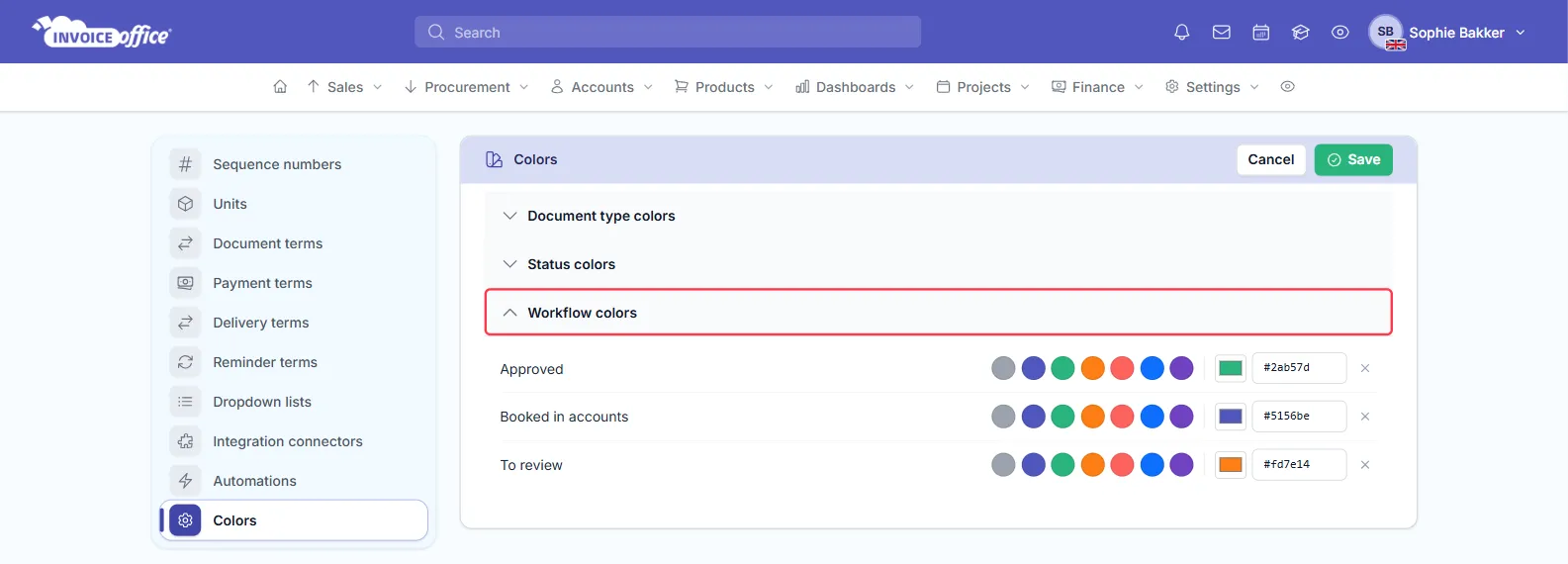
A status without a colour shows in grey.
Step 3 — Apply a status to a document
There are two places to set a workflow status on a single document:
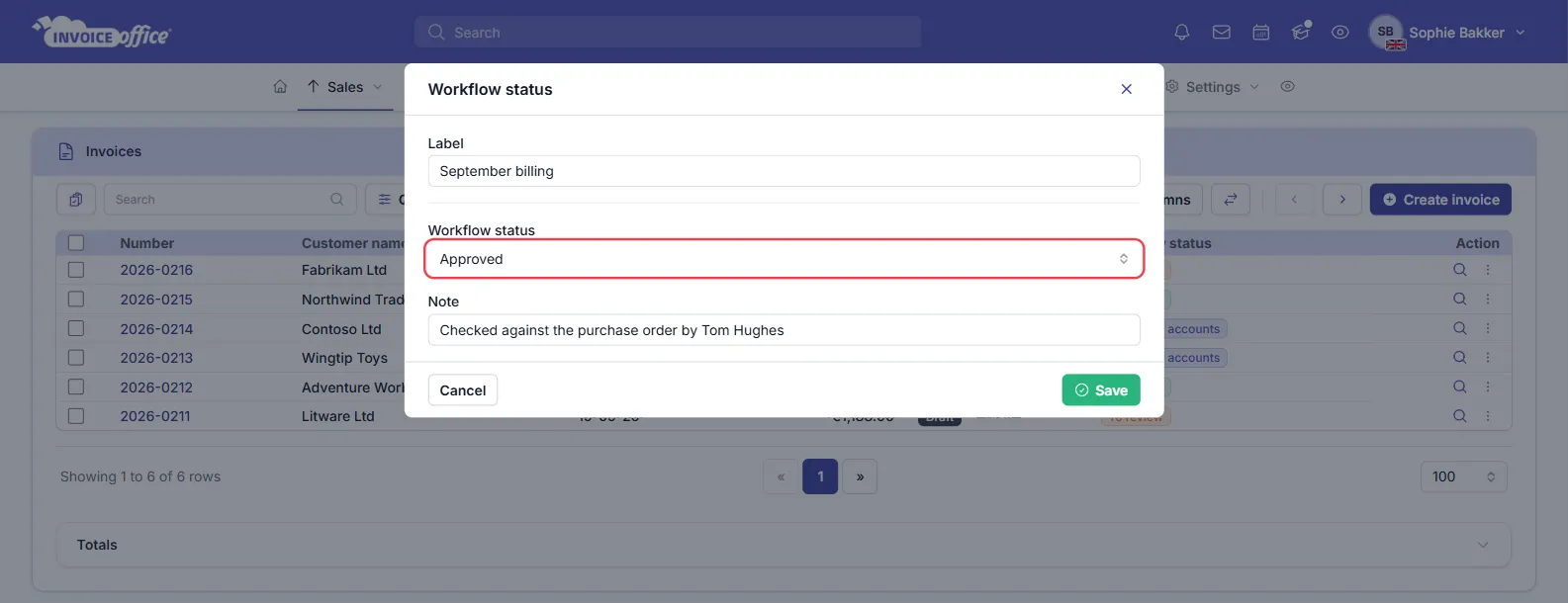
- From the list — open the ⋮ (Action) menu of the document and choose Workflow status. Pick the status, optionally add a Label and a Note, and click Save. This window needs an active Pro license.
- In the document editor — click the Workflow status icon in the column of icons on the right of the document and choose the status. On a saved document the change is stored straight away, and you can still change it after the document is finalized.
To give several documents the same status at once, tick them in the list and use Selected lines → Workflow status — see bulk send or export documents. This also needs an active Pro license.
Step 4 — Show workflow statuses in your document list
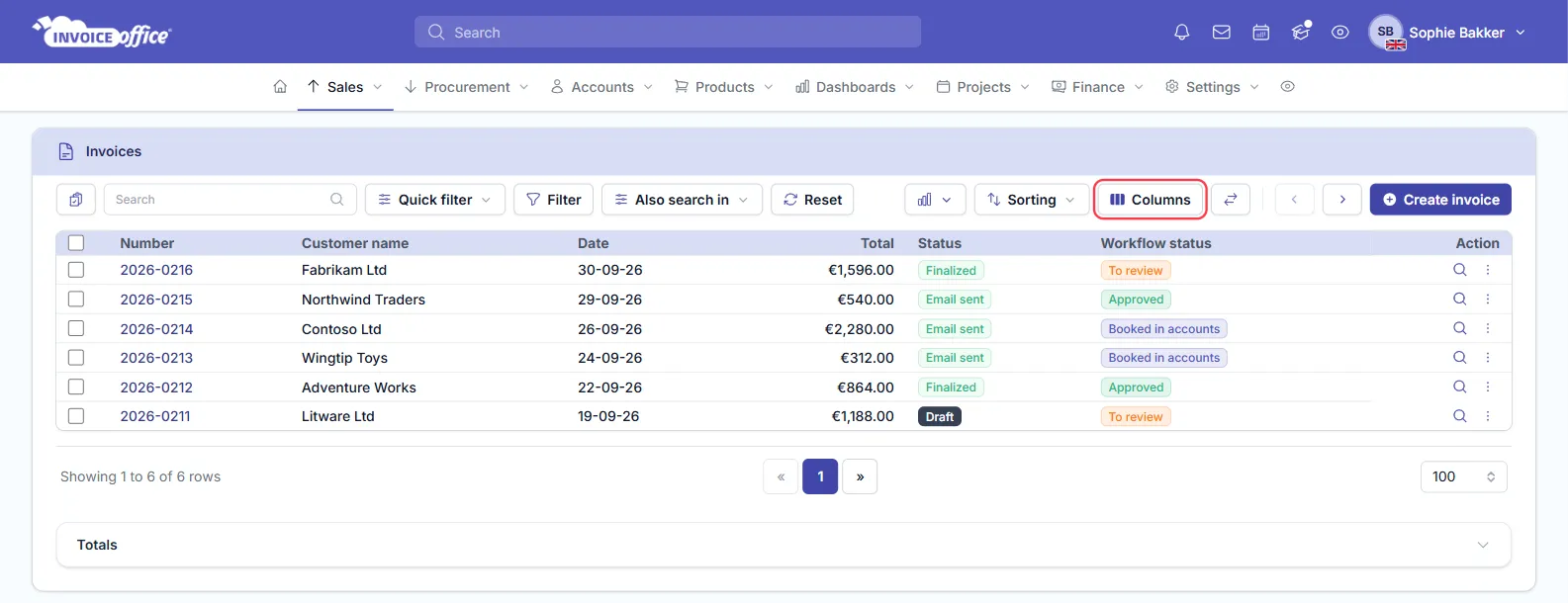
The Workflow status column is hidden by default. To show it, click Columns above the list, open the Workflow status group and add Workflow status; Description adds a column with the note. Each status then appears as a badge in the colour you chose. You can also narrow the list to one or more workflow statuses with Filter.
Step 5 — Set a workflow status automatically
You can let a new document start at a workflow status of your choice with an automation:
- Go to Settings → Company → Automations and click Create.
- Choose the trigger Document created and the document type under Applies to.
- Click the +, choose Action and pick Set workflow status.
- Under Workflow status, choose the status. The list holds the statuses you created in step 1.
- Switch the automation to Active and click Save.
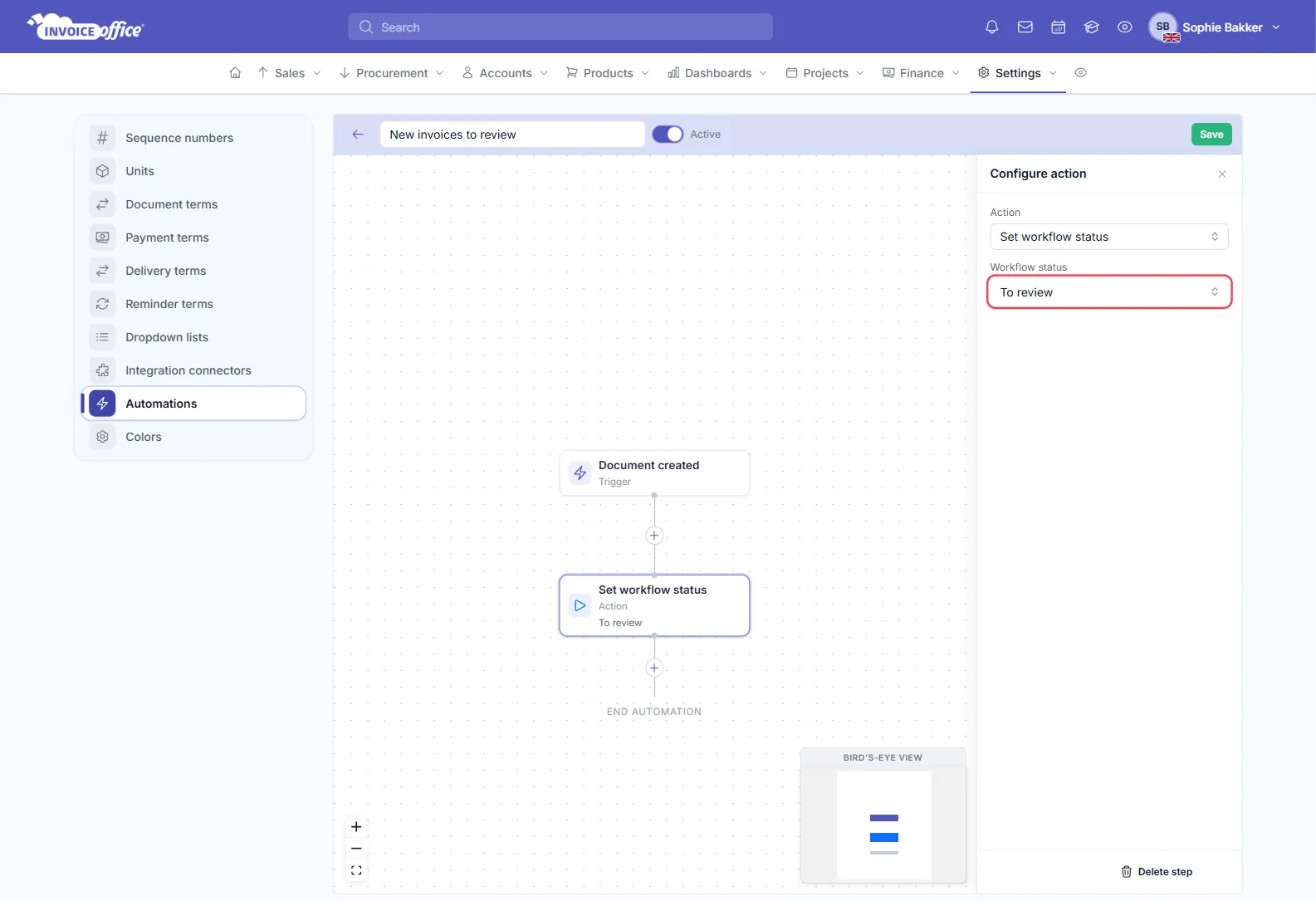
New documents of that type that you create in Invoice Office open with that workflow status already filled in, and you can still pick another before saving. The action never overwrites a status a document already has. Running automation actions needs an active Pro license. For everything else you can build, see how to use automations.