To change the font of your invoice template in Invoice Office, you pick it in the document design editor: that sets the font of the PDF your customers receive. The email that goes with it has a font of its own, which you set in the email template editor. The two are separate, so changing one doesn’t change the other. This article covers both, and explains why a font can look different in the editor than in the PDF.
Change the font of your invoice PDF
Fonts are saved in the document template (the layout) that your document design uses. Each document type, such as invoice, quote or order confirmation, has its own design, and several designs can share one template.
- Go to Settings → Document designs and click Action → Open on the design you want to change.
- At the top of the editor, switch to Document template. If you don’t see this switch, skip this step; your editor edits the layout directly.
- Make sure no block is selected (if a block’s panel is open on the right, click Close). The panel on the right (Style, or Properties in the one-page editor) then shows the font settings for the whole design.
- Turn on Apply to whole design and choose the font in Font family. You can set the Font color, Font size and bold, italic or underline here too.
- Click Preview to see the PDF, then click Save.
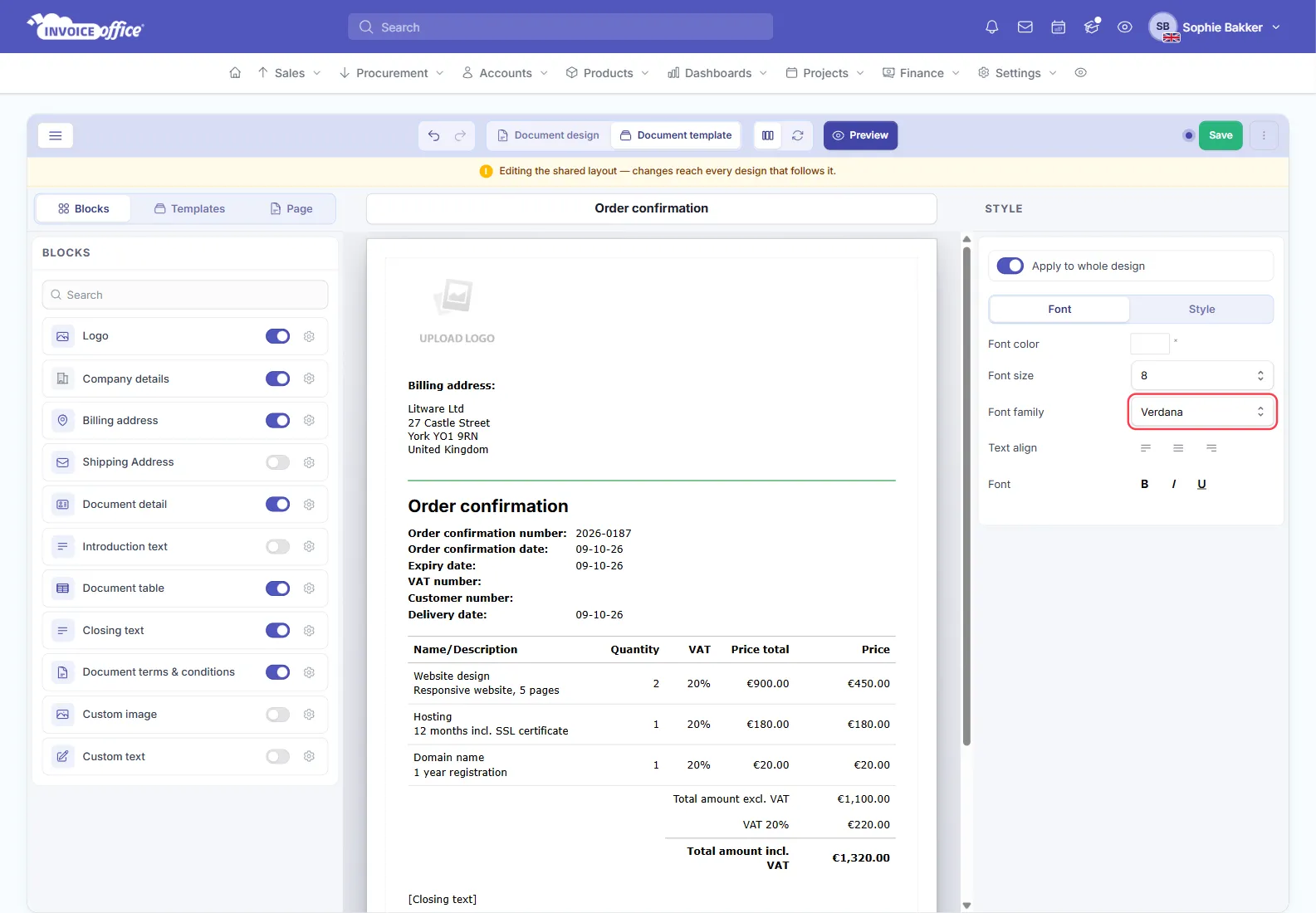
In the Document template view, a banner warns: “Editing the shared layout — changes reach every design that follows it.” If several designs share the template, they all get the new font.
Change the font of one block
To give one part of the document its own font, for example the product table:
- Point at the block on the page and click Style (the brush icon) in the toolbar above it.
- On the Font tab, choose the Font family.
- Click Save.
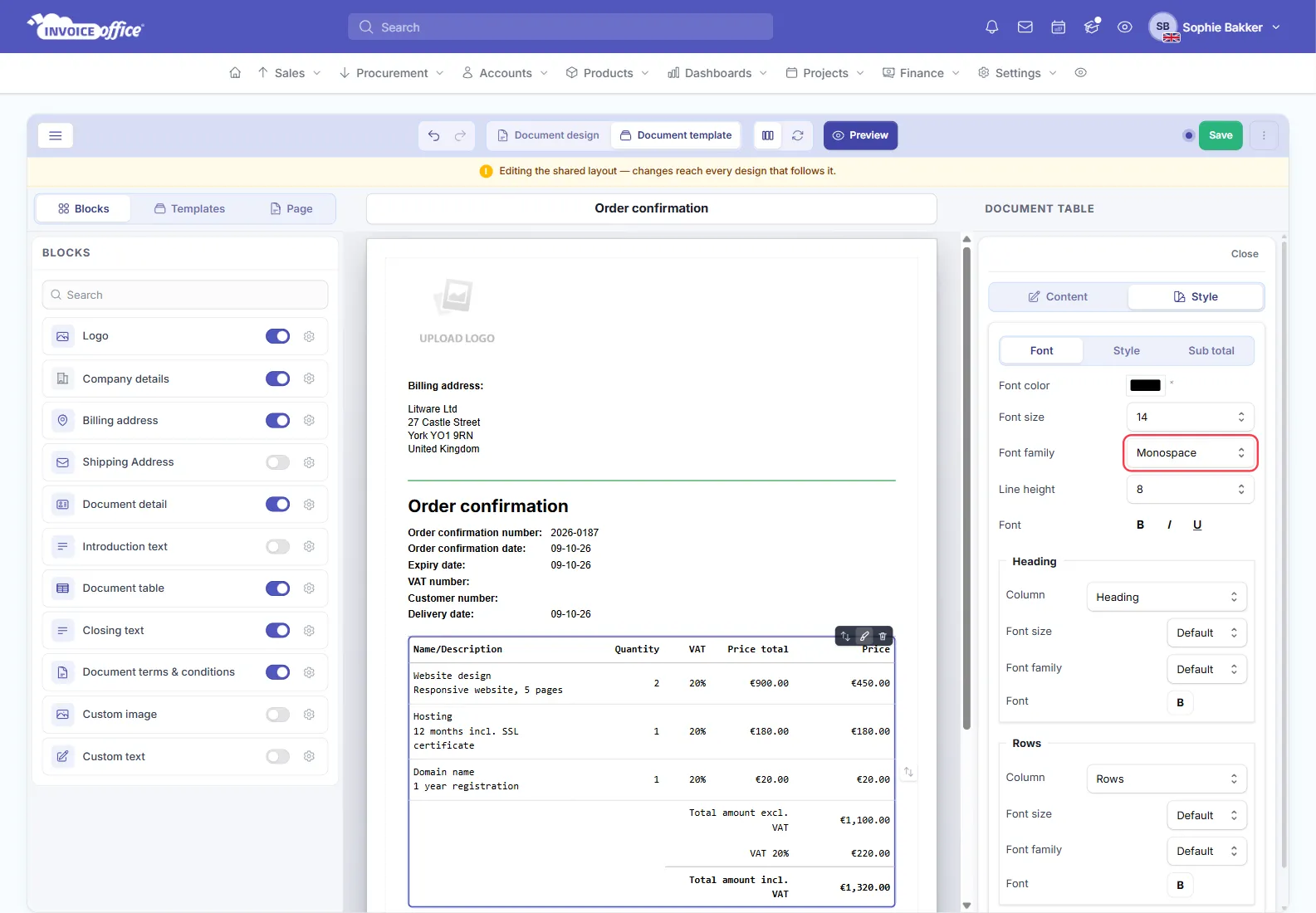
The Document table has a few more font settings: Heading and Rows each have their own Column and Font family (Default follows the table’s font), and the Sub total tab sets the font of the totals.
Once you choose a font under Apply to whole design, it wins over the font of each block. The table’s Heading, Rows and Sub total fonts still apply on top of it. If you change a block’s font and nothing happens, turn Apply to whole design off.
Fonts you can use in the PDF
The PDF can only use fonts that are installed on our PDF server, so Font family offers exactly those:
- Arial
- Caviardreams
- Comfortaa
- DejaVu Sans, DejaVu sans condensed, DejaVu sans mono
- DejaVu Serif, DejaVu serif condensed
- Free sans, Free serif, Free mono
- Monospace
- Philosopher
- Roboto
- SourceSansPro
- Timeless
- Verdana
Comfortaa and Timeless have no italic version: italic text in these fonts prints upright in the PDF.
Why the font looks different in the PDF
The editor shows the page with the fonts installed on your own computer; the PDF is made with the fonts on our server. That’s why the two can differ:
- Arial and Verdana are Microsoft fonts that can’t be included in the PDF. In the PDF, Arial prints as Free sans and Verdana as DejaVu Sans: look-alike fonts with similar letter widths.
- A font that isn’t on your computer, such as Roboto or Comfortaa, is shown in the editor with a standard font instead. The PDF still uses the real font.
So always judge the font in Preview, which shows the actual PDF, not on the page in the editor.
Change the font of your emails
In the email template editor, every Text, Heading and Button block has its own font, Arial unless you change it. So you change the email font block by block:
- Go to Settings → Email settings and click Action → Email editor on the email template.
- Click a Text, Heading or Button block, open its Style tab and choose the font in Font family. Do this for every block whose font you want to change.
- Click Save.
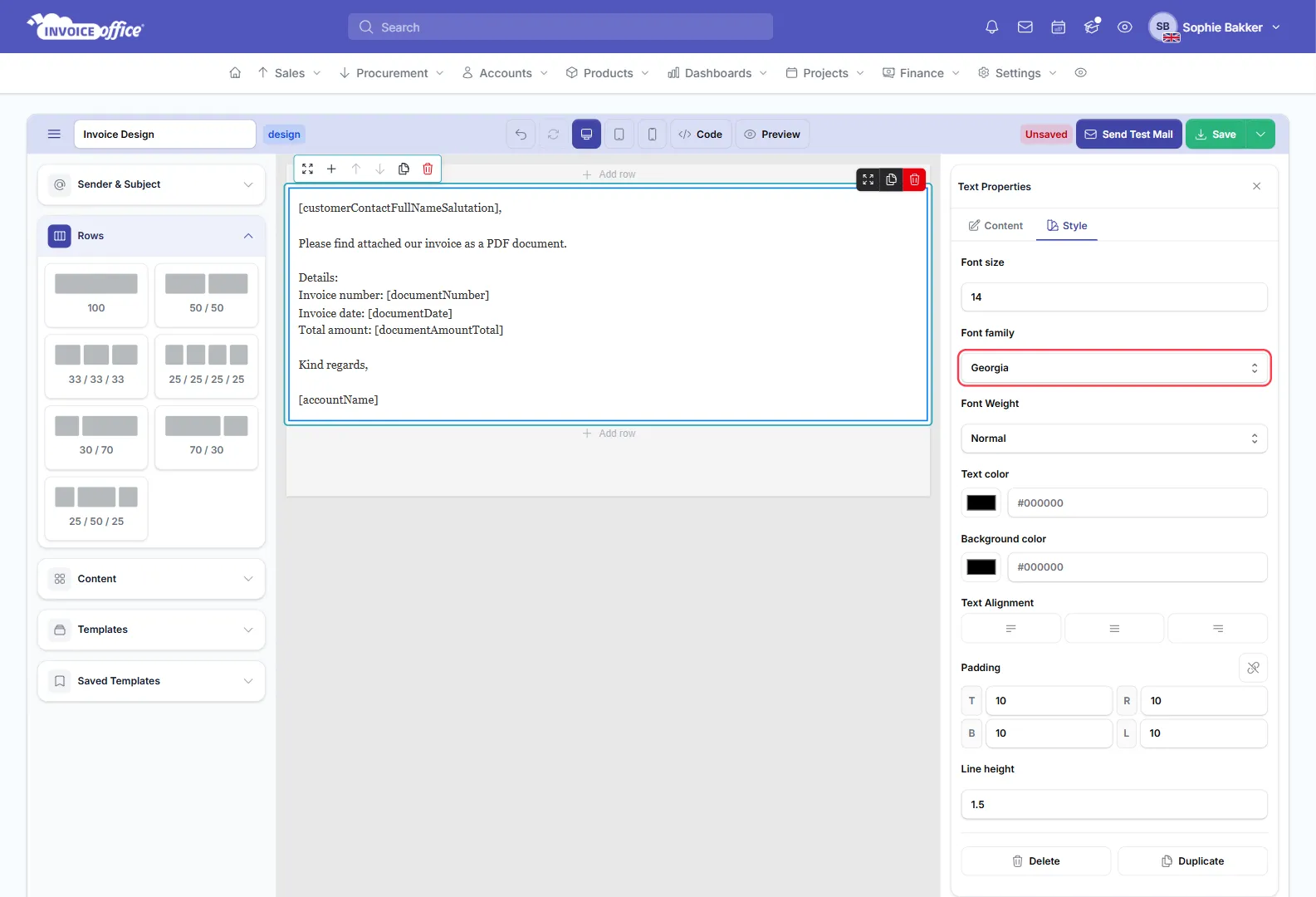
The email editor offers email-safe fonts: Arial, Helvetica, Georgia, Times New Roman, Courier New, Verdana, Tahoma and Trebuchet MS.
With no block selected, Body Settings on the right also has a Font family and a Default Font Size (px). They only apply to content without a font of its own, such as a message carried over from the old editor: a block’s own font always wins.
For blocks, colours and saving, see how to use the email template editor.