Every email template in Invoice Office has two parts: an email setting, which holds the subject line and says which document type the email is for, and an email design, the body and layout you build in the visual email editor. Together they decide what your customer receives when you send an invoice, quote, payment reminder or any other document by email. This guide shows how to customise an invoice email: change the subject, edit the text and layout, add placeholders such as the customer name, invoice number and amount, test the result and choose which template each document type uses.
In short
- Go to Settings → Email settings and find the template, for example Invoice.
- Choose Open in its Action menu to change the Subject, and click Save.
- Choose Email editor in the Action menu to edit the body and layout.
- Add placeholders from the Text Properties toolbar, and check the result with Preview or Send Test Mail.
- Click Save. To make it the template for its document type, tick Is default in the Open window.
Open your email templates
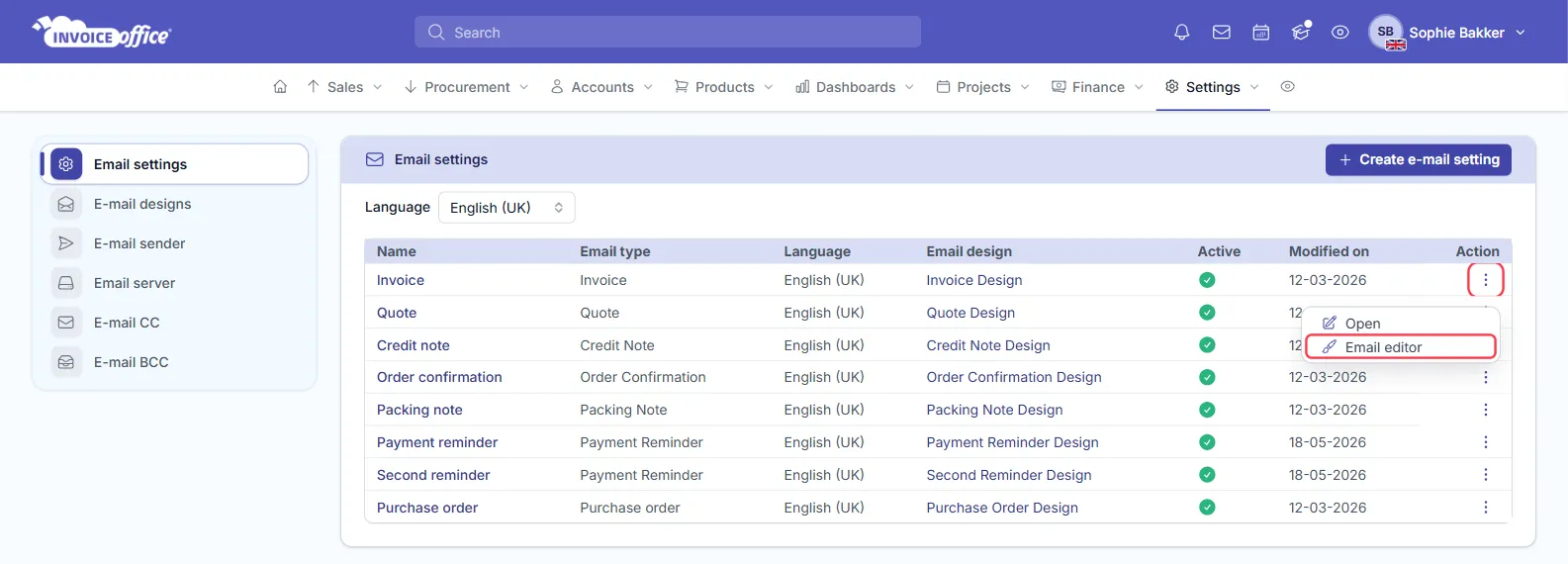
Go to Settings → Email settings, in the Email group. The list shows every email template with its Name, Email type, Language and Email design. Use Language at the top to switch between the templates for each language.
Open a template’s Action menu:
- Open — the email setting: the subject, email type, language and design.
- Email editor — the visual editor for the body of the email (shown when the template has an email design).
To start a new one, click Create e-mail setting.
Change the subject line
- Choose Open in the template’s Action menu.
- Edit the Subject. You can use placeholders here too, for example
Invoice [documentNumber]. - Click Save.
![The Email setting window in Invoice Office for the Invoice template: Language English (UK), Email type Invoice, Name Invoice, Subject Invoice [documentNumber] from [accountName], Email design Invoice Design and Is default ticked; the Subject field is outlined in red](/_astro/support-email-template-setting.CHIlIWjJ_SSPcs.webp)
The same window holds the Language, the Email type (Invoice, Quote, Credit Note, Payment Reminder and so on), the Name you see in lists, the Email design used for the body, and Is default.
The subject is filled in from this email setting when you send a document, and you can still change it in the send window. The editor’s Sender & Subject panel has its own subject field, but document emails don’t use it.
Edit the body in the email editor
Choose Email editor in the template’s Action menu. The editor opens with the email in the middle, the building blocks on the left and the settings of whatever you selected on the right.
![The Invoice Office email editor with Invoice Design open: Sender & Subject, Rows, Content, Templates and Saved Templates on the left, the invoice email with placeholders such as [documentNumber] and [documentAmountGrandTotal] in the middle and Body Settings on the right; Preview, Send Test Mail and Save are outlined in red](/_astro/support-email-template-editor.BY1n98Ei_2s7ISW.webp)
- Edit text — click a text block. Text Properties opens on the right with a text editor: bold, italic, lists, alignment, links and images.
- Add content — open Content on the left and drag a Heading, Text, Image, Button, Divider, Spacer or Social block into the email.
- Change the layout — open Rows and drag in a row with one to four columns (100, 50 / 50, 33 / 33 / 33 and so on).
- Style the whole email — with nothing selected, Body Settings on the right sets the Background color, Content Width (px), Font family and Default Font Size (px).
- Sender & Subject — sets a sender and subject for campaigns, automations and test mails. Document emails don’t use it: they are sent from your address under Settings → E-mail sender, and their subject comes from the email setting.
Undo and Redo sit at the top, and Code lets you edit the HTML directly if you prefer.
Add placeholders
Placeholders are filled in with the details of the document when the email is sent, so one template works for every customer.
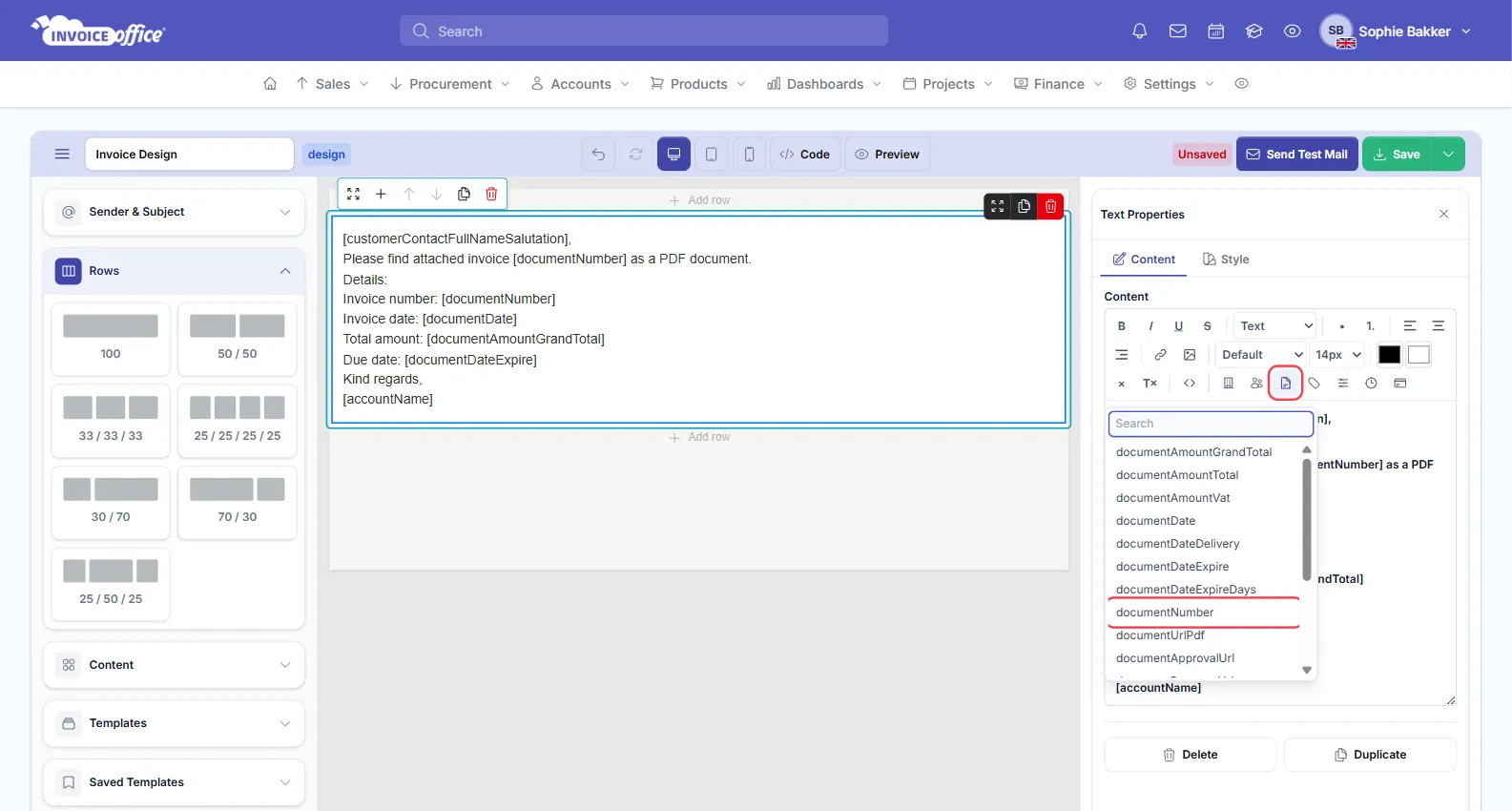
- Click the text block where the placeholder should go and place the cursor.
- In the Text Properties toolbar, click one of the placeholder menus: Account, Customer, Document, Label, System, Timesheet or Payment.
- Search the list and pick a placeholder. It is added in square brackets, for example
[customerName].
The ones you will use most:
| Placeholder | What it becomes |
|---|---|
[customerName] | the customer’s name |
[customerContactFullNameSalutation] | the contact person’s name with salutation, for a greeting |
[documentNumber] | the invoice or quote number |
[documentDate] | the document date |
[documentAmountGrandTotal] | the total amount |
[documentDateExpire] | the due date |
[accountName] | your company name |
Preview, test and save
- Desktop, Tablet and Mobile at the top switch the canvas to that screen width.
- Preview shows the email on a laptop and a phone side by side.
- Send Test Mail sends what is currently in the editor to your own email address, after you confirm. The test uses the subject from Sender & Subject, and placeholders are not filled in — send a document to see the real subject and values.
- Save stores your changes. The arrow next to it has Save as design and Save as template, to keep a copy under a new name instead.
Choose which template a document uses
Invoice Office picks the template for an email in this order:
- The customer’s own template. On the customer’s Settings page, the Email settings section sets a template per document type for that customer.
- The default for the document type. Otherwise it uses the email setting with the matching Email type and the document’s language — tick Is default on the one that should win when there are several.
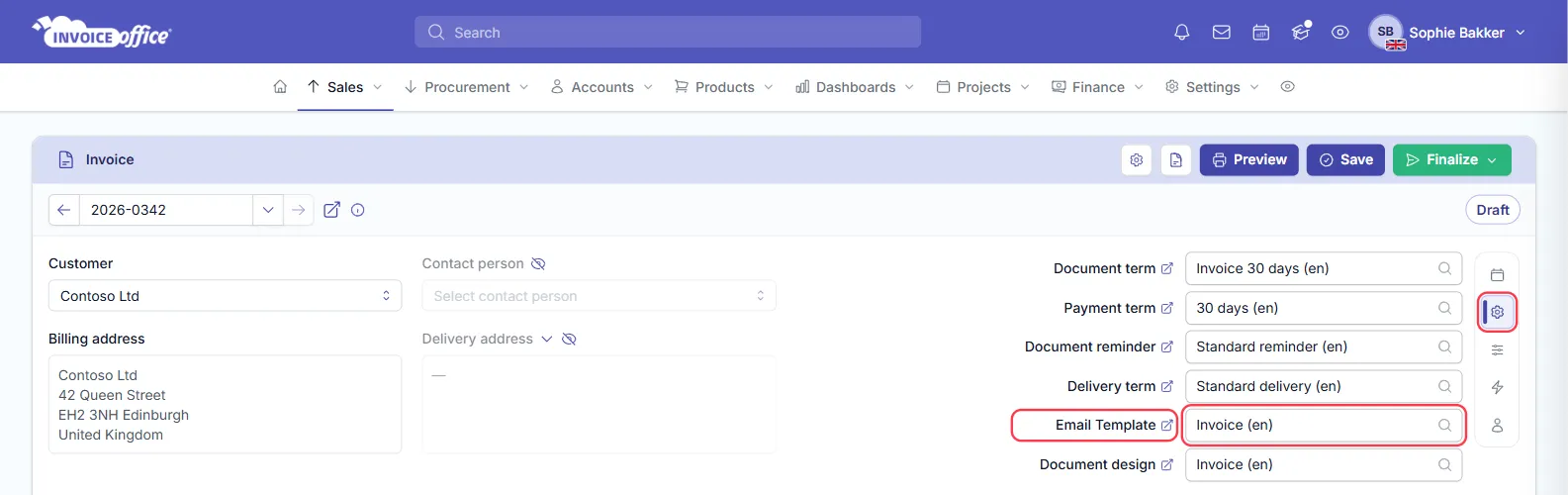
On a single invoice you can still choose another one: the Email Template field on the Settings tab of the invoice editor shows the template that will be used.
Before you send
- Want to know when the customer opened the email? See how the read and receive confirmation works.
- Sending to more than one address, such as the customer and their accounts department? See how to mail multiple email addresses on a document.