A public link lets you share an invoice or any other document from Invoice Office with anyone, without them needing an account or a login. Every finalized invoice, quote, order confirmation and other customer-facing document has its own Public document link: copy it from the Action menu and paste it into an email, a chat message or WhatsApp. Your customer opens a read-only web page with the document and a button to download the PDF.
This article covers where to find the link, what your customer sees, how to share it, and how to stop a link from working.
Which documents have a public link
A Public document link is available for these document types:
- invoice
- proforma invoice
- quote
- order confirmation
- credit note
- packing note
- payment reminder
The document has to be finalized. A concept document has no public link yet; the option appears in the menu as soon as you finalize it. Purchase documents, such as purchase orders, do not have a public link. If you don’t see the option in the list menu, check the menu’s Dropdown menu setting (the cog icon at the top of the menu).
Copy the public link of a document
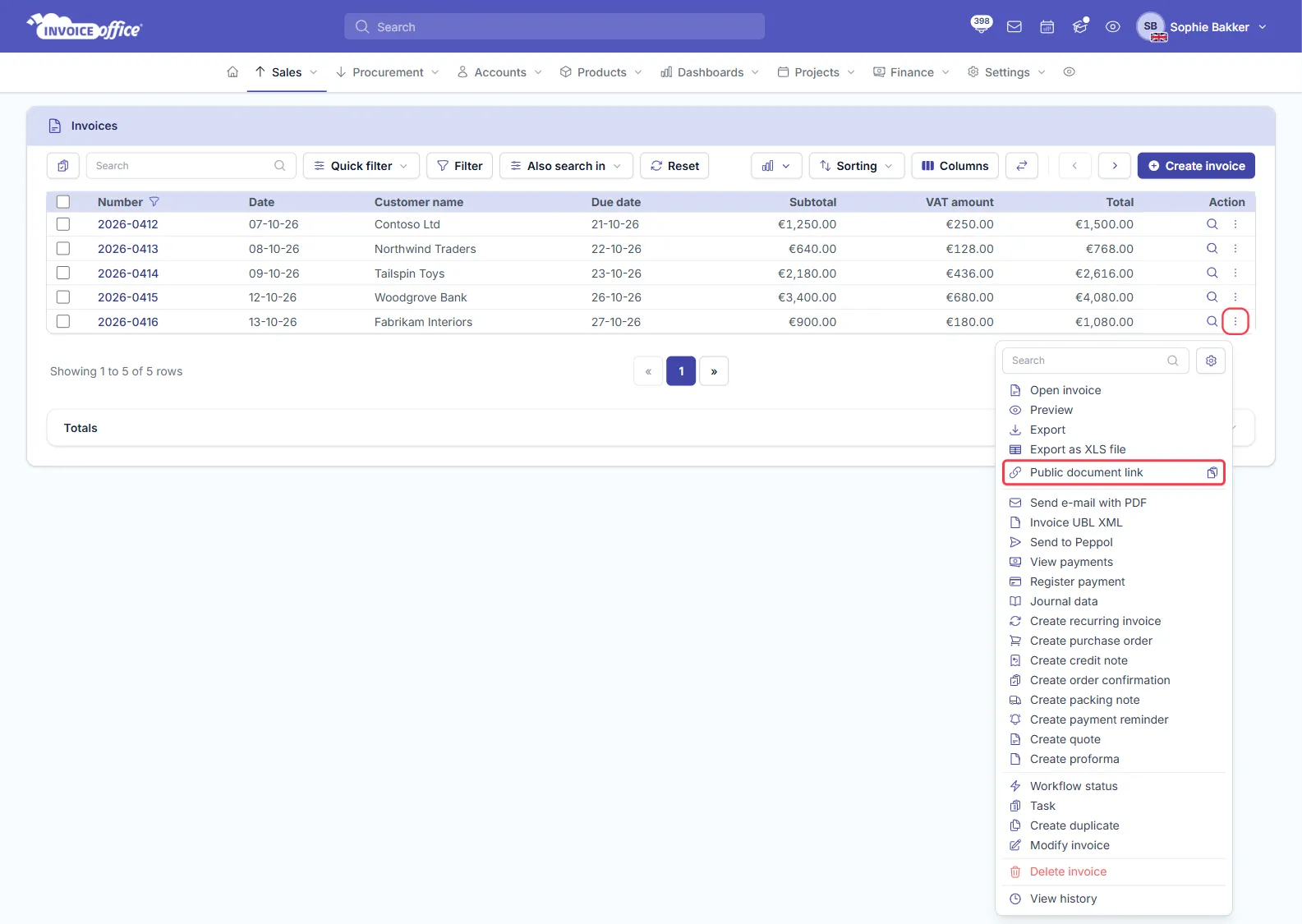
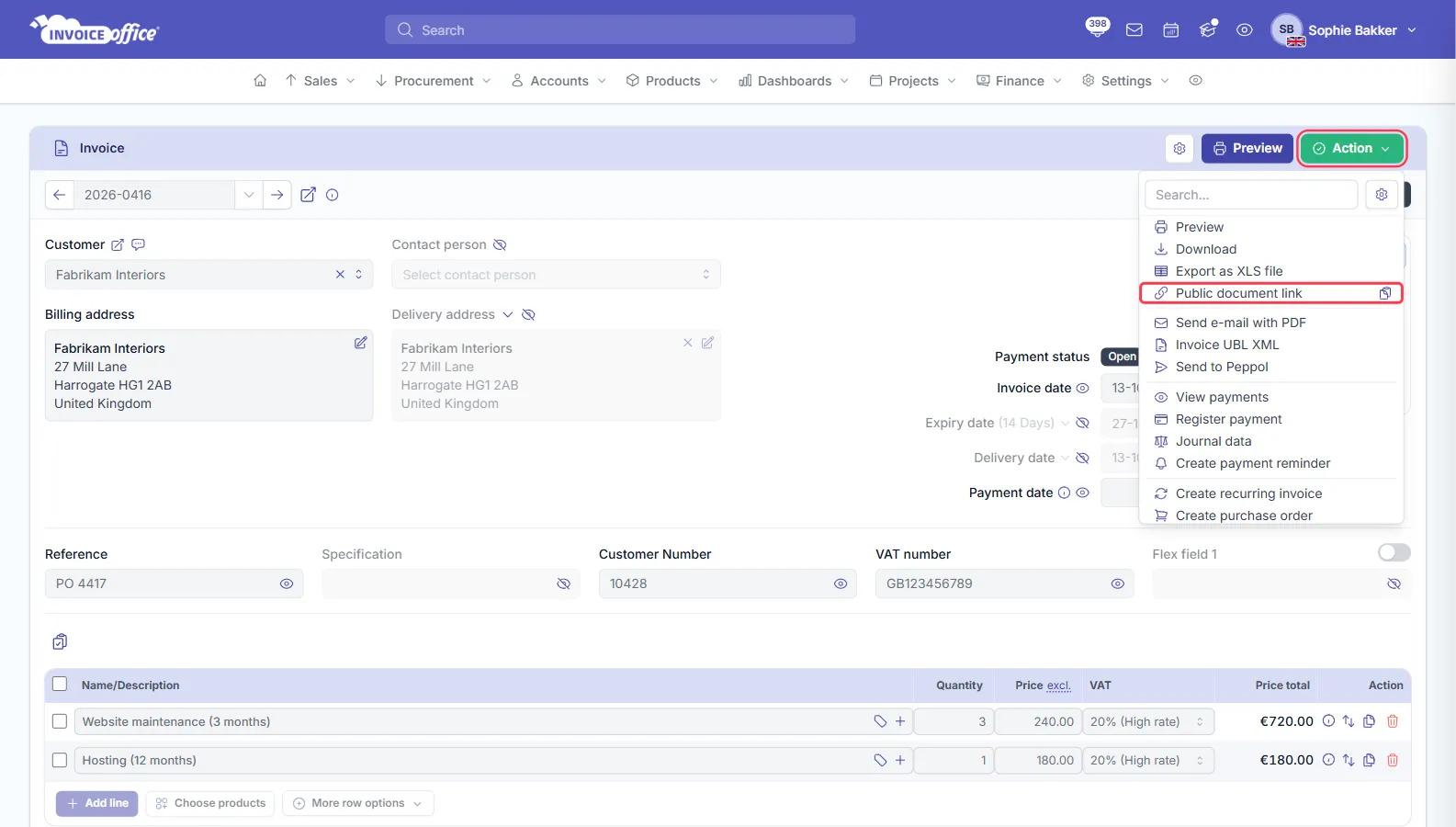
You can copy the link from the document list or from the document itself. In both places, the Public document link row has two parts: click the text to open the public page in a new tab, or click the copy icon at the end of the row to copy the link.
From the document list
-
Go to the list of the document type, for example Sales → Invoices.
-
Click the ⋮ (Action) button at the end of the row of a finalized document.
-
Click the copy icon next to Public document link. Invoice Office shows Link copied.
From an open document
-
Open the finalized document.
-
Click the green Action button at the top right.
-
Click the copy icon next to Public document link.
Share the link with your customer
The link is a normal web address, so you can share it any way you like: paste it into an email, a WhatsApp or other chat message, a text message or your own customer portal. Anyone who has the link can open the document, so only send it to the people the document is meant for.
If you send a document with Send e-mail with PDF, you can also put the link in the email. Type
[onlineDocumentLink] in the subject or text of the email, or in the email template you use for it.
When the email is sent, Invoice Office replaces it with the public link of that document. The
placeholder is not filled in for emails Invoice Office sends automatically, such as recurring
invoices and automatic payment reminders. See
Use the email template editor for editing your
templates.
What your customer sees
The public link opens a page with the document, without a login screen. At the top are the document type and number (for example Invoice 2026-0416) and your customer’s name, with three buttons:
- Copy — copies the link of the page, so your customer can pass it on to a colleague.
- Print — prints the document.
- Download PDF — downloads the document as a PDF.
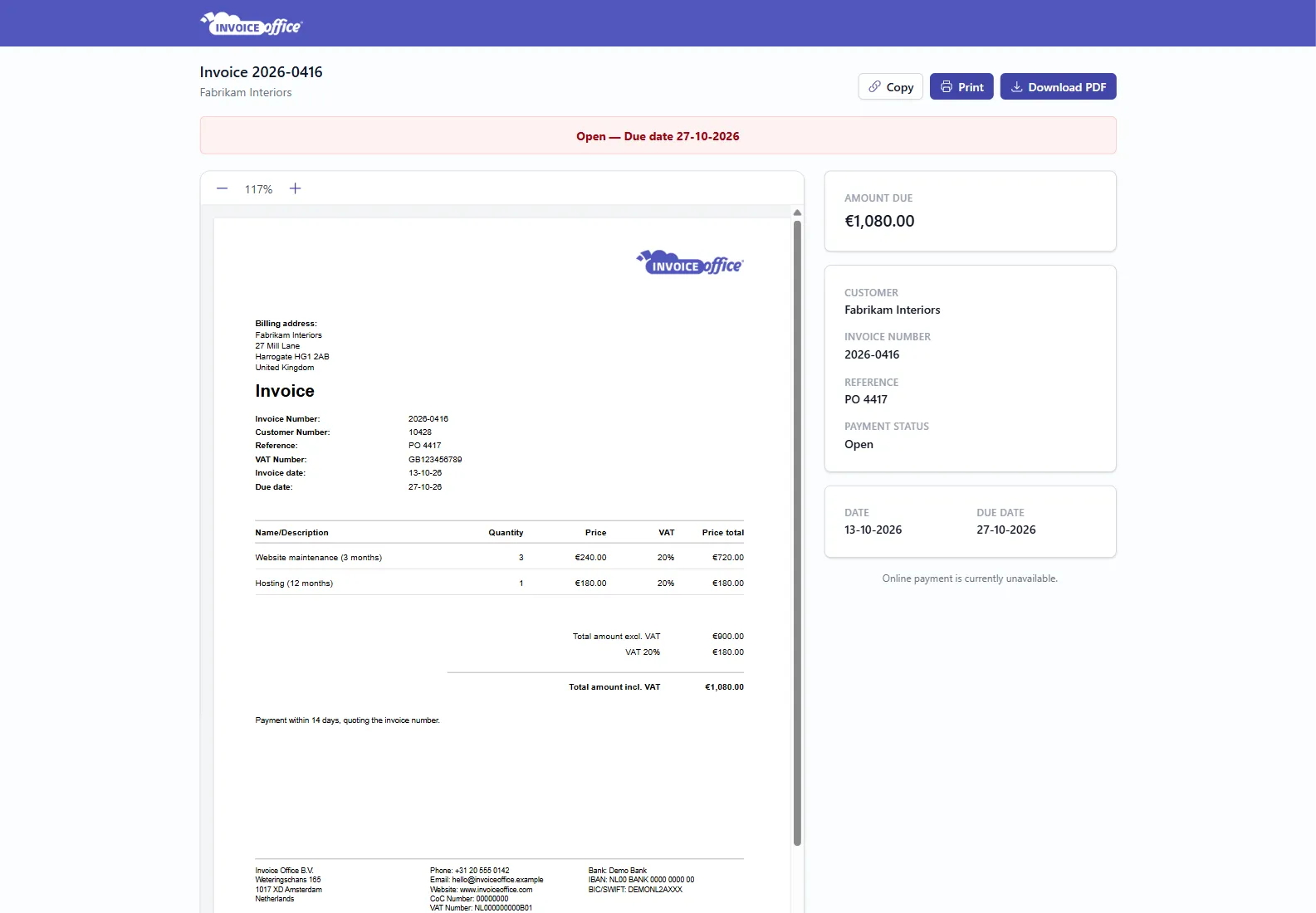
Next to the PDF, the page shows the key details: the Total (or Amount due on an unpaid invoice), customer, document number, reference (if filled in), date and due date. Invoices and payment reminders also show the Payment status, and quotes their Status. Once an invoice is paid, the page shows the payment date. Your customer can zoom in and out on the PDF, but cannot change anything.
Depending on the document, the page can also show:
- Pay online on an unpaid invoice, when you have a payment provider such as Mollie or PayPal connected. Without one, the page says that online payment is currently unavailable. Proforma invoices never offer online payment.
- Save and approve on a quote you sent with Send with digital approval, so your customer can sign and approve it on the page. See Create a quotation.
- When your customer has more than one finalized document of the same type, a table that lists them all, each linking to its own public page.
See when your customer opened the link
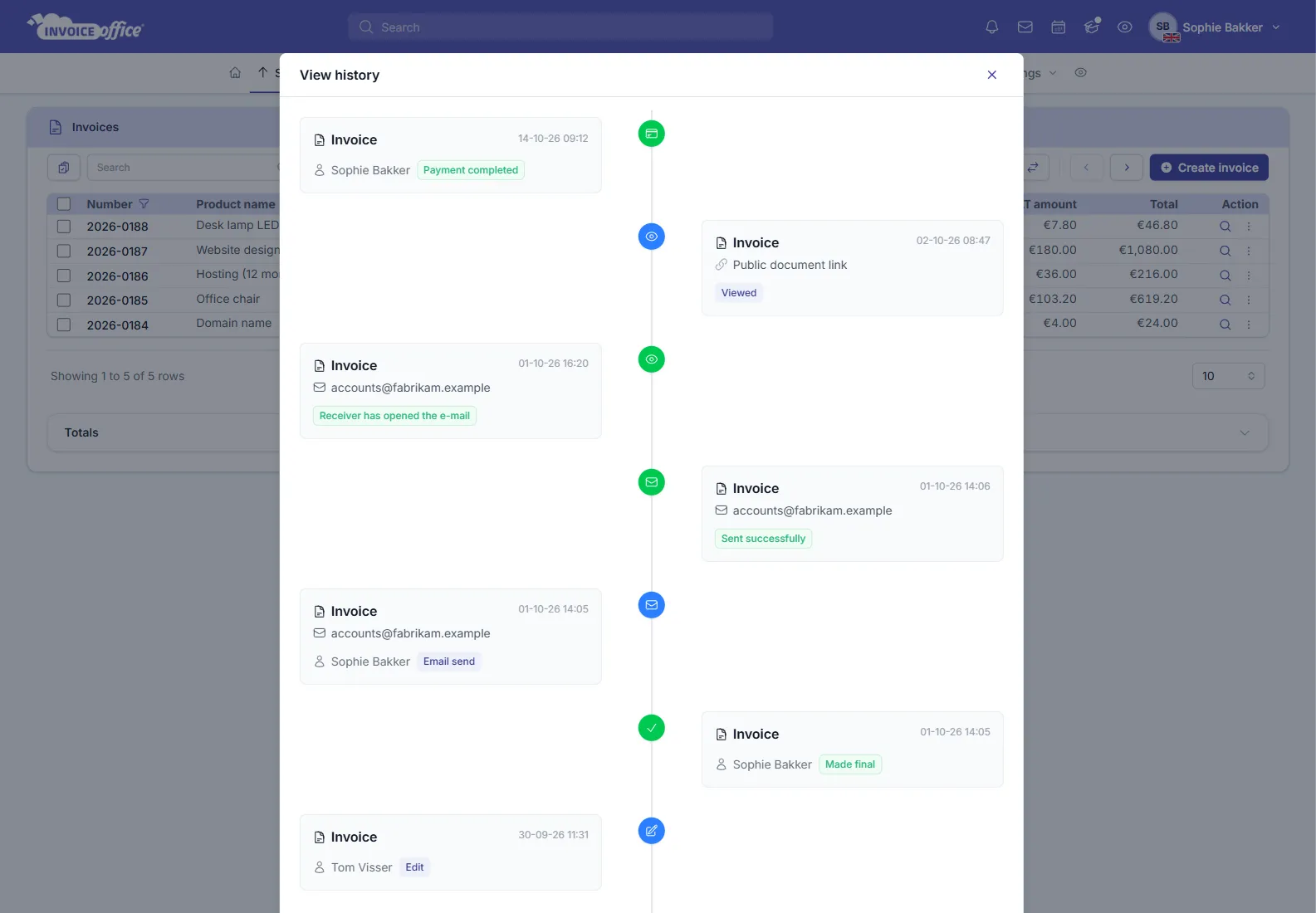
When your customer opens the public link, Invoice Office records it in the document’s history as Viewed, once per browser session. Your own visits while you are logged in to Invoice Office are not counted. In the document list, open the document’s ⋮ (Action) menu and choose View history to see it: the entry shows Viewed with Public document link. More in Use the activity log and audit trail.
Disable or regenerate a public link
There is no separate switch to turn a public link off, and you cannot generate a new link for the same document: each document keeps the same link.
A public link only works while the document is finalized. To stop it from working:
- Modify the document — choose Action → Modify invoice (or Modify quote, and so on). The document goes back to concept, and the link stops working until you finalize it again. After you finalize it, the same link works again.
- Delete the document — the document moves to the Trash and the link stops working. If you restore the document from the Trash, the same link works again. Items in the Trash are deleted automatically after one month. See Delete documents.
An invoice or credit note you sent through Peppol cannot be modified or deleted. In some countries, the law doesn’t allow you to modify or delete any finalized invoice or credit note. For those documents the public link stays active.