A memorial journal entry in Invoice Office is a manual journal entry: a dated posting with its own debit and credit lines, booked straight to your ledger accounts. Use it for the bookings no invoice, purchase or bank transaction makes for you, such as a bookkeeping correction, an accrual at the end of a period, a depreciation or a reclassification between two accounts. This guide shows where to find your journal entries, how to add the debit and credit lines, and how to post the entry and check the result in your ledger.
Journal entries are part of the Pro plan.
Open your journal entries
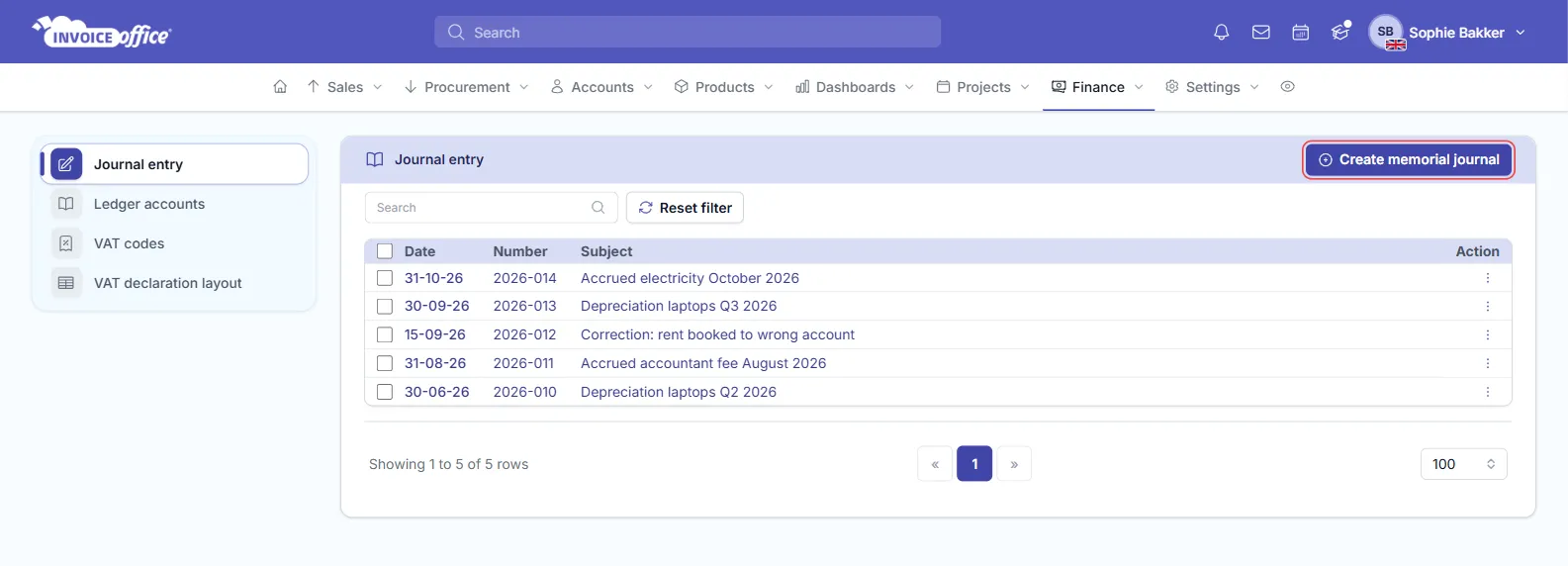
Go to Finance → Journal entry (under Transactions). The list shows every memorial journal with its Date, Number and Subject. Click a row to open it. The Action menu of each journal has Open and Delete.
Create a new memorial journal
- On Journal entry, click Create memorial journal.
- Under Journal, choose Journal.
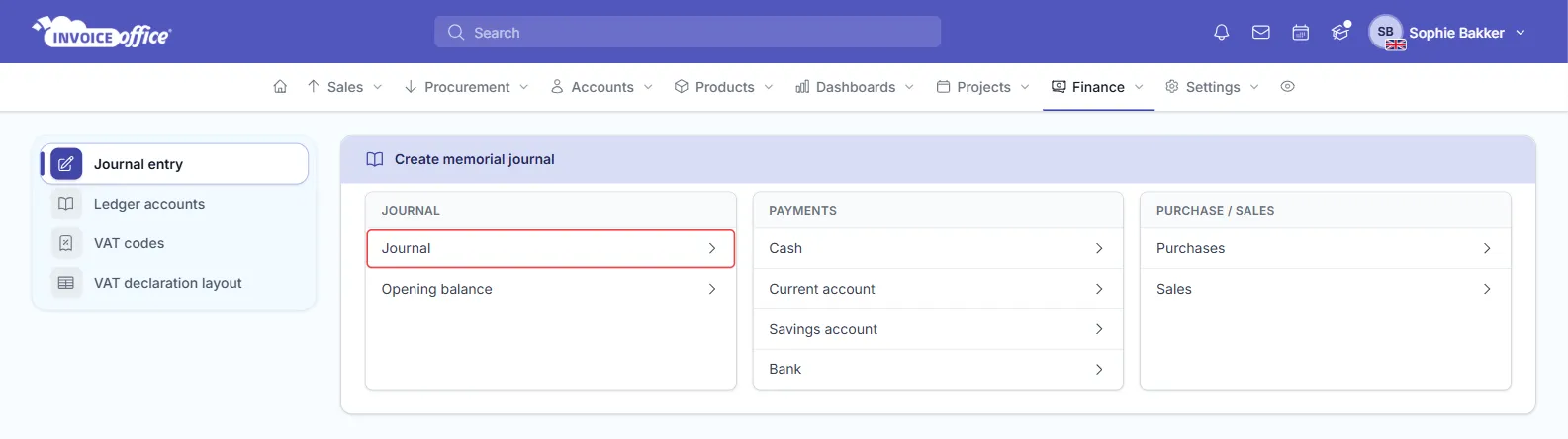
The other tiles open the same form with a head start: Opening balance for your starting balances when you move to Invoice Office, the payment tiles for a payment through cash or one of your bank accounts, and Purchases and Sales for a booking on your creditors or debtors account.
Fill in the journal and its lines
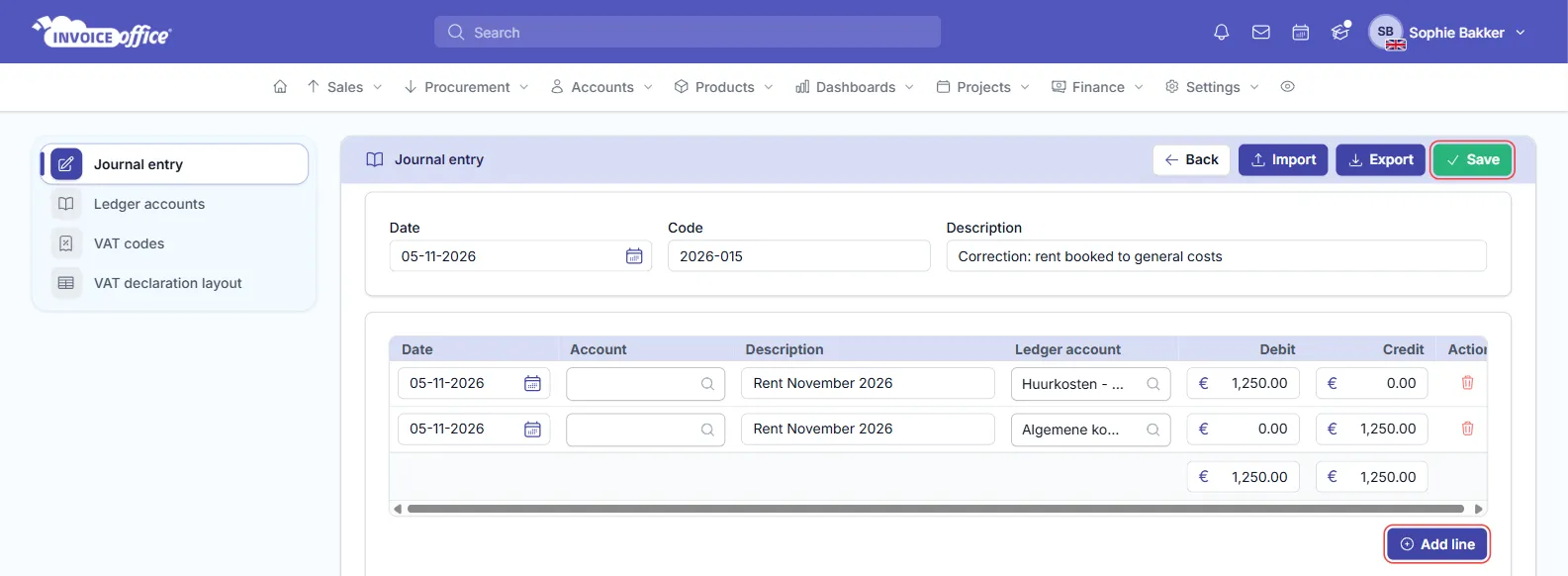
The example moves €1,250.00 of rent that was booked to general costs (Algemene kosten) to the rent account (Huurkosten). Costs grow on the debit side, so the rent account is debited and general costs are credited.
- At the top, check the Date and enter a Code and a Description. The code is the
journal’s Number in the list, and Invoice Office doesn’t number journals for you, so pick your
own system (for example
2026-012). The description becomes its Subject. - On the first line, choose the Ledger account and enter the amount under Debit or under Credit. Each line takes one side. The ledger account list is grouped by type, and you can type to search it. Missing an account? Add it to your chart of accounts first.
- Click Add line for the other side of the booking, and for every further account it touches.
- Fill in the optional line fields you need:
- Date: each line has its own date, and it’s required. The first line starts on today’s date, but lines you add with Add line start empty, so fill in a date on every line.
- Account: a customer or supplier the line is about.
- Description: a short text for the line, shown in the ledger account report.
- Check the totals under the Debit and Credit columns. They must be equal. When they differ, they turn red.
- Use Note for an internal explanation, for example who asked for the correction.
To remove a line, click the bin icon in its Action column.
Invoice Office doesn’t stop you saving an entry that doesn’t balance, so check the red totals before you save. A journal whose debits and credits differ puts your balance out of balance.
There’s no VAT field on a line. If the booking includes VAT, add the VAT as a separate line on your VAT ledger account.
Book against an open invoice or purchase
Below the lines, the Sales and Purchase tabs list your open invoices and purchases. Click one to add a line with its number, the customer or supplier, the debtors or creditors account and the outstanding amount. Use it when you correct what’s still open on an invoice or purchase, for example to write off a small difference.
Import the lines from a file
For a long journal, click Export to download a sample file, fill in your lines, and use Import to load them into the form.
Post the journal and check the ledger
Click Save. That posts the journal: there’s no separate draft or approval step, so the lines are booked to your ledger accounts straight away. You’re taken back to Journal entry, where the new journal is in the list.
To check the effect:
- Go to Settings → Ledger accounts and click the chart icon next to one of the accounts you booked to. That opens the account’s report.
- Find your lines under Transactions, with their date, description and amount in the Debit or Credit column.
The bookings also show up in your Profit & loss or Balance report, depending on the account’s Ledger Account type.
Change or delete a journal
To correct a journal, open it from the list, change the lines and click Save again.
To remove it, choose Delete in its Action menu. The journal and all its lines are removed from your ledger. To delete several at once, tick them and click Remove.