To export journal data for your accountant in Invoice Office, you start from a finance report — Profit & loss, Balance or VAT declaration — open the journal entries behind an account or a VAT box, and export them as an Excel, CSV or PDF file. Each export holds the bookings of that one account or box: the date, the document, its number, the customer or supplier, the ledger account and the amount. This guide shows where to find the journal export, how to set the period, and what your accountant or bookkeeper gets.
There is no single export of all journals at once: you export one ledger account or VAT box at a time. For the totals of every account in one file, export the report itself (see the end of this guide).
Step 1 — Open a finance report
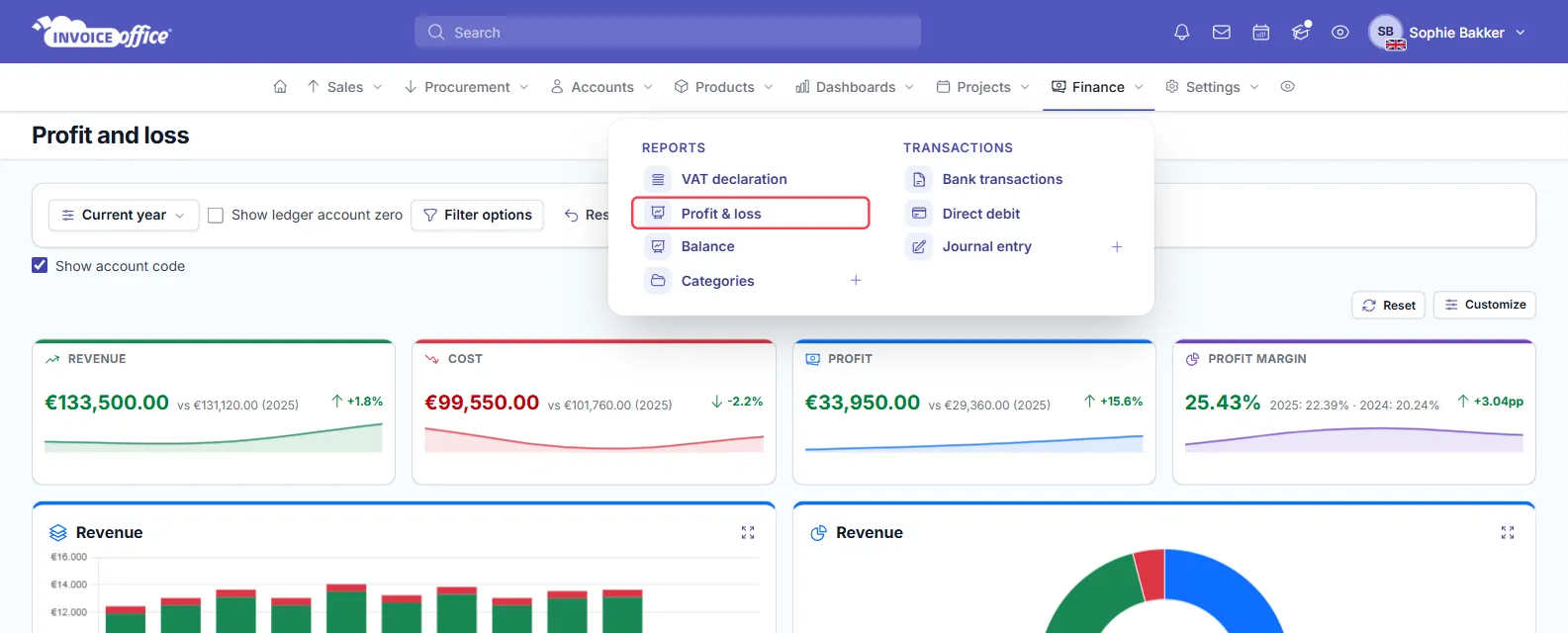
Go to Finance and, under Reports, choose the report your accountant asks about:
- Profit & loss — revenue and cost accounts.
- Balance — balance sheet accounts.
- VAT declaration — the boxes of your VAT return.
Step 2 — Choose the period
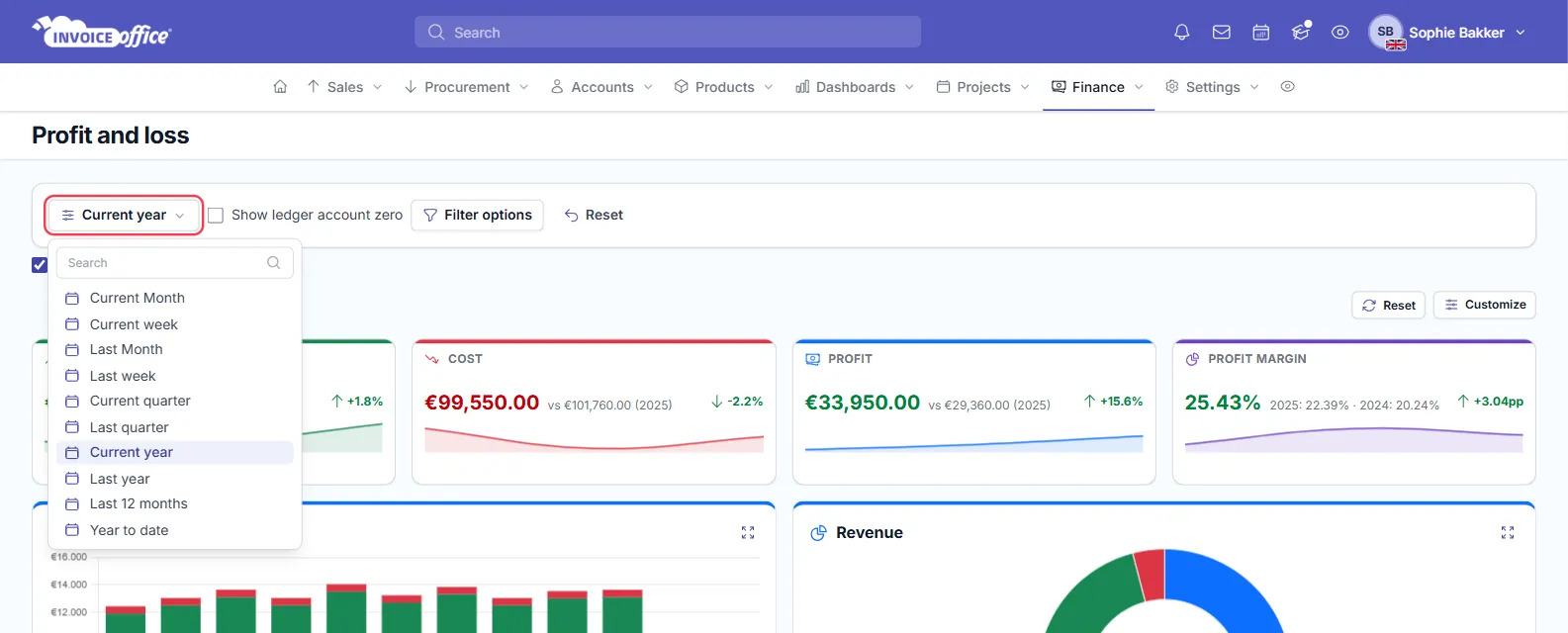
Click the period button — Current year by default — and choose a period such as Last quarter or Last year. For exact dates, click Filter options, set the Date range and click Apply.
Step 3 — Open the journal entries of an account
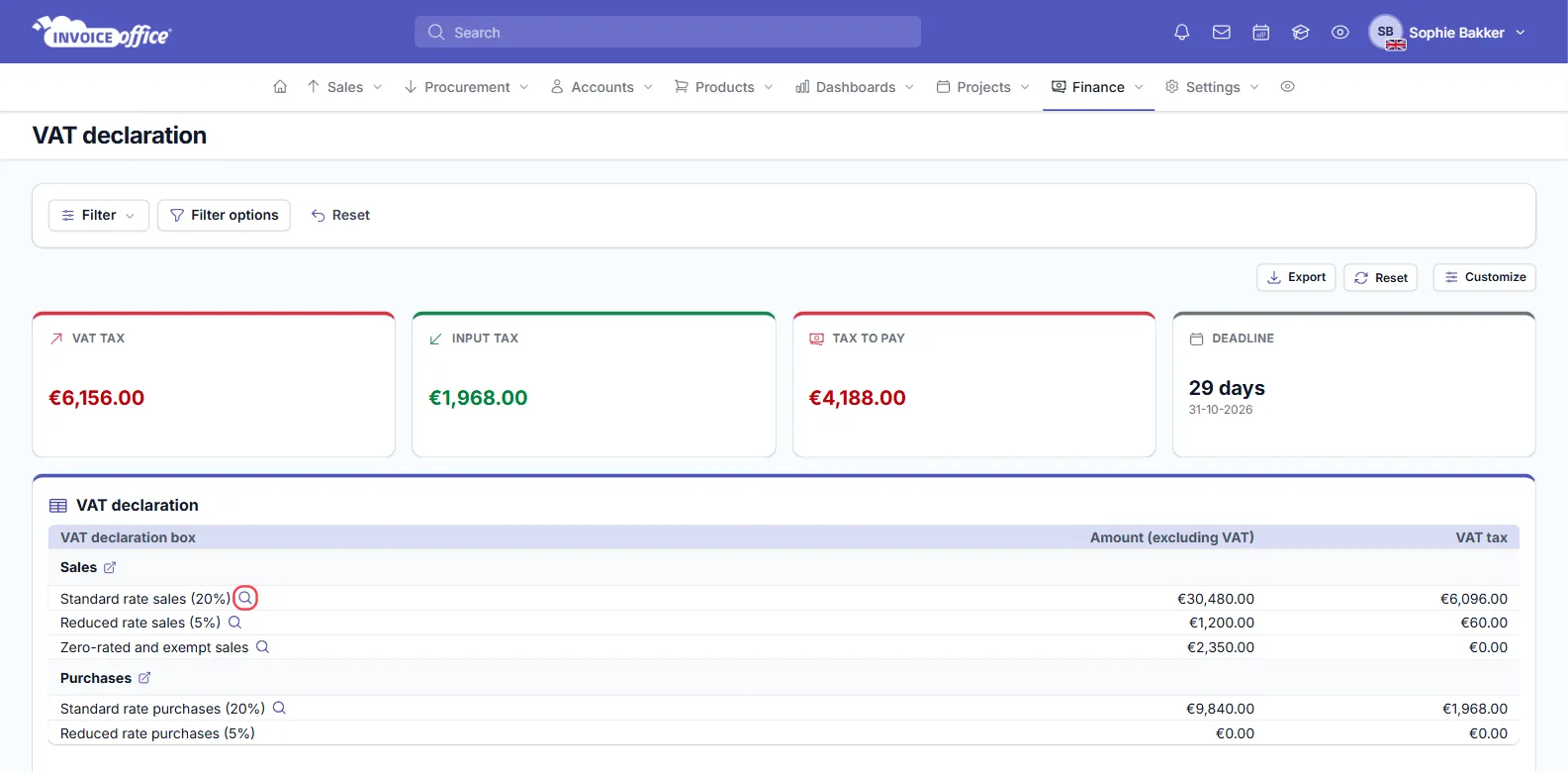
Click the magnifying glass next to a ledger account. A Documents page opens with every booking behind that amount, for the period of the report.
On the VAT declaration, the magnifying glass next to a VAT box opens the bookings behind that box in the same way. For companies in the Netherlands it opens a different overview of the documents instead.
Step 4 — Narrow down the entries
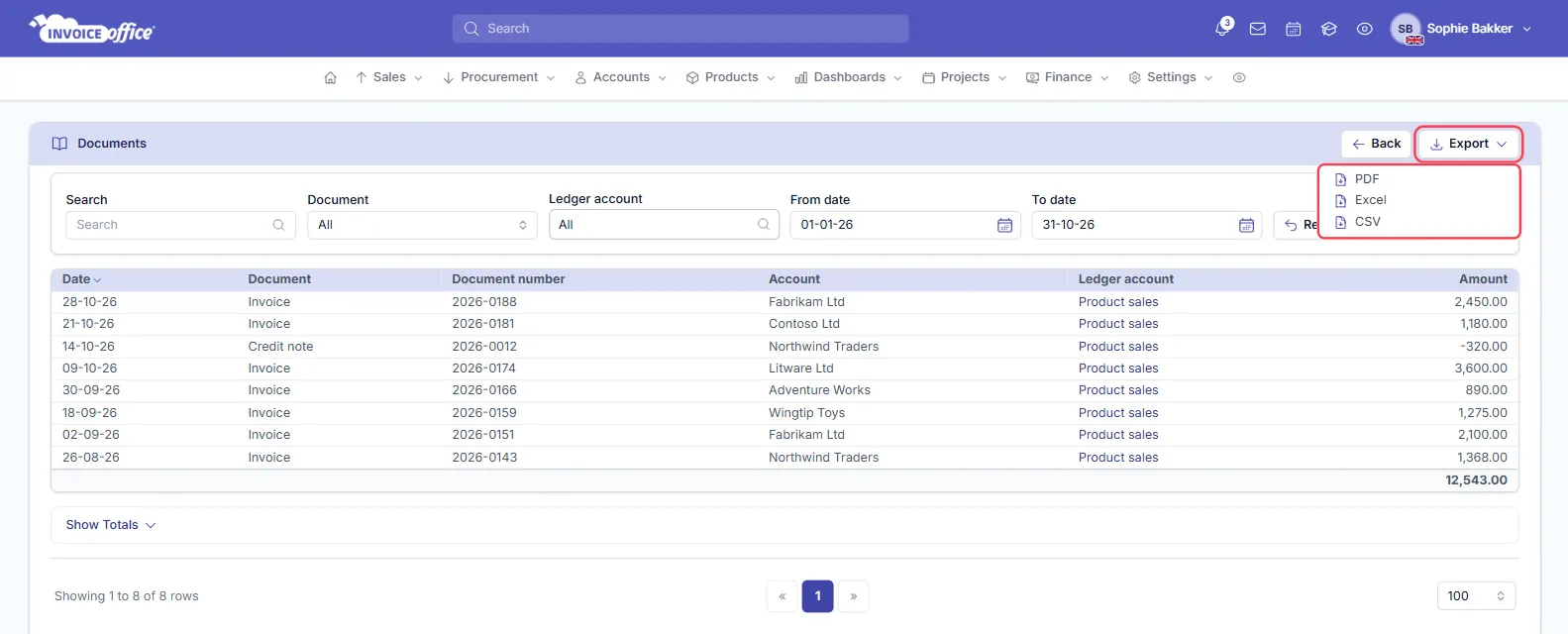
At the top of the Documents page you can narrow the entries down before you export:
- Search — find a document number or a ledger account name.
- Document — show only one kind of booking, such as invoices, credit notes, purchases or payments.
Click Apply to filter, or Reset to start again. The page opens with the period of the report; to export another period, change it on the report (step 2) and open the account again.
Step 5 — Export the journal data
Click Export at the top right and choose the format:
- Excel (.xlsx) — to sort, filter and total the bookings in a spreadsheet.
- CSV — a plain text file most accounting packages can import.
- PDF — a fixed overview to file or print.
On Profit & loss and Balance, the file follows your search and Document filter. Repeat steps 3 to 5 for each account your accountant needs; use your browser’s back button to return to the report.
Exports of a VAT box contain all its bookings, whatever the period of the report. If your accountant needs one VAT period, ask them to filter the file on the Date column, or use the VAT declaration report export for the period totals.
What the export contains
Each line in the file is one booking, with these columns:
- Date — the date of the booking.
- Document and Document number — for example Invoice and its number.
- Account — the customer or supplier.
- Ledger account — the account it was booked on.
- Amount — the amount booked. An export of the journal data of a single document shows Debit and Credit instead.
The last line is a summary row. Check totals against the report itself rather than that row.
To add each ledger account’s code to the Ledger account column, switch on Ledger account code under Settings → Company settings → Finance. The Show account code option on the Profit & loss report is a different switch: it shows or hides the code column on the report.
The Document list on the page shows the document types by their internal names in the current
version, for example invoice, credit_note, purchase and payment.
How your accountant uses the export
The export shows which documents make up a figure in your reports. Your accountant can, for example:
- check a ledger account balance line by line against the invoices, credit notes and purchases behind it;
- check a box of your VAT return before it is filed — see how to use the VAT dashboard and prepare a VAT return;
- load the accounting data from the Excel or CSV file into their own software.
Export the journal data of one document
To see how a single invoice or purchase was booked, open it, click Action and choose Journal data. For a credit note, open the actions menu of its row in the credit notes list and choose Journal data. The same Documents page opens with only that document’s bookings, and you can export it the same way — the export always holds all of that document’s bookings.
Export the totals of every account
For an overview of all ledger accounts with their totals, export the report itself: on Profit & loss, Balance or VAT declaration, click Export and choose PDF, Excel or CSV. See how to view a profit and loss overview and how to export your data.
How your ledger accounts and journals are set up is explained on journals and ledger accounts.