Your chart of accounts in Invoice Office is the list of ledger accounts that your invoices, purchases, payments and journal entries are booked to. Invoice Office starts you off with a standard chart for your country, which you can extend with your own ledger accounts. Each account has a type and a group that decide where it shows up in your reports. This guide shows where to find your ledger accounts, how to add, edit and delete them, and how to set the type, side and group of each account.
Open your ledger accounts
Go to Settings → Ledger accounts (under Finance). The list shows every account with its Ledger account code, Ledger account (the name) and whether it Is default. The chart icon next to a name opens that account’s report.
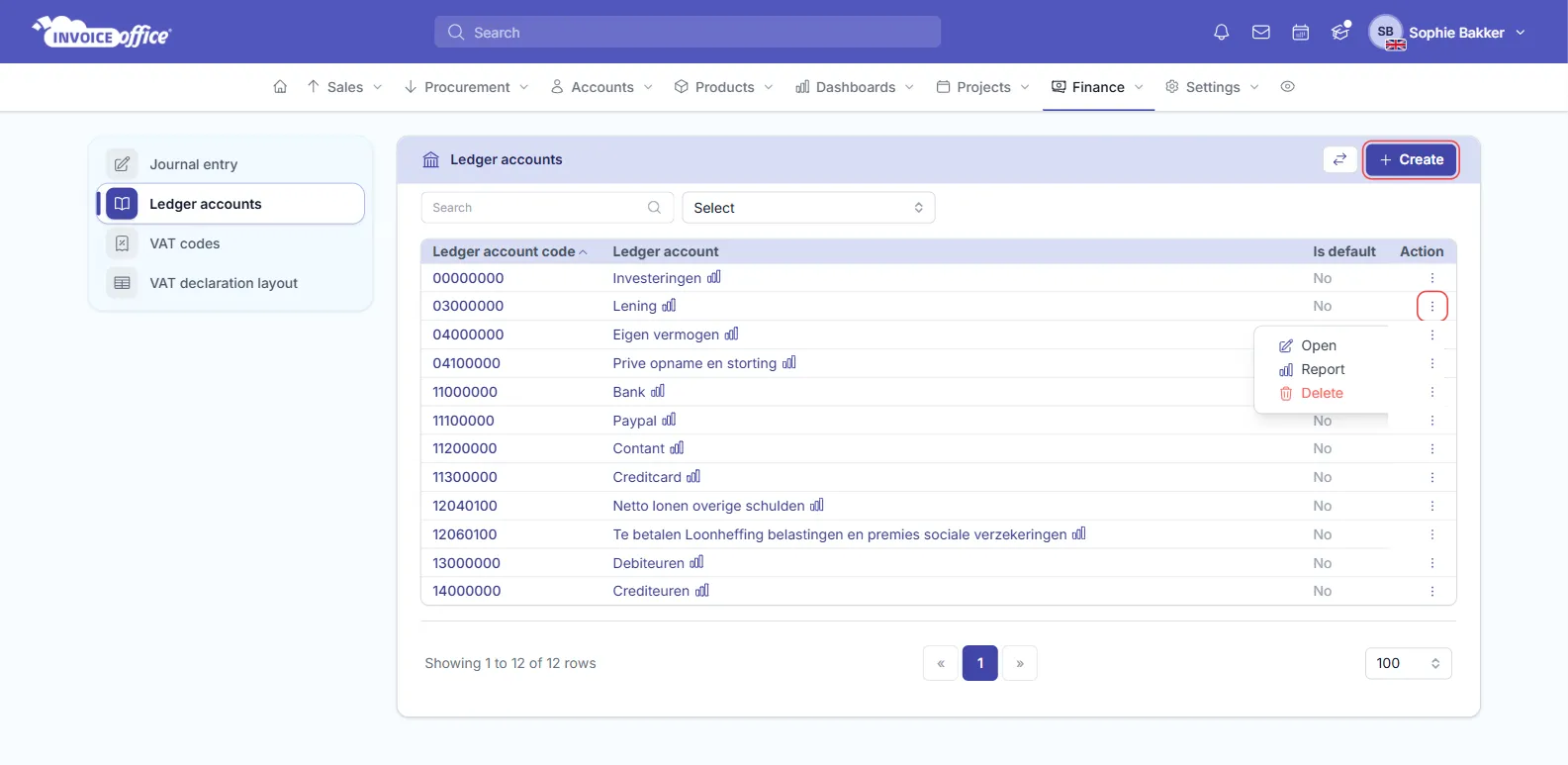
- Search finds an account by its name.
- The list next to Search filters on the account Type, for example to show only your revenue accounts.
- The Action menu (⋮) of each account has Open, Report and, for accounts you can delete, Delete.
- The import/export button (the two arrows next to Create) imports ledger accounts from a file, or exports the list to PDF, Excel or CSV.
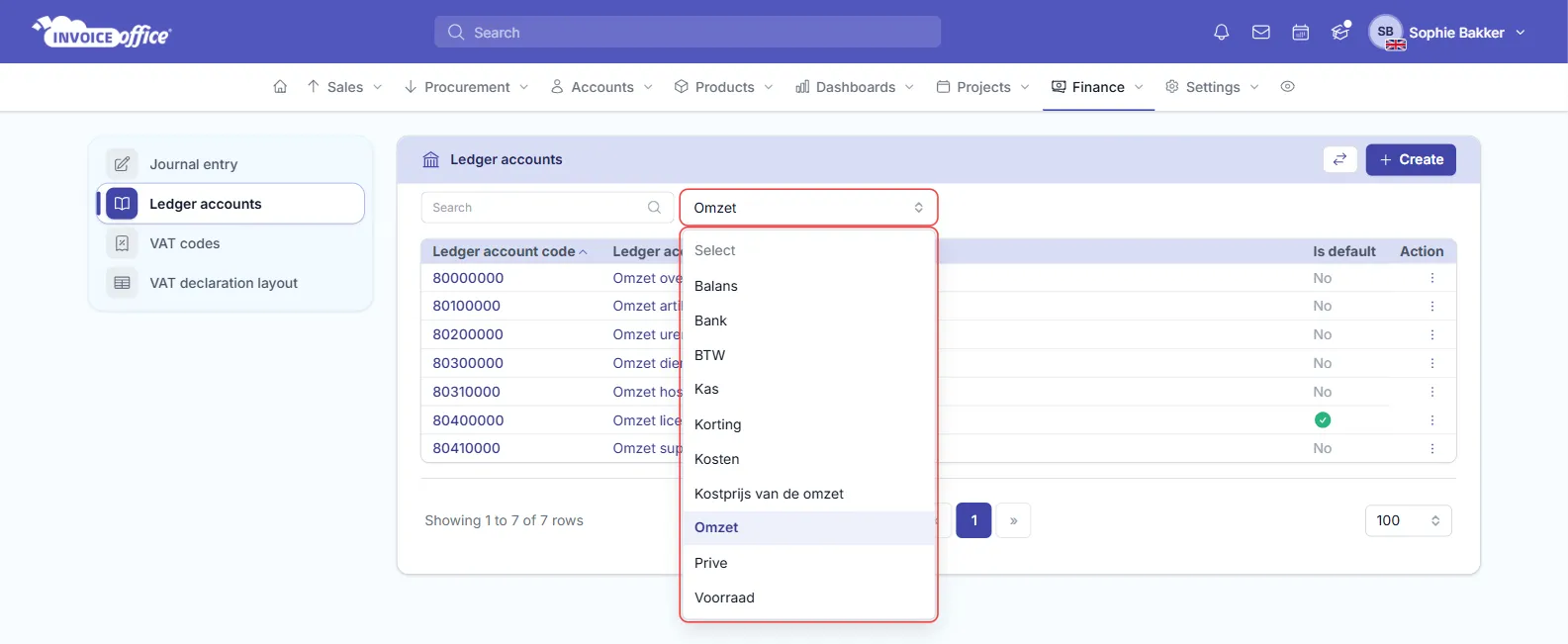
The names of the types follow your company’s language. The examples here come from a Dutch chart: Omzet is revenue, Kosten is costs and BTW is VAT.
Add a ledger account
- On Ledger accounts, click Create.
- Type a name under Ledger account. From the second letter, Invoice Office suggests accounts from the standard chart for your country that you don’t have yet. Pick one to fill in the code, side, Ledger Account type and the other details, or keep typing your own name. You still choose the Type yourself.
- Enter a Ledger account code. Pick a number that fits your chart, so the account sorts in the right place.
- Choose the Type, the Ledger Account side and the Ledger Account type (see the next section).
- Fill in the optional fields you need, then click Create.
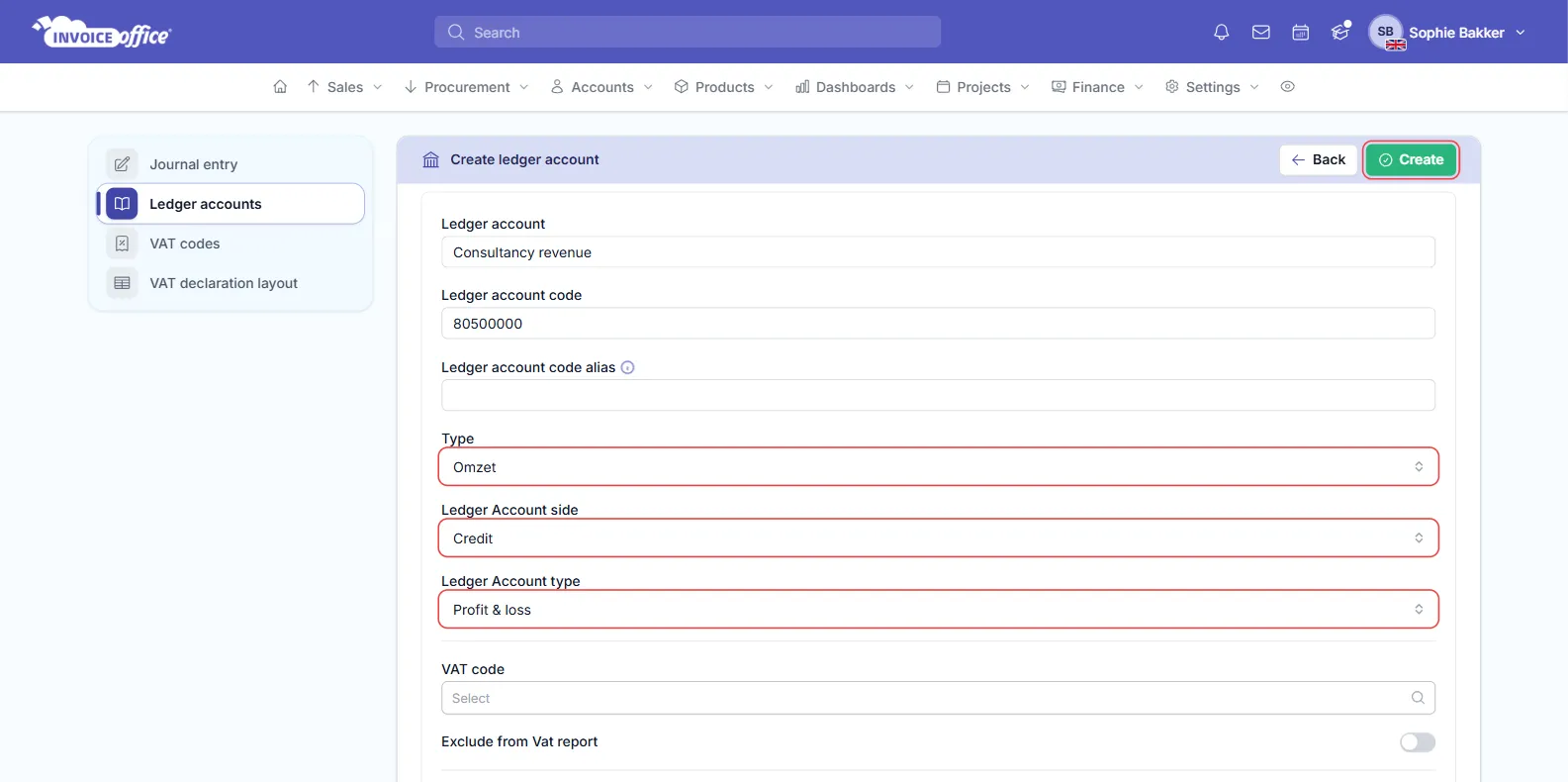
The optional fields:
- Ledger account code alias: the account’s code in an external system, such as your accountant’s bookkeeping software.
- VAT code: a VAT code that goes with this account.
- Exclude from Vat report: keeps bookings on this account out of the VAT report. It applies to bookings made after you switch it on.
- Reference code and Reference description: your own reference for the account.
- Is default: makes this the default account of its type. There’s one default per type, so switching it on for one account switches it off for the others.
- Blocked: keeps the account but takes it out of the lists you pick ledger accounts from.
- Note: an internal note.
Choose the type, side and group
Three fields together decide how an account behaves. Invoice Office doesn’t fill in the side and group from the type, so set all three.
Type says what the account is for. It decides where the account is offered. For example, only revenue accounts can be chosen as a customer’s Profit account, and only VAT accounts can be chosen on a VAT code. Revenue, cost and stock accounts are the ones you can link to a product category.
Ledger Account type is the group: Profit & loss for revenue and costs, Balance sheet for everything you own or owe. It decides whether the account appears on the Profit & loss report or on the Balance report.
Ledger Account side is Debit or Credit: the side the account normally grows on.
| Account | Type (Dutch chart) | Side | Ledger Account type |
|---|---|---|---|
| Revenue | Omzet | Credit | Profit & loss |
| Costs | Kosten | Debit | Profit & loss |
| Cost of goods sold | Kostprijs van de omzet | Credit | Profit & loss |
| Bank account | Bank | Debit | Balance sheet |
| Cash | Kas | Debit | Balance sheet |
| Stock | Voorraad | Debit | Balance sheet |
| VAT payable or reclaimable | BTW | Credit | Balance sheet |
| Owner’s withdrawals and contributions | Prive | Credit | Balance sheet |
| Discounts | Korting | Debit | Profit & loss |
| Other assets and liabilities, such as loans | Balans | Debit | Balance sheet |
These are the standard side and group for each type, and the side Invoice Office books to for that type. They aren’t filled in for you, so set them to match. Check your chart with your accountant if you want to follow a specific standard.
Your chart has one debtors account (what customers owe you) and one creditors account (what you owe suppliers). Invoice Office uses them for every invoice and purchase, so you can’t create a second one, and most of their fields are locked.
Edit a ledger account
- Open the account: click its code, or choose Open in its Action menu.
- Change what you need.
- Click Modify.
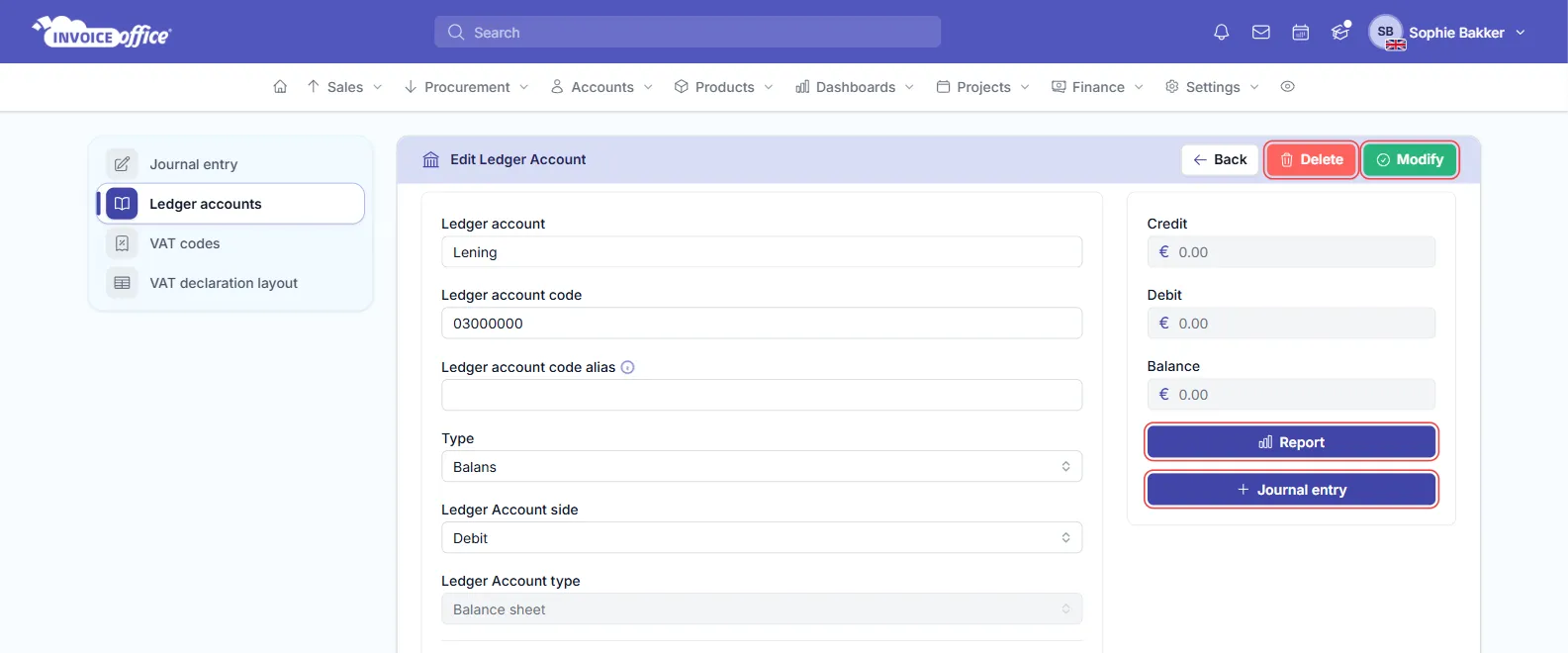
On the right you see the account’s Credit, Debit and Balance. Report opens the bookings on the account, and Journal entry starts a manual journal entry on it. To hand your bookings to your accountant, see how to export journal data.
Some fields are locked:
- On the standard accounts that come with Invoice Office, you can’t change the Type or the Ledger Account type, and you can’t block them.
- On accounts that came with your starting chart, the Ledger Account type is locked.
- On the debtors and creditors accounts, only the name, code, code alias, reference and note can be changed.
Delete a ledger account
Choose Delete in the account’s Action menu, or click Delete on the edit page, and confirm.
You can’t delete the standard accounts that come with Invoice Office: Delete isn’t offered for them. On the edit page of the debtors and creditors accounts, Delete is greyed out.
Think twice before deleting an account you’ve already used. Invoice Office doesn’t stop you, but the bookings on a deleted account no longer show up in your Balance and Profit & loss reports. For an account you no longer want to use, switch on Blocked instead: it disappears from the lists you pick accounts from, and its history stays in your reports.
Related
- How to create an expense (choosing a Cost Category on purchase lines)
- How to view a profit and loss overview
- How to export journal data for your accountant
- How to create a VAT code