Unmatched bank transactions in Invoice Office are the lines on your imported bank statement that couldn’t be linked to an invoice or purchase automatically. Each one needs a decision from you: link it to the invoice or purchase it pays, post it to a ledger account (bank charges, taxes, other income or costs), or book it as non-business when it’s a private transfer. This guide explains why transactions stay unmatched and how to handle each kind.
New to bank statements? Start with how to import and reconcile bank statements.
Why a transaction stays unmatched
After an import, Invoice Office compares every incoming transaction (Credit) with your open invoices, and every outgoing one (Debit) with your open purchases. A transaction is only Automatically matched when its amount equals a document’s total and its description contains that document’s number.
A transaction ends up as Match failed when, for example:
- the customer paid a different amount: part of an invoice, several invoices at once, or the total minus a bank fee;
- the description doesn’t mention the invoice or purchase number;
- there’s no open document for it: the invoice is already marked as paid, or you never created one;
- it isn’t an invoice or purchase payment at all: bank charges, tax payments, a refund, a transfer to savings or a private withdrawal.
When only the amount or only the number fits, the transaction is a Suggested match: it’s linked to the likely document, but no payment is registered until you confirm it with Register payment.
Find your unmatched transactions
- Go to Finance → Bank transactions.
- Click Unprocessed. The list now shows only the transactions that aren’t linked to a document or booking yet. The number in brackets tells you how many there are.
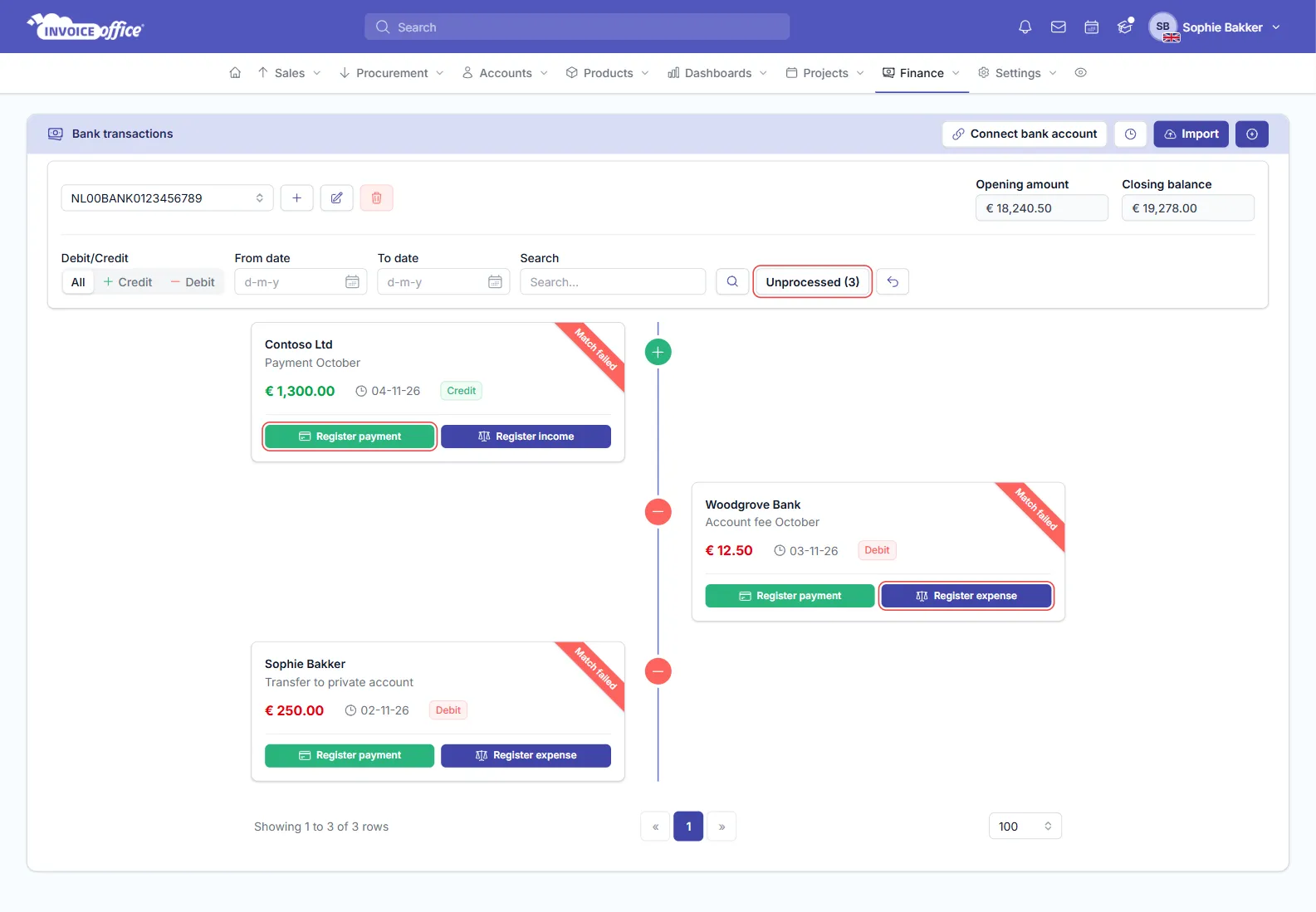
Each card shows the Match failed status, the counterparty, the description, the amount and whether it’s a Credit or Debit. Every card has two buttons: Register payment, and Register income (for money in) or Register expense (for money out).
Suggested matches are already linked to a document, so they don’t show under Unprocessed. Clear the filter and look for the Suggested match status to confirm them.
Link a transaction to an invoice or purchase
Use this when the money pays one or more invoices (or, for money going out, purchases).
- On the transaction card, click Register payment.
- Under Link payment to open invoice, select the invoice. For money going out, select the purchase.
- Check the amount under Amount payment, make sure Left to allocate is 0.00, and click Save.
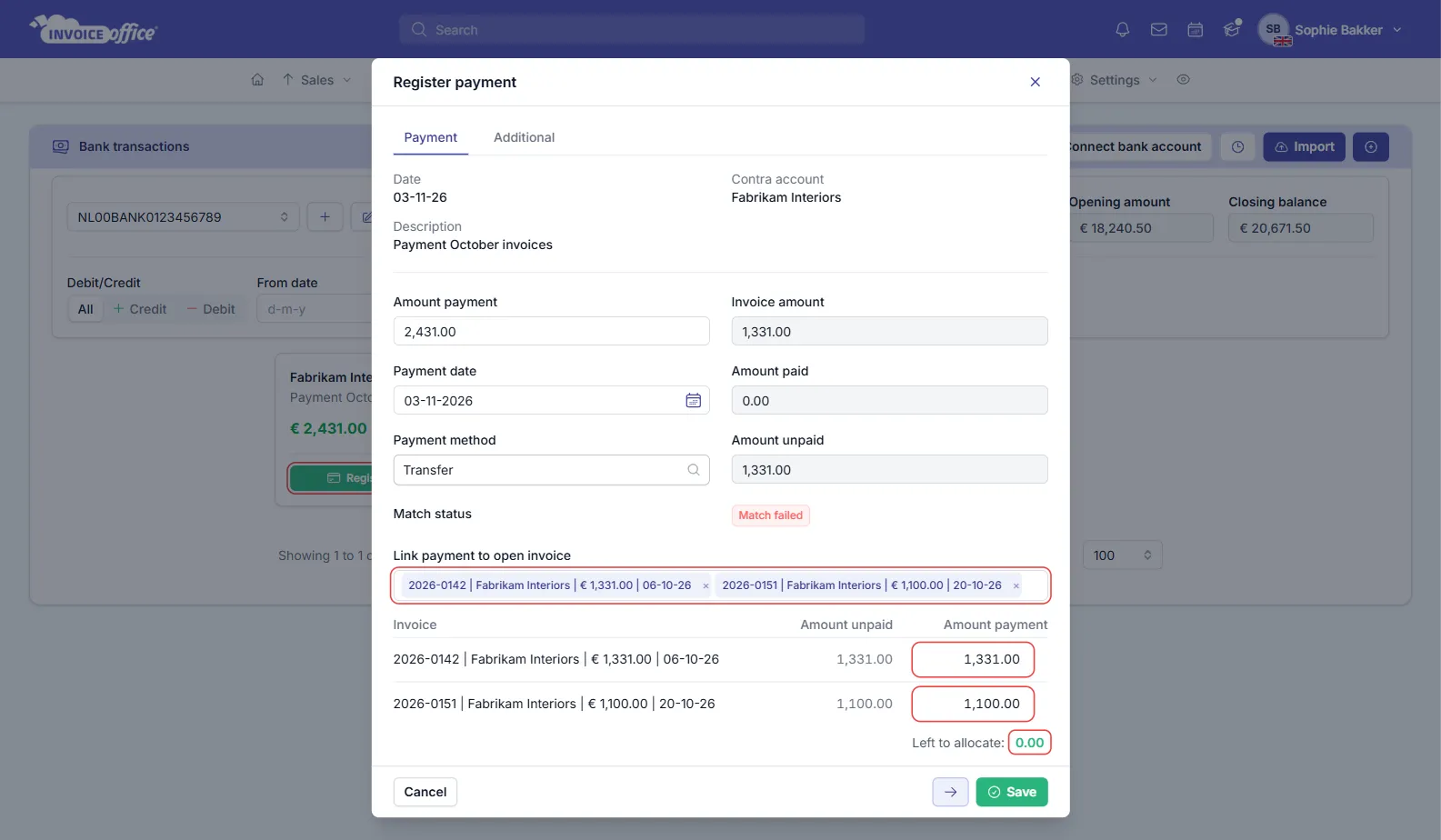
The payment is registered on the invoice, its status changes to Paid (or Paid too less when part is still open), and the transaction is marked Manually matched.
One transfer that pays several invoices? Select them all and split the amount. See how to allocate a bank transaction to multiple invoices. For a small difference, such as a few cents short, use Write off payment difference on the Additional tab.
Post a transaction to a ledger account
Use this for everything that isn’t an invoice or purchase payment: bank charges, interest, tax payments or refunds, a transfer to savings.
- On the transaction card, click Register expense (money out) or Register income (money in).
- Under Transactions, choose the Ledger account to book it to, for example your bank charges account. You can type to search the list.
- Enter the Amount, and optionally a Description and an Account (a customer or supplier).
- If there’s VAT on it, choose the VAT code. The VAT amount is worked out for you.
- Click Save, or Save and next to save and open the next transaction straight away.
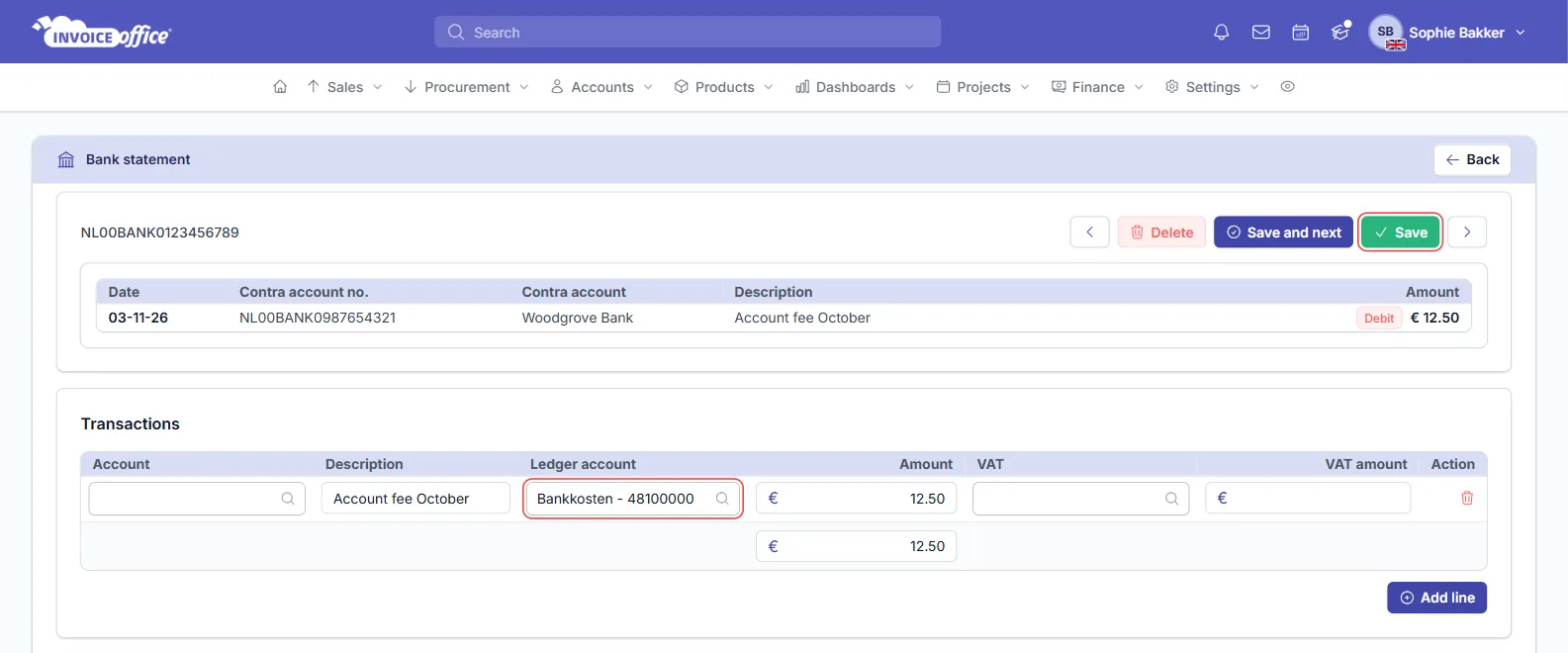
To split one transaction over several accounts, for example a tax payment that covers two taxes, click Add line and give each line its own ledger account and amount. The total under the lines must equal the transaction amount. While it doesn’t, the total is shown in red.
When the lines add up to the transaction amount, saving marks it Manually matched. If they don’t, the booking is still saved, but the transaction stays Match failed.
Lines you post to a ledger account this way can stay listed under Unprocessed. Check the status on the card to see what you’ve already booked.
The arrows next to Save move to the previous or next transaction without saving.
Book a private (non-business) transaction
Invoice Office has no separate “non-business” button. Book a private transaction to the private ledger account in your chart of accounts: the account of type Prive, such as Prive opname en storting in a Dutch chart.
- Click Register expense for a private withdrawal, or Register income for money you put into the business yourself.
- Choose your private ledger account under Ledger account, enter the amount and click Save.
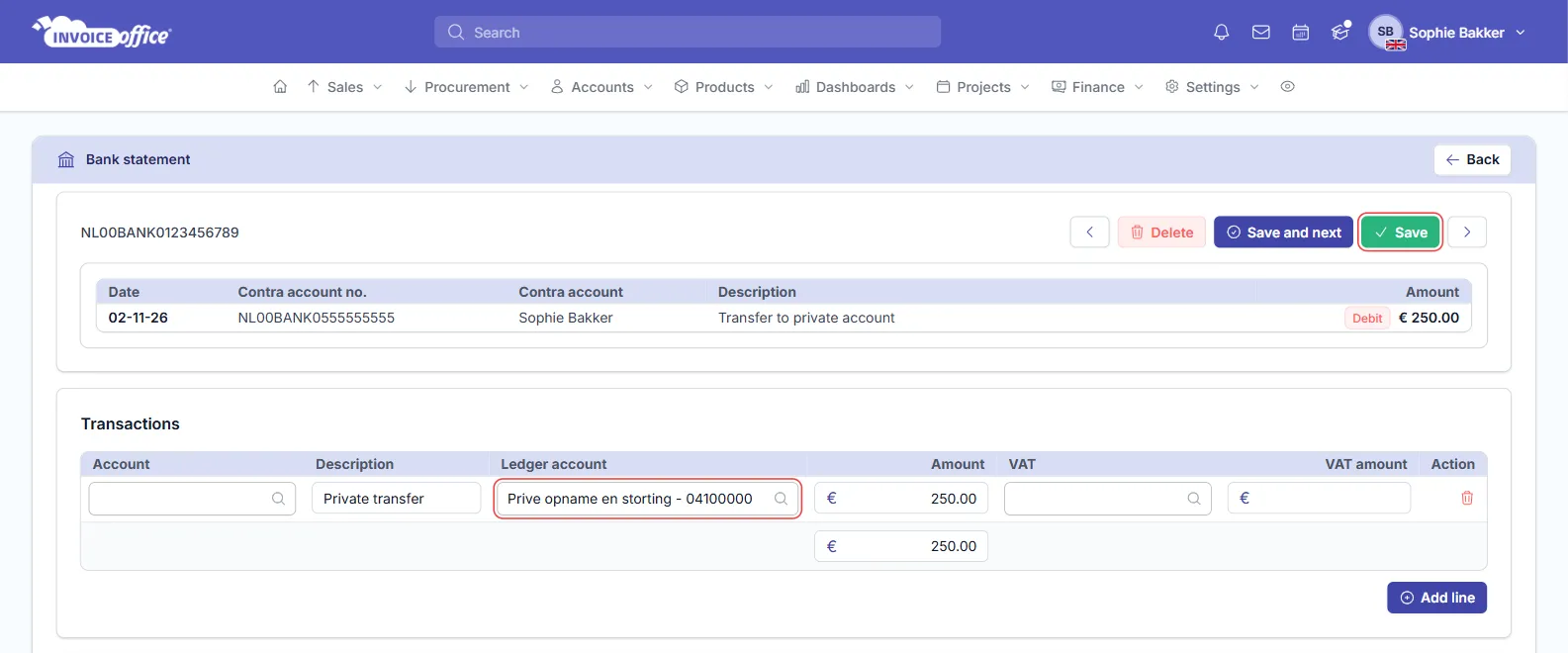
The private account is a balance sheet account, so the booking doesn’t count as a business cost or income in your Profit & loss.
Remove a transaction that shouldn’t be there
Imported a line twice, or added one by hand by mistake? Open the transaction (click the card) and click Delete. The transaction and anything booked from it are removed.