A document design for a specific document type in Invoice Office is a design you create for one type only — a separate layout just for quotes, for example, or a credit note design that looks different from your invoices. Every design belongs to exactly one document type and one language, so the design you create here is only ever used for that type. This article shows how to create the design, how to make sure it applies to the right document type, and how to set it as the default for that type.
How designs and document types fit together
- Each design has one document type, such as Invoice, Quote or Credit Note. A quote only offers quote designs, a credit note only credit note designs.
- Each design has one language. A quote in English uses an English quote design.
- One design per type and language is the default — the one with Is default switched on. That’s the design a new document of that type gets.
- The Document design is the base. The design with the document type Document (listed as Default in the Create document design window) is the base the others can follow; it isn’t one you pick for a document. See create and manage your document design templates.
Create the design
- Go to Settings → Documents → Document designs and pick the language in the selector at the top.
- Click Create document design.
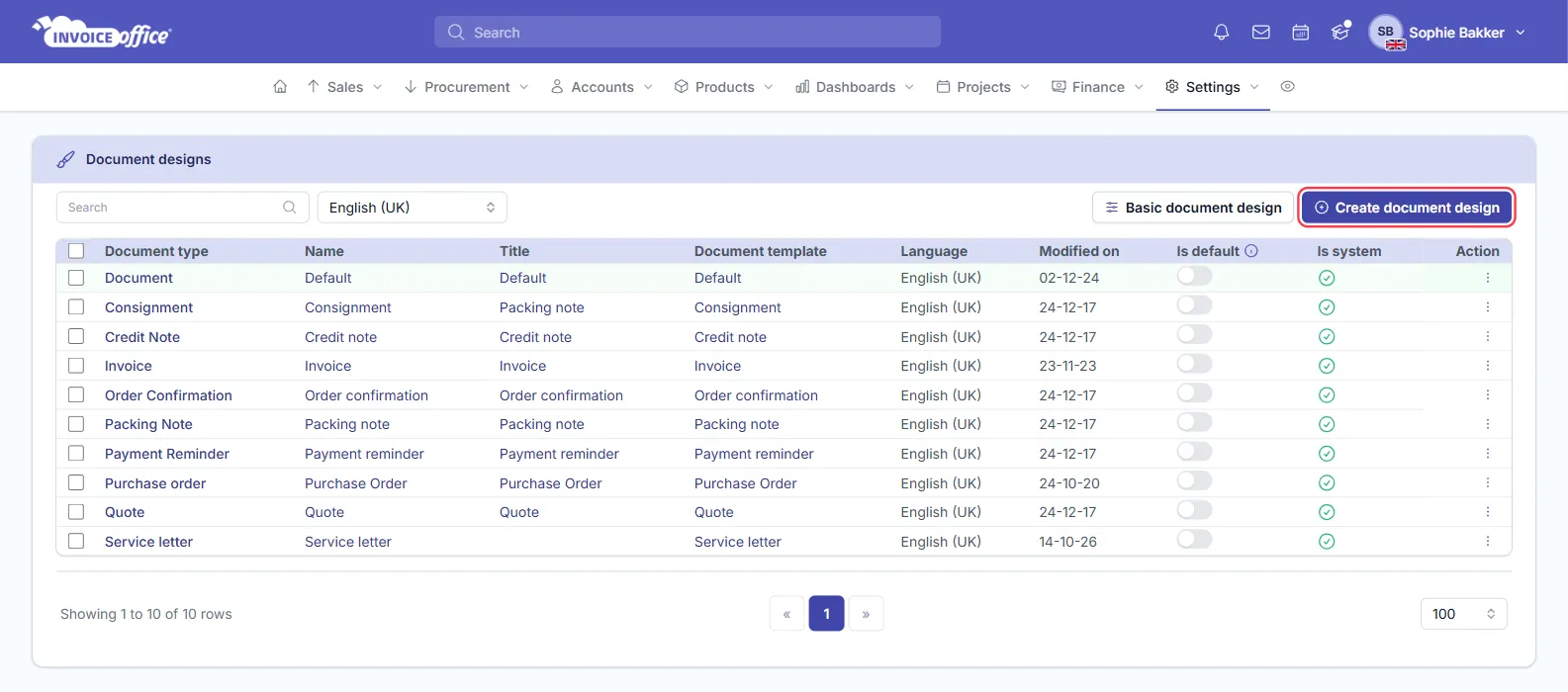
- Fill in the window:
- Name — a name you’ll recognise in the design picker, e.g. Project proposal.
- Document type — the one type this design is for, e.g. Quote or Credit note. This is what limits the design to that document type.
- Template (optional) — the document template, meaning the layout and styling, the new design follows. Whatever you pick, the design’s own content starts from Invoice Office’s standard design for that document type and language.
- Language — the language of the documents that will use it.
- Click Create. The design opens in the editor, where you set up its logo, blocks, texts and colours — see how to customize the document layout.
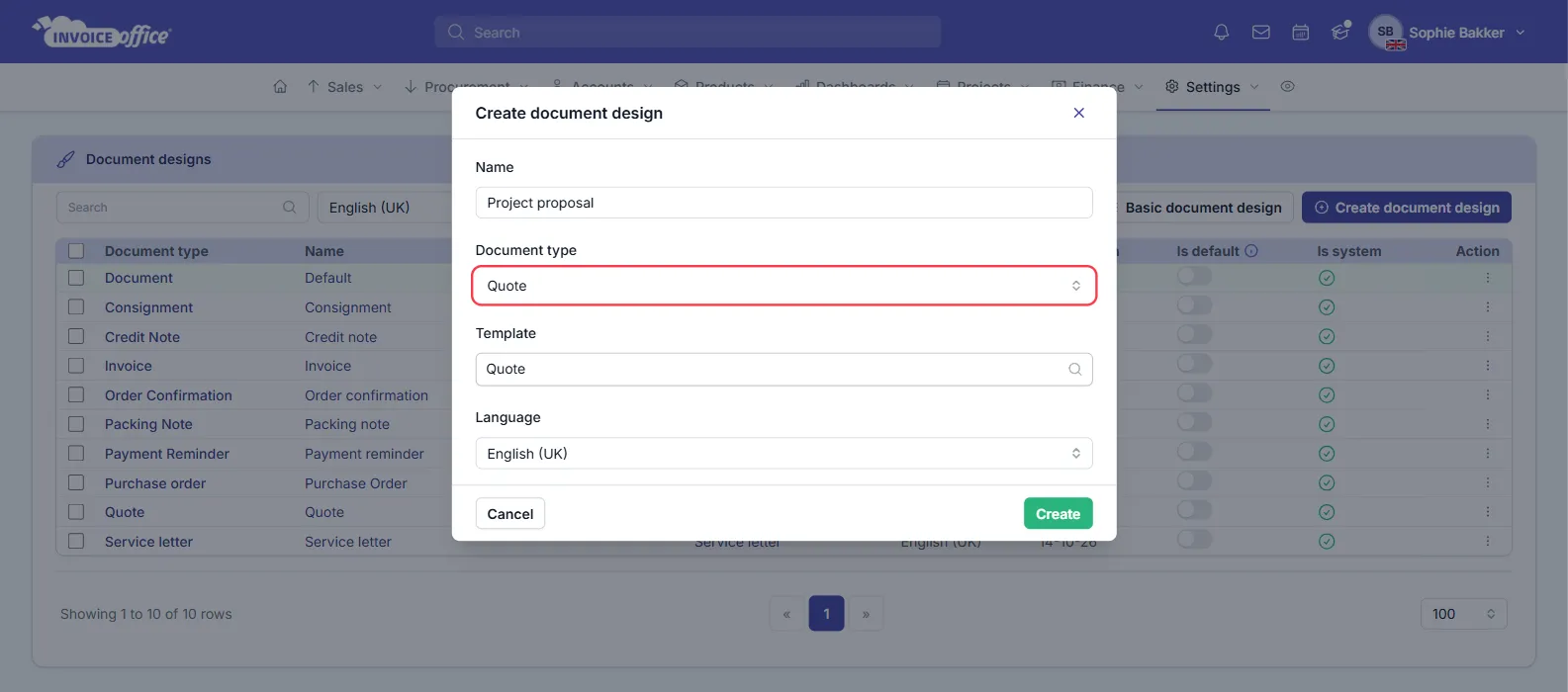
Starting from a copy is often quicker: open the ⋮ menu of an existing design and choose Create duplicate. The copy is named To plus the original’s name and opens in the editor; rename it with Modify in its ⋮ menu. To move a design you’ve already made to another document type, choose Modify in its ⋮ menu and change its Document type there.
Make the design your own. Blocks with Use default switched on keep following your base design. Switch Use default off on the blocks that should look different for this document type. In the basic editor, also check Use default design at the top of the Settings tab: while it’s on, the whole design follows the base design.
Set it as the default for that document type
A new design isn’t the default yet. Back on Settings → Documents → Document designs, switch Is default on in its row. The other design of the same type and language is switched off automatically, so every new quote — or whichever type you chose — now gets your new design. Designs of other document types aren’t affected.
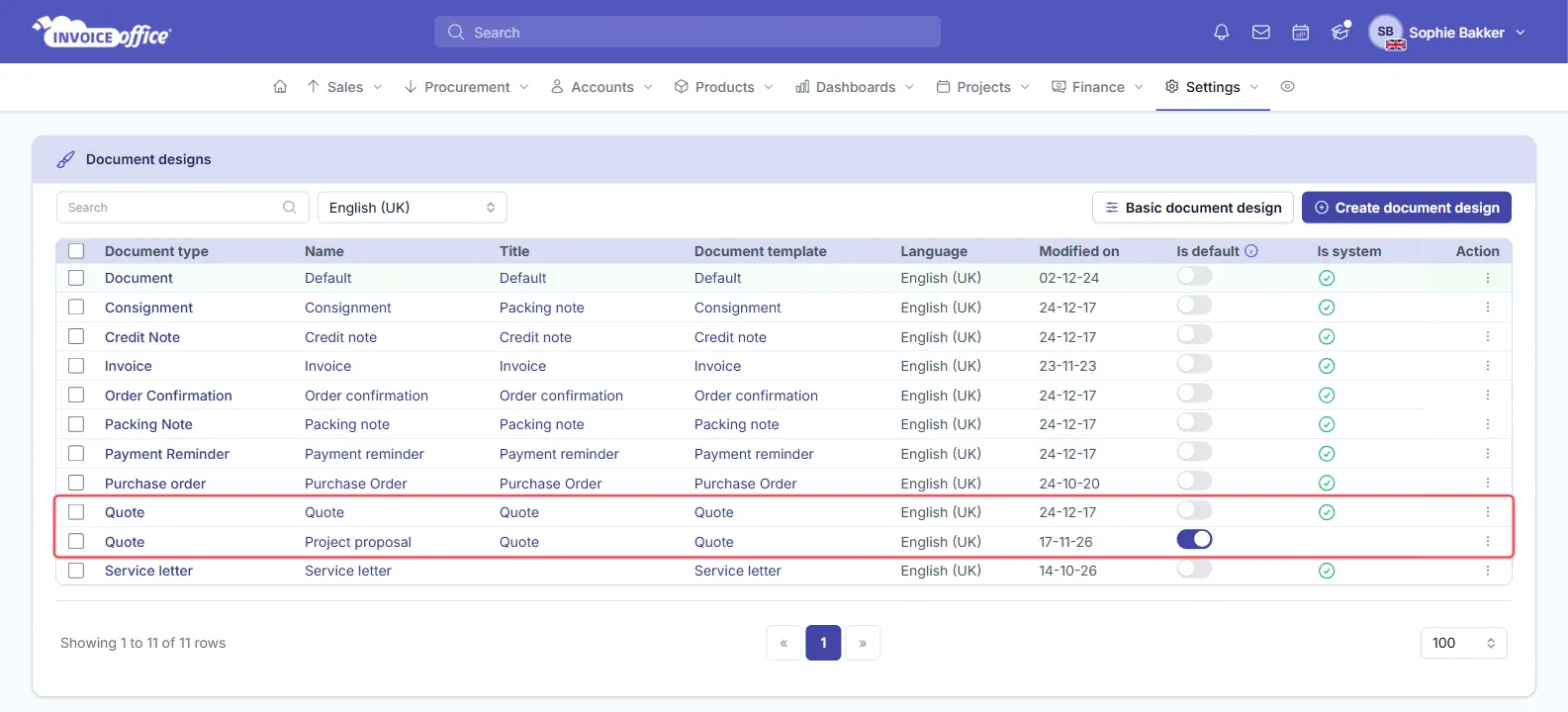
Repeat this in each language you send that document type in: the default is set per language.
Use the design on a document
New documents of that type pick up the default design by themselves. To use another design on one document, open the Settings tab — the gear icon in the icon bar on the right of the document form — and choose it under Document design. The list only shows designs of that document type, with the ones in the document’s language at the top under Favorites.
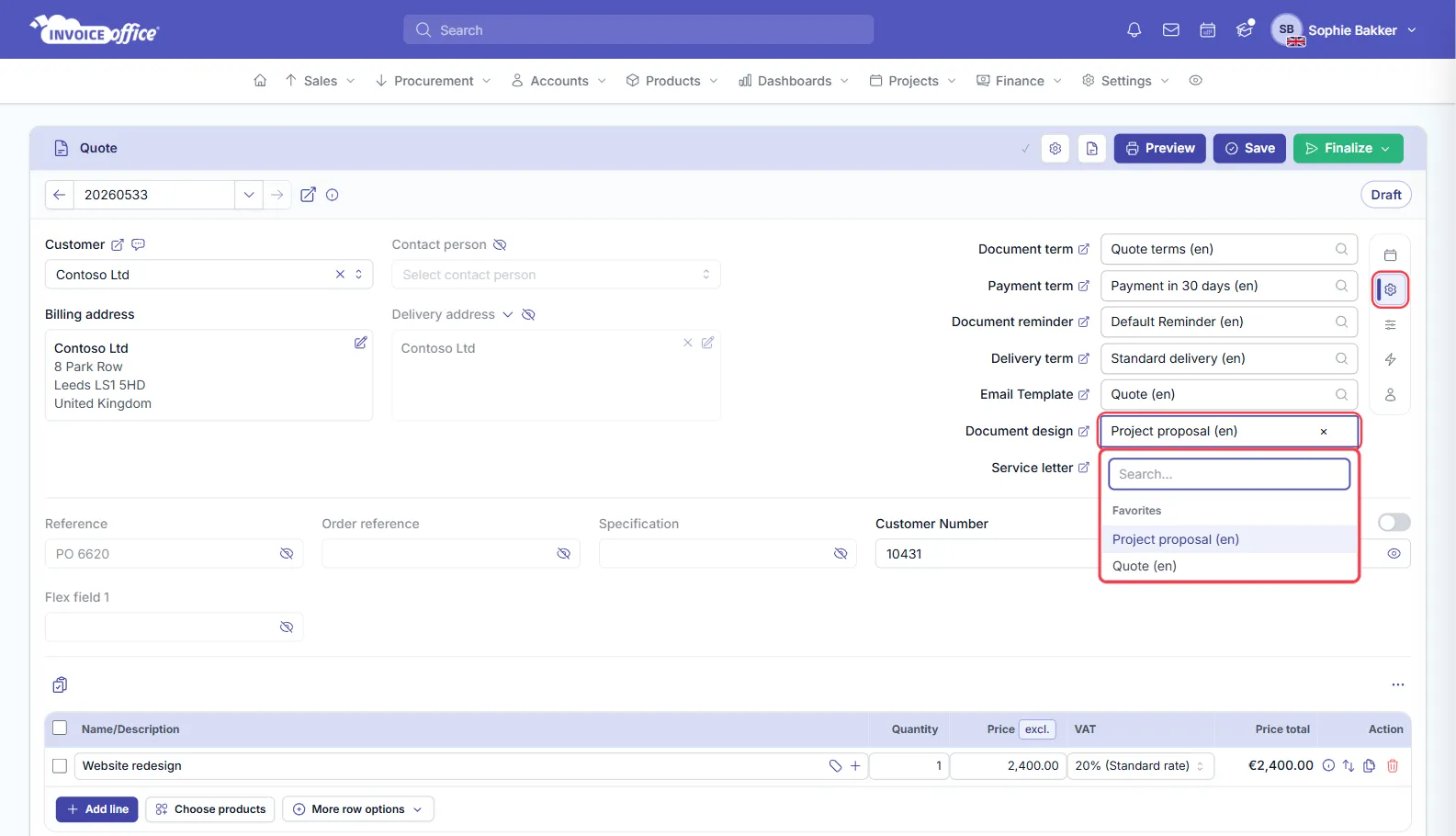
A design set for a customer wins over the default: to give one customer their own quote or invoice design, see choose a design template per customer.