To add a QR code or payment link to a document design in Invoice Office, you connect Mollie or PayPal and keep the Document terms & conditions block switched on in your invoice design. There is no separate QR code block to drag onto the design: Invoice Office prints the payment link itself, and with Mollie a payment QR code next to it, so your customer can pay the invoice from the PDF — or scan a paper copy with their phone. This guide covers connecting the payment provider, where the link and QR code are placed in the design, and how they look on the invoice.
Step 1 — Connect Mollie or PayPal
The payment link comes from your payment provider, so connect one first under Settings → Integration connectors:
- Mollie — see how to integrate your Mollie payment link.
- PayPal — see how to integrate your PayPal payment link.
On the connector’s Configuration tab, set the Payment link text — the words your customer clicks, one row per language. Payment link connectors need a Pro licence.
Step 2 — Switch on the QR code (Mollie)
For a payment QR code, switch on Add QR code on the Configuration tab of the Mollie connector and save. The QR code is only available with Mollie; with PayPal, the invoice carries the link only.
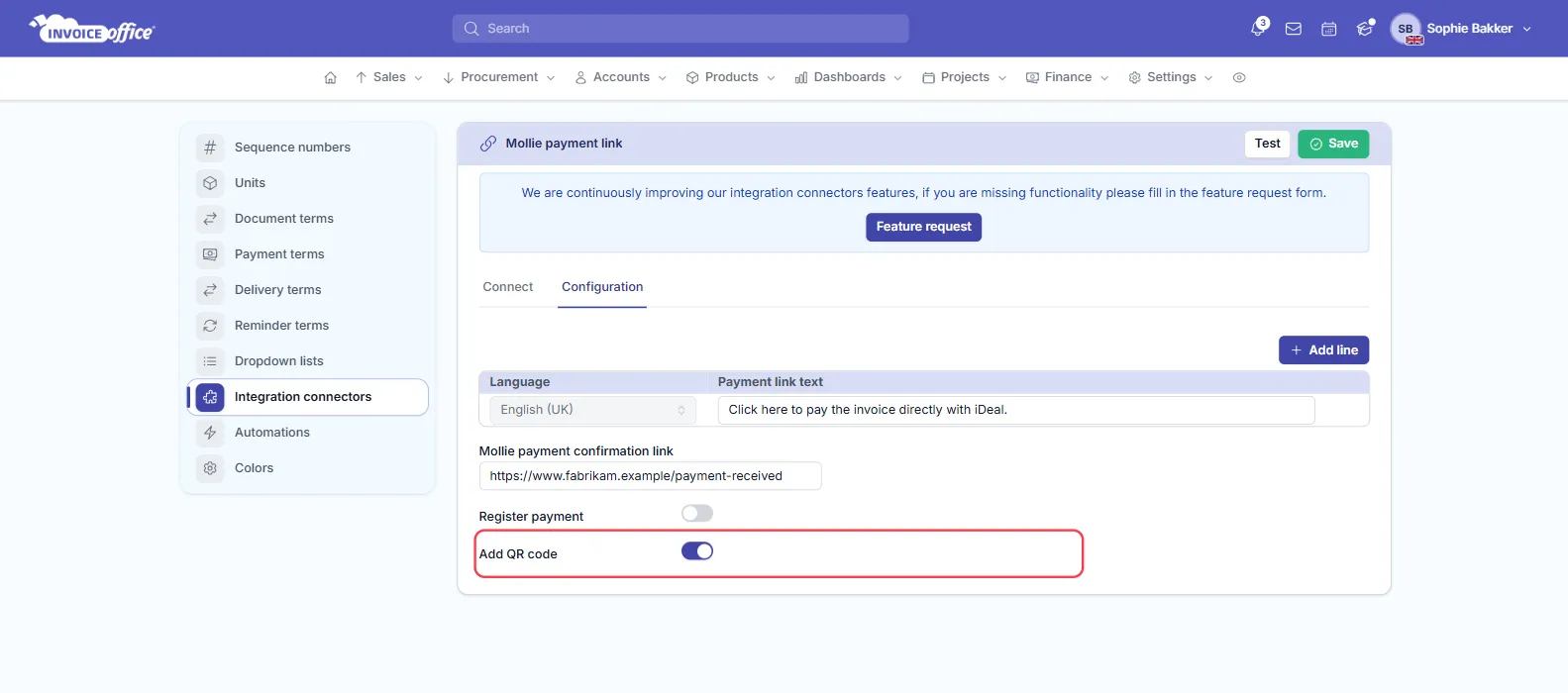
Invoice Office copies these connector settings onto an invoice when the invoice is created. Switch Add QR code on before you create the invoice — invoices you already made keep the setting they were created with.
Step 3 — Place the link in your document design
The payment link — and the QR code — are printed inside the Document terms & conditions block of the invoice, below your terms text.
- Go to Settings → Documents → Document designs and open the design your invoices use.
- Open the Blocks tab in the editor’s side panel. In the advanced editor, switch the toolbar to Document template first; if you don’t see this switch, you are in the basic editor and can skip it.
- Switch Document terms & conditions on. The block appears on the invoice in the middle; use its handles to move it to where you want the link.
- Click Save. In the advanced editor, Save saves only the side you are on: if you switched to Document template, switch back to Document design and click Save there too.
Make this change before you create the invoice: an invoice keeps the layout of the design it was created with.
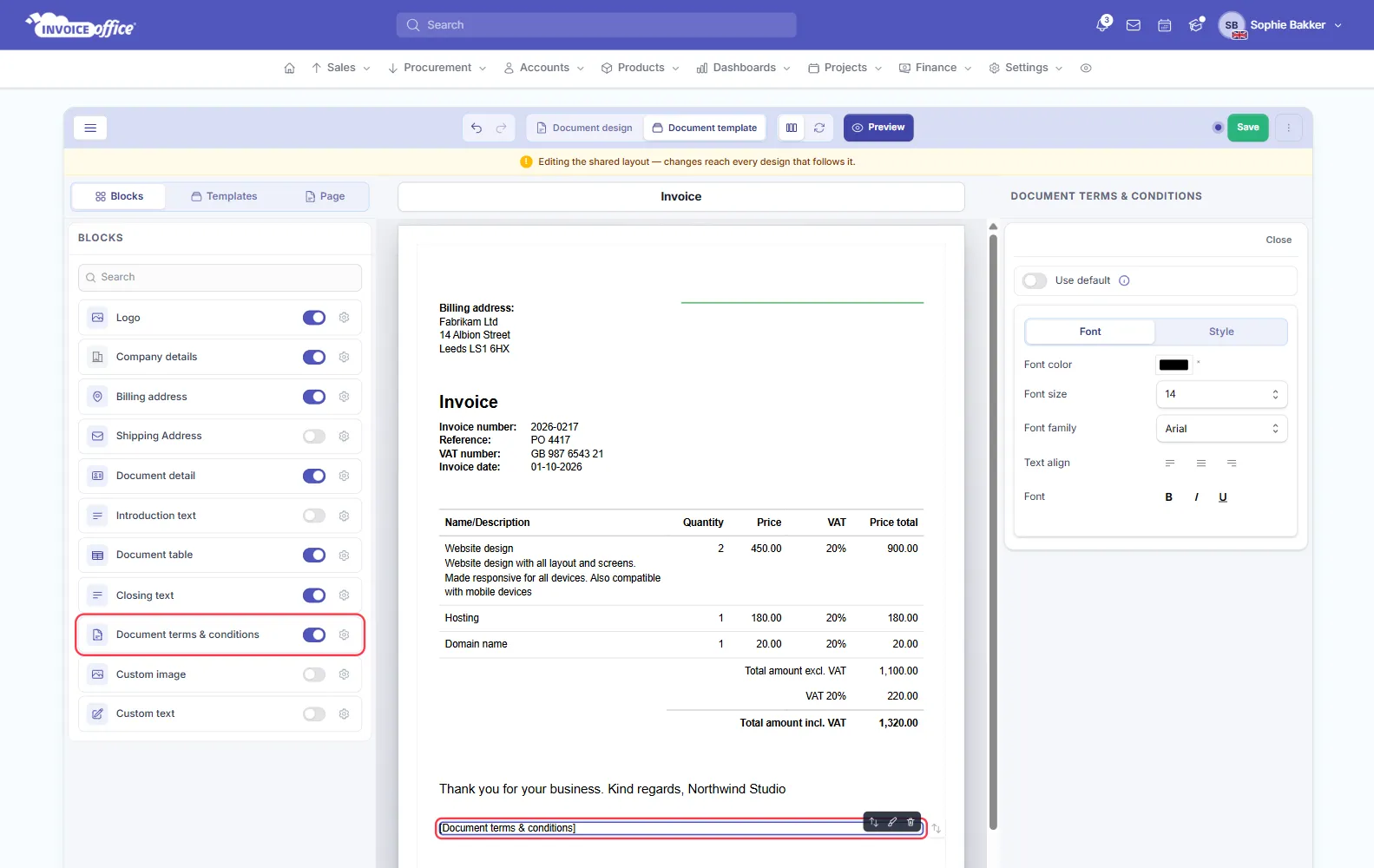
If the Document terms & conditions block is switched off, the payment link is printed with the closing text instead, without your terms text. This only works while the Closing text block is on: with both blocks off, the invoice PDF carries no payment link. More on the editor in how to create and manage your document design templates.
How the link and QR code appear on the invoice
- On a concept invoice the PDF shows the link text in the place where the link will go, but it isn’t clickable yet and there is no QR code: the real payment link is only created when you finalize the invoice.
- On a finalized invoice the link text is a clickable link in the PDF. With Add QR code on, the Mollie link sits in a bordered box together with a QR code of the same link and the text Scan with phone to automatically copy payment details.
- In the invoice email the payment link — not the QR code — is added to the text your customer receives.
- On the online invoice — the page your customer opens from the public link — an unpaid invoice shows a Pay online button. With Add QR code on, the Mollie QR code is shown below it with the text Scan the QR code to pay directly.
Payment links and QR codes are only added to invoices, including the invoices a recurring invoice creates, not to quotes, proforma invoices or other documents.
Payment QR code on an invoice: why it helps
A QR code makes a paper or posted invoice payable: your customer scans it with their phone instead of typing a link. When your customer pays the full amount through the Mollie link, the payment is registered on the invoice for you. A PayPal payment you register yourself — see how do I register a payment?. More in how payment links and Mollie online payments work.