To set up a multilingual document design per customer language in Invoice Office, you create a document design in each language you invoice in, and set the language on each customer. When you then create an invoice for a customer, it starts in their language and Invoice Office picks your design in that language — so a French customer gets a French invoice and a Dutch customer a Dutch one, without you choosing the layout each time. This guide covers creating a design per language, assigning it to customers, and how the right design is selected.
Step 1 — Create a document design in each language
Document designs — your invoice templates — are held per language: each design has one document type and one language, so you keep a separate document template per language.
- Go to Settings → Documents → Document designs.
- Pick the language in the Language selector at the top to see the designs you already have in it. A language you haven’t set up yet shows No document design found.
- Click Create document design.
- Enter a Name, choose the Document type — for example Invoice — and set the Language. Optionally pick a Template: the document template (layout) the new design is based on.
- Click Create. The new design opens in the editor, where you adjust the wording and layout.
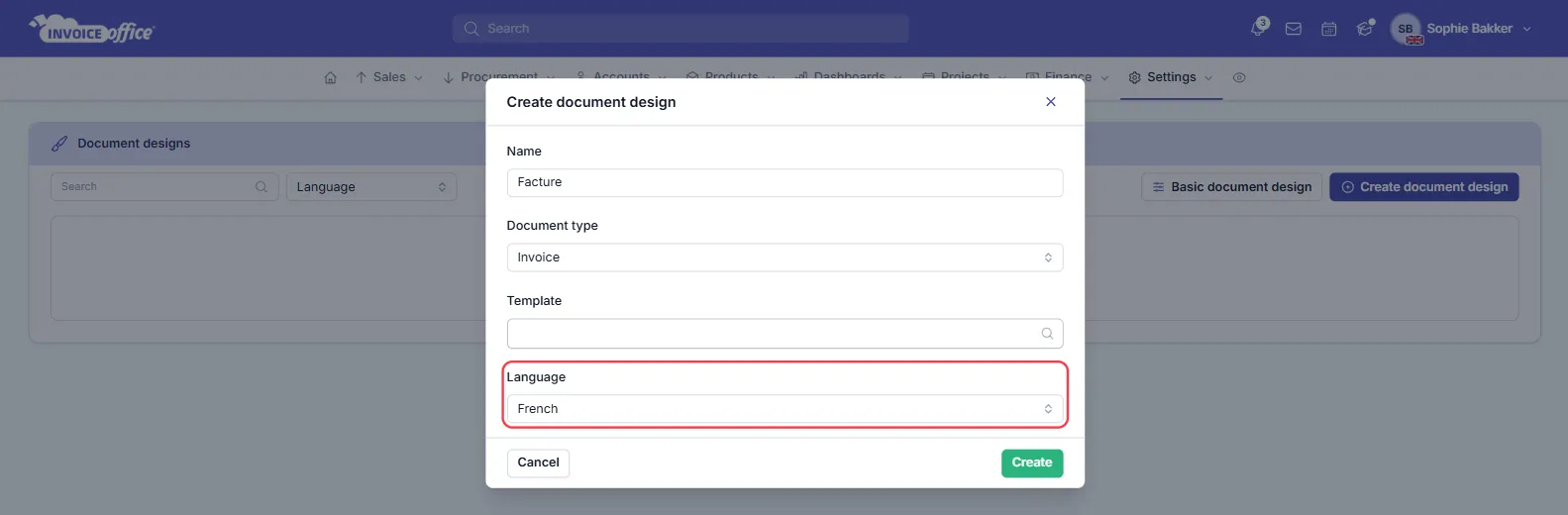
Faster still: open the ⋮ menu of a design you already use and choose Create duplicate. The copy (named “To …”) opens in the editor. Back in the design list, open the copy’s ⋮ menu, choose Modify and change its Language. Repeat for every document type you send in that language — quotes, order confirmations, credit notes and so on. More on the design list and the editors in how to create and manage your document design templates.
Keep one design per document type and language. When a document switches language, Invoice Office takes the first design it finds in that language for the document type — not necessarily the one marked Is default. With a single invoice design per language, that is always the right one.
Step 2 — Set the customer’s language
- Go to Accounts → Customers, open the customer’s ⋮ menu and choose Settings. The Customer document settings page opens.
- Choose the customer’s Language at the top of the language settings, above Document terms.
- Click Save.
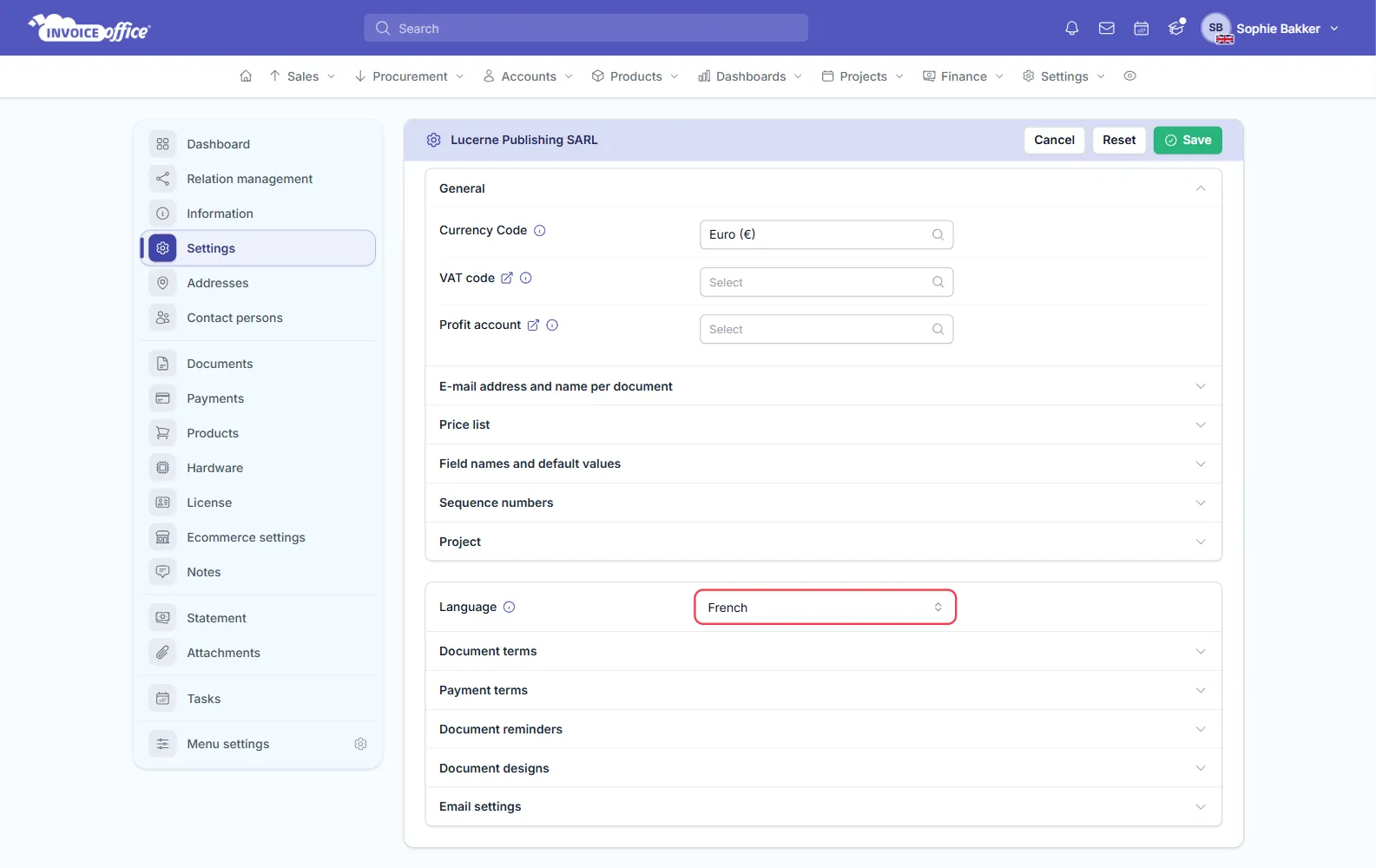
That is all most customers need: their documents now start in French, with your French design. For what else the language changes, see change the language of an invoice or document.
Step 3 — Optional: give a customer their own design
If one customer needs a different layout, pick it on the same page under Document designs, per
document type, and click Save. The list names each design with its language, such as Invoice (en).
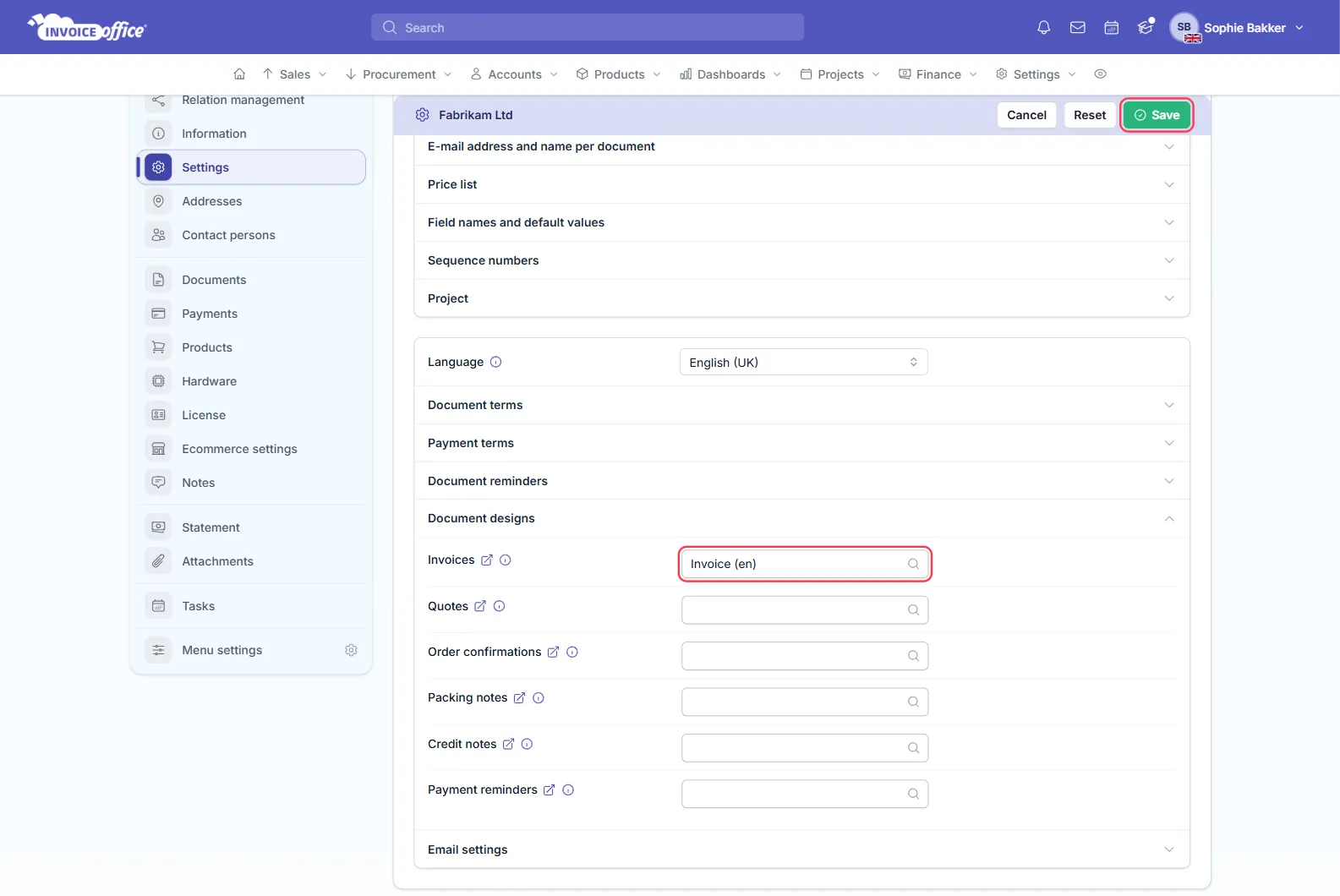
Choose a design in the customer’s language. The customer’s language is applied after their design, so a design in another language is replaced by your design in the customer’s language, if you have one. See choose a design template per customer.
How the right design is selected
When you select the customer on a new invoice, quote or other document:
- Their own design for that document type is applied, if you set one.
- The document language is set to the customer’s Language.
- If the design on the document is already in that language, it stays. Otherwise Invoice Office switches to your design in that language. If you have no design in that language, the document keeps its current design and takes its labels and texts from the customer’s own design or your default design. So create a design in every language you invoice in.
With the language, the document term, payment term, delivery term, document reminder, email template and — where you have them — translated product names follow too. You can check the result on the Settings tab (the gear icon) in the icon bar on the right of the document.
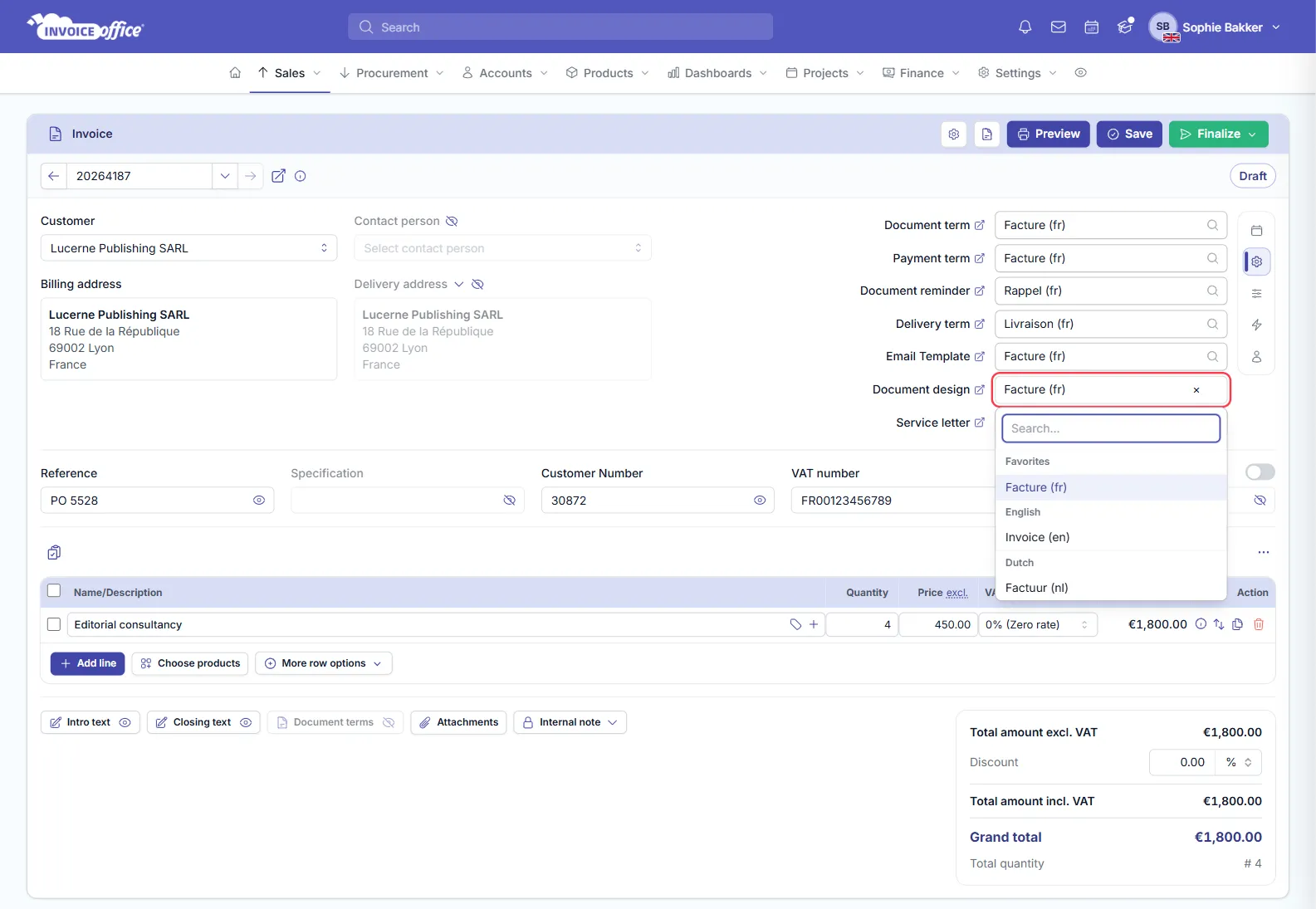
A customer without a language starts in your own language. You can still change the language or the design on a single document while it is a concept — see change the language of an invoice or document.