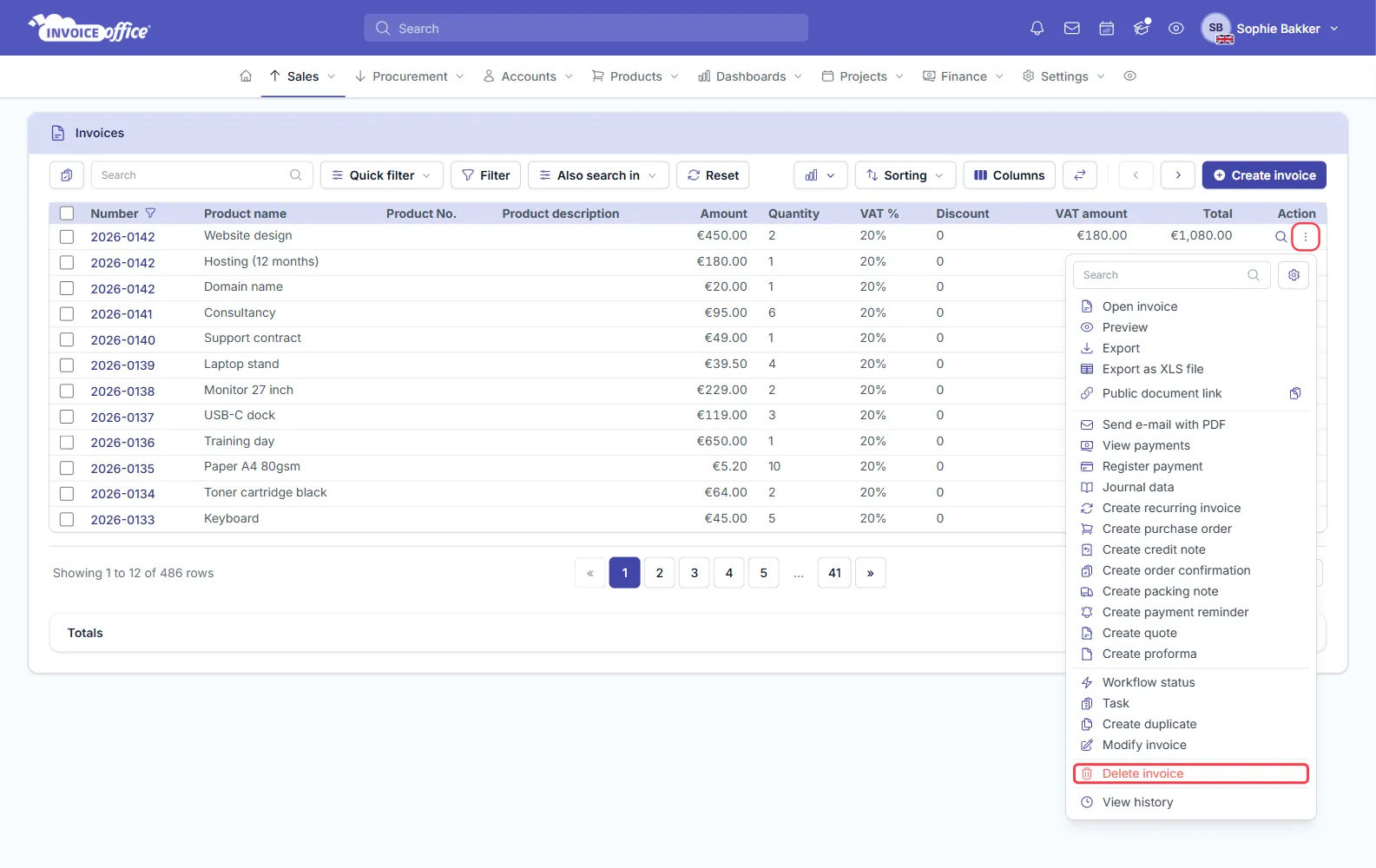
As well as creating documents you can delete them. It might be a draft quote you have decided not to send, or a final invoice that is being cancelled. Deleting has consequences, so it is worth reading the next section before you start.
Read this first
Removing a document may have the following consequences:
- A gap in your document numbering. You can solve this by manually reusing the missing document number when you create a document — see Change the document number.
- Your accounting may no longer be correct. The general ledger account, profit and loss account and balance sheet can all be affected, because an amount or a payment is now missing.
- Related records must go first. Documents or payments related to the document you want to delete have to be deleted before it.
For a finalised invoice that is simply wrong, a credit note is usually the better answer than a deletion — it corrects the position without taking the original out of your books.
Delete a document
- Go to the overview of your documents — Sales → Invoices, Quotes and so on.
- Open the Action menu on the row you want to remove — the ⋮ button in the Action column.
- Choose Delete invoice (or delete quote, delete packing note — the item is named after the document type). It sits at the bottom of the menu, in red.
- A warning about your accounting appears. Confirm it and the document is deleted.