To manage units in Invoice Office, you use one settings page where you create, edit and delete the units of measurement your invoice and quote lines are counted in: hours, pieces, kilos, boxes, days. Invoice Office ships with the common ones, and you can add your own custom units, rename the predefined ones and remove the ones you never use. This guide shows where the units list is, how to add, edit and delete a unit, and how units appear on your document lines.
Where to find the units list
Go to Settings → Company → Units. In the settings menu on the left it sits between Sequence numbers and Document terms.
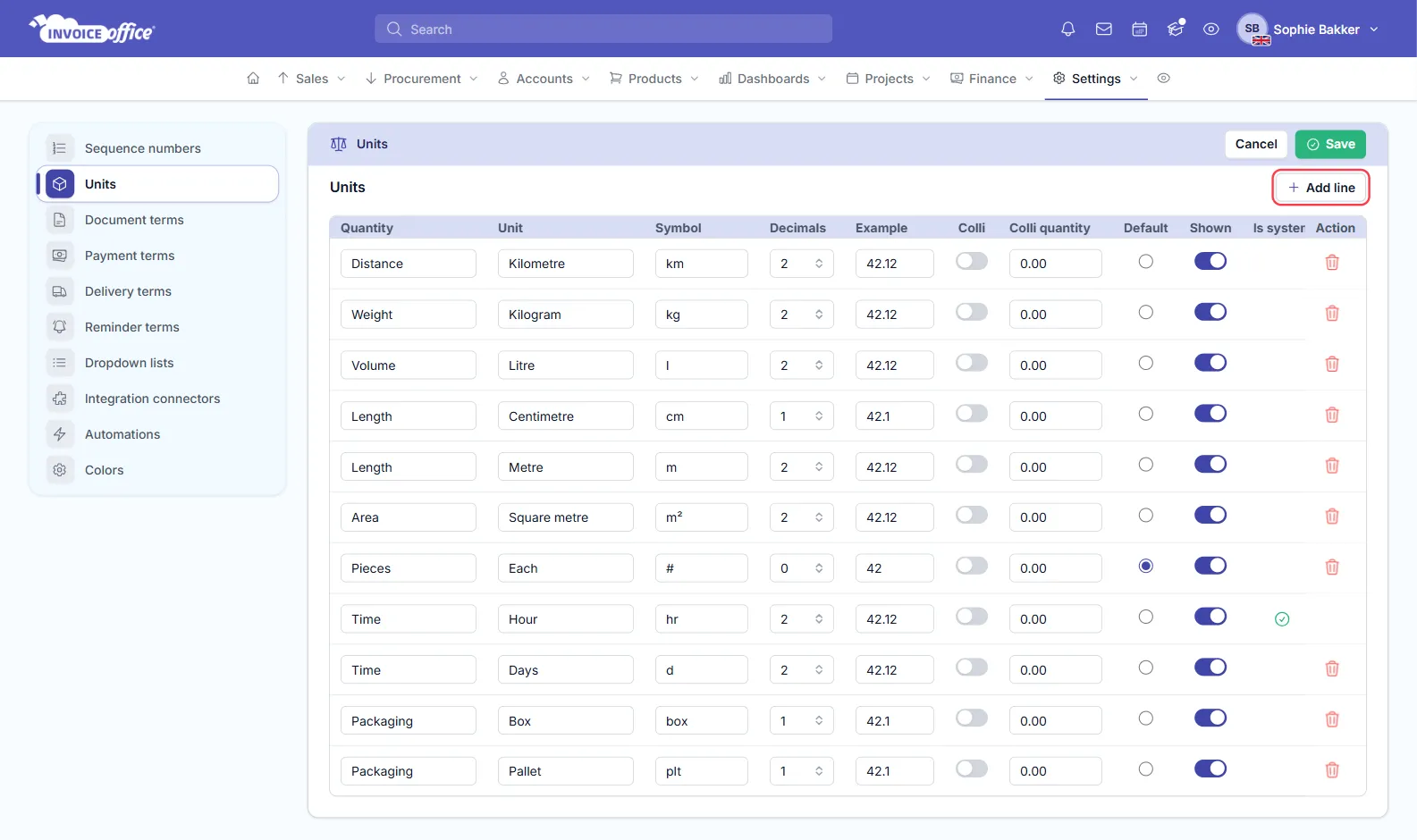
Each unit is one row:
- Quantity — what is being measured, such as Time, Weight or Packaging. It groups the list and is required.
- Unit and Symbol — the name and the abbreviation, such as Hour and hr. Together they make up the unit text on a document line: Hour (hr).
- Decimals — how many decimal places a quantity in this unit is shown with, from 0 to 5. Example shows 42.12345 with that many decimals, and updates after you save. See set the number of decimal places per unit.
- Colli and Colli quantity — for units sold in packs. Switch Colli on and enter how many items one pack holds.
- Default — the unit the first line of a new document starts with. Only one unit can be the default, and choosing one also switches its Shown on.
- Shown — whether the unit can be picked on document lines and products. Switch it off to hide a unit from the lists.
- Is system — a tick marks a unit Invoice Office uses itself, such as the hour.
Add a unit
- Click Add line at the top right of the table. An empty row appears.
- Fill in Quantity, Unit and Symbol, and choose the Decimals.
- Leave Shown switched on so the unit can be picked.
- Click Save.
The new unit can now be chosen on document lines and on your products. For more on adding units, see how to add your own units.
Edit a unit
Change the values straight in the row — rename it, change the symbol or the decimals — and click Save. Cancel leaves the page without saving, so nothing you changed since your last save is kept. The predefined units can be edited too.
Products pick up a renamed unit straight away. Documents you already made keep the unit text they were created with; a document only shows the new name once you open it and save it again.
Delete a unit
- Click the red bin at the end of the row. The row disappears from the table.
- Click Save to delete it for good. Until you save, nothing is deleted — click Cancel to leave the page without saving and the unit stays.
Units marked Is system have no bin and cannot be deleted.
Invoice Office does not check whether a unit is still in use, so look at what uses it first:
- Products that used the unit are left without one. Choose a new unit on those products — ideally before you delete.
- Existing invoices and quotes keep showing the unit on their lines. If you open such a document and save it again, the line loses its unit and the unit is left empty on that line.
Switching Shown off has the same effect on documents you save again, so treat it like a delete for units that are still on open documents.
How units appear on invoice and quote lines
A document line can carry a unit:
- A line made from a product takes the product’s unit — set it once on the product and every line carries it. See creating and managing products.
- The first line of a new document starts with your Default unit.
The Unit column is hidden on documents by default. To show it on a document:
- On the product table of a document you can still edit, click the ⋯ button and choose Display Columns.
- On Rows, switch Unit on. It moves to the SHOWN list.
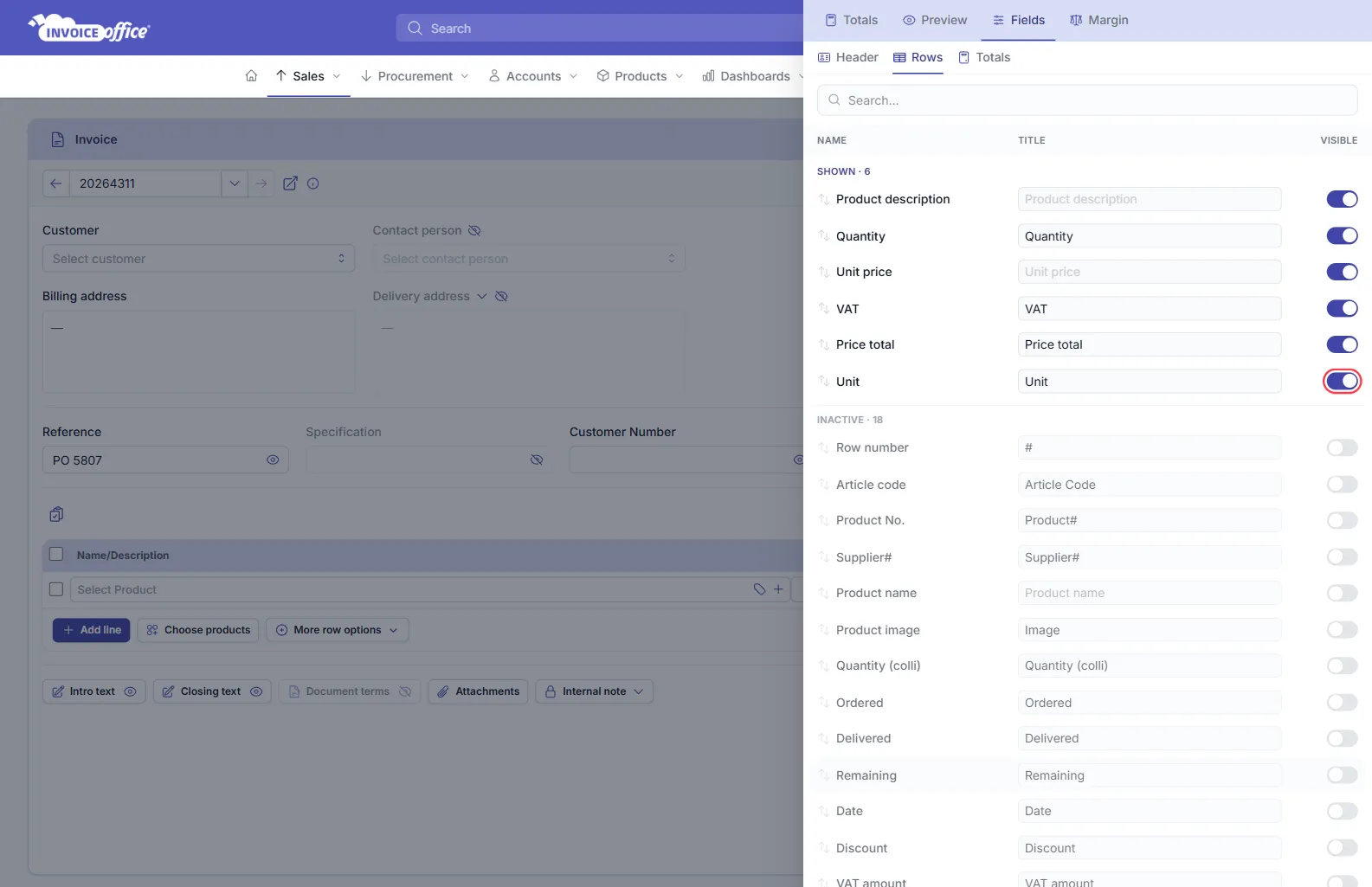
The Unit column now appears in the product table and is printed on the document. Click the unit on a line to pick another one from the list. The Units link at the bottom of that list opens your unit settings in a new window.
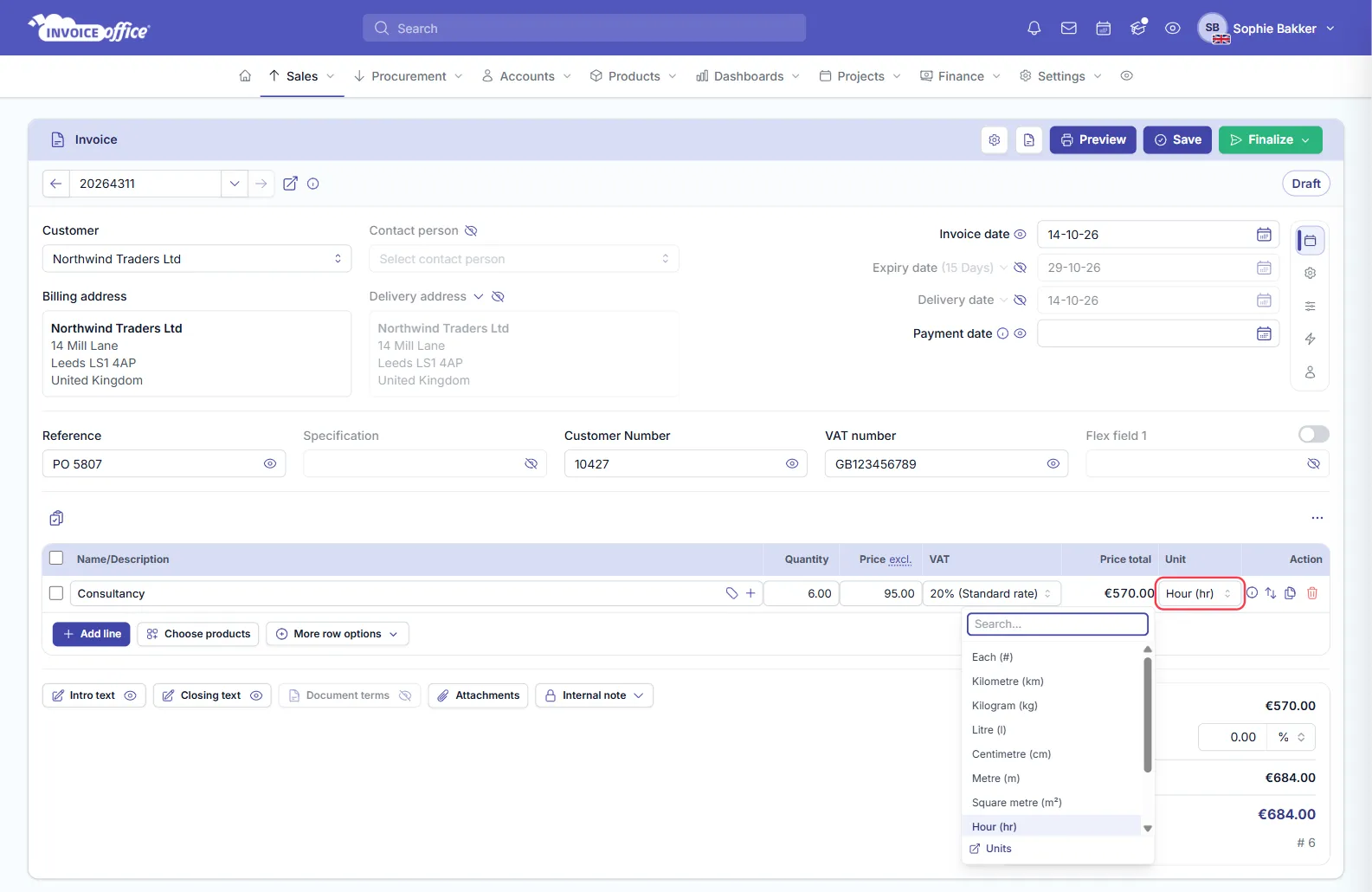
The printed unit reads like the list — the name with the symbol, such as Hour (hr) — and the quantity uses that unit’s decimals. To show the Unit column on every new document instead of one at a time, switch it on in your document design — see how to switch or reorder columns in a document design.
Why it is worth getting right
- The line reads correctly. 12 hours and 12 pieces are very different invoices.
- It matches the quote. If you quoted per day, invoicing per hour invites a query.
- It is printed for the customer. Use wording that works for the language the customer receives — see multi-language invoicing.
Any doubts? Contact us and we will help.