A customer statement in Invoice Office shows one customer everything they still owe you: their open invoices, what has already been paid and the outstanding balance, with the overdue amount called out. Every customer has a Statement page that builds the account statement for you from their finalized invoices and registered payments — there is nothing to fill in. From that page you can choose the period, download the statement as a PDF, Excel or CSV file, or email it straight to the customer.
Open a customer’s statement
- Go to Accounts → Customers and open the customer.
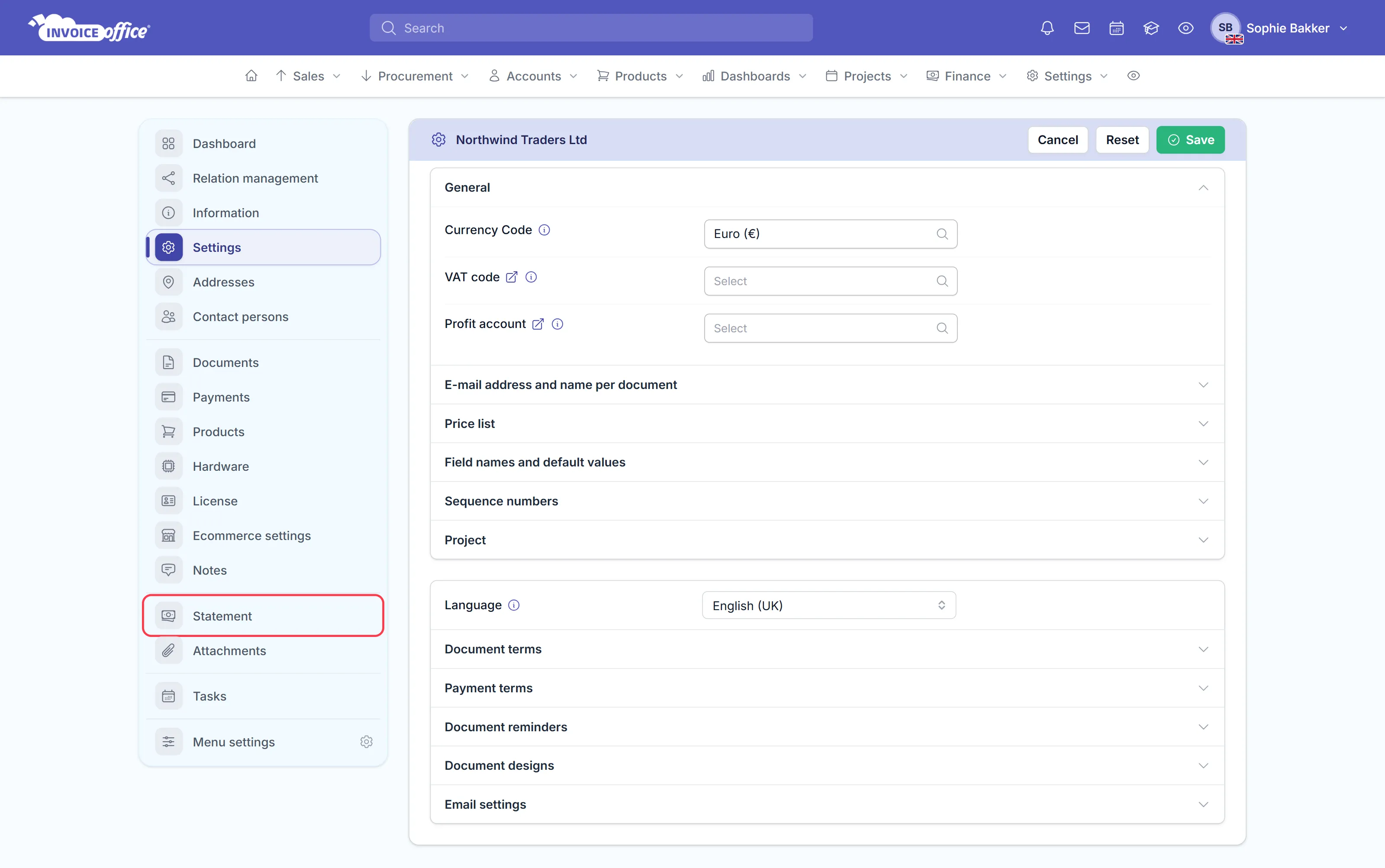
- In the menu on the left, click Statement. If you don’t see it, it may be hidden in your Menu settings.
- Set a From date and a To date at the top and click Apply.
- Click Download on the Invoices or Activity table, or Email statement at the top right to send it to the customer.
The page opens with the title Statement — customer name and two sections: Open items and Activity. A customer without finalized invoices shows No data.
Choose the date range
The statement opens on the last year, up to today. To look at another period, change the From date and To date at the top of the page and click Apply.
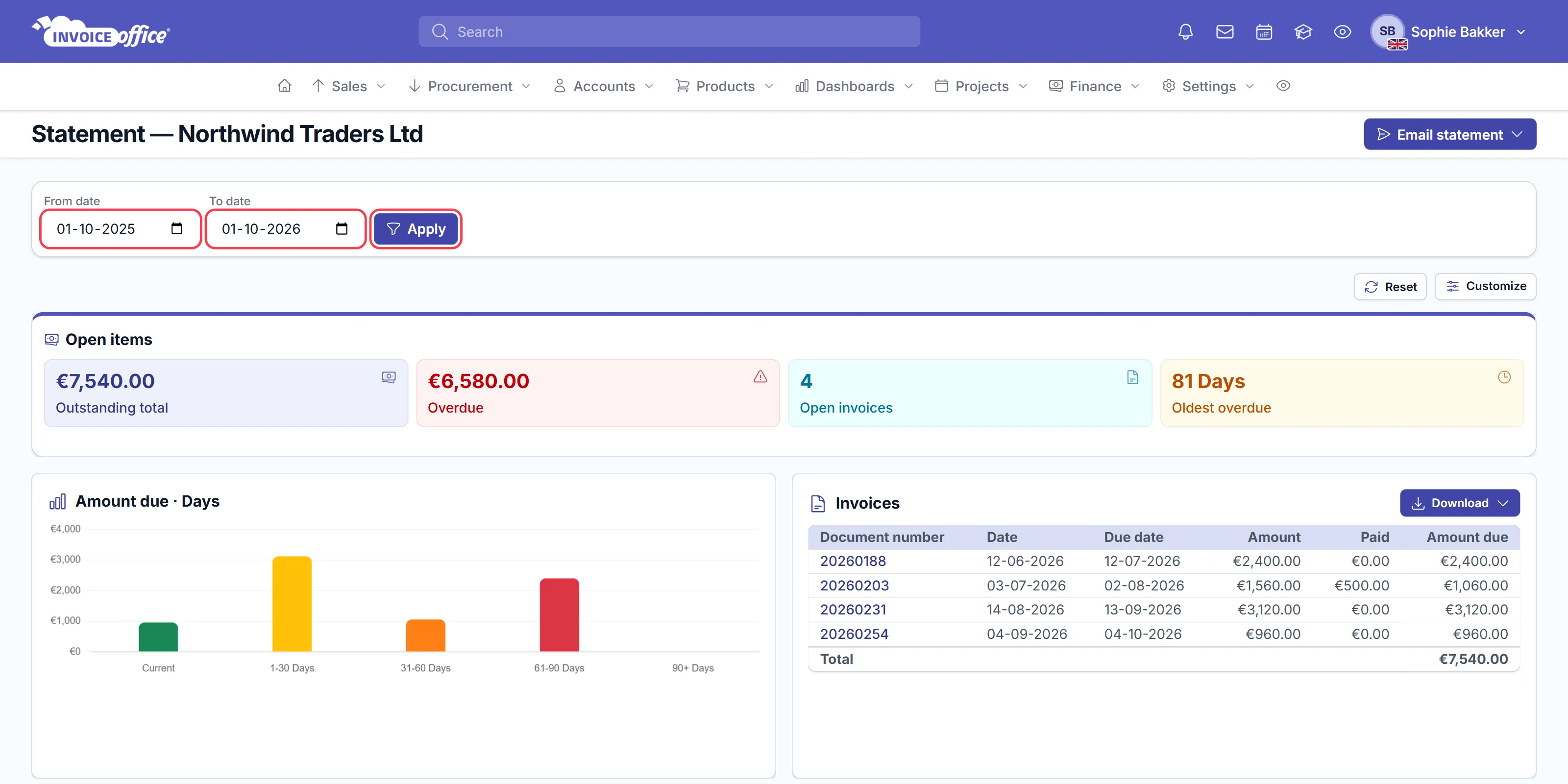
The date range only changes the Activity section. Open items always shows what is outstanding today, whatever period you pick — an invoice from three years ago that is still unpaid stays on it.
What appears on the statement
Open items
Open items lists the customer’s outstanding invoices — finalized invoices that are open, overdue or partly paid — and adds them up to the customer balance you are owed today.
- Four tiles: Outstanding total, Overdue, the number of Open invoices and Oldest overdue — how many days the oldest unpaid invoice is past its due date.
- Amount due · Days — a chart of the outstanding amount by age: Current, 1-30, 31-60, 61-90 and 90+ Days past the due date.
- Invoices — one row per open invoice with its Document number, Date, Due date, Amount, what is already Paid and the Amount due, and a Total at the bottom. Click a document number to open the invoice.
Credit notes are not part of the statement. If you don’t have access to reports, the statement only includes the invoices you created yourself.
Activity
Activity is the account history for the period you chose, with a running balance.
- Four tiles: Opening balance (what was owed on the from date), Invoiced in period, Paid in period and Closing balance.
- Balance over time — a chart of the balance across the period.
- Activity — every invoice and payment in the period by Date, with its Type (Invoice or Payment), Document number, Amount and the Balance after it, from the opening balance at the top to the closing balance at the bottom.
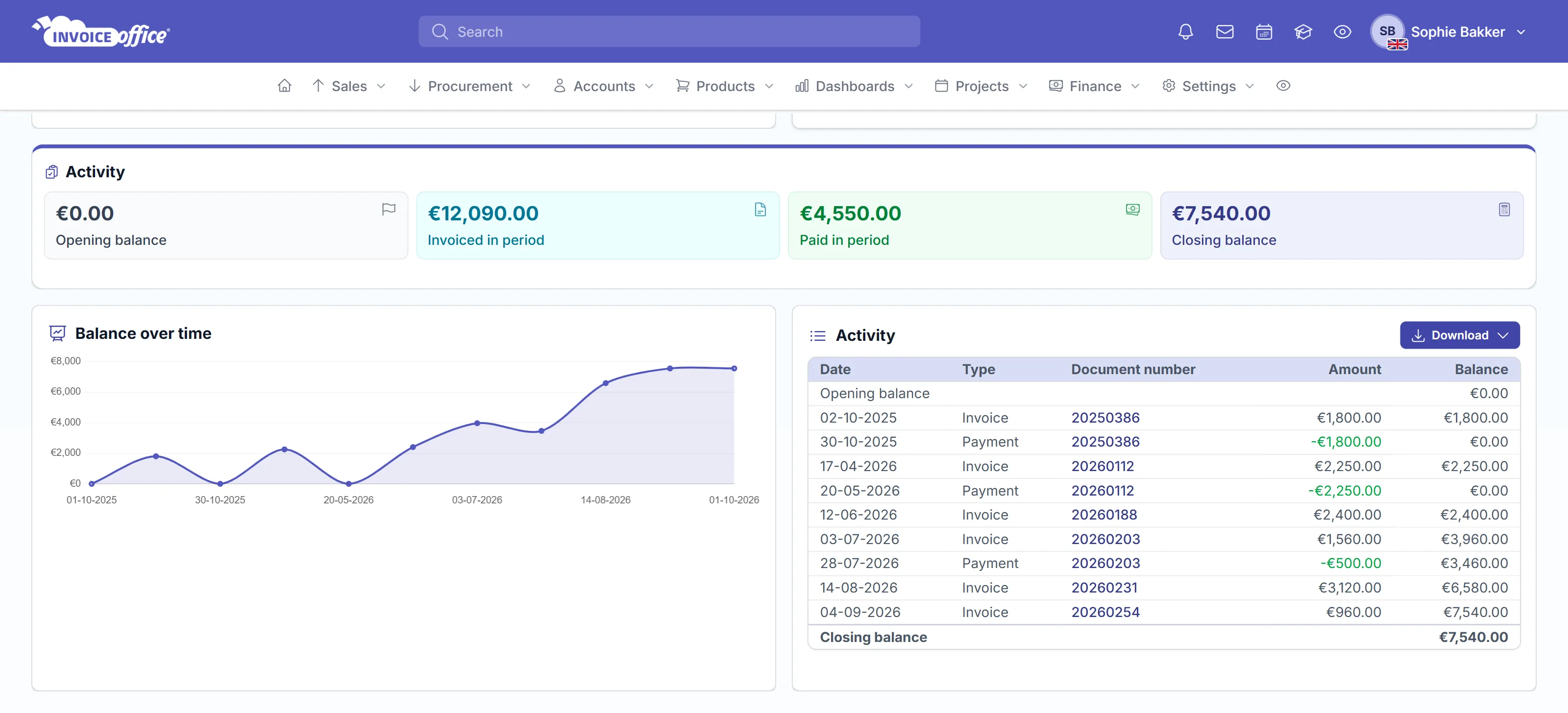
A payment only appears once it is registered against the invoice — see how to register or modify a payment. If a customer invoices in more than one currency, the statement shows each currency separately, with its own tiles, charts and total, on the page and in the downloads.
Use Customize to hide the tiles, charts or tables you don’t need on the page.
Download the statement as PDF, Excel or CSV
Both the Invoices table and the Activity table have their own Download button:
- Preview — opens the statement as a PDF in a new tab.
- PDF — downloads the PDF.
- Excel or CSV — downloads the same rows as a spreadsheet.
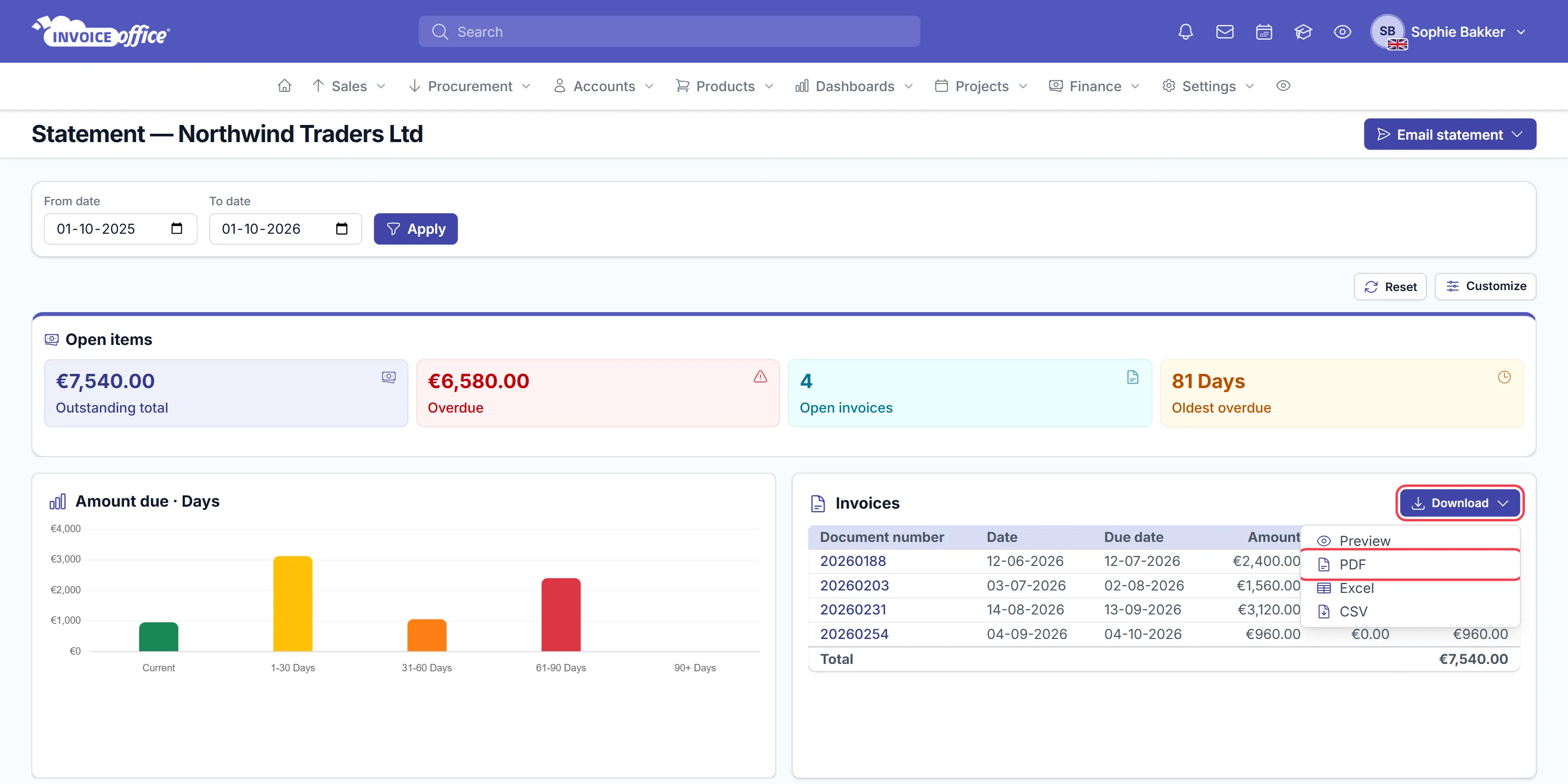
Download on the Invoices table gives you the open items statement: the customer’s details, the print date, the open invoices with their total, and the amounts due by age. Download on the Activity table gives you the activity statement for the period you set, from opening to closing balance.
Email the statement to the customer
- Click Email statement at the top right.
- Choose Preview first to see exactly what will be sent.
- Choose Email statement and confirm Send this account statement to the customer by email?
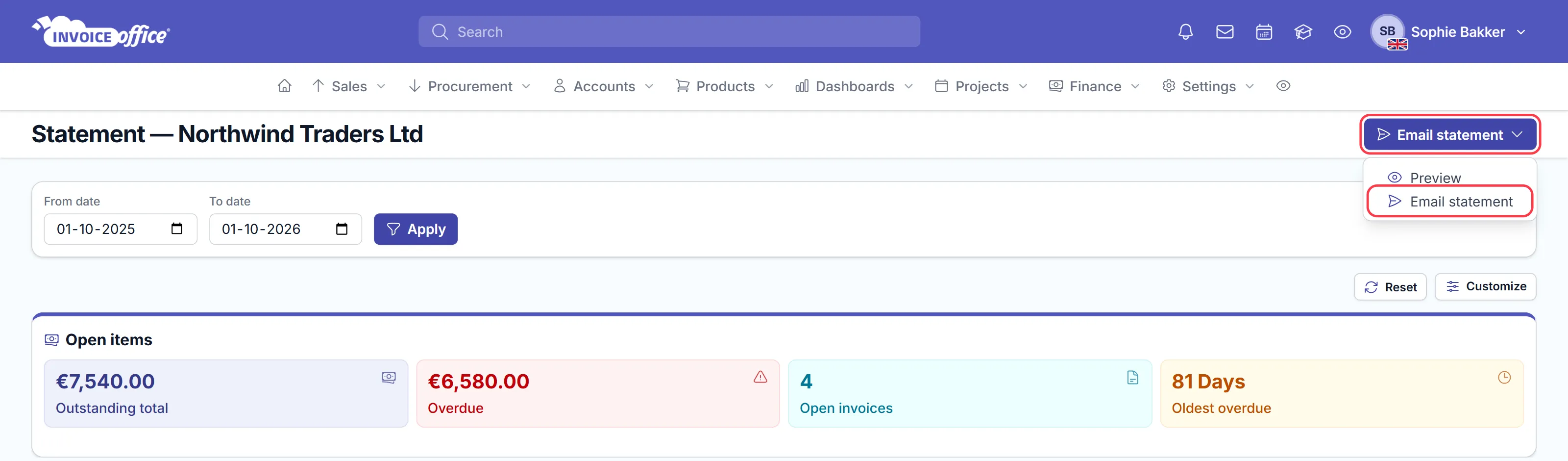
The email always carries the open items statement as a PDF attachment and goes to the email address on the customer. If the customer has none, Invoice Office tells you This customer has no email address on file — add one to the customer first (see create a new customer).
Chasing overdue accounts
A statement shows the whole picture at once, which makes it a good companion to a payment reminder: the reminder chases specific overdue invoices, while the statement shows the customer every open invoice and the total they owe.