A project budget in Invoice Office tells you how many hours a project may take, and the project dashboard shows how much of it is left as your team books time. You set the budget on the project, the hours come in from the timesheets, and the Budget Remaining tile keeps count — so you see a project running over while there is still time to talk to the client.
How the budget is counted
- The budget is a number of hours. Budget Remaining is the budget minus the hours booked on the project’s timesheets.
- Every booked hour counts, billable or not. The Total Hours tile next to it shows the split between billable and non-billable hours.
- Invoices and expenses do not change the budget. What the time costs you and what is still to invoice are shown in their own tiles — see step 3.
Step 1 — Set the budget on the project
Open the project form — Projects → Projects, then Create project, or Edit project in a project’s Action menu (see how to create and manage projects). In the Project budget hours section, choose how the budget is set under Budget:
- Total project hours — one number of hours for the whole project. Type it in the field that appears next to Budget.
- Hours per task — a budget per task. Fill in the Budget column of each task under Tasks.
- Hours per person — a budget per team member. Fill in the Budget column of each person under Team.
Then click Create (or Save when you are editing).
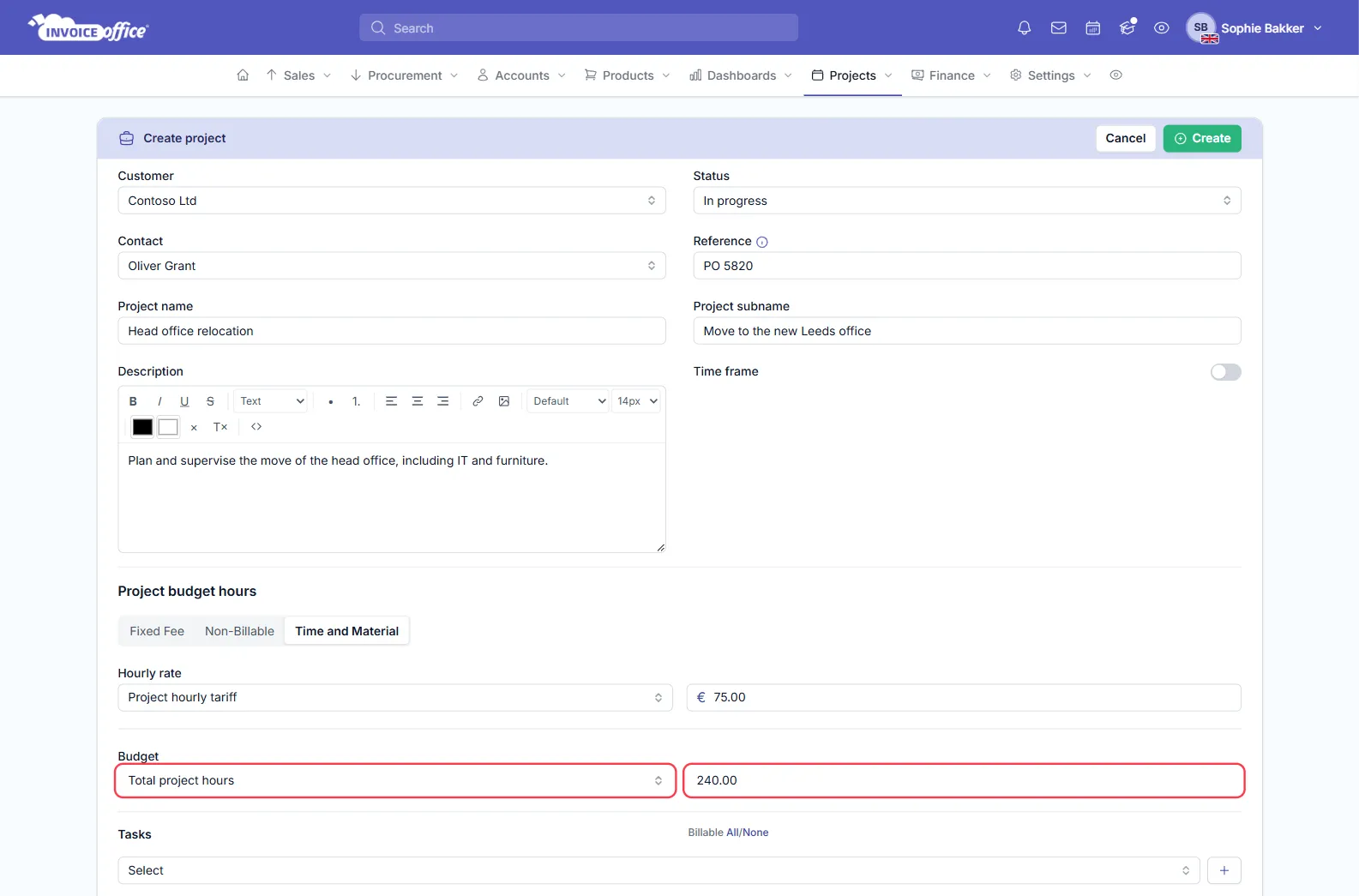
The Budget list has more options — Total project compensation, Task compensation and Total project days. They are saved with the project, but the Budget Remaining tile only counts hours: to follow a project on the dashboard, use one of the three hour budgets above. No budget leaves the project without one.
Step 2 — Check the budget on the project dashboard
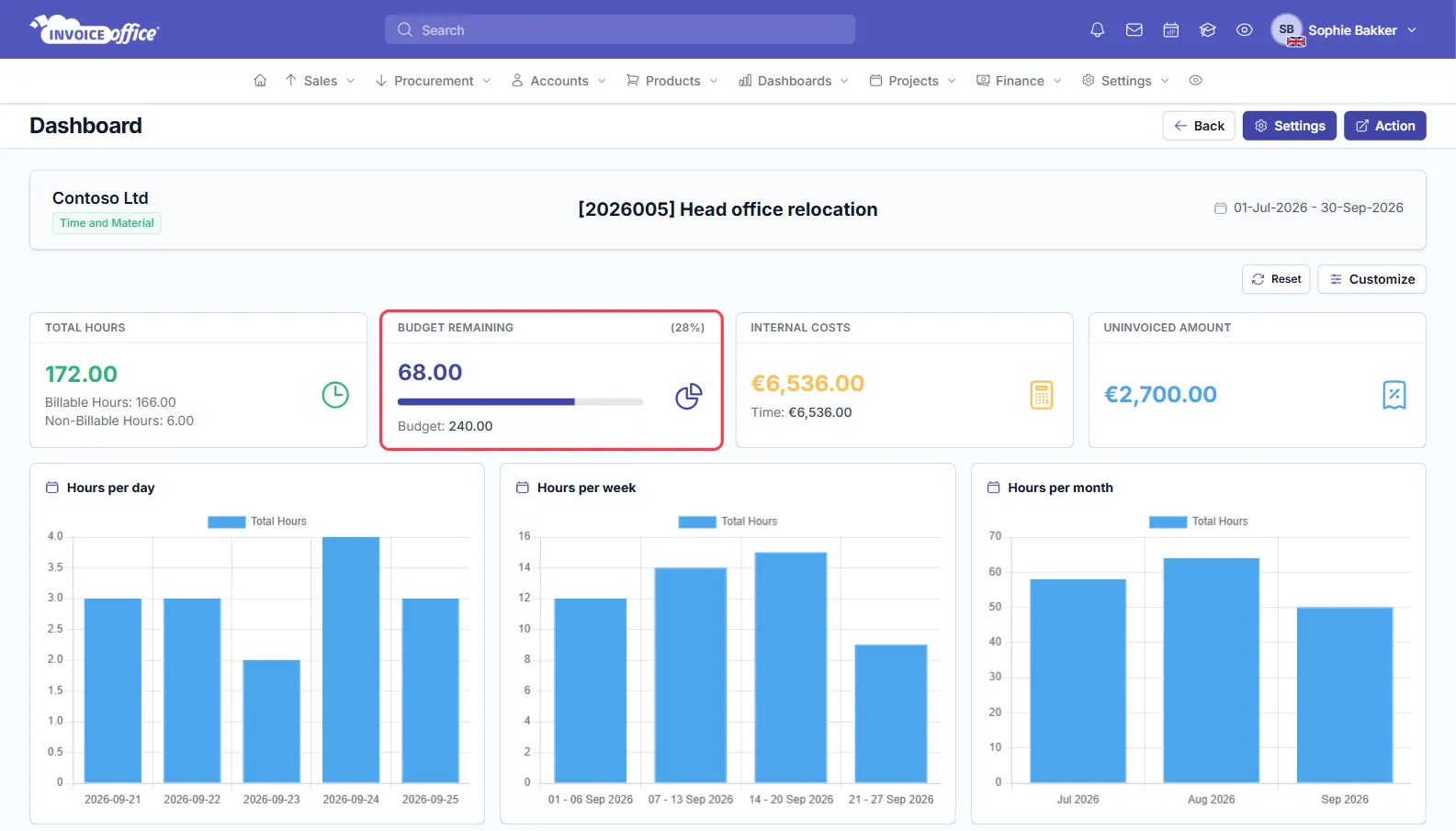
Go to Projects → Projects, open the project’s Action menu and choose Dashboard. The Budget Remaining tile shows:
- the hours left in the budget, in large figures;
- the percentage of the budget that is left, next to the title;
- a bar that fills up as hours are booked;
- the Budget itself underneath.
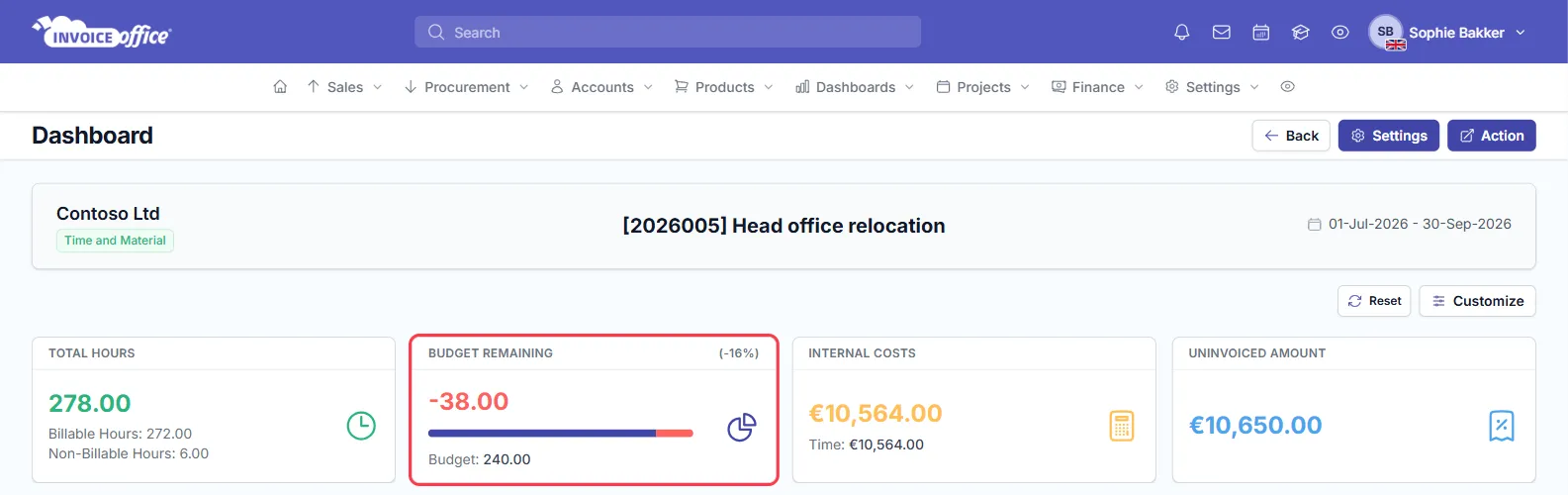
When more hours are booked than budgeted, the remaining hours go negative, the percentage turns negative and part of the bar turns red. The red part is the share of all booked hours that falls outside the budget.
With Hours per task, the Tasks tab at the bottom of the dashboard also shows the budget, the hours spent and what is left for each task.
Step 3 — Read the rest of the dashboard
The tiles next to Budget Remaining put the hours in money terms:
- Total Hours — every hour booked on the project, split into billable and non-billable hours.
- Internal Costs — what the booked time costs you.
- Uninvoiced Amount — billable work that has not been invoiced yet. Invoice it from the approved hours, as described in how to create and manage projects.
Below them, charts show the hours per day, per week and per month. Click Customize to hide or move tiles; Reset puts the default layout back.
Keep a project on budget
- Look at the dashboard at set moments — for example every week — rather than at the end.
- Ask your team to book their time in the week they work it, so the budget shows the real position. See how the timesheet works.
- If the scope grows, agree it with the client and raise the budget on the project, so the tile keeps measuring against what was agreed.
Invoice Office does not send an email when a project reaches its budget; the dashboard is where you follow it.