Sometimes you want to sell a bundle rather than a list of separate products. A product group lets you group products together and, if you want, show only the group name on the document instead of every line it contains.
An example
A driving school requests an exam ticket. It pays €35 to the government at 0% VAT, and adds €30 of administration costs at 20% VAT.
With a product group it can create a group called Examination, switch Show product group on, and sell the package at a total of €65 including VAT — the €30 administration cost is not broken out on the document.
Without a product group, the same sale needs two lines on the invoice and the administration costs are visible to the customer.
Create a product group
- Go to Products → Groups and click Create product group.
- Fill in the group’s Name, and an Article code if you use them. The number is filled in for you.
- Add the products with Add line, setting the quantity and price of each. Product group adds another group as a line, and Add text row adds a line of plain text.
- Click Create.
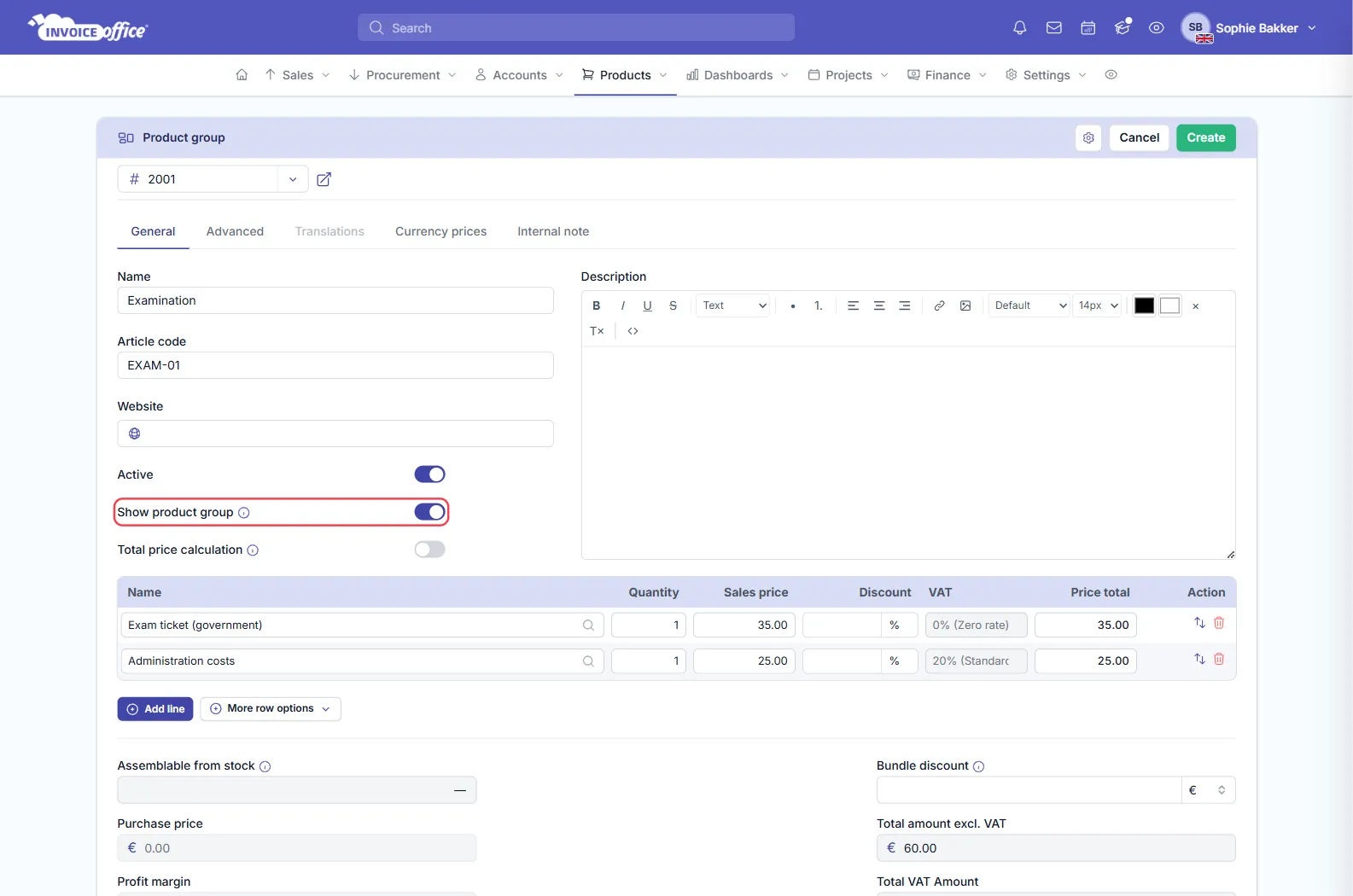
The group’s own totals — purchase price, profit margin and the amounts excluding and including VAT — are worked out at the bottom of the form as you add lines.
Show the group name instead of the lines
The switch is Show product group:
- On — the product group name is shown on the document instead of the separate group lines.
- Off — do a print preview and the product group expands into its separate product lines.
So the same group can be sold as a package to one customer and itemised for another, just by switching it.
Two more switches sit beside it: Active takes a group out of use without deleting it, and Total price calculation changes how the group’s price is worked out. Valid from and Valid to limit a group to a period — useful for a seasonal bundle.
What happens to stock
If you have enabled stock management for a product, the stock level is reduced for each individual product in the group, according to that product’s own stock management settings — so bundling does not cost you stock accuracy. See How to manage your stocks.
Any doubts? Contact us and we will help.