The HubSpot connector keeps your companies, contacts and products in step between HubSpot and Invoice Office. A company your sales team wins in HubSpot is already a customer here when it is time to invoice it, so nobody types the same details into two systems and nobody has to unpick a typo later.
Unlike a nightly import, this one is live in both directions. Creating or editing a customer or product in Invoice Office pushes the change to HubSpot straight away, and HubSpot pushes its changes back through a webhook.
Before you start
You need a licence that includes HubSpot, and an API key from your HubSpot account.
Connect it
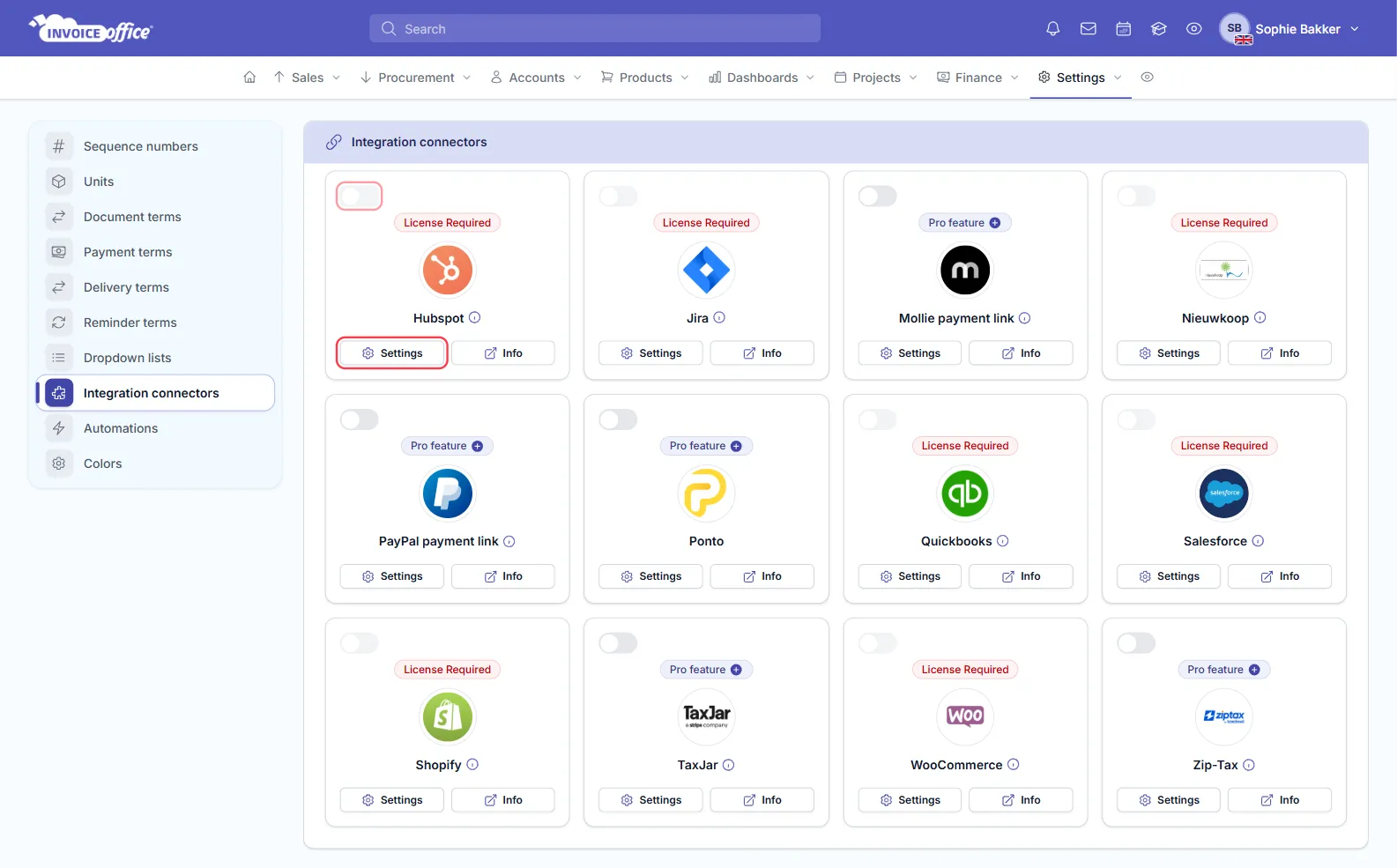
- In Invoice Office go to Settings → Integration connectors.
- Find the Hubspot card and click Settings.
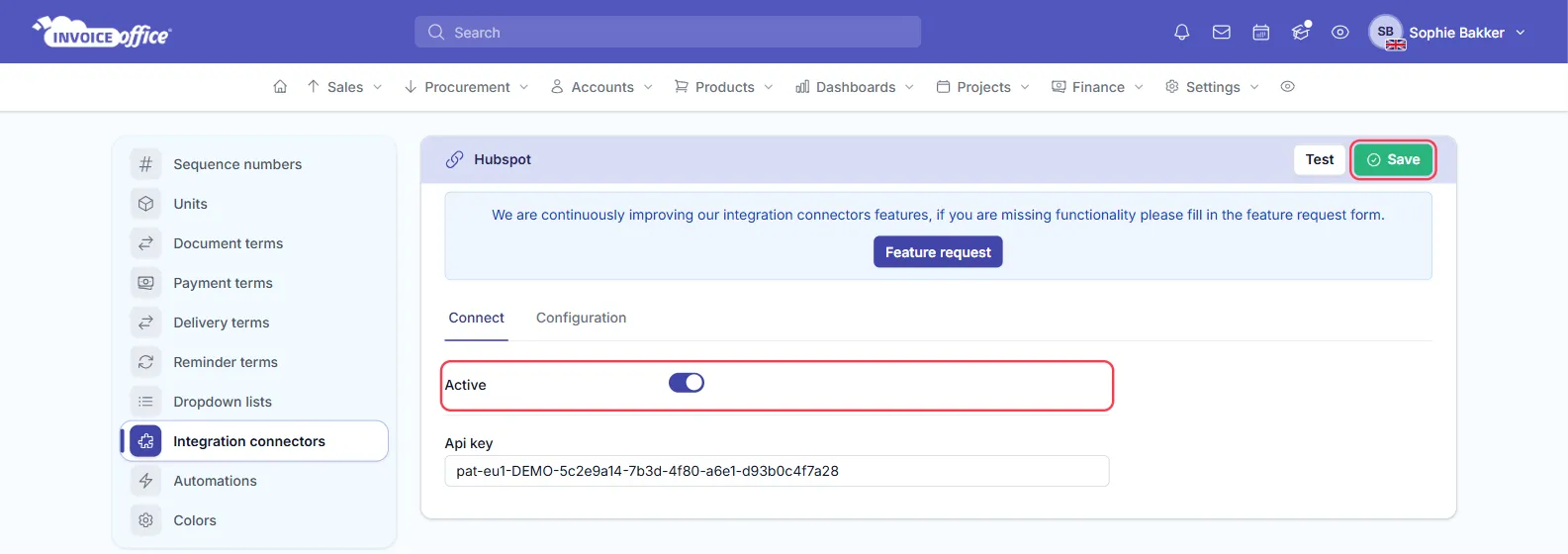
- On the Connect tab, switch Active on and paste in your HubSpot Api key.
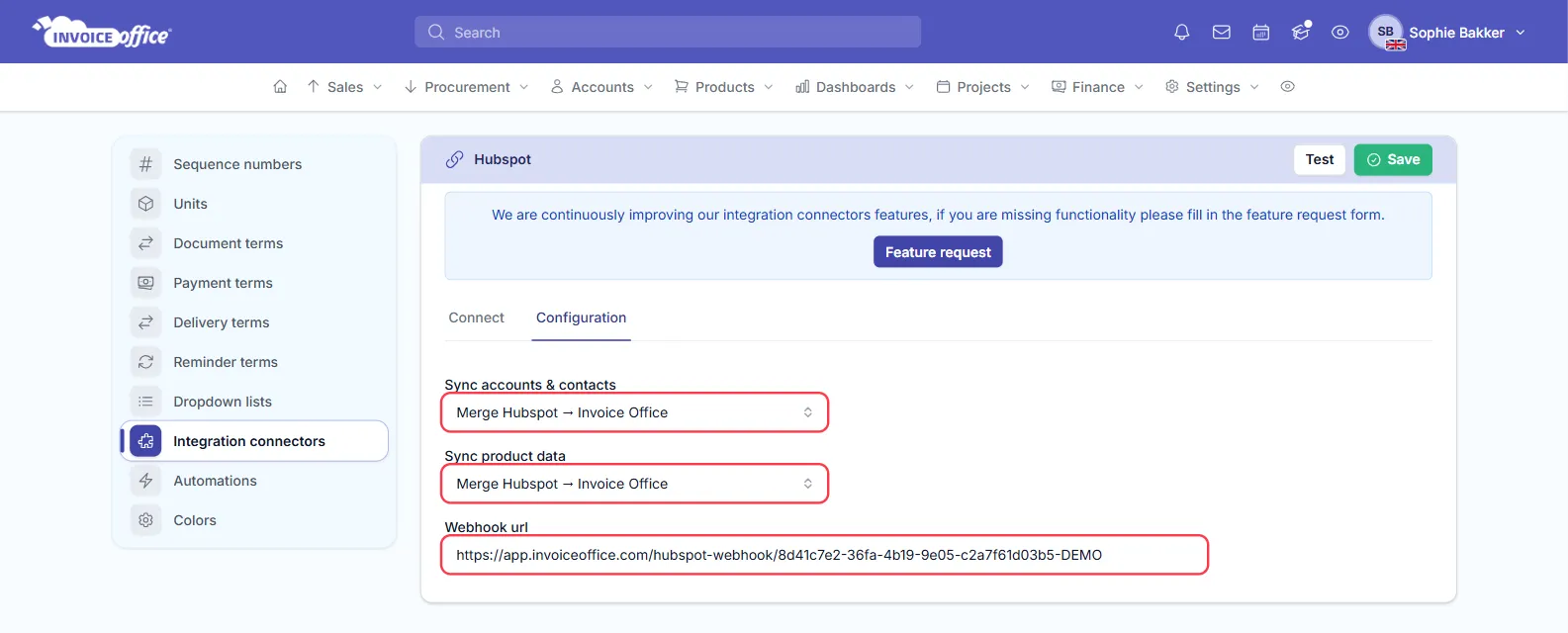
- Open the Configuration tab and choose a direction for each of the two sync options (below).
- Click Save. Test, beside it, checks the key straight away.
Choose which way each sync runs
There are two separate settings, so companies and products do not have to travel the same way:
- Sync accounts & contacts — HubSpot companies become customers, and their contacts become contacts on that customer.
- Sync product data — HubSpot products and your Invoice Office products.
Each takes the same three choices:
| Choice | What happens |
|---|---|
| Merge all two-way | Changes flow both ways |
| Merge Hubspot → Invoice Office | HubSpot is the source of truth; nothing is sent back |
| Merge Invoice Office → Hubspot | Invoice Office is the source of truth |
If in doubt, pick the one-way option pointing away from wherever your team actually maintains the data. Two-way is only worth it when both systems are genuinely edited.
Turn on the live updates from HubSpot
The same tab shows a Webhook url. Copy it into HubSpot as a webhook target and HubSpot will notify Invoice Office as records change, instead of you waiting for the next sync.
The other direction needs no setup — saving a customer or a product in Invoice Office pushes it to HubSpot on its own.
What comes across
| In HubSpot | Becomes in Invoice Office | Fields |
|---|---|---|
| Company | Customer | Name, address, city, state, zip, country, phone, email, website domain, industry, type, description |
| Contact | Contact on that customer | First name, last name, email, phone |
| Product | Product | Name, price, description, SKU, cost of goods sold |
Deals and orders are not part of this connector — it syncs the records you invoice, not the pipeline you invoice them from.
Check it is working
The integration connectors dashboard shows executions over time, status breakdown and failure rate, so you can confirm the sync is running rather than assuming. If records stop appearing, check there before hunting through HubSpot.
Invoice Office warns you when an API key or access token has expired — the usual reason a working integration stops without anyone noticing.