The Salesforce connector brings your Salesforce accounts and contacts into Invoice Office as customers and customer contacts. Your sales team keeps working in Salesforce, and the people they win are already in Invoice Office when it is time to invoice them — no retyping the same company into two systems, and no transcription mistakes to unpick later.
The sync runs from Salesforce into Invoice Office, on a schedule rather than instantly, so allow for a delay between a record appearing in Salesforce and showing up here.
Before you start
The connector needs a licence that includes Salesforce. It also needs a connected app in Salesforce — that is where the four credentials below come from, not from your everyday Salesforce login screen.
Connect it
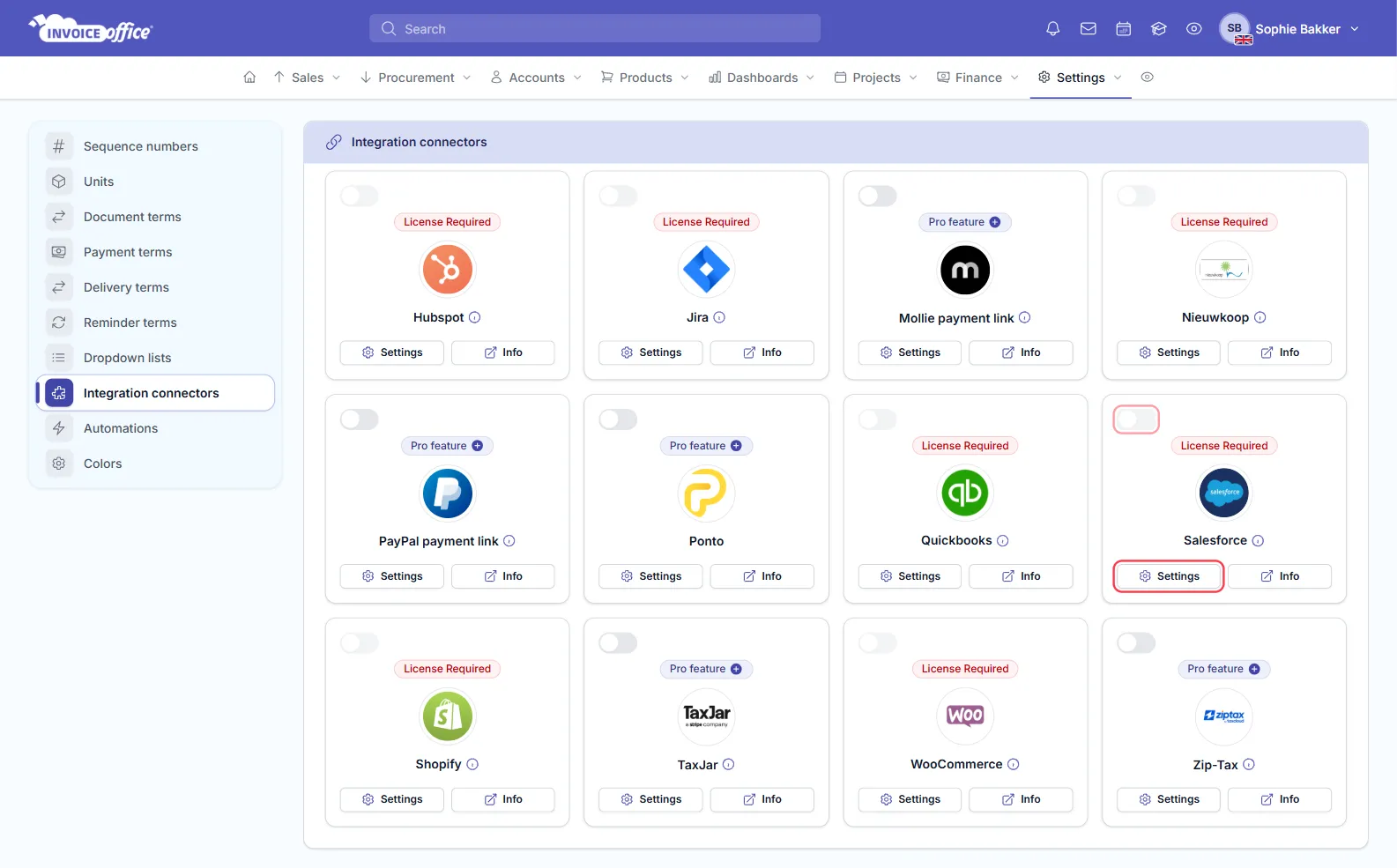
- In Invoice Office go to Settings → Integration connectors. Every connector is a card in that grid, each with a switch, a Settings button and an Info link.
- Find Salesforce and click Settings.
- Fill in the four credentials from your Salesforce connected app, in the order the form asks for
them:
- Client Id
- Username
- Password
- Client secret
- Switch Active on. A connector that is filled in but left inactive does not run — this is the single most common reason nothing arrives.
- Click Save in the top-right.
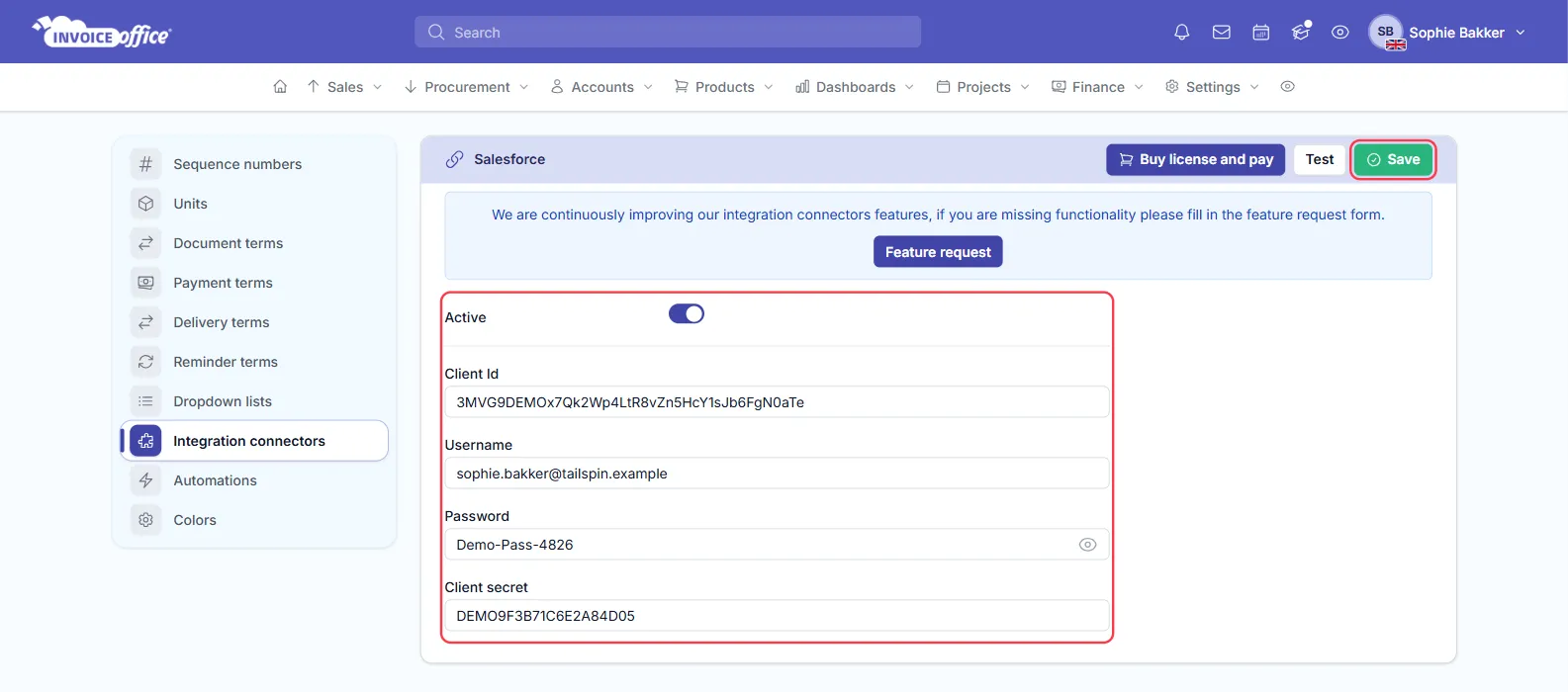
Test sits beside Save and checks the credentials without waiting for the next scheduled run — worth using before you walk away. If the licence is missing, a Buy license and pay button appears in the same header.
What comes across
| In Salesforce | Becomes in Invoice Office |
|---|---|
| Account | Customer |
| Contact | Contact on that customer |
Company details such as the billing address, phone, fax, industry and website come across with the account, and each contact is attached to the customer it belongs to.
Check it is working
Integration runs are logged, and the integration connectors dashboard shows executions over time, status breakdown, failure rate and which connectors produce the most errors. If records stop arriving, look there before you go digging in Salesforce.
Invoice Office also warns you when an API key or access token has expired, which is the usual reason a connector that worked for months quietly stops.