Keeping track of orders, invoices, products and customers by hand takes time and invites mistakes. The Bol.com connector for Bol.com sales partners transfers your webshop orders, products and customers into Invoice Office automatically. Invoices are created for you and the data lands in your administration and accounting without being copied across by hand.
Set it up
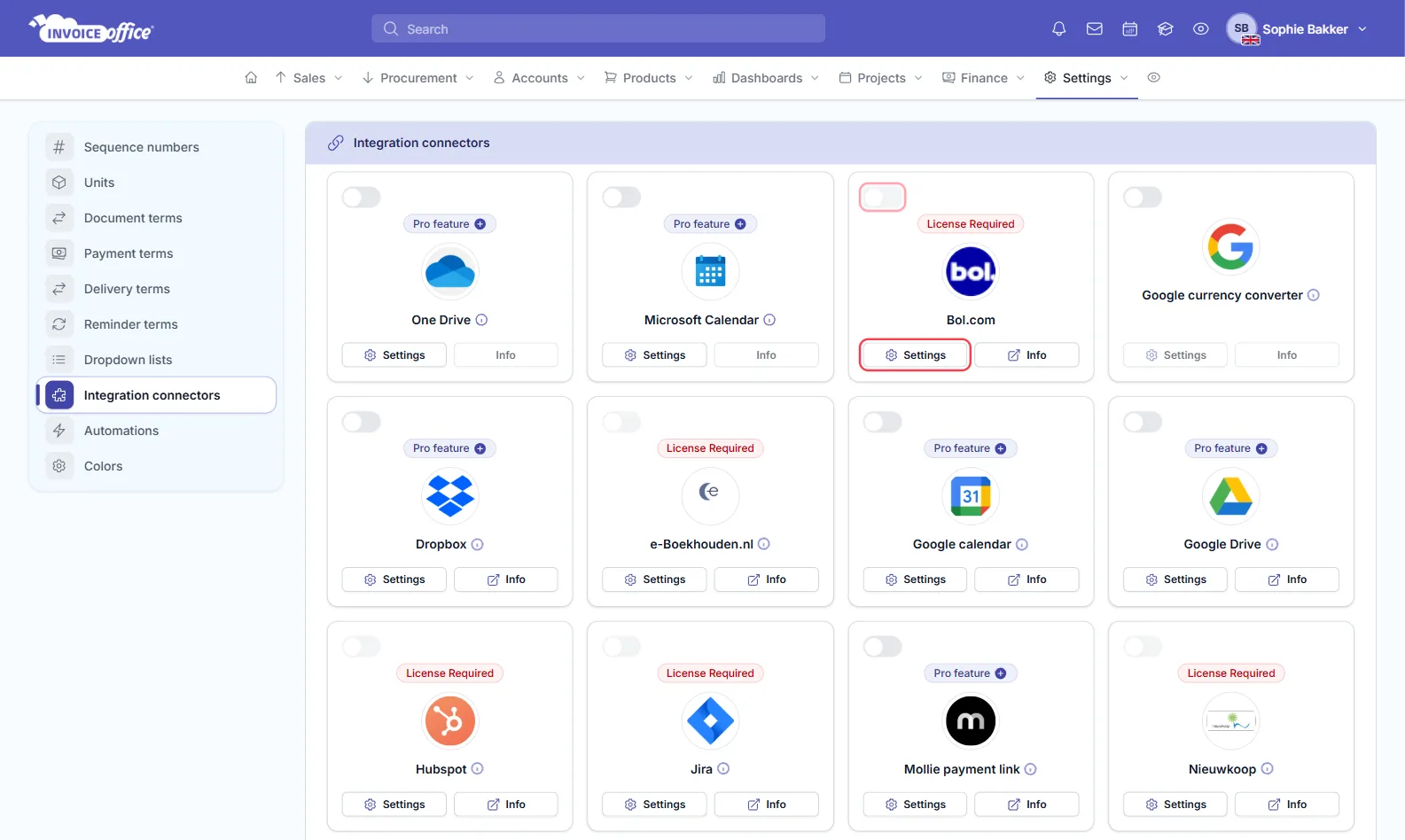
- Go to Settings → Integration connectors.
- Find the Bol.com card and click Settings.
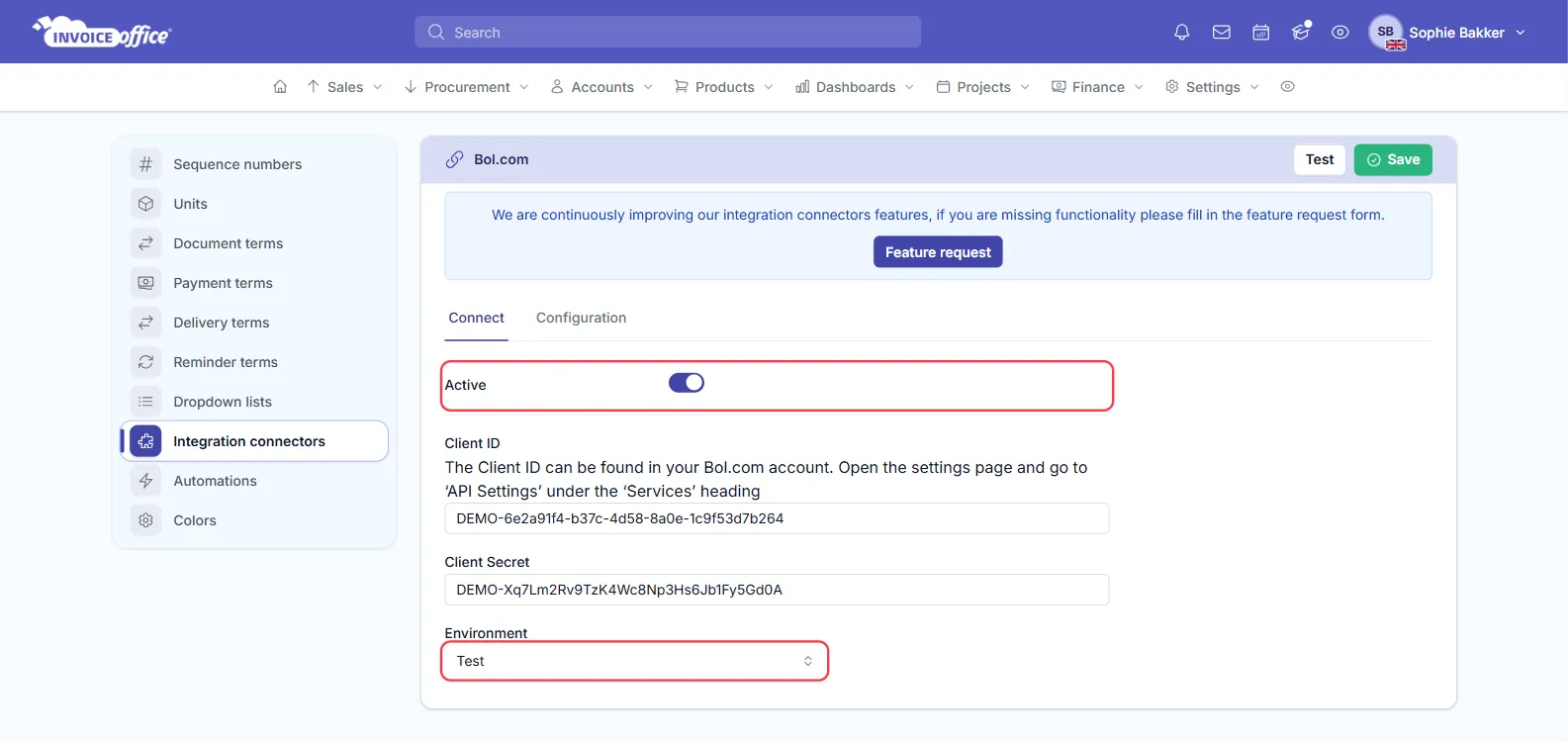
- On the Connect tab, switch Active on and enter your Client ID, Client Secret and Environment (each explained below).
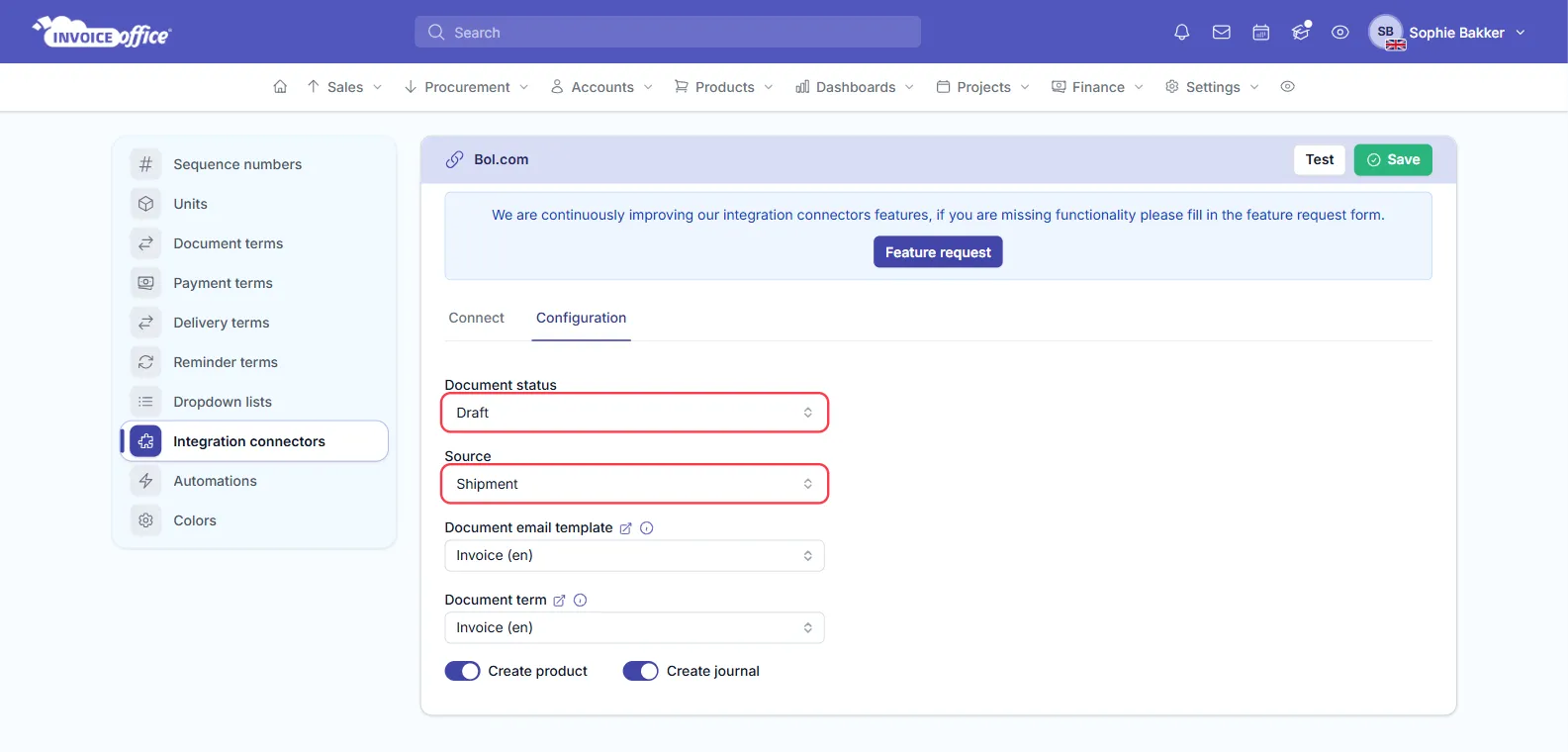
- Open the Configuration tab and set the Document status and Source. Create product and Create journal are switched on by default.
- Click Save in the top-right. Test, beside it, checks the credentials without waiting for an order.
The settings explained
Client ID — the identifier issued by the Bol.com retailer API for an application, used to identify you to their servers. The field’s own help text points you at the right place: in your Bol.com account, open the settings page and go to API Settings under the Services heading.
Client Secret — the client secret from the Bol.com retailer API, known only to your application and the authorisation server. Together with the client ID it is how you authenticate against the retailer API.
Document status — controls the status of documents the connector creates from a Bol.com order or shipment. Three options:
- Draft — the invoice is created but left in concept for you to check.
- Send e-mail with PDF — fully automatic; the customer is emailed their invoice.
- Finalize — the invoice is finalised, ready to send.
This is your automation dial. Start on Draft while you are getting confident, then move up.
Environment — Live or Test. Use Test to check your API connection and the rest of your configuration before you start creating real invoices.
Source — where invoices come from, order or shipment:
- Order — the invoice is created when the order is confirmed.
- Shipment — the invoice is created only when the order is dispatched to the customer.
Understand how your orders and shipments relate before you choose, because this decides when your automatic invoices are raised. If you ship well after confirming, the two options produce noticeably different invoice dates.
Document email template and Document term — which of your own templates and terms the created invoices use, so marketplace invoices come out looking like the ones you raise by hand.
Create product — when on, each order line is matched to a product in Invoice Office, and a new product is created when there is no match. Switch it off to bring order lines in without adding to or changing your product list.
Create journal — when on, invoices the connector creates with Send e-mail with PDF or Finalize are also booked to your revenue journal. Invoices created as Draft are not booked by the connector.
Getting your Bol.com API credentials
Client credentials are created in the Bol.com seller portal, under the retailer API settings. If you link Bol.com to more than one third party, create a separate set of credentials for each rather than reusing one — that way revoking access to one never breaks the others.
Check your document conditions
Once the connector is set up, check that your document conditions are right — they apply to the invoices the connector creates just as they do to invoices you raise yourself. See How to use document conditions.
Check it is working
Marketplace volume makes a silent failure expensive, so use the integration connectors dashboard — executions over time, status breakdown, failure rate and rows processed — to confirm orders are still coming through. Invoice Office also warns you when the credentials expire.
Any doubts? Contact us and we will help.