Before you can send a customer an e-invoice over Peppol, the Peppol ID of the customer in Invoice Office has to be right: the number they are registered under, with the matching scheme. This guide shows how to find your customer’s Peppol ID, enter it on the customer and check it, so the invoice is delivered the first time — and what to do if you get a message that the Peppol identification is wrong (Peppol identificatie klopt niet). Why every customer needs their own ID is explained in set the Peppol identification number per customer.
Before you start
- Peppol is switched on for your company. Under Settings → Company → Integration connectors, the Peppol connector is Active with Activate outgoing invoices on — see set up Peppol e-invoicing. Until then, the Peppol identifier field does not appear on your customers.
- The customer is a company. Only company customers have a Peppol identifier field; a customer saved as a person cannot receive invoices over Peppol.
What a Peppol ID is made of
A Peppol ID, also called the endpoint ID or participant ID, has two parts:
- a scheme — a four-digit code for the kind of number, such as 0208 for a Belgian enterprise number (KBO/BCE) or 0106 for a Dutch KvK number;
- the identifier — the number itself.
Together they are written as scheme:number, for example 0208:0123456789. The same company can be
reachable under one scheme and not under another, so both parts have to match what your customer
registered.
In Invoice Office you choose the scheme by its name. The number is taken from the customer’s CoC Number or VAT number:
| Identifier type in Invoice Office | Scheme | Number taken from | Format |
|---|---|---|---|
| Belgium BCE/KvK number | 0208 | CoC Number | 10 digits, no BE |
| Belgium VAT number | 9925 | VAT number | BE + 10 digits, such as BE0123456789 |
| Netherlands Chambers of Commerce number | 0106 | CoC Number | 8 digits |
| Netherlands VAT number | 9944 | VAT number | NL + 9 digits + B + 2 digits |
| Netherlands Organization Identification Number of a Dutch government | 0190 | CoC Number | 20 digits |
| French SIRENE number | 0002 | CoC Number | 9 digits |
| French SIRET number | 0009 | CoC Number | 14 digits |
| French VAT number | 9957 | VAT number | FR + 2 characters + 9 digits |
| Luxemburg VAT number | 9938 | VAT number | LU + 8 digits |
For a Belgian enterprise number, the last two digits are check digits, so a number with a typo is rejected when you send, even when it has the right length.
Step 1 — Find your customer’s Peppol number (endpoint ID)
- Ask your customer. Their accounting software or Peppol provider shows the exact ID they are registered under — scheme and number. This is the most reliable source.
- Search the Peppol Directory. At directory.peppol.eu you can
search by company name or number. Each result shows the participant ID as
scheme:number, which tells you which identifier type to choose. Not every registered company is listed there, and new registrations can take a while to appear. - Check the number in the national register. For a Belgian company, look the enterprise number up in the KBO Public Search. For a Dutch company, use the KvK register.
Step 2 — Enter the Peppol ID on the customer
- Go to Accounts → Customers and open the customer. Their Customer Information page opens on the Details tab.
- In Account details, enter the customer’s CoC Number and VAT number without spaces, dots
or dashes:
0123456789, not0123.456.789. - Under Peppol identifier, choose the identifier type that matches the scheme your customer is registered under. The number next to it is filled in from the CoC Number or VAT number; it cannot be typed into directly.
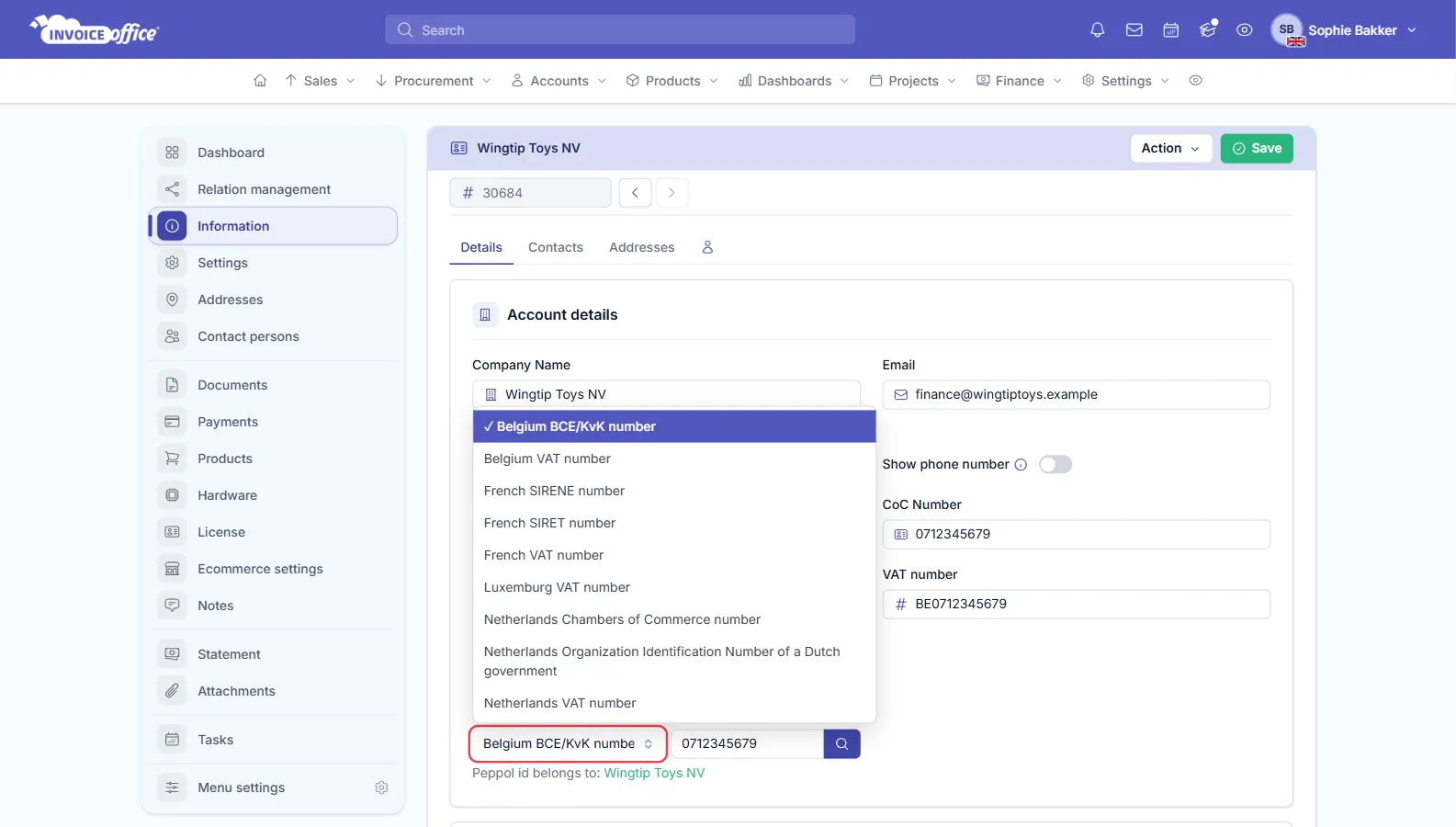
Step 3 — Check the ID and save
- Click the magnifying glass next to the number. Invoice Office checks the ID on the Peppol network. If it is found, the company name appears under the field, after Peppol id belongs to:
- Make sure that name is your customer.
- Click Save.
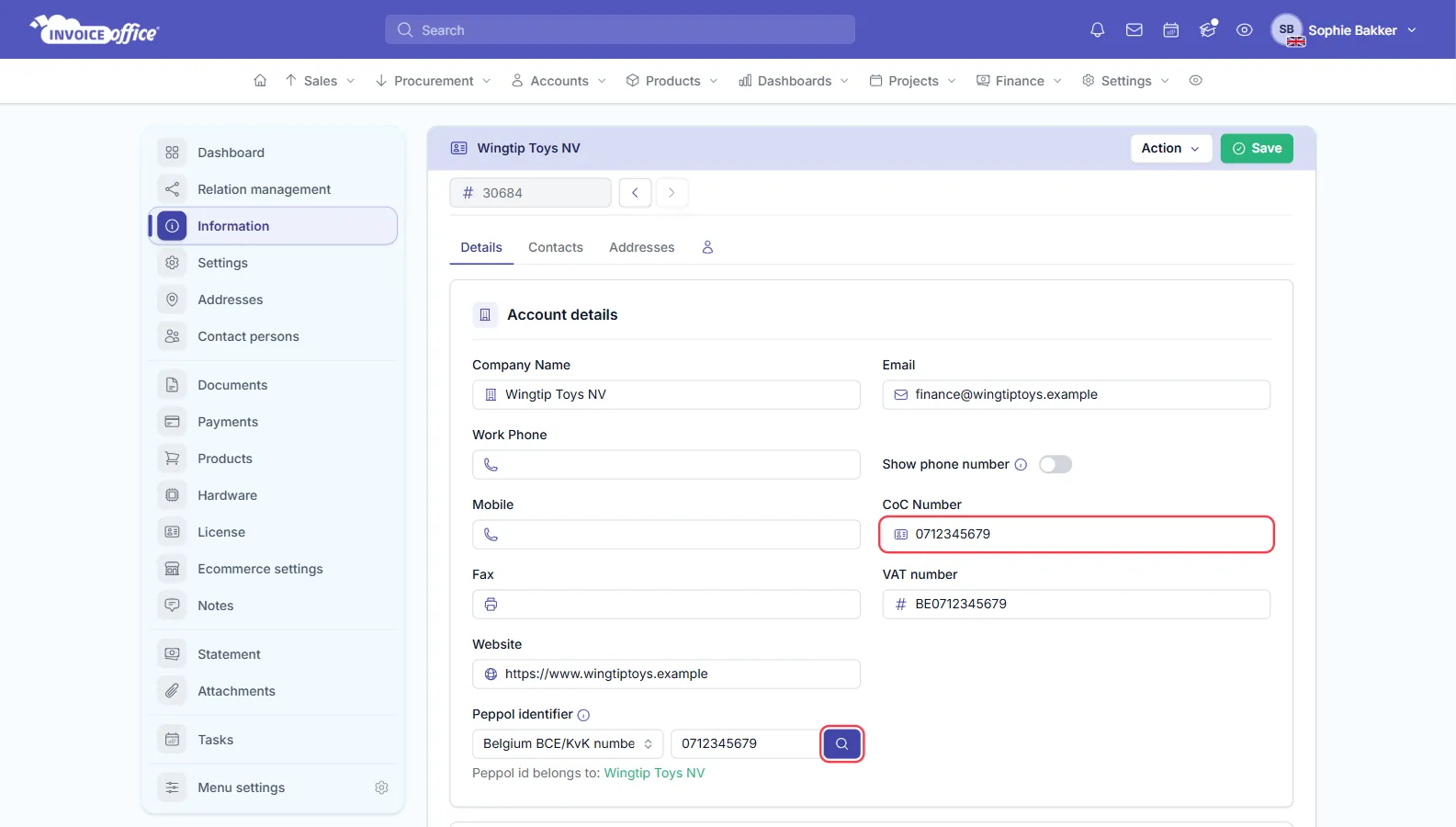
Step 4 — Send the invoice over Peppol
Create the invoice as usual and choose Send to Peppol in the Finalize menu — see set up Peppol e-invoicing for sending and following up on delivery. Invoice Office uses the Peppol ID saved on the customer at the moment you send.
Common mistakes
- The wrong scheme. The customer is registered with their enterprise number (0208), but you chose Belgium VAT number (9925) — or the other way round. The number is right, the scheme is not, and the ID is not found. Check the scheme in the Peppol Directory and choose the matching type.
- The VAT number where the enterprise number belongs. Belgium BCE/KvK number takes 10 digits
from the CoC Number. If that field holds
BE0123456789, theBEmakes it invalid. Put the plain 10-digit number in CoC Number and the number withBEin VAT number. - A missing leading zero. A Belgian enterprise number has 10 digits.
123456789is not the same as0123456789. - Spaces, dots and dashes. Numbers are often written as
0123.456.789orBE 0123 456 789. The check with the magnifying glass rejects a Belgian VAT number written that way. Enter the number without any of them. - A lowercase country code. A VAT number must start with a capital
BE,NL,FRorLU. The magnifying glass accepts a lowercase code, but sending the invoice fails. - The wrong Dutch number. A KvK number has 8 digits. A government body is addressed with its 20-digit OIN, under Netherlands Organization Identification Number of a Dutch government.
If you get a Peppol identification error
Invoice Office has no message that literally reads Peppol identificatie klopt niet. Depending on where the problem is found, you see one of these — shown here in English and, if you work in Dutch, in Dutch:
| Message | When you see it | How to fix it |
|---|---|---|
| Invalid peppol identifier — Ongeldige peppol-identificatie | Checking a Belgium VAT number with the magnifying glass | Write the VAT number as BE + 10 digits, with no spaces or dots. |
| This peppol id not found on Peppol. Make sure you entered the correct number and format — Deze Peppol-ID is niet gevonden op Peppol… | Checking any ID with the magnifying glass | Check the number, then try the other scheme your customer could be registered under. |
| Invalid Belgian enterprise number … Must be 10 digits. — Ongeldig Belgisch ondernemingsnummer … Moet 10 cijfers zijn. | Sending the invoice | Correct the CoC Number: 10 digits, no BE. A typo in the check digits gives this message too. |
| Invalid VAT number … — Ongeldig BTW-nummer … | Sending the invoice | Correct the VAT number named in the message — the customer’s, or your own company’s. |
| …: VAT number … must start with an uppercase country code (e.g. BE, NL, DE). — …: BTW-nummer … moet beginnen met een hoofdletter landcode (bijv. BE, NL, DE). | Sending the invoice | Write the country code in capitals. |
| Invalid Dutch KvK number … Must be 8 digits. — Ongeldig KvK-nummer … Moet 8 cijfers zijn. | Sending the invoice | Correct the CoC Number: 8 digits. |
| The recipient is not registered on the Peppol network. — De ontvanger is niet geregistreerd op het Peppol-netwerk. | Sending the invoice | The ID is valid but not registered. Check the scheme, or send the invoice by email instead. |
An invoice that could not be delivered is still finalised, and shows the status Peppol not processed — see what “Peppol not processed” means.
You do not need a new invoice. Correct the customer as in steps 2 and 3, then open the invoice and choose Send to Peppol from its Action menu — the corrected ID on the customer is used. You can also see and refresh the ID on a finalised invoice — see update Peppol customer information on a finalised invoice.
For any other information, contact us.