To send e-invoices over the Peppol network, you need to set the Peppol ID per customer in Invoice Office: every customer you invoice via Peppol needs their own Peppol identification number on their customer record. Turning Peppol on for your company is not enough — that registers your Peppol ID, the address you send from. The address an invoice is delivered to always comes from the customer. If it is missing, the invoice is not delivered and shows Peppol not processed. This guide shows where to enter the number and how to fix an invoice that failed.
Before you start: turn Peppol on for your company
The Peppol connector must be active first. Go to Settings → Company → Integration connectors, open the Peppol card and switch Active and Activate outgoing invoices on — the full walkthrough is in set up Peppol e-invoicing. Peppol needs a paid plan: without one, the Peppol options in the Finalize menu are refused with a message.
Until the connector is active, the Peppol identifier field does not appear on your customers and the Peppol send options are missing from the Finalize menu.
Why the Peppol ID is set per customer
On the Peppol network every business has its own participant ID, made up of an identifier type and a registration number — a Belgian enterprise number, a Dutch KvK number, a VAT number and so on. When you send an invoice, Invoice Office looks up the ID saved on that invoice’s customer and delivers the e-invoice there. There is no company-wide setting that stands in for it, so this part of the Peppol setup is per customer: you add the ID once for each customer you want to reach over Peppol.
Enter the Peppol identification number on a customer
- Go to Accounts → Customers and open the customer. Their Customer Information page opens on the Details tab.
- In Account details, fill in the customer’s CoC Number and VAT number if they are not there yet.
- Under Peppol identifier, choose the identifier type from the list.
- Invoice Office fills in the number for you — the VAT number for a VAT type, otherwise the CoC Number. The number field itself is read-only: to use a different number, change the customer’s VAT number or CoC Number.
- Click the magnifying glass to check the ID on the Peppol network. If the customer is registered, their name appears under the field after Peppol id belongs to:. If not, you see This peppol id not found on Peppol. Make sure you entered the correct number and format.
- Click Save.
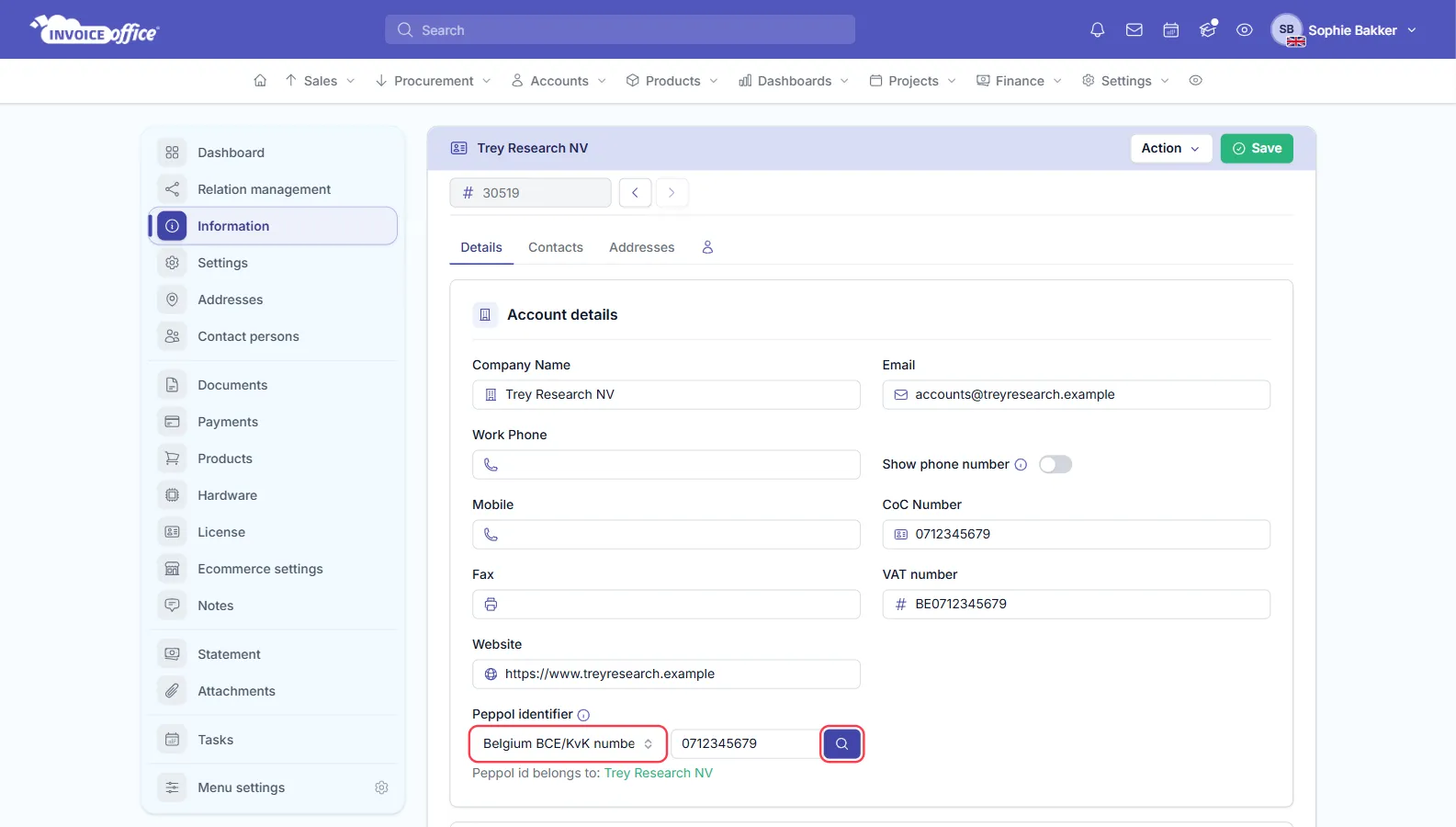
The identifier types you can choose are:
- Belgium BCE/KvK number and Belgium VAT number
- Netherlands Chambers of Commerce number, Netherlands VAT number and Netherlands Organization Identification Number of a Dutch government
- French SIRENE number, French SIRET number and French VAT number
- Luxemburg VAT number
Which type to pick, and the number formats each country expects, are covered under
country-specific requirements.
If a VAT number starts with a country code, write it in capitals (BE, NL).
The Peppol identifier field is on company customers only. A customer saved as a person has no Peppol identifier and cannot receive invoices over Peppol.
What “Peppol not processed” means
When you choose Send to Peppol or Send to Peppol and Email in the Finalize menu, the invoice is finalised straight away and the e-invoice is sent in the background. Invoice Office does not stop you at that moment if something is missing — instead, the invoice gets the status Peppol not processed when the e-invoice could not be delivered.
You see it in two places:
- In Sales → Invoices, as a red Peppol not processed badge in the status column.
- On the invoice itself, as a red banner at the top — Peppol: Peppol not processed — with the reason underneath.
The Peppol Outbound Dashboard (Dashboards → Sales → Peppol) lists your outgoing Peppol transactions, and shows the error message in the Status column of a failed one.
The reasons you are most likely to see are:
- Peppol identifier type is not set for this customer — no identifier type is chosen on the customer.
- Peppol identifier is not set for this customer — the customer has a type but no number, usually because their VAT number or CoC Number is empty.
- The recipient is not registered on the Peppol network. — the customer cannot be reached under that ID. Check the type and number with the magnifying glass, or send the invoice by email instead.
- A number in the wrong format, such as Invalid Belgian enterprise number … Must be 10 digits. or Invalid VAT number … — correct the CoC Number or VAT number on the customer. If the message names the Supplier, the number belongs to your own company: fix it in your company information.
- A missing detail on the invoice, such as a name, country or postal code, or an invoice without product lines.
Fix the customer and send the invoice again
You do not need to cancel the invoice or create a new one.
- Correct the customer as described above — choose the identifier type, check it with the magnifying glass and click Save.
- Go to Sales → Invoices and open the invoice.
- Open the Action menu at the top of the invoice and choose Send to Peppol. You can also choose Send to Peppol from the invoice’s Action menu in the list.
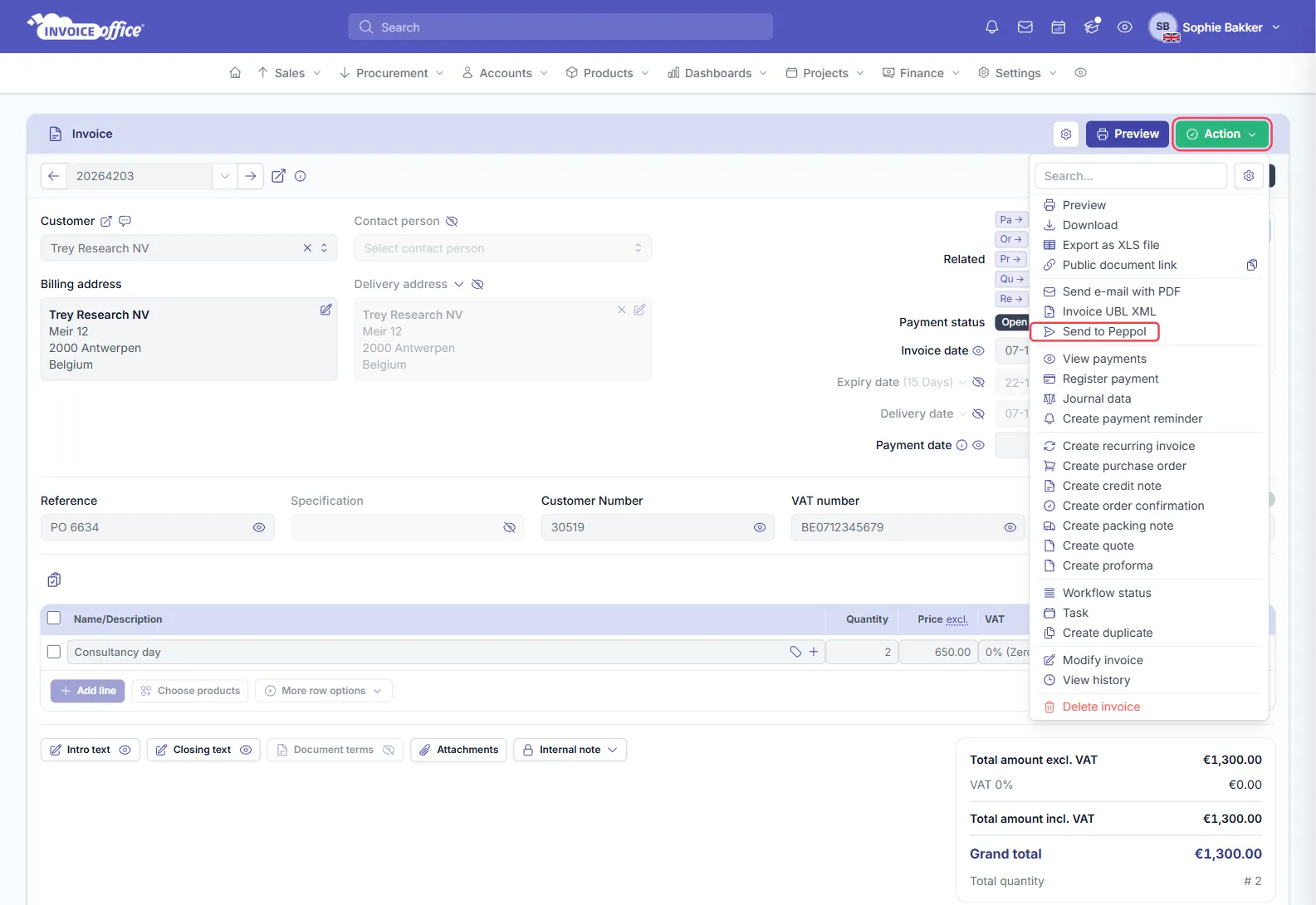
Invoice Office uses the identifier saved on the customer at the moment you send, so the corrected number is picked up automatically — even if the invoice’s own Peppol section still shows the old one. The values on the invoice are only used when the customer has no identifier at all; see update Peppol customer information on a finalised invoice.
For any other information, contact us.