To receive inbound Peppol e-invoices in Invoice Office, you switch on incoming invoices once in the Peppol connector. From then on, suppliers can send their UBL e-invoices to your Peppol ID, and each one arrives in Procurement → Purchases as a draft purchase, with the supplier, the invoice lines and a PDF of the invoice already filled in. This guide covers setting up your Peppol inbox, where received e-invoices appear, and how to check, finalize, pay or reject them.
Before you start
- The Peppol connector is set up and active. Its VAT number and CoC Number come from Settings → Company → Company information; at least one has to be filled in. See Set up Peppol e-invoicing.
- You have Peppol credits. Every e-invoice you receive uses one Peppol credit, just like every one you send. If you run out, incoming documents can’t be processed.
Step 1: Switch on incoming invoices
- Go to Settings → Company → Integration connectors and open Peppol.
- On the Connect tab, check that Active is on.
- Switch on Activate incoming invoices. The info icon next to it explains: Receive incoming purchase invoices from suppliers over the Peppol network. The switch takes effect straight away; you don’t need to click Save for it.
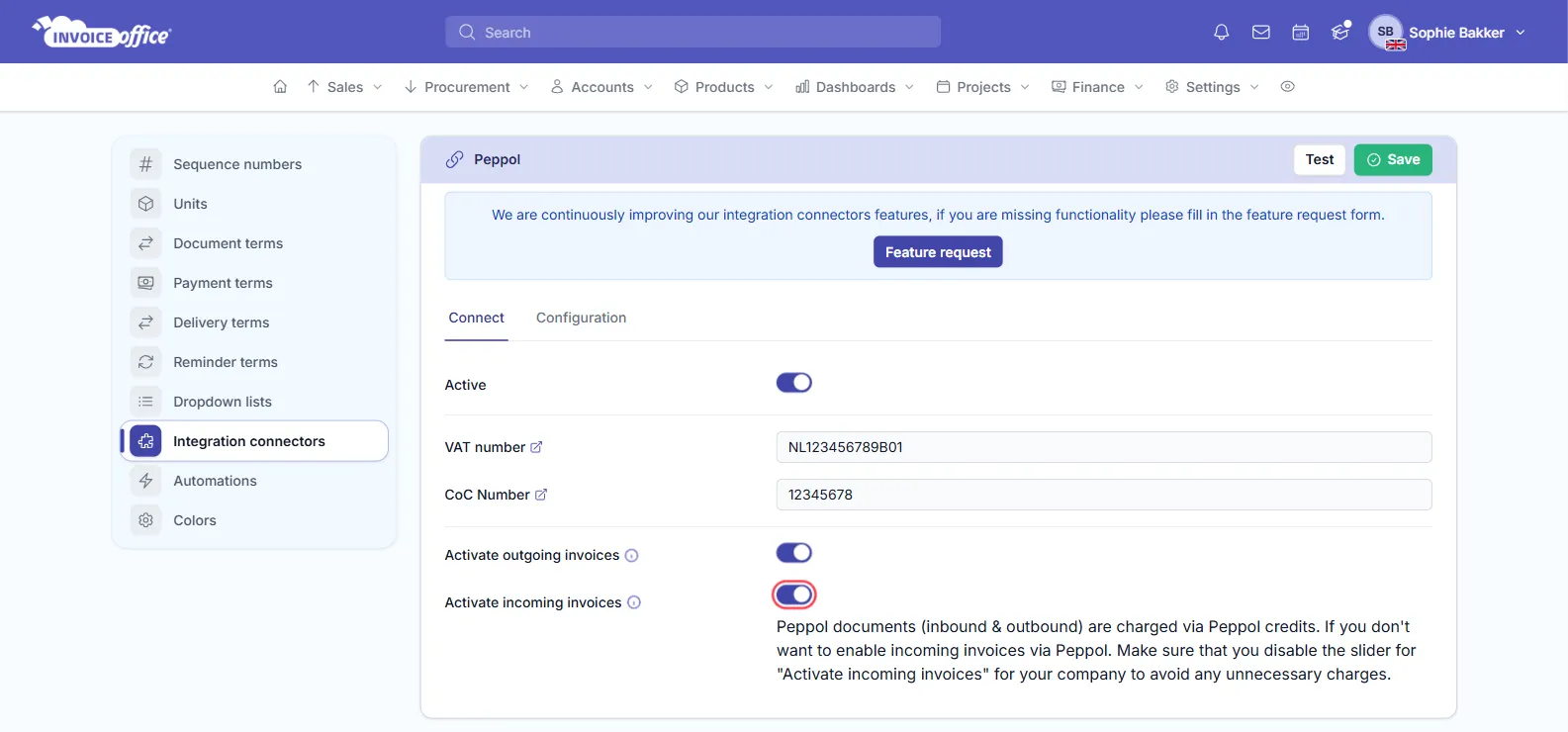
Switching it on registers your company on the Peppol network under your CoC and VAT number, so suppliers’ software can find you and send to your Peppol ID. If the registration fails, the switch turns off again and shows an error. Check the VAT number and CoC Number under Settings → Company → Company information and try again.
The page reminds you that received documents cost credits: if you don’t want to receive invoices over Peppol, leave Activate incoming invoices off. Switching it off removes your company from the Peppol network again.
Tell your suppliers they can now send their invoices to you over Peppol. Their software finds you on
the Peppol network by your VAT number or CoC Number. For a Dutch company, for example, that’s 0106:
followed by your CoC Number, or 9944: followed by your VAT number.
Step 2: Find the e-invoices you receive
When a supplier sends you an e-invoice, Invoice Office:
- creates a draft purchase in Procurement → Purchases, with Document type Credit Note if the supplier sent a credit note;
- links it to the supplier with the same CoC or VAT number. If you don’t have that supplier yet, it adds them from the details on the invoice;
- copies in the invoice number, dates, lines, quantities, prices and VAT rates;
- saves a PDF of the invoice with the purchase: the supplier’s own, or a generated copy if they didn’t include one;
- sends your supplier an automatic confirmation that the invoice was received, if you also send invoices over Peppol;
- notifies you: Received new document by peppol.
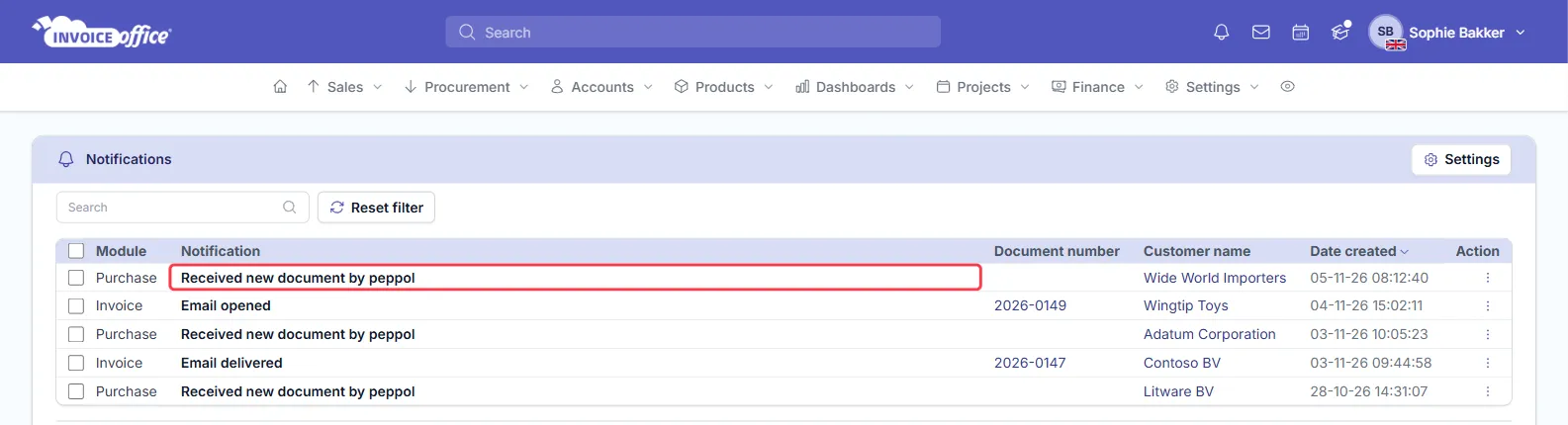
Click the notification, or open Procurement → Purchases, to see the new purchase.
Step 3: Check and finalize the purchase
Open the purchase. The supplier’s PDF is shown on the left, and the details Invoice Office read from the e-invoice are on the right and in the lines below.
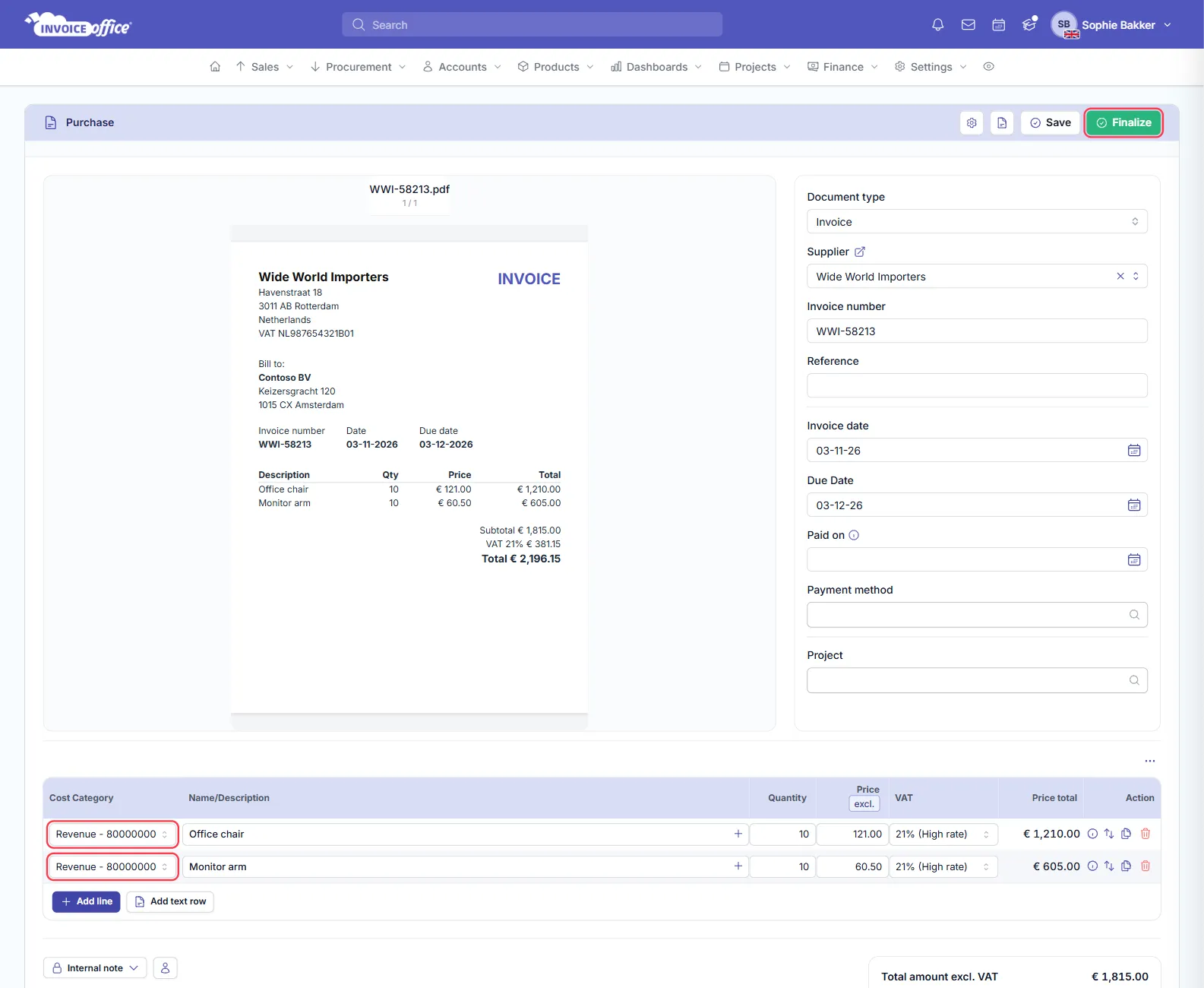
Check it the way you would check a paper invoice:
- Compare the lines and totals with the PDF.
- Set the right Cost Category on every line. Invoice Office doesn’t take a cost category from the e-invoice, so the lines start with a default account. Pick a Project too if the purchase belongs to one.
- Check the Supplier, Invoice number and Due Date.
- Click Finalize to approve the purchase and post it to your books.
There is no separate approval step for purchases: finalizing it is the approval. If you need to change it afterwards, use Action → Modify purchase. Once it’s paid, use Action → Register payment, or match the payment from your bank. If the purchase belongs to a purchase order, see How to match a purchase invoice to a purchase order.
Reject an incoming e-invoice
Is the invoice wrong, for example a wrong price or not meant for you? Reject it over Peppol instead of finalizing it, so your supplier knows why.
- Open the purchase, click the menu button (the document icon) next to Save and choose Reject purchase invoice via Peppol. On a finalized purchase it’s under Action. The option is only there for invoices you received over Peppol.
- Choose a Reason, such as Incorrect prices or Incorrect quantities, and explain it under Description.
- Optionally choose a Proposed action(s), such as Issue new invoice.
- Click Remove.
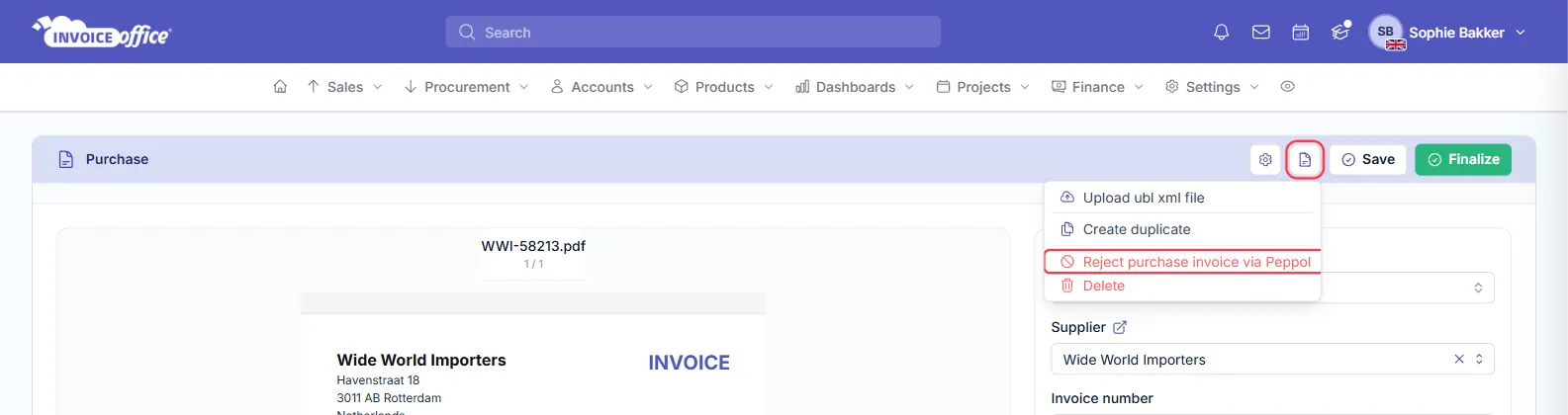
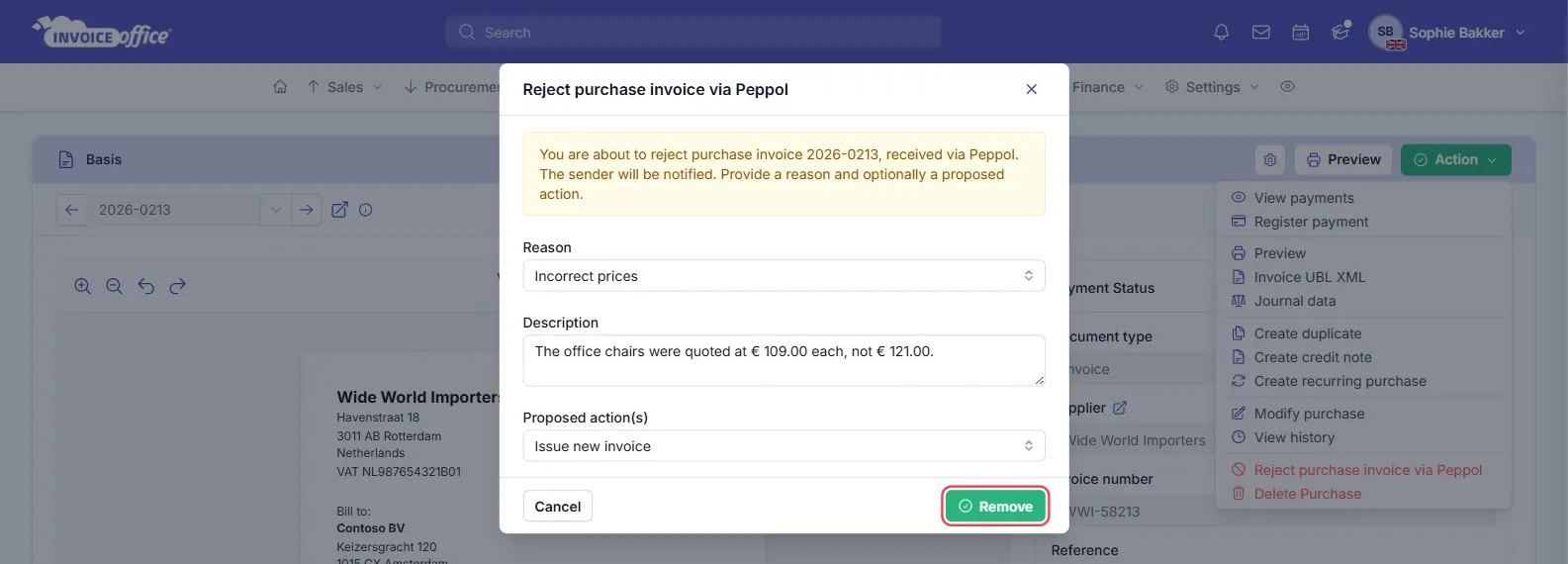
Your supplier gets the rejection with your reason over Peppol, and the purchase is removed from Invoice Office. If the rejection can’t be sent, the purchase is kept. When they send a corrected invoice, it arrives as a new purchase. How a rejection looks on the sending side is explained in How to troubleshoot a rejected Peppol document.
See everything you received
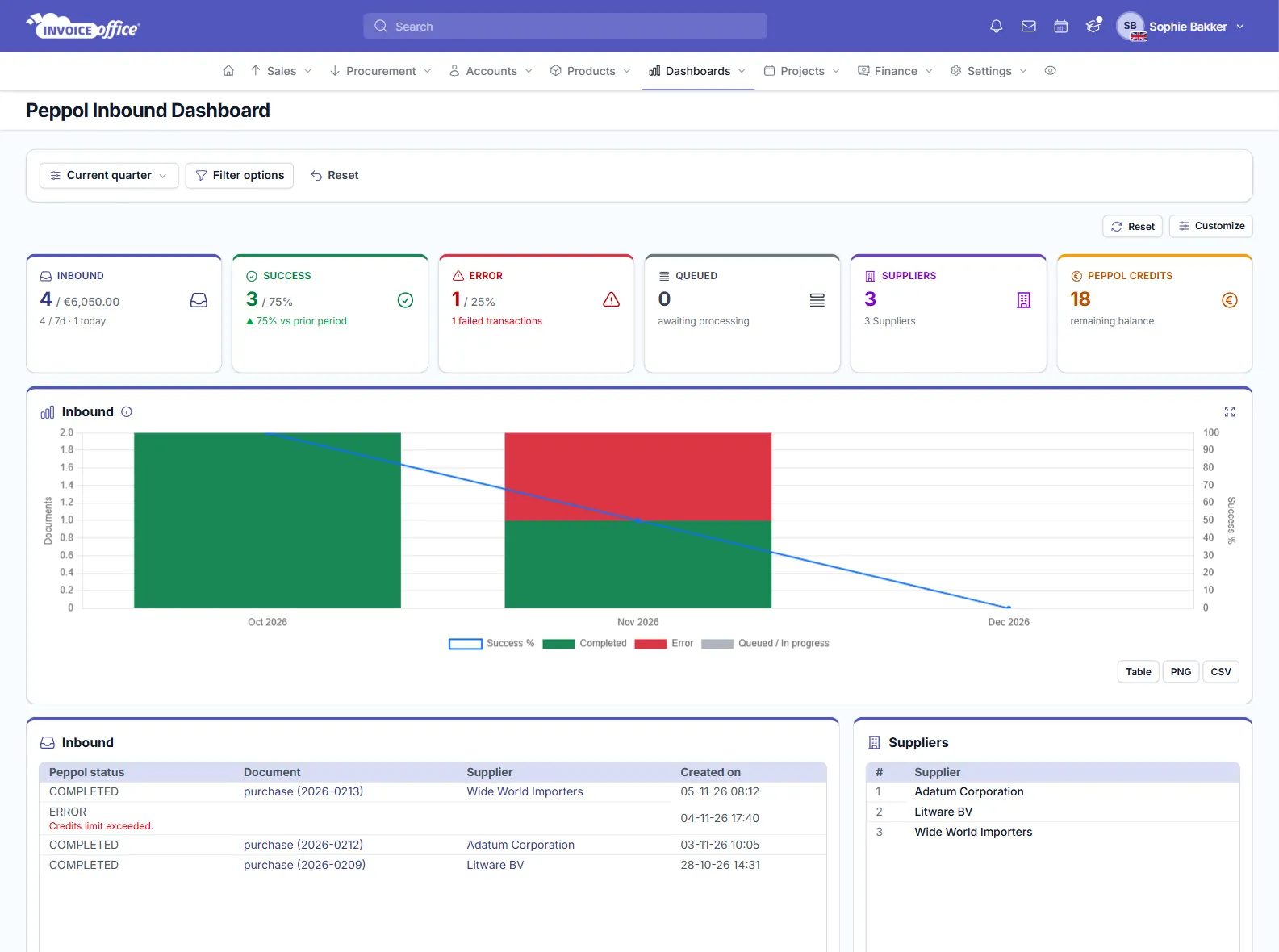
Go to Dashboards → Procurement → Peppol for the Peppol Inbound Dashboard (it’s in the menu once the Peppol connector is active). It shows how many e-invoices you received, with Success, Error and Queued counts, your remaining Peppol credits and a list of suppliers that send to you. The Inbound table lists each received document with its Peppol status and links to the purchase. A document that couldn’t be processed shows ERROR with the reason underneath, for example Credits limit exceeded.
Common questions
A supplier says they can’t send to me. Check that Activate incoming invoices is on, and give the supplier your VAT number or CoC Number. Their software looks you up on the Peppol network under that number.
Can I upload a UBL file I received by email? Yes, with a Pro licence. Open a new or draft purchase, click the menu button next to Save and choose Upload ubl xml file. Invoice Office reads the file into a new draft purchase.
What happens if I run out of credits? Incoming documents fail with Credits limit exceeded. on the inbound dashboard. Buy extra Peppol credits from your company licences in the app, or see pricing for the credits included in each plan. Invoice Office also warns you in your notifications when you have 3 or fewer credits left.