To troubleshoot a rejected Peppol document in Invoice Office, first work out which kind of problem you have: an e-invoice that never reached your customer, or one your customer received and refused. Invoice Office shows both on the invoice itself, with the reason, and tells you in your notifications. This guide shows where to find the rejection and its error message, what the common causes are (a wrong Peppol ID, a missing VAT number or reference, invalid invoice data) and how to correct the invoice and send it over Peppol again.
Two kinds of Peppol problem
| What you see | What happened |
|---|---|
| Peppol not processed | The invoice didn’t get through the Peppol network, for example because the recipient isn’t registered under that Peppol ID. Your customer has nothing. |
| Invoice rejected. | The invoice was delivered, and your customer’s system sent back a rejection, usually with a reason. |
A send that ends in Peppol not processed doesn’t use up a Peppol credit. A rejection by your customer does: the invoice was delivered.
When your customer’s system answers, the invoice can also show Invoice received and will be processed. or Invoice accepted.. Those need no action.
Where to find a rejected Peppol document
In your notifications
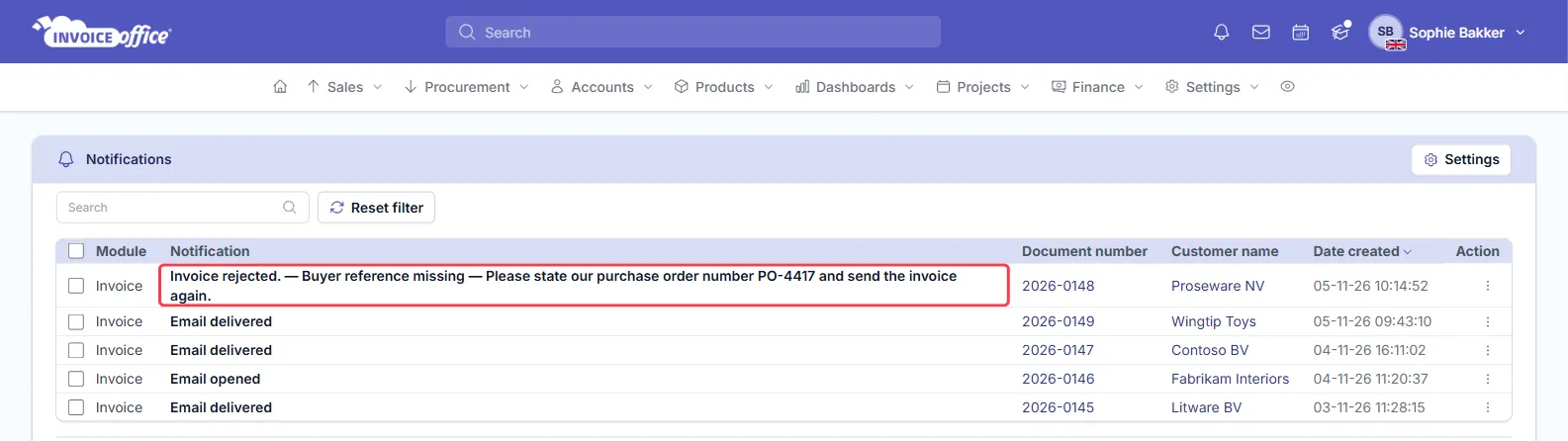
Invoice Office adds a notification when a customer rejects an invoice, and when the Peppol network reports a delivery error afterwards. Click the bell at the top of the screen to see them. A rejection reads Invoice rejected. followed by the reason your customer gave. If a send fails straight away, for example because the recipient isn’t registered on Peppol, Invoice Office shows the error on screen and on the invoice instead.
On the invoice itself
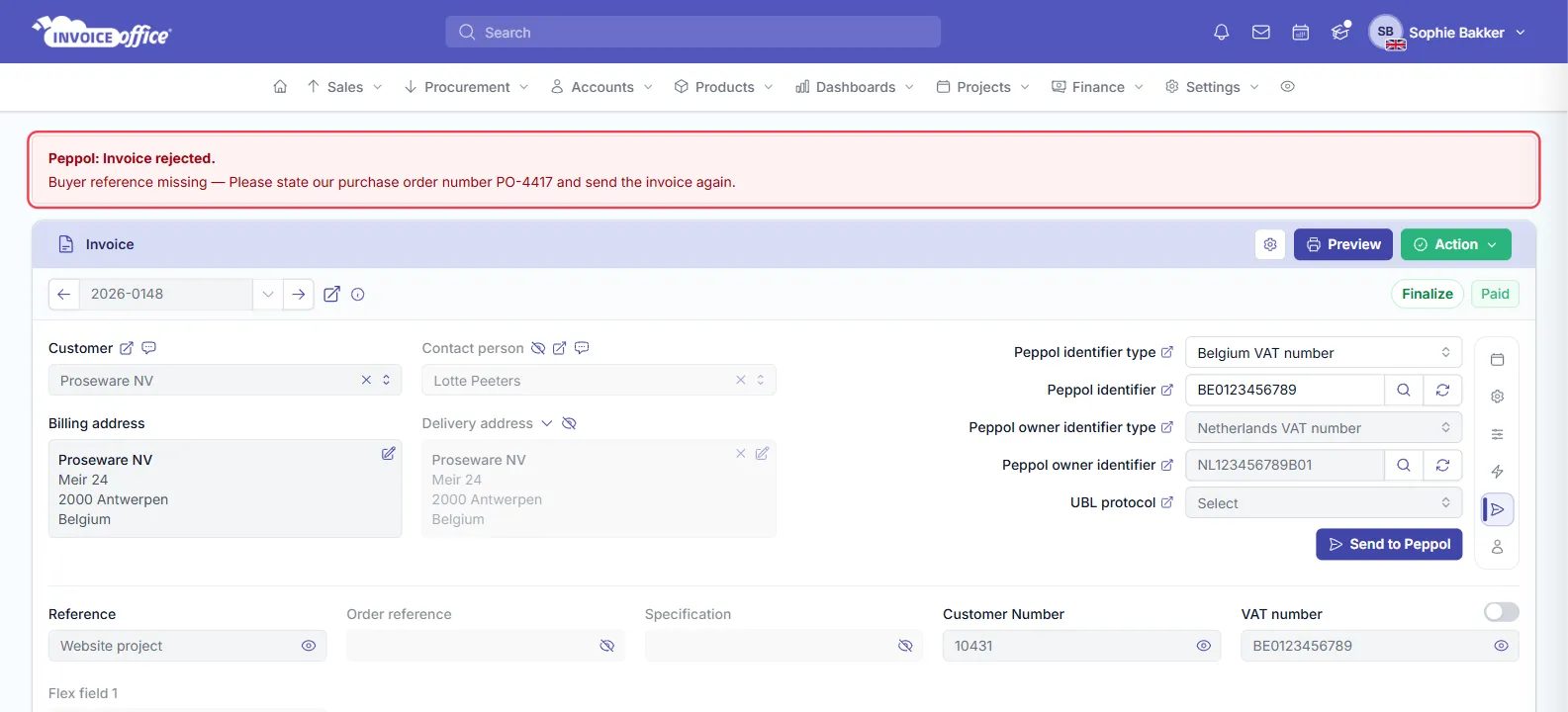
Open the invoice. A red bar at the top shows the Peppol outcome and the reason:
- Peppol: Invoice rejected. with the text your customer sent with the rejection;
- Peppol: Peppol not processed with the error message.
The same outcome is logged in the invoice’s history: open Action → View history (Pro licence).
In Sales → Invoices, a failed send shows the Peppol not processed badge. A rejection by your customer doesn’t get a badge of its own in the list, so keep an eye on your notifications.
On the Peppol outbound dashboard
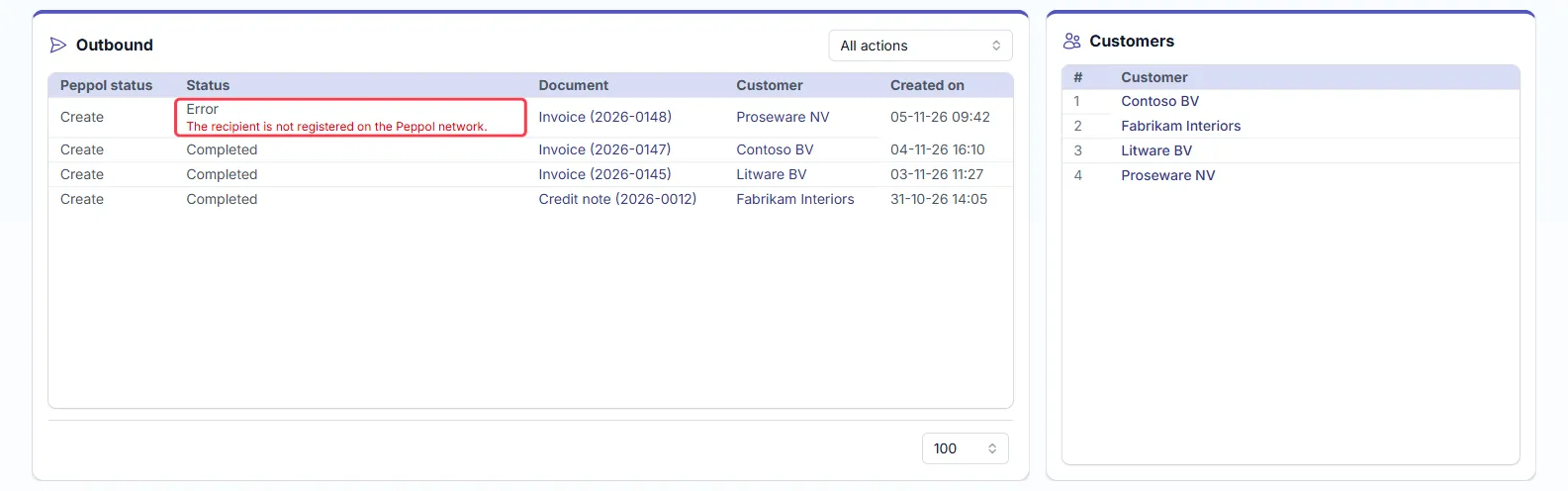
Go to Dashboards → Sales → Peppol. The Outbound table on the Peppol Outbound Dashboard lists your sends and Peppol ID look-ups. A send that failed when you sent it shows Error in the Status column, with the error message underneath, and the Error tile counts them. Rejections by your customer, and delivery errors the network reports later, don’t appear here: check the invoice.
Common Peppol rejection reasons and how to fix them
| Reason or error | Fix |
|---|---|
| The recipient is not registered on the Peppol network. / wrong Peppol ID | Correct the Peppol identifier on the customer, then send the invoice again (see Wrong Peppol ID). |
| Peppol identifier is not set for this customer / Peppol identifier type is not set for this customer | Add the identifier and its type to the customer, see Set the Peppol identification number per customer. |
| Missing or wrong VAT number of your customer | The invoice’s VAT number field is what goes into the e-invoice. Correct it on the customer and on the invoice (see Wrong invoice data). |
| Missing or wrong VAT or CoC number of your company | Fill them in under Settings → Company → Company information, then open your Peppol connector settings so they are picked up. Your peppol id not configured. Please check Peppol connector settings means the connector has no Peppol identifier, CoC number or VAT number. A finalized invoice keeps the old company details: use Modify invoice and finalize it again. |
| Missing buyer reference or purchase order number | The invoice’s Reference is sent as the buyer reference (the invoice number if Reference is empty) and Order reference as the purchase order number. Fill in the number your customer asked for. |
| Incorrect prices, quantities, items or payment details | Correct the invoice (see Wrong invoice data). |
| Peppol credits limit exceeded | Buy more Peppol credits, see pricing. |
Country rules add their own requirements, for example Belgian identifier formats. See Peppol e-invoicing requirements by country. Want to check exactly what you sent? Download the e-invoice with Action → Invoice UBL XML, see How to download an invoice in UBL or XML format.
Wrong Peppol ID: correct the address and send again
If only the Peppol address was wrong, you can send the finalized invoice again to the right address. The invoice keeps its number, lines and amounts.
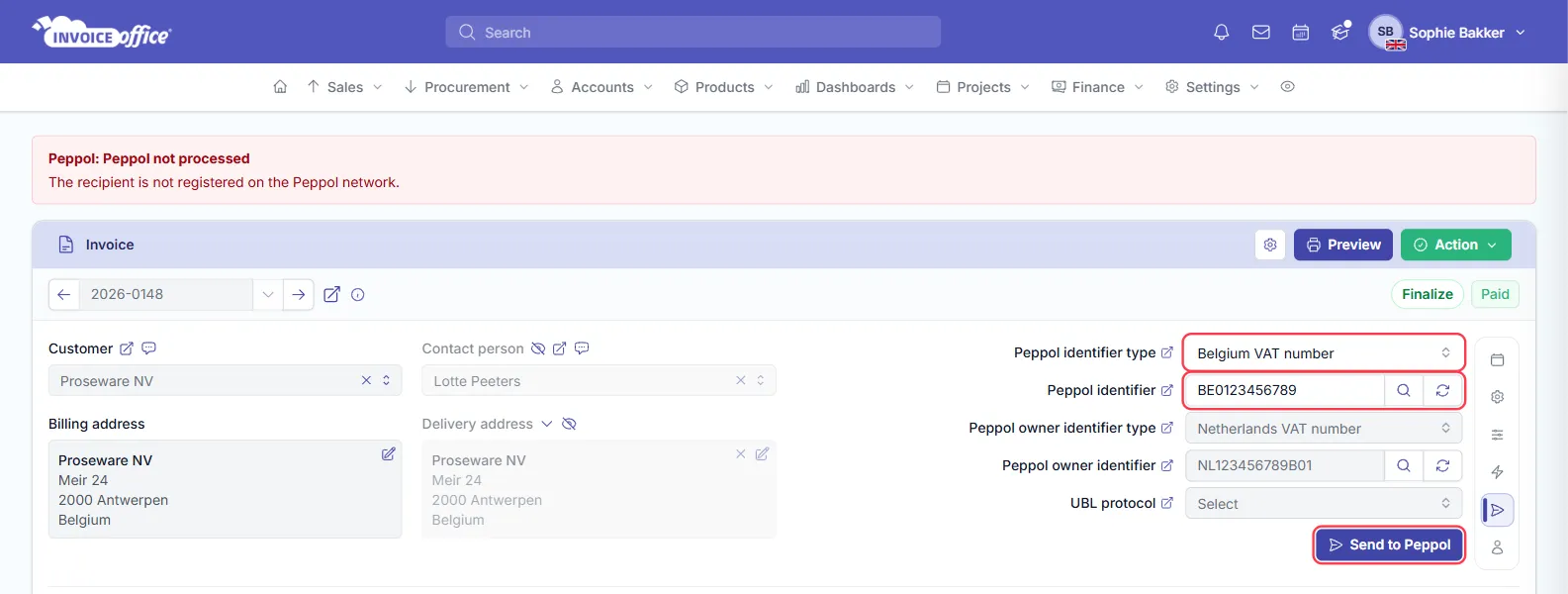
- Correct the Peppol identifier type and Peppol identifier on the customer (Accounts → Customers). When you send, Invoice Office uses the identifier on the customer. A value you change only on the invoice is used only if the customer has no identifier at all.
- Open the invoice and click the paper-plane icon in the strip on the right. The Peppol id section opens.
- Click the refresh button (Refresh from account) to take over the corrected identifier, and the magnifying glass (Peppol look up tool) to check it is registered on Peppol.
- Click Send to Peppol and confirm with Are you sure?.
More about the Peppol section in How to update Peppol customer info on a finalised invoice.
Wrong invoice data: correct the invoice
The content of a finalized invoice is locked, so a missing VAT number, a missing reference or a wrong price can’t be fixed in the Peppol section. You have two options, both in the invoice’s Action menu:
- Modify invoice puts the finalized invoice back into editing. Invoice Office asks Are you sure you want to modify this document? first. Correct the data, finalize the invoice again and send it with Send to Peppol. It keeps its invoice number, and it keeps its Peppol status and red bar until you send it again.
- Create credit note cancels the rejected invoice in your books. Then create a new, corrected invoice and send that over Peppol. Use this when your customer wants a new invoice number, or when the invoice was already in your bookkeeping.
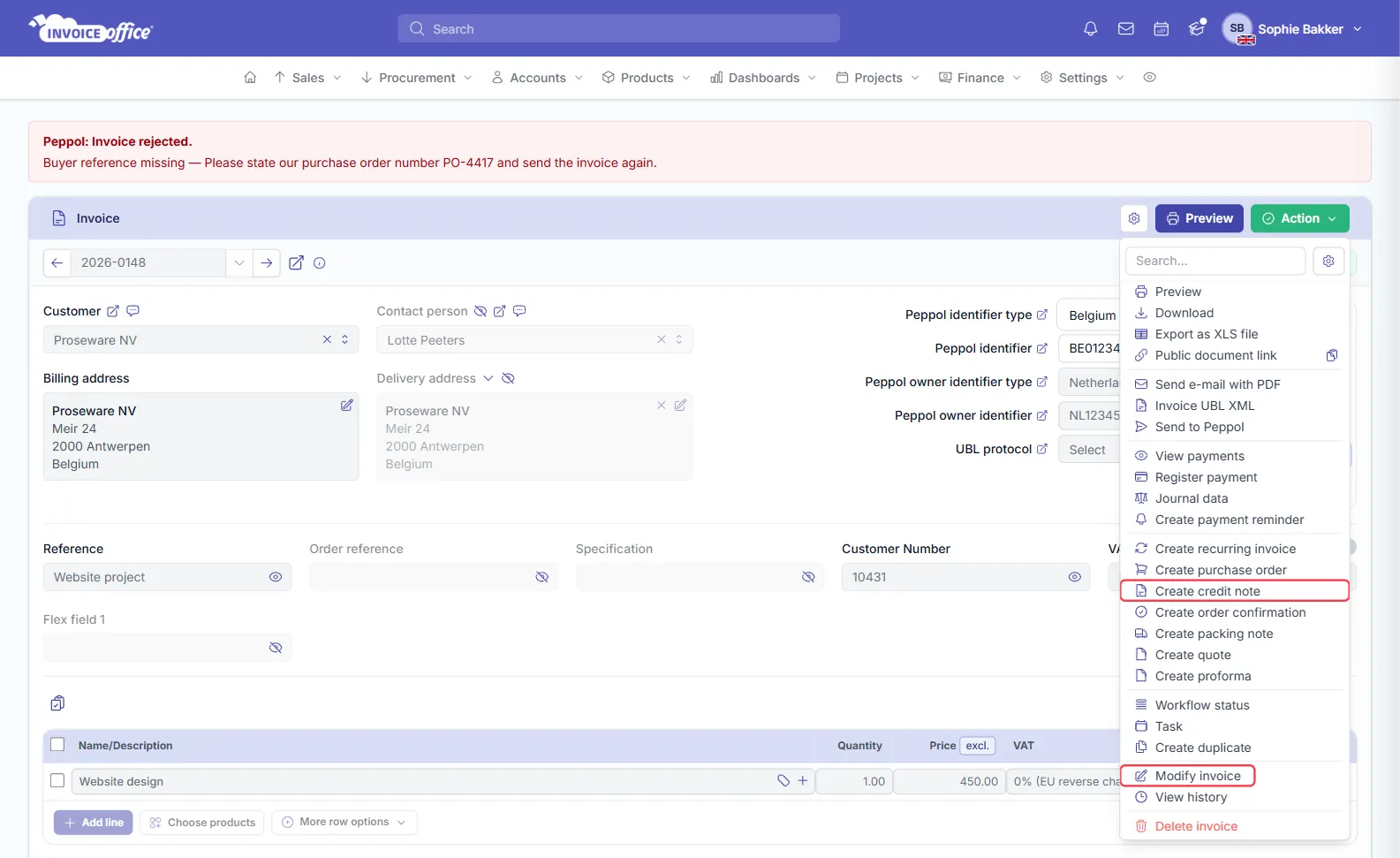
Not sure which your customer prefers? Ask them before you send again. A credit note can be sent over Peppol too. For credit notes, see Create a credit note.
After you send again
Check the invoice and your notifications for the new outcome: Invoice received and will be processed. or Invoice accepted. means it got through. If it shows Peppol not processed or Invoice rejected. again, read the new reason in the red bar. It’s often a second requirement your customer’s system checks.
Each send uses a Peppol credit. Credits are only given back when the Peppol network couldn’t deliver the invoice.