With the Ponto bank connection set up in Invoice Office, your bank transactions are imported automatically: there is no statement file to download from your bank and upload yourself. Ponto links your bank accounts, and Invoice Office fetches their transactions twice a day, adds them to Finance → Bank transactions and matches them with your open invoices and purchases. This guide covers the setup, where the transactions appear, how the automatic import works and what to check when nothing shows up.
The Ponto connection is a Pro feature.
Step 1 — Get your Ponto credentials
Ponto is a separate service that connects to your bank. Create a Ponto account at myponto.com, link the bank accounts you want to import there, and get the client ID and client secret for your Ponto integration. Ponto provides these two values; if it is not clear where to find them, contact Ponto.
Step 2 — Enter your client ID and secret in Invoice Office
-
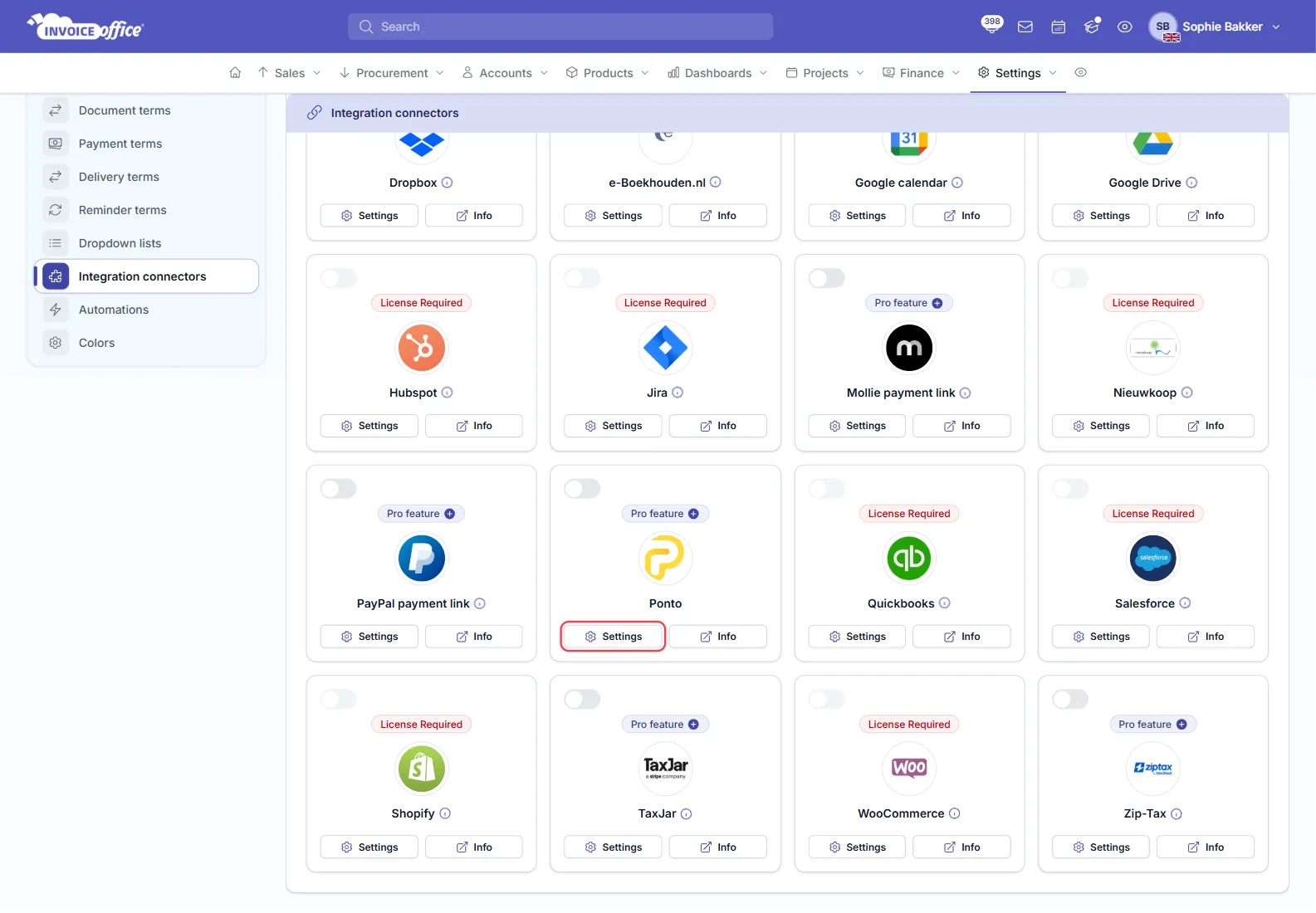
Go to Settings → Integration connectors.
-
On the Ponto card, click Settings.
-
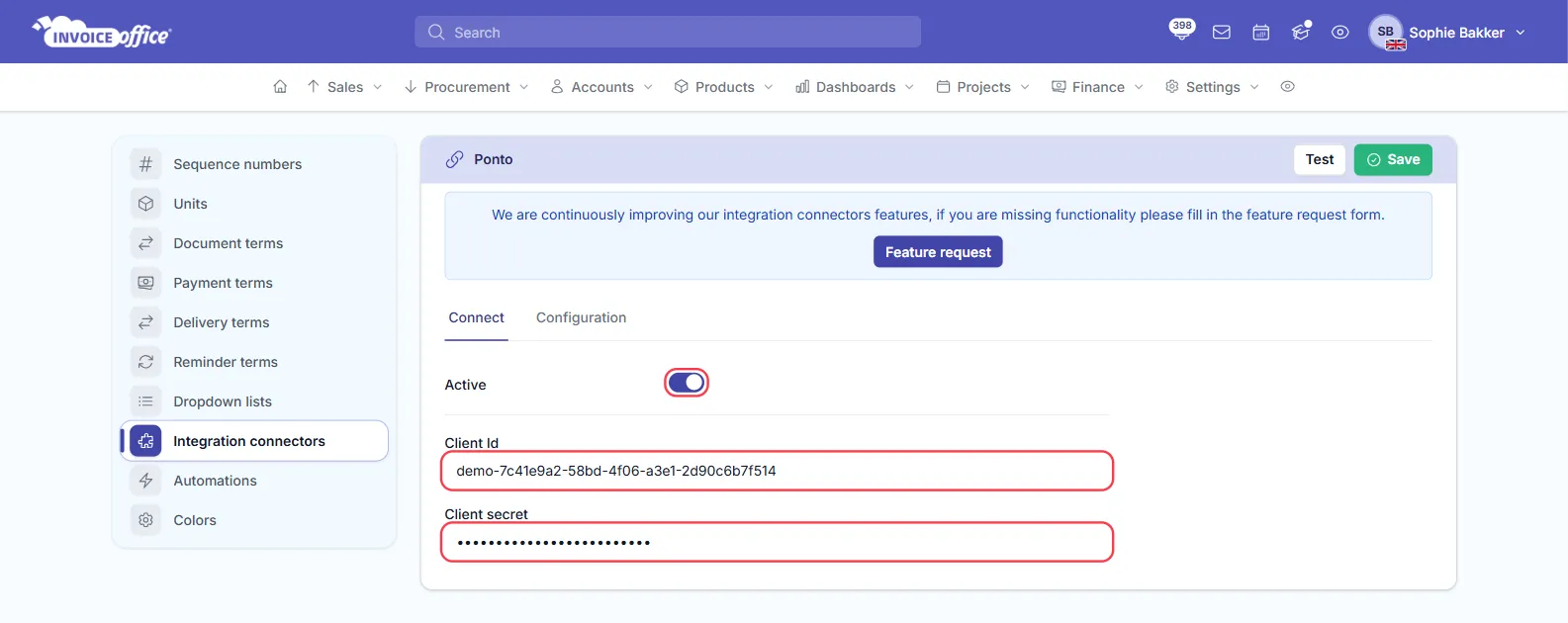
On the Connect tab, fill in Client Id and Client secret.
-
Switch Active on.
Step 3 — Choose how matched payments are handled
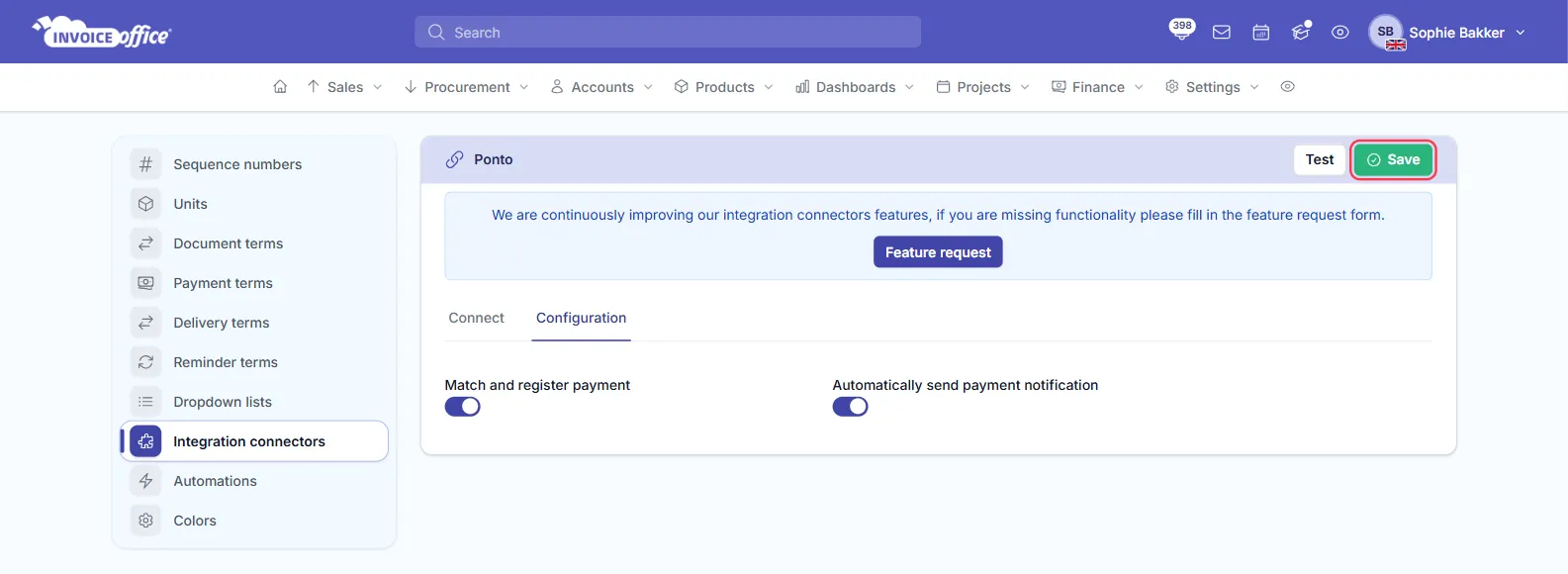
Open the Configuration tab:
- Match and register payment — when an imported transaction matches an invoice or purchase exactly, the payment is registered on it straight away.
- Automatically send payment notification — emails your customer a payment notification for each invoice payment the import registers. This only works with Match and register payment on.
Click Save at the top right. It saves both tabs.
Where the imported transactions appear
Go to Finance → Bank transactions. Each bank account you linked in Ponto gets its own bank account and bank statement in Invoice Office, shown with its account number. Pick the account at the top of the page to see its transactions. As long as the Ponto connection is not active, this page also shows a Connect bank account button that takes you to the Ponto website.
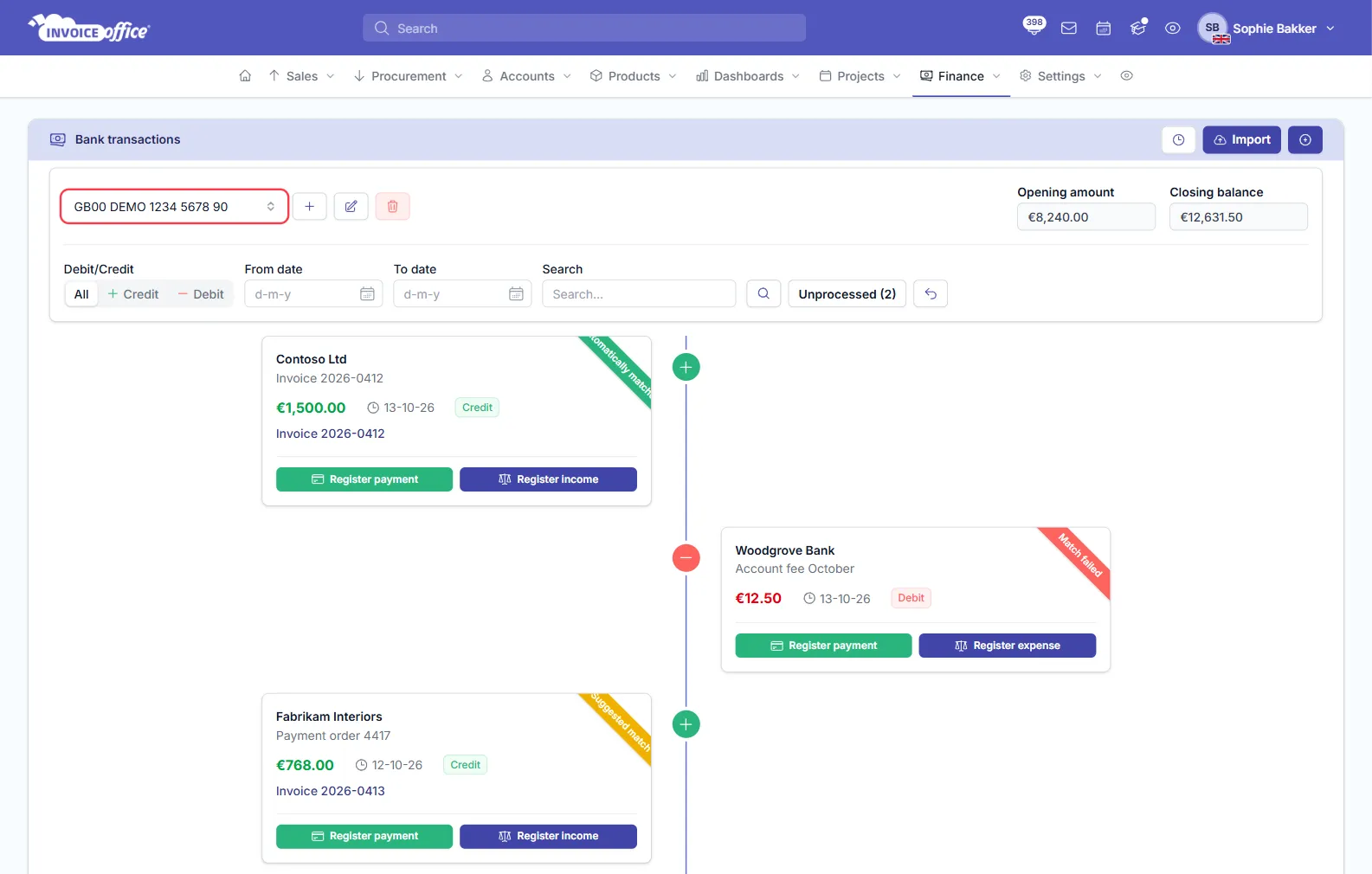
Every transaction is checked against your open documents — incoming money against invoices, outgoing money against purchases:
- Automatically matched — the amount equals the document’s total and the description contains its number. With Match and register payment on, the payment is registered for you; with it off, the line waits under Unprocessed.
- Suggested match — only the amount or only the number fits. The line is linked to the likely document for you to check.
- Match failed — no open document fits. The line waits under Unprocessed, where you use Register payment, Register income or Register expense.
How to work through the matches and the Unprocessed lines is explained in Import and reconcile bank statements — it works the same for Ponto transactions.
How often transactions are fetched
Invoice Office fetches your Ponto transactions twice a day, at 01:30 and 13:30 Central European time (CET, or CEST in summer). Transactions that were already imported are not added again, so nothing shows up twice.
There is no button to fetch transactions on demand: new transactions appear after the next run. If you need a transaction in Invoice Office before then, add it with the Add transaction button (the + icon at the top right of Bank transactions), or import a statement file (see below).
The Test button on the Ponto settings page does not fetch transactions or check your client ID and secret with Ponto. It always reports success, so a successful test does not mean the connection works.
Ponto import or file import?
| Ponto | File import | |
|---|---|---|
| How | Automatic, twice a day | You download a statement from your bank and upload it |
| Where to start | Settings → Integration connectors → Ponto | Finance → Bank transactions → Import |
| Formats | — | MT940, MT940 Structured, MT940 .txt file, MT940 .swi file and .csv file |
| Matching | Same matching, set on the Ponto Configuration tab | Same matching, set with the switches before each MT940 import (a CSV import always registers exact matches) |
The file import does not offer CAMT files. See Import and reconcile bank statements for the step-by-step.
I connected Ponto but no transactions appear
Check these in order:
- Wait for the next run. Transactions arrive at 01:30 or 13:30 Central European time (CET, or CEST in summer), not the moment you save the settings.
- Look at the right bank account. On Bank transactions, pick the account at the top of the page — each linked account has its own statement.
- Check that Ponto is still active. Go to Settings → Integration connectors → Ponto. If Client Id or Client secret was empty, the import switches the connection off; fill in both and switch Active on again.
- Check your notifications. When the import runs into a problem, the user who set up the Ponto
connection (and your company admins) get a message under Notifications — the bell icon at the
top of the screen:
- Integration connector no key or secret configured — the client ID or secret is missing.
- Integration connector connection issue — Ponto refused the connection, for example because the credentials are wrong or were revoked. The connection stays active and is retried at the next run; check your credentials with Ponto if the message keeps coming back.
- Integration connector unknown error — something else went wrong; contact support if it persists.
- Check your licence. The Ponto connection needs an active Pro licence. Without it, Active cannot be switched on and no transactions are imported. If your Pro licence ends while Ponto is active, you get Integration connector unknown error at each run.
- Check the accounts in Ponto. Only bank accounts linked in your Ponto account are imported.