You can add an attachment to your invoice, quotation or any other document — your general conditions, or the attachment that belongs with a quotation, for example. There are two ways to do it, depending on whether it is a one-off or something that should go out every time.
Attach a file to one document
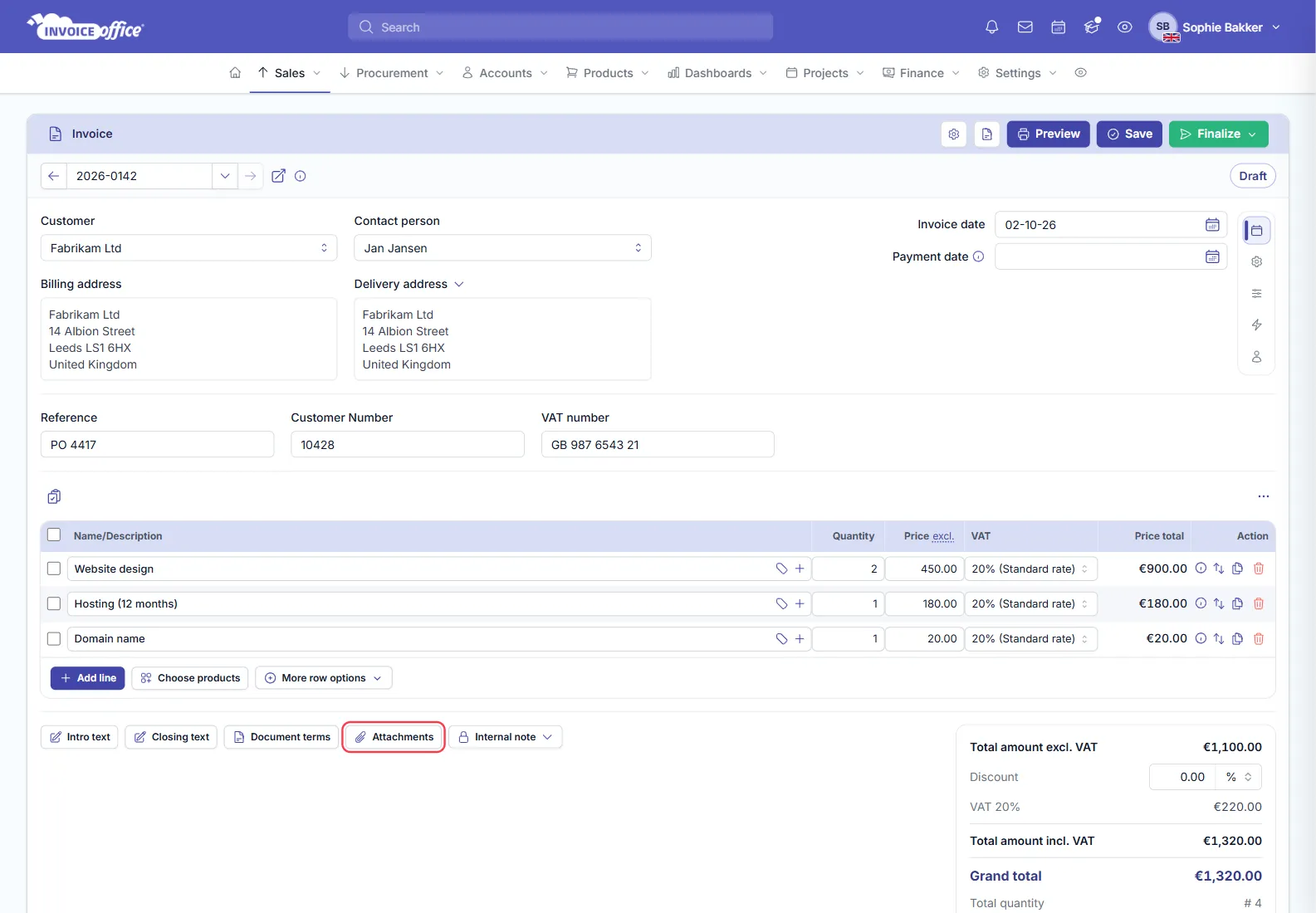
- On the document you are editing, click Attachments — it sits in the row of buttons under the product table, beside Intro text, Closing text and Document terms.
- Upload the file you want to add.
- Save the document — the attachment is saved with it.
The file is then sent with the document when you email it.
The Internal note button beside it opens a menu with Internal note and Internal attachment. An internal attachment is stored on the document for your own reference and is not sent to the customer; it is a Pro feature.
Attach a file to every document by default
If the same file should accompany every invoice — general conditions being the usual case — add it to the document design instead of to each document.
- Go to Settings → Documents → Document designs and open the design.
- Find Attachments — on the Page tab in the basic editor, or under Settings on the Document design side in the advanced editor — and click Upload. On an invoice or other design, switch Use default design off under Attachments first, or upload to the base Document design so every document type gets the file.
- Select your documents.
- Save.
Every document that uses that design now carries those attachments, so nobody has to remember.
Because a design can be assigned to a particular customer, you can send different conditions to different customers without thinking about it — see Choosing a design template for a particular customer.