The Google Drive and Dropbox integration in Invoice Office does two things. With Google Drive connected, Invoice Office saves invoices to Google Drive automatically — a PDF of every document you finalize goes into a folder of your choice, so your cloud storage always holds a copy of your invoices without any manual downloading. And with either Google Drive or Dropbox connected, you can attach files from your cloud storage to an invoice, quote or other document. Both connectors are part of the Professional plan.
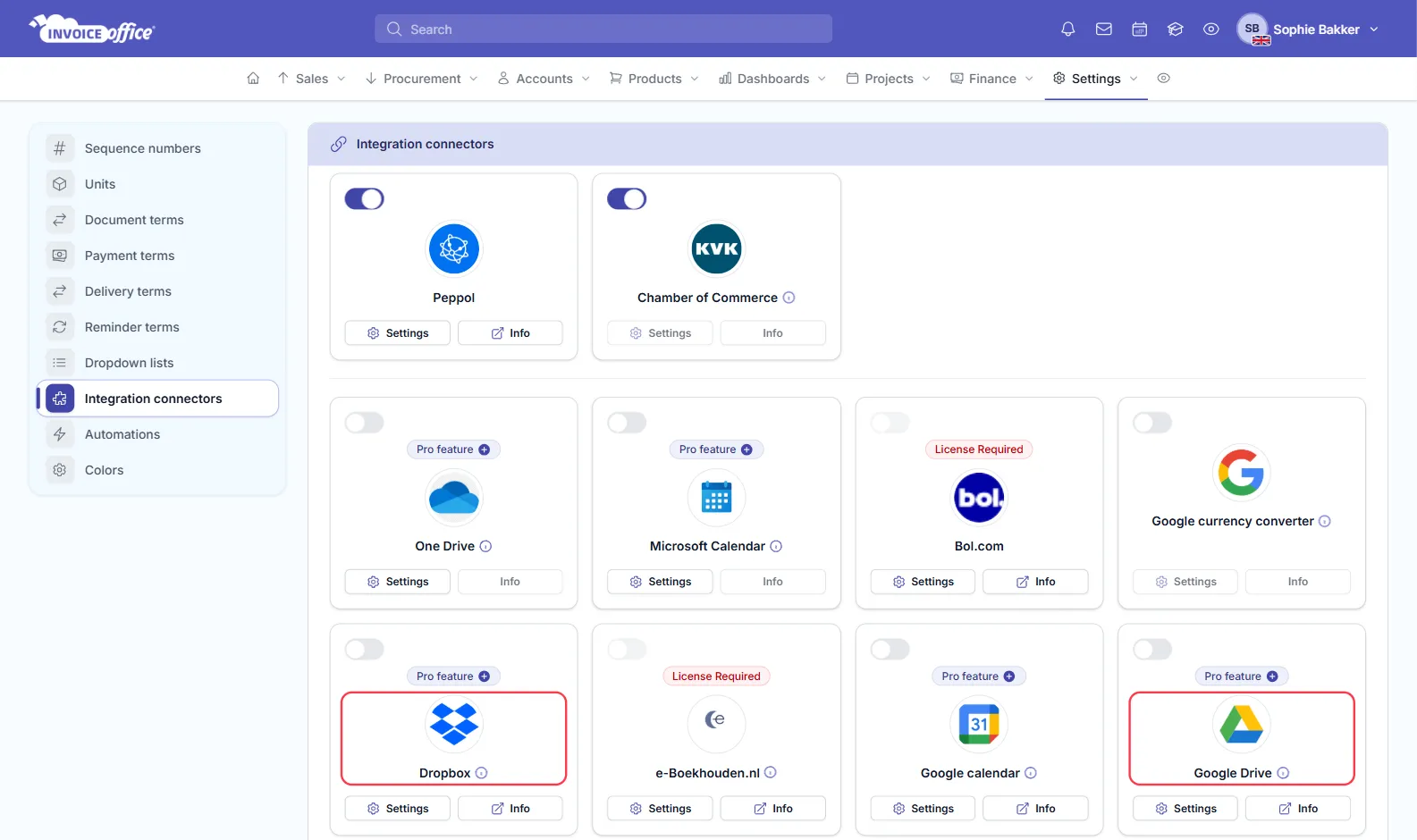
Step 1 — Open the integration connectors
Go to Settings → Integration connectors. Find the Google Drive or Dropbox card and click Settings on it.
Step 2 — Connect your account
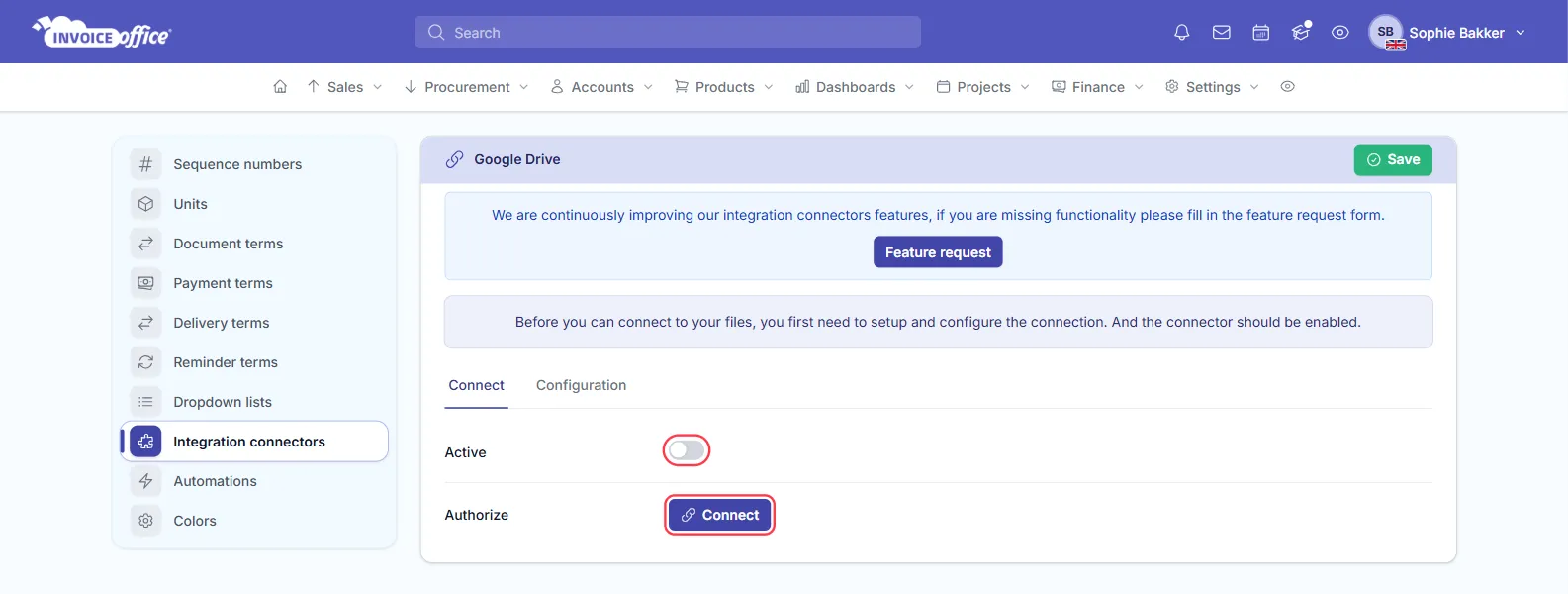
The connector page opens on the Connect tab.
- Next to Authorize, click Connect.
- Sign in to your Google or Dropbox account and allow Invoice Office access.
- You return to the connector page with Active switched on.
Google Drive only gets access to the files Invoice Office creates or that you pick in it — not to the rest of your Drive.
To stop using the connector later, open the same page and click Disconnect. For Dropbox, also switch Active off and click Save.
Step 3 — Save invoices to Google Drive automatically
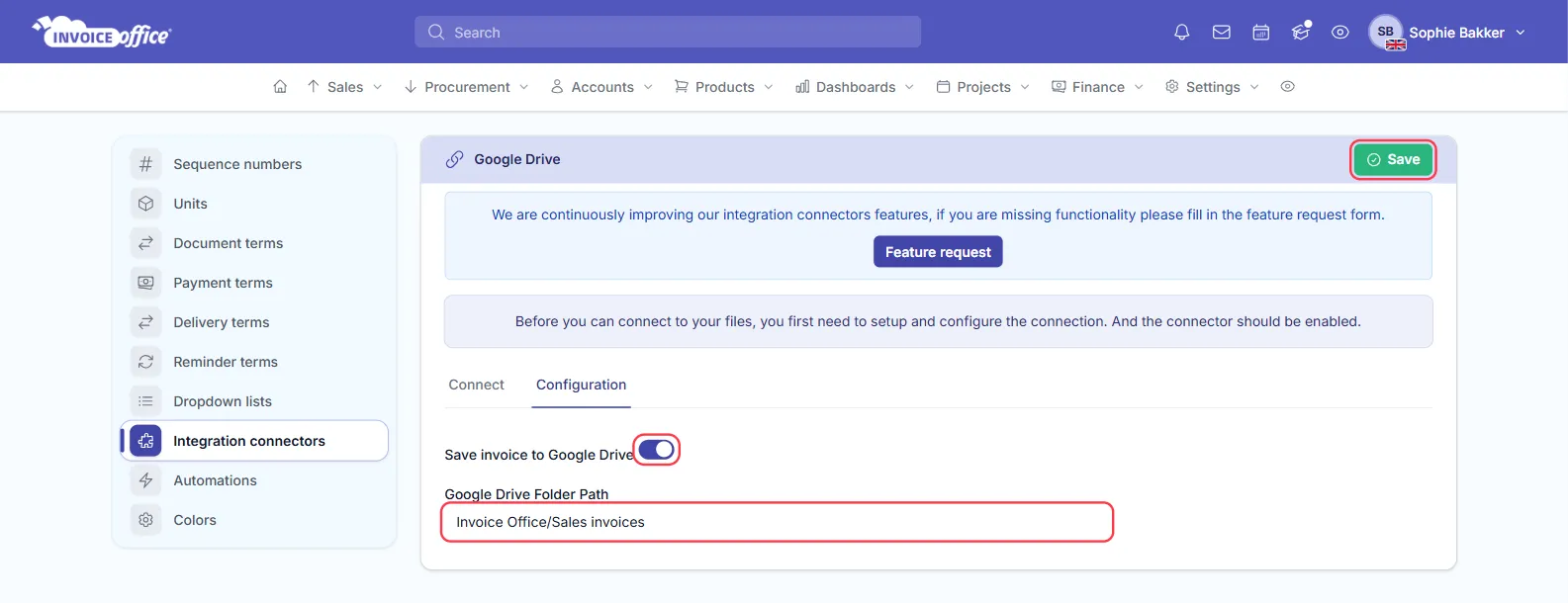
- Open the Configuration tab on the Google Drive connector.
- Switch on Save invoice to Google Drive. The Google Drive Folder Path field appears.
- Enter the folder path — for example
Invoice Office/Sales invoices. Separate folders with a/, and don’t start or end the path with one. Invoice Office creates the folders the first time and reuses them after that; a folder you made yourself in Drive with the same name is not used. - Click Save.
From then on, every time you finalize a document, Invoice Office saves its PDF to that folder. Drafts are never uploaded. If you later save a change to a finalized document, a new copy of the PDF is added next to the earlier one — the earlier file is not replaced.
Saving only happens while the connector is Active and your Professional plan is running. If Google access expires, the connector switches itself off — connect it again in step 2.
What gets saved. Despite the setting’s name, it covers every document type you finalize — invoices, credit notes, quotes, purchases and the rest. There is no setting to pick document types, and all PDFs go to the one folder path.
Attach files from Google Drive or Dropbox
With a connector active, you can attach a file from your cloud storage instead of uploading it from your computer:
- Open the document and click Attachments below the lines.
- Click Upload.
- In the Upload window, choose Google Drive or Dropbox, click Select file and pick the file.
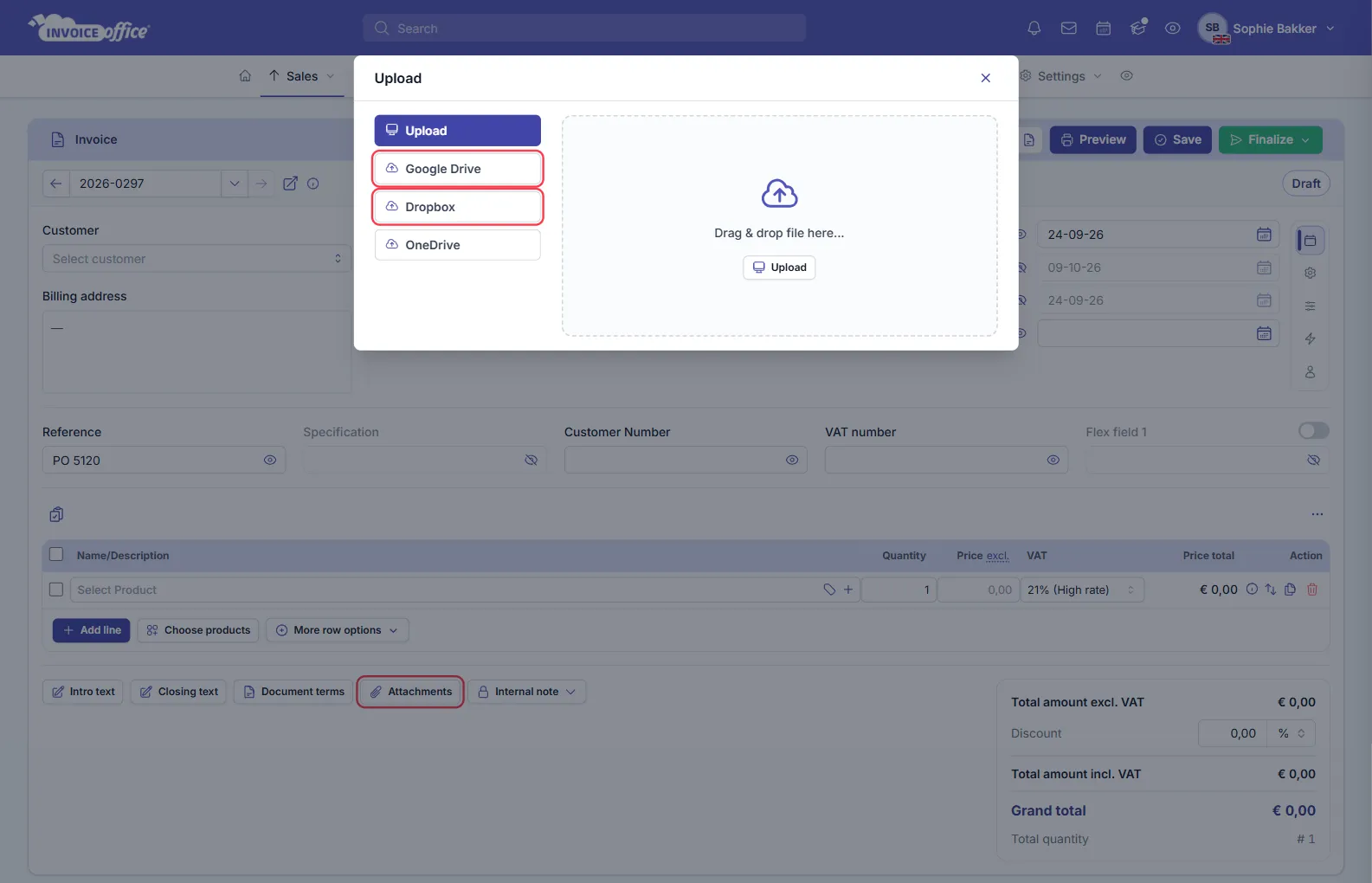
If you see Connect instead of Select file, the connector is not active yet — click it to open the connector page and follow step 2. The window also offers OneDrive, which has its own connector on the same Integration connectors page. See Add an attachment to your document for more about attachments.
Can Invoice Office save invoices to Dropbox?
No — the Dropbox connector is for picking files. It asks Dropbox only for permission to read your files, so although its Configuration tab shows a Save invoice to Dropbox switch, no documents are saved to Dropbox. To keep an automatic copy of your finalized documents in the cloud, use Google Drive. To download many documents at once, see Export your data and Bulk send or export documents.