Invoice Office comes with a set of document terms, and you can change them so your documents say what you want them to say.
Open your document terms
Go to Settings → Document terms. The list shows each set with its Name, Document type, Language, when it was last modified and whether it is the Default. Open one from its row’s Action → Open.
Terms are held per document type and per language, so an invoice and a quote each have their own, and each language you send documents in has its own again.
What you can change
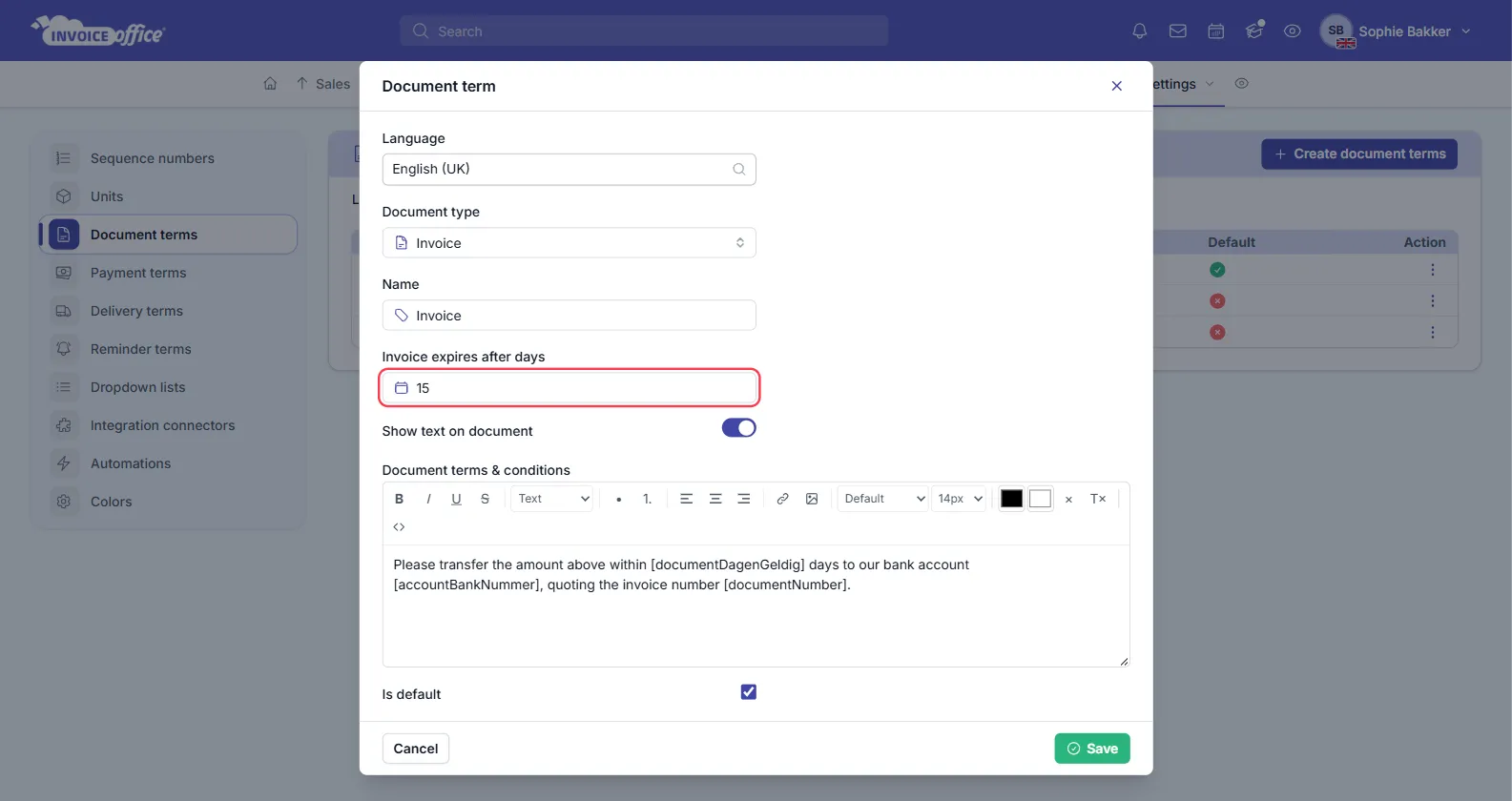
- How long your document lasts — Invoice expires after days is the validity period. The document’s expiry date is worked out from it. For invoices this is the due date — see Set up payment terms for net 30 and payment discounts.
- The terms and conditions text — Document terms & conditions is a rich text editor, so you decide how your conditions are presented to your client. It accepts merge fields such as the document number and your bank account, which are filled in per document.
- Show text on document — whether the terms are printed at all.
- Is default — the set used when nothing more specific applies.
Saving your changes
Three buttons sit at the bottom of the window:
- Save — saves the changes to the current set of terms.
- Save as — saves them under a different name, so you can keep more than one set.
- Save and apply — saves and applies the terms to your documents.
Using Save as rather than Save is the safe move when you are drafting a variation and want to keep the original wording intact. Create document terms in the top right starts a new set from scratch.
The other term types
Document terms has three siblings in the same settings menu, each with its own list: Payment terms (payment discounts), Delivery terms and Reminder terms.