Mailing lists in Invoice Office group the contacts you want to email together — newsletter readers, trade customers, everyone who should hear about a product update. You build a customer mailing list once, add or import its contacts, and then send an email campaign to the whole list in one go instead of mailing people one by one. This guide covers creating a list, filling it, sending a bulk email to it and keeping it clean.
Step 1 — Create a mailing list
- Go to Accounts → Mailing list.
- Click Create.
- Enter a Name for the list — for example Monthly newsletter — and click Save.
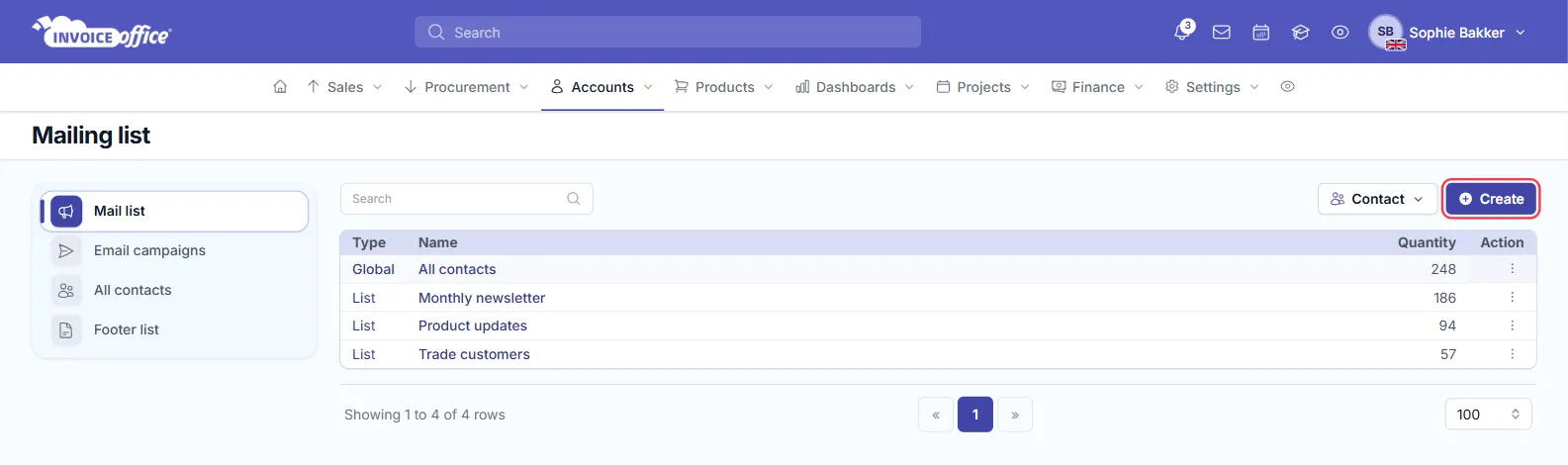
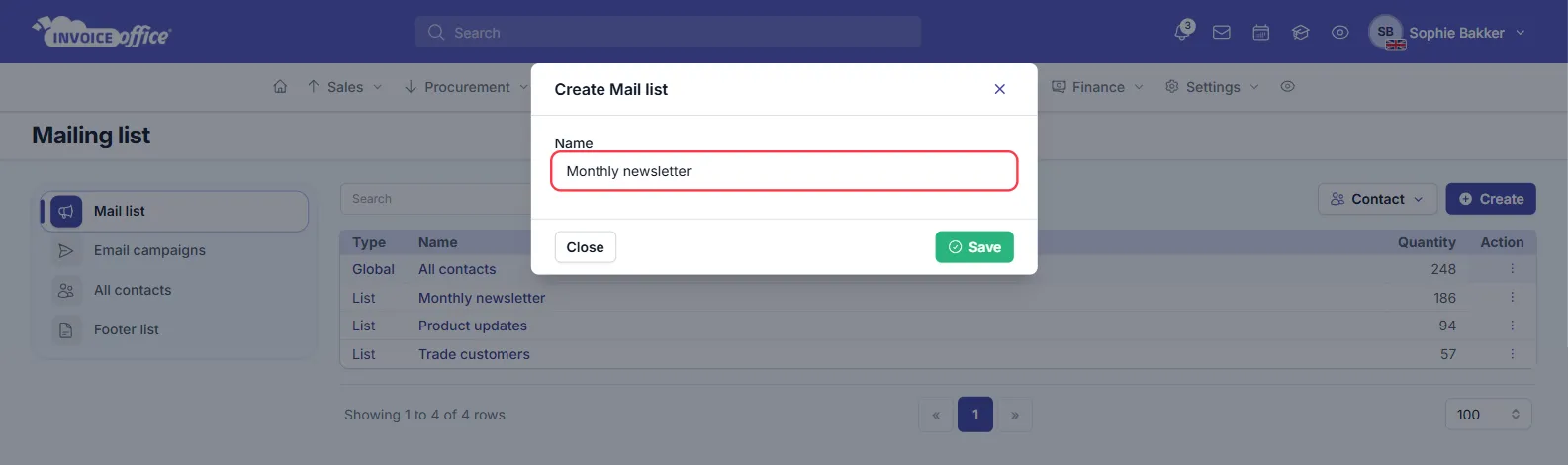
The page lists every mailing list with the number of subscribed contacts in it under Quantity. The first row, All contacts, is the Global list: every contact you have added, whichever list they are in.
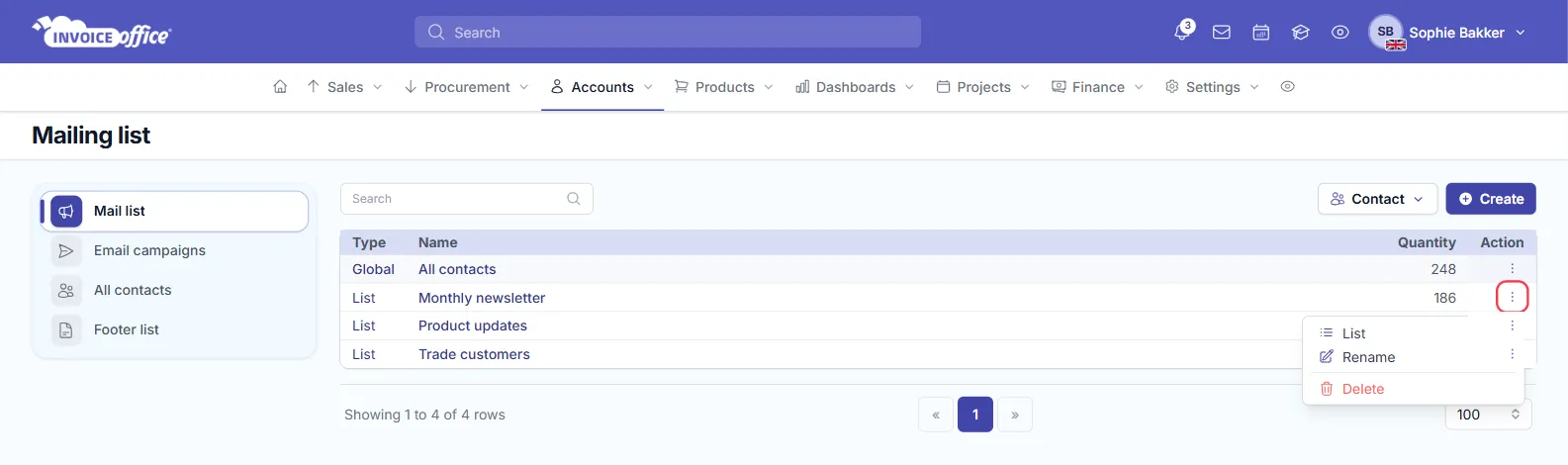
Each list has an Action menu: List opens its contacts, Rename changes its name and Delete removes the list.
The menu on the left switches between Mail list, Email campaigns, All contacts and Footer list.
Step 2 — Add subscribers to the list
- On the Mailing list page, click the name of your list. Its contacts open on a page titled Contacts, followed by the list name.
- Click Add.
- Fill in the contact. Mailing list already shows the list you are adding to. Enter the Email address, and the First name and Last name if you have them. Phone, address and a Description are optional.
- Click Create.
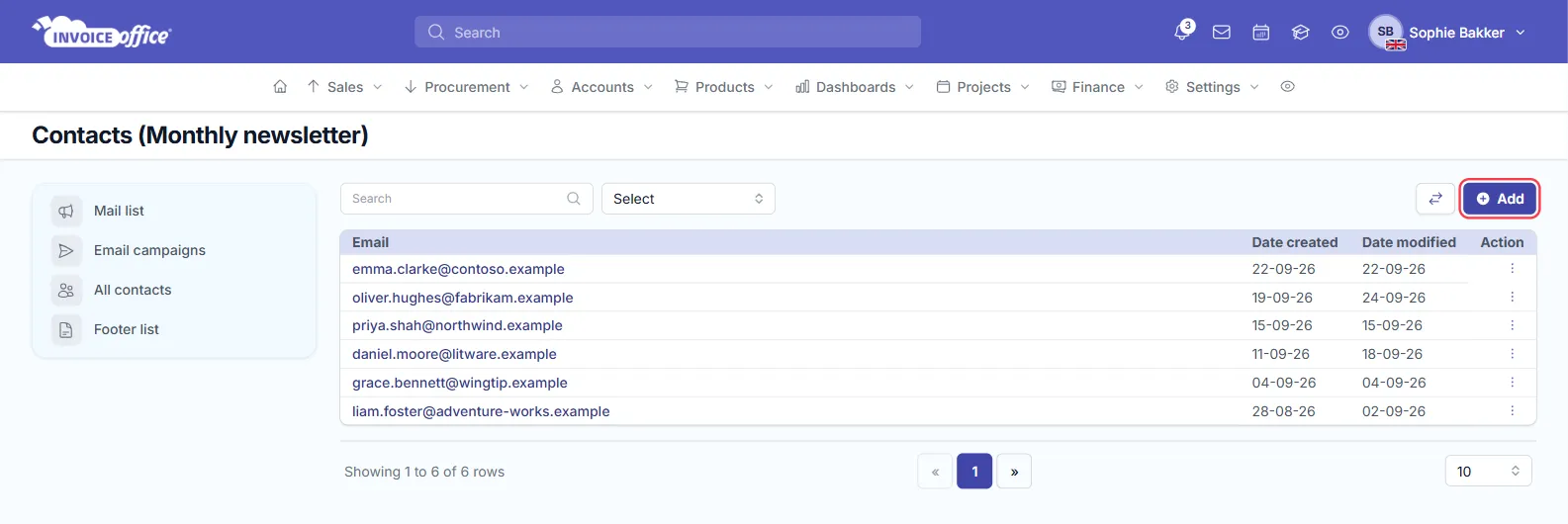
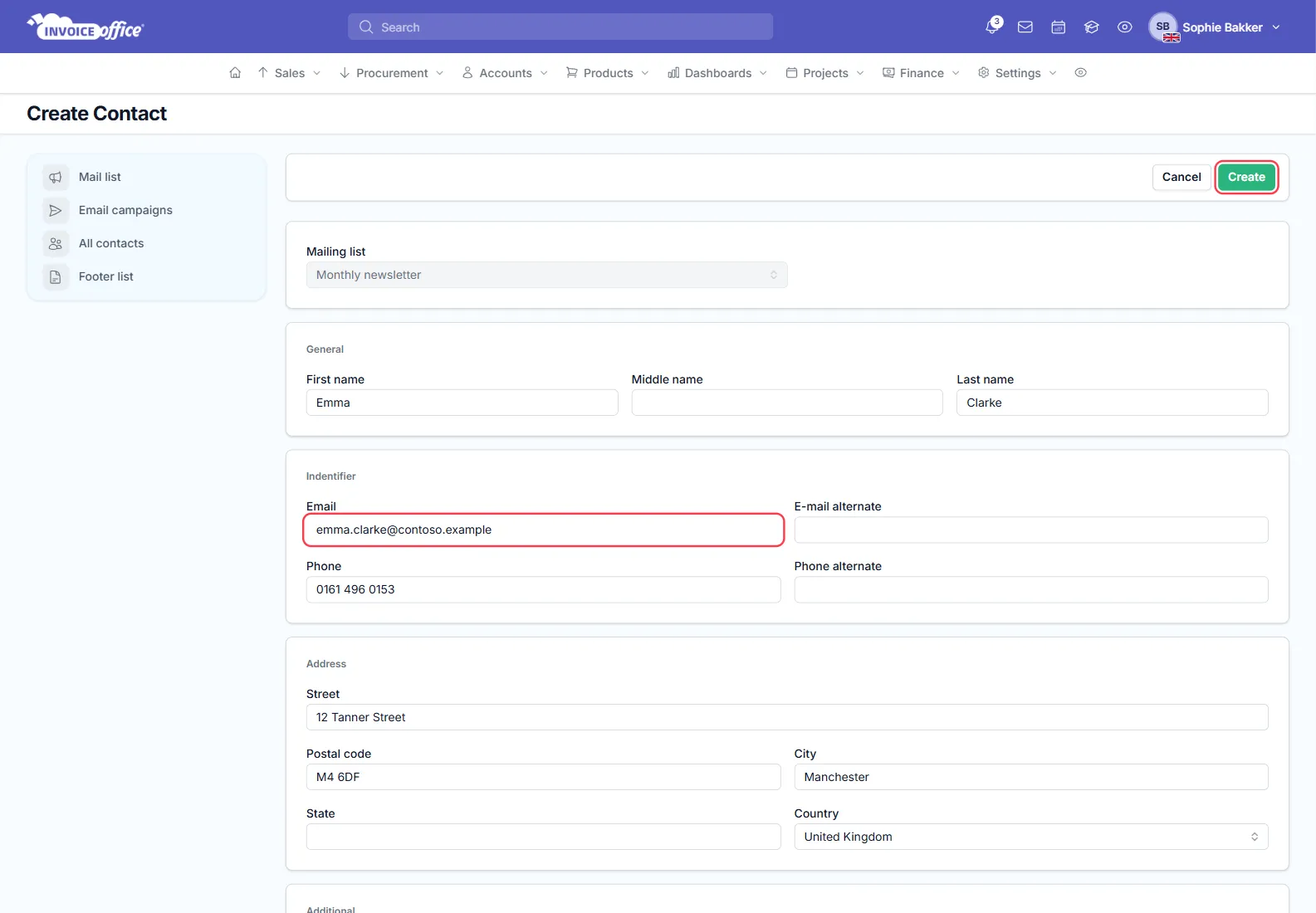
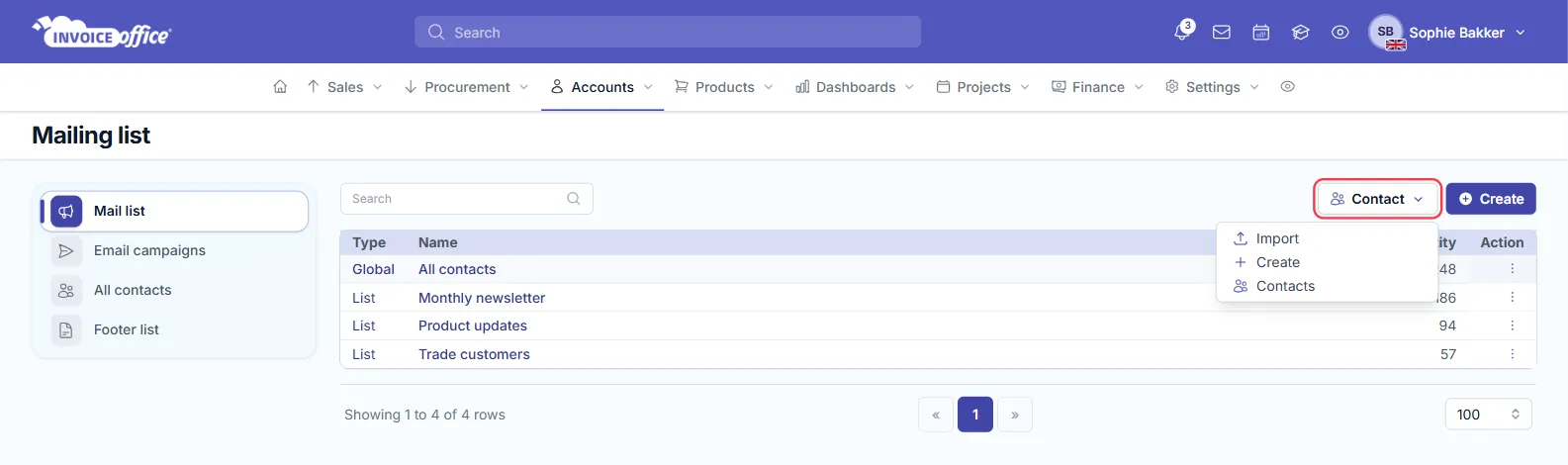
You can also add a contact without opening a list first: on the Mailing list page, click Contact → Create.
Step 3 — Import contacts from your customer list
The contact persons you already keep with your customers can go straight into a mailing list, so you do not have to retype them.
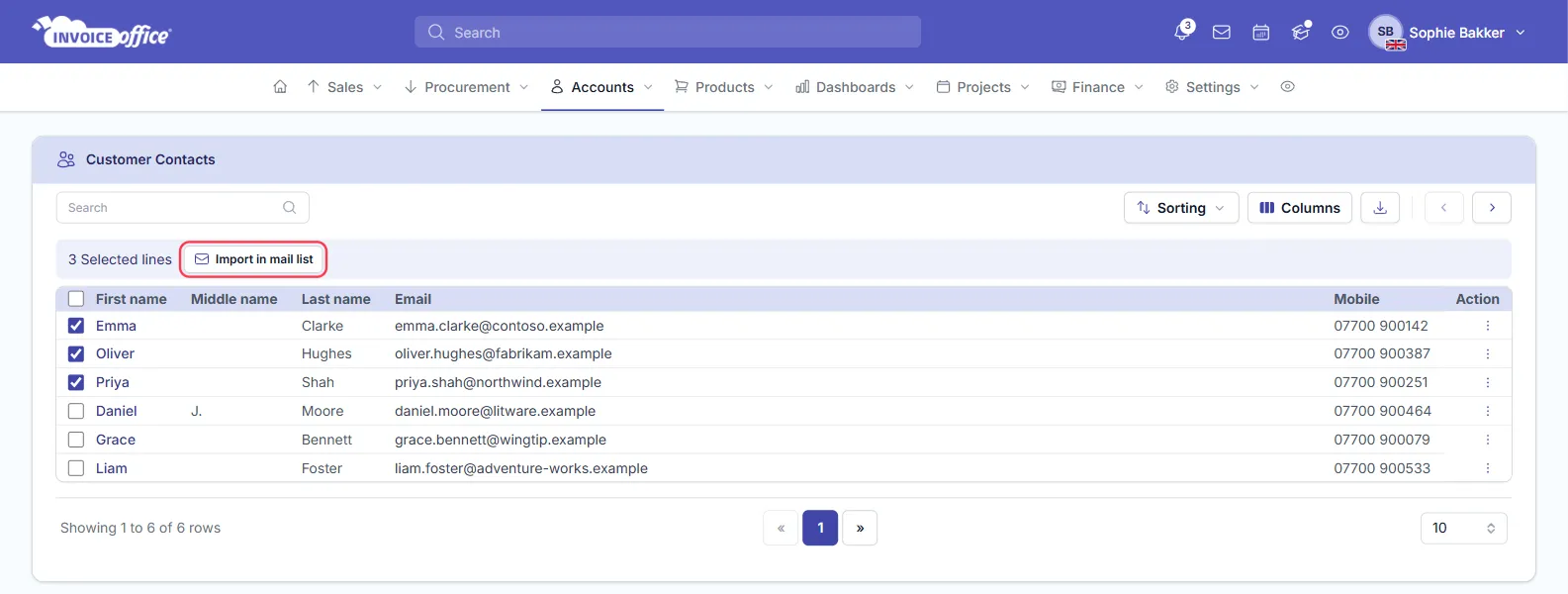
- On the Mailing list page, click Contact → Contacts. The Customer Contacts page opens with the contact persons of your customers.
- Tick the contacts you want. A bar appears above the table showing how many lines are selected.
- Click Import in mail list.
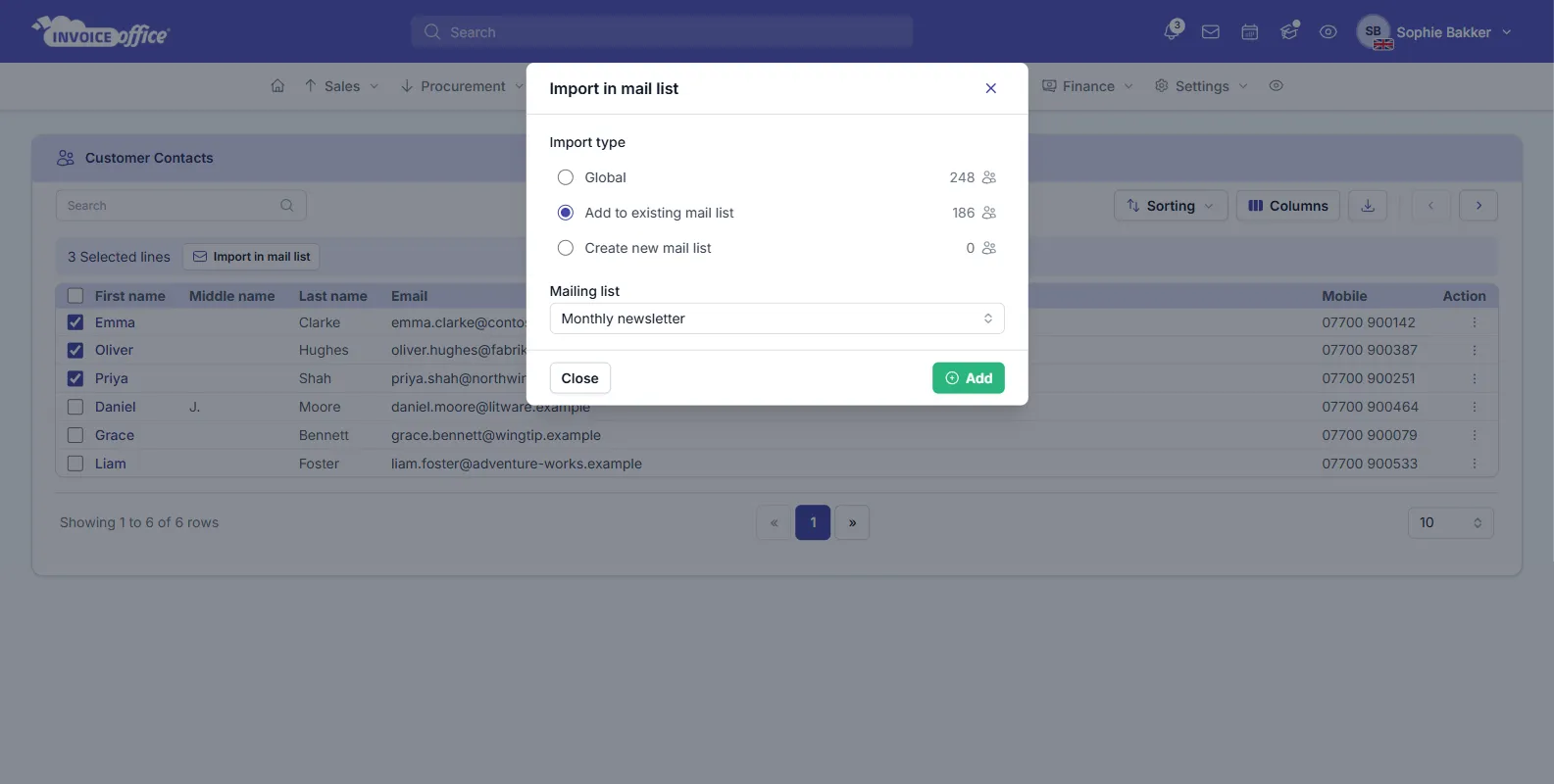
- Choose an Import type:
- Global — adds them to All contacts only.
- Add to existing mail list — then pick the list under Mailing list.
- Create new mail list — then type the name of the new list.
- Click Add.
Import in mail list needs a Pro license. If a contact person is missing from the list, add them to the customer first — see how to create a new customer and how to add a new contact.
Import contacts from a file
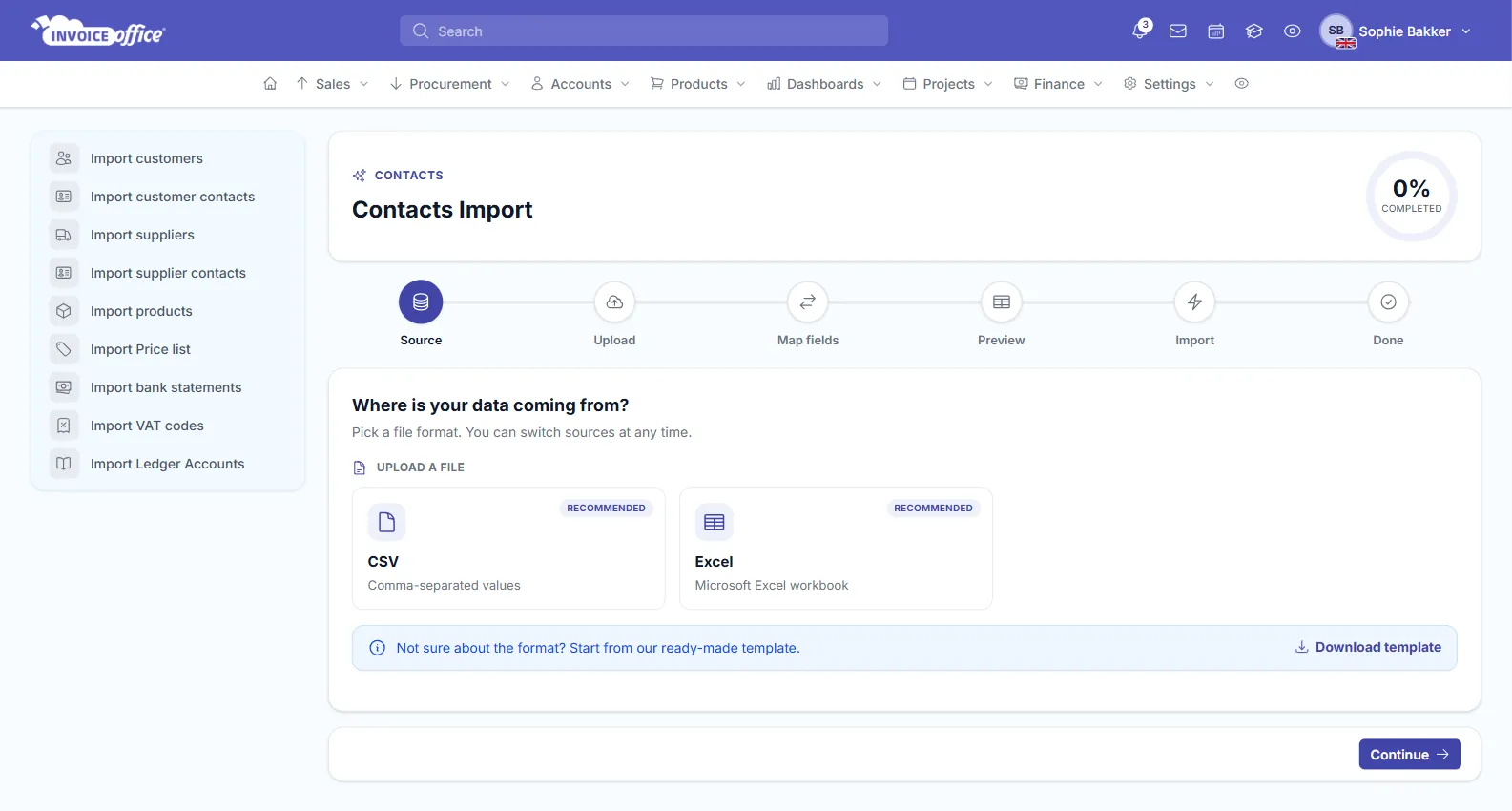
To bring in contacts from somewhere else, click Contact → Import on the Mailing list page, or click the Import / Export icon on a list’s Contacts page and choose Import. The Contacts Import wizard walks you through six steps: Source, Upload, Map fields, Preview, Import and Done.
Choose CSV or Excel as the source. Download template gives you a ready-made file in either format with the right columns. Importing from a file needs a Pro license.
It works like the other imports in Invoice Office; see how to import customers, suppliers and products.
Export, under the same Import / Export icon, downloads that list’s contacts as a CSV file. This also needs a Pro license.
Step 4 — Send a campaign to a mailing list
An email campaign sends one of your email designs to every subscribed contact in a mailing list.
Before you start:
- Create the email design. The text and layout of a campaign come from an email design, so build it first — see how to use the email template editor.
- Connect your own email server. Campaigns can only be sent through your own email server; until one is connected, the campaign page shows a warning and Send Email is switched off. See how to configure a custom SMTP email server.
- Check your license. Sending a campaign needs a Pro license.
Then create the campaign:
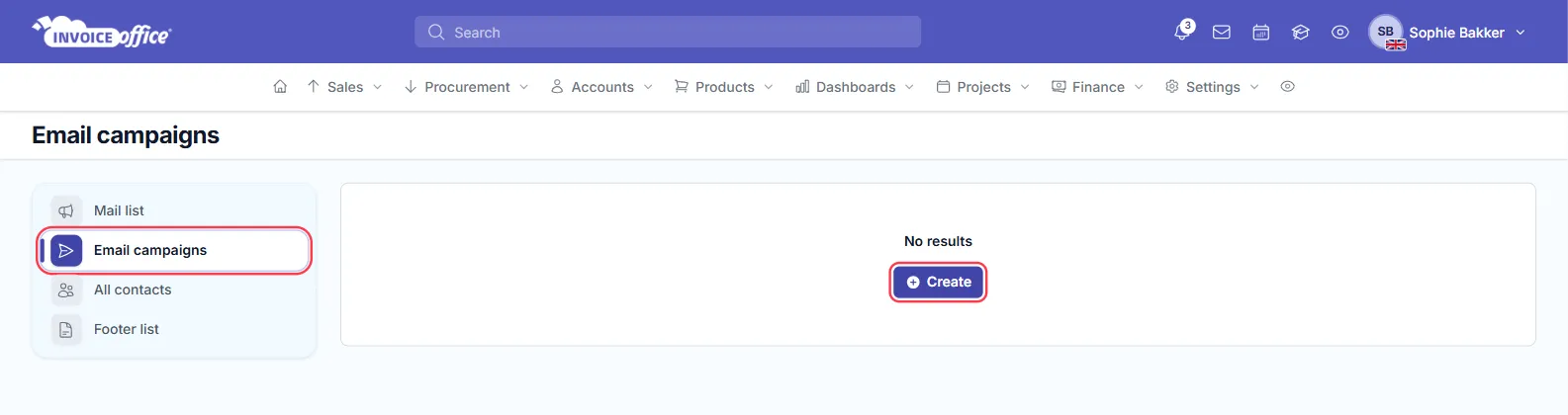
- On the Mailing list page, click Email campaigns in the menu on the left, then Create.
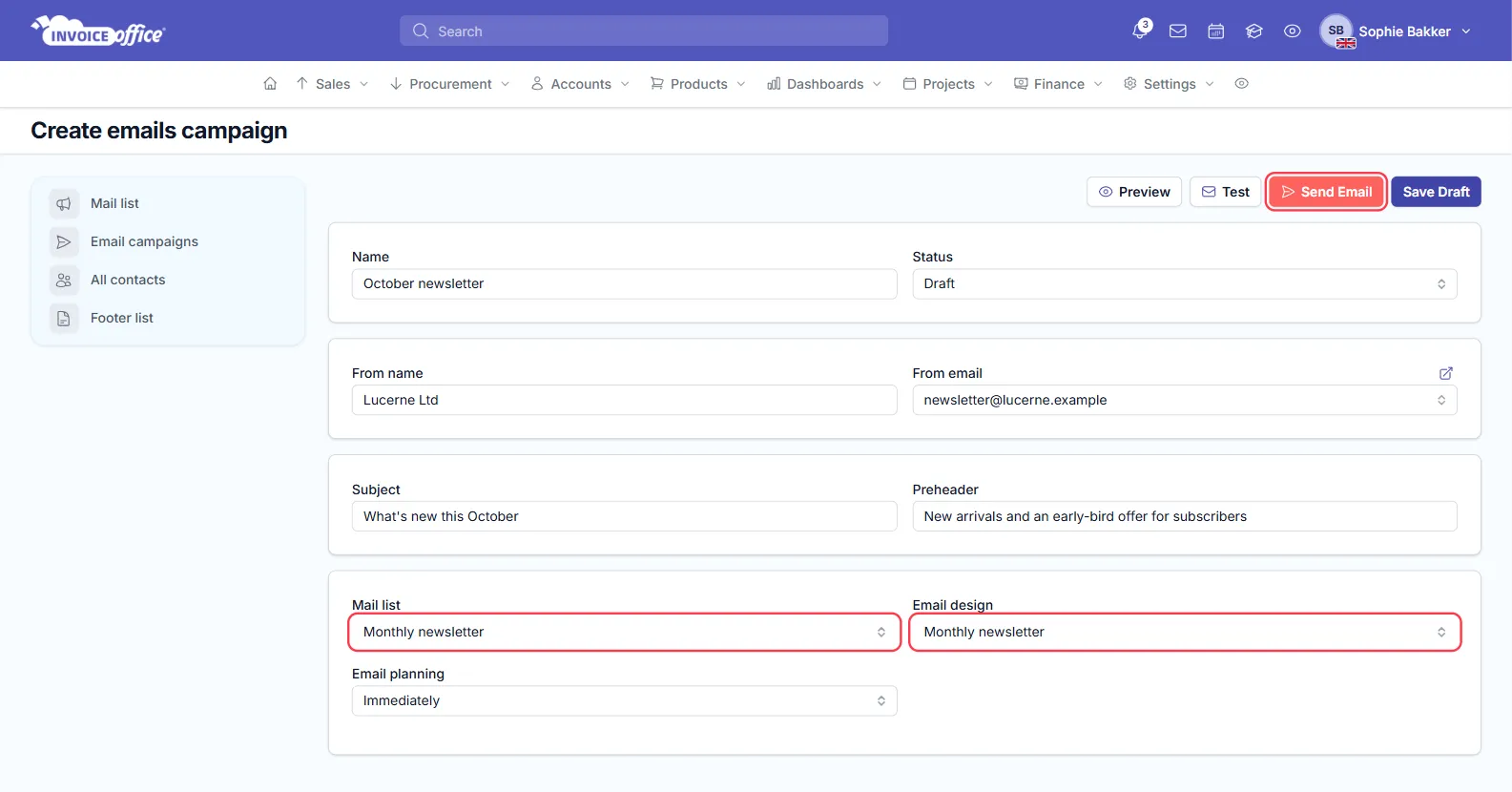
- Give the campaign a Name and set its Status — for example Draft.
- Choose the Mail list to send to and the Email design to send. Choosing a design fills in its sender and subject; you can still change them.
- Check the From name and the From email address.
- Check the Subject and, if you like, add a Preheader.
- Click Preview to see the email design as it will be sent. Test sends a test copy of the design to your own email address.
- Click Save Draft to keep the campaign for later, or Send Email to send it now. Invoice Office asks you to confirm before it sends.
Step 5 — Manage unsubscribes
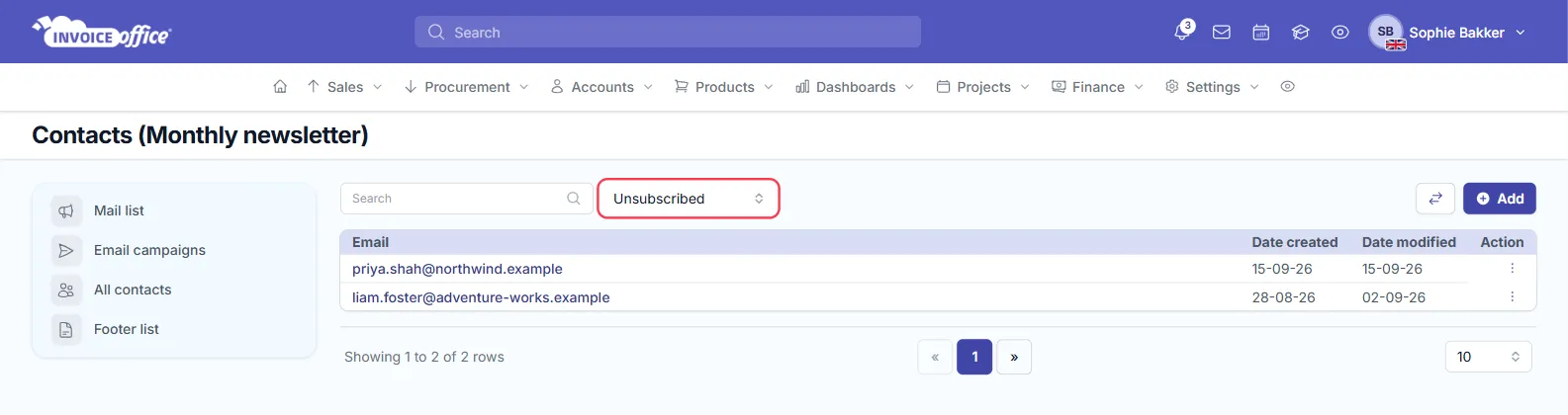
Every contact has a subscription status, and a campaign is only sent to the contacts in the list whose status is Subscribed. A contact who has unsubscribed stays in your contacts but is skipped when you send.
To see who is on which side, open All contacts — or the Contacts page of one list — and use the status filter next to the search box — for example Subscribed, Unsubscribed or Removed.
To change which lists a contact is on yourself:
- Open the contact from a Contacts page (Action → Open, or click the email address).
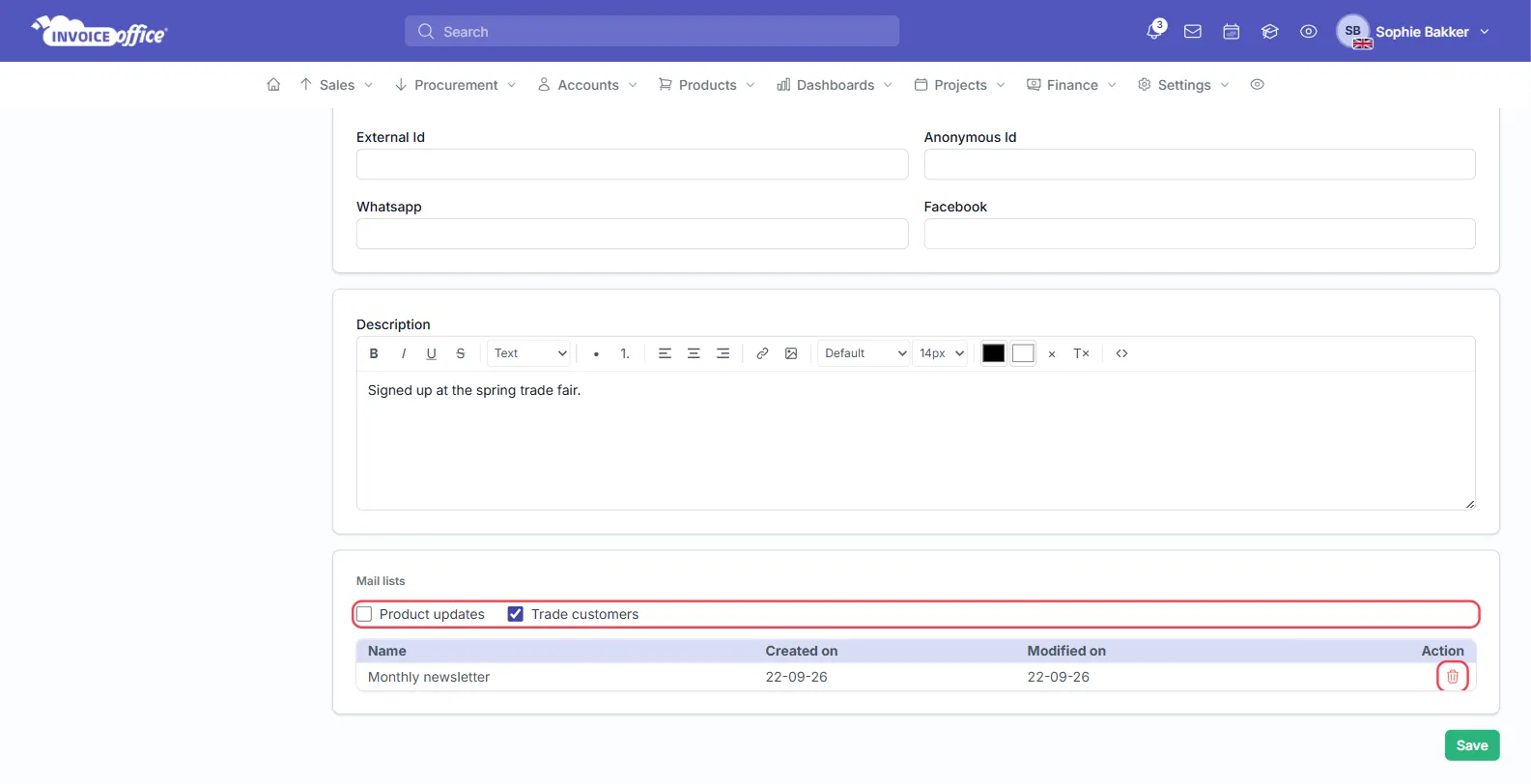
- Scroll to Mail lists. The table there shows the lists the contact is in. Click the delete icon next to a list and confirm — the contact is taken off that list straight away.
- To add the contact to another list instead, tick that list and click Save.
Be careful with Action → Delete on a Contacts page: it can delete the contact altogether — from every list and from All contacts — so do not use it just to tidy one list. Invoice Office asks you to confirm first.