To attach your terms and conditions to every invoice and quote in Invoice Office, you add the file once to your document design. From then on, your general terms and conditions (algemene voorwaarden) go out with each quote, invoice or order confirmation you email, and nobody has to remember to attach them by hand.
There are two ways to show your terms and conditions to a customer, and you can use both:
- As an attached file — your terms and conditions PDF, sent with the document. Set in the document design.
- As text printed on the document — a short terms passage at the bottom of the page. Set in Settings → Document terms.
Open your document design
- Go to Settings → Documents → Document designs.
- Pick the design to work on. Each document type has its own — Document, Invoice, Quote, Order confirmation, Credit note and so on — and the Document design is the base the others follow.
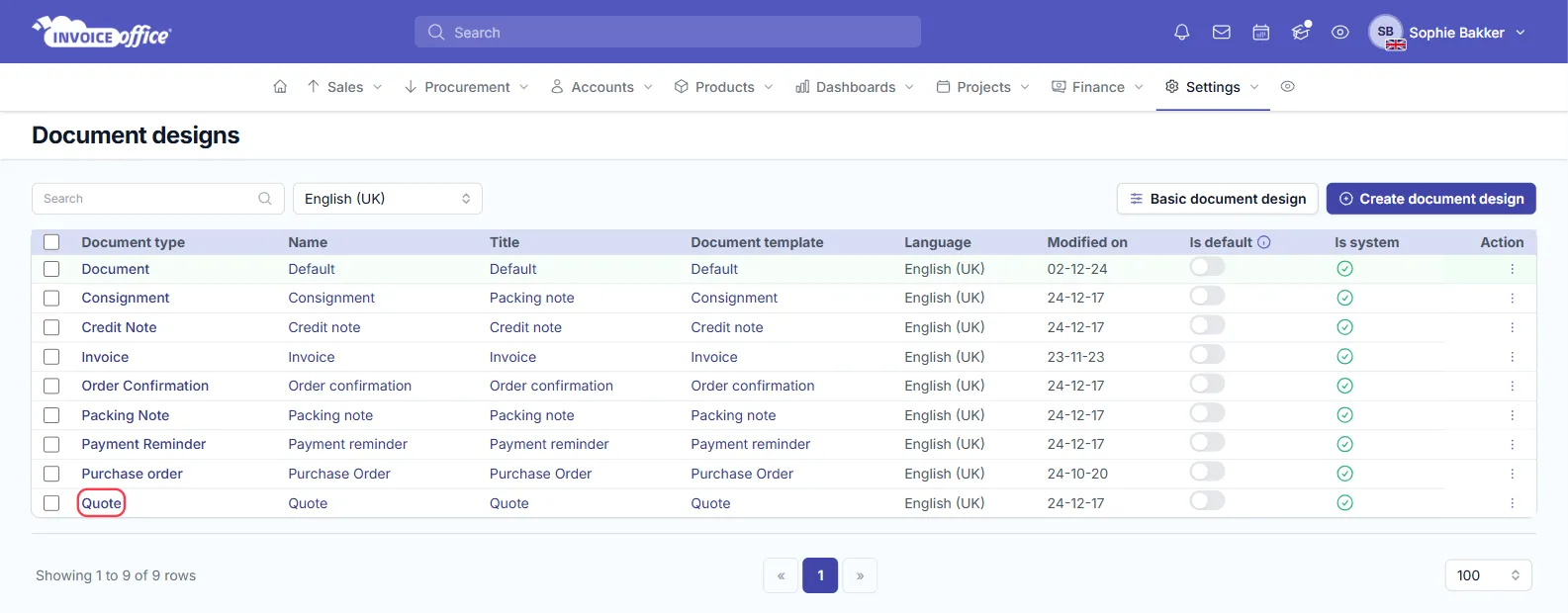
New to the editor? See Create and manage your document design templates for a tour of it.
Upload your terms and conditions PDF
The setting is called Attachments. In the basic editor it is at the top of the Page tab; in the advanced editor it sits under Settings on the Document design side.
- Open the Page tab.
- Under Attachments, click Upload and choose the PDF with your terms and conditions.
- Click Save in the top right corner.
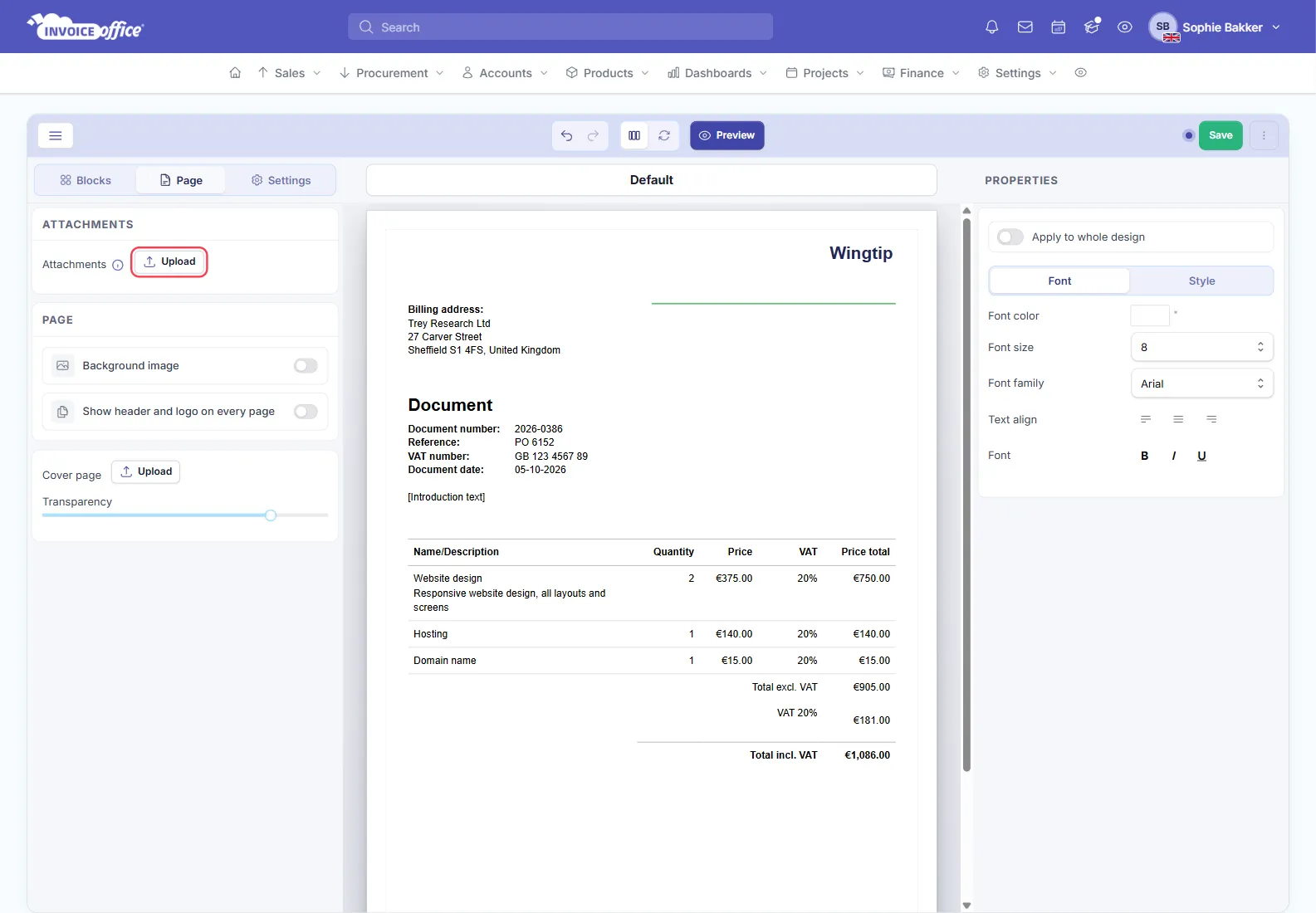
Upload it to the base Document design and every document type that follows the base picks it up.
Choose which document types send it
Each design for a specific document type has a Use default design switch under Attachments. While it is on, that design uses the attachments of your default Document design. Turn it off to set the attachments for this one document type only.
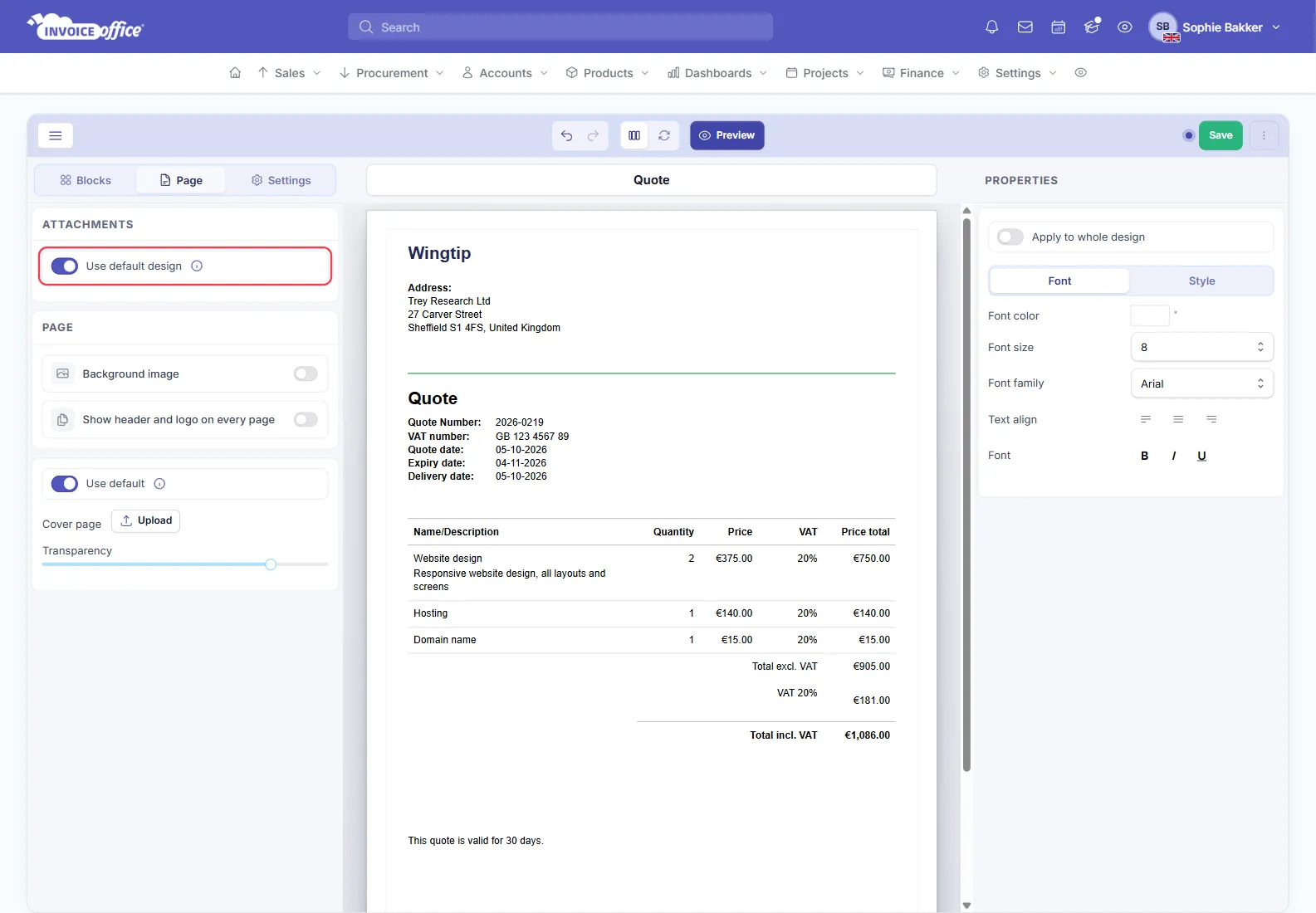
That gives you three set-ups:
- Same terms on everything — upload to the Document design and leave Use default design on in the other designs.
- Terms on quotes and invoices only — upload to the Document design, then in the designs that should not carry them (a packing note, say) switch Use default design off so they no longer take the base design’s attachments.
- Different terms per document type — switch Use default design off on the Quote, Invoice or Order confirmation design and upload that type’s own PDF there.
Because a design can also be assigned to a single customer, you can send one customer a different set of terms — see Choosing a design template for a particular customer.
What your customer receives
When you email a quote or invoice, the attachments from its design go out with it as separate files, next to the PDF of the document itself. The Send e-mail with PDF window has its own Attachments tab next to General and Email settings — see Send a document to multiple email addresses for that window.
Need a file on one document only, such as a drawing that belongs with a single quote? Use the Attachments button on the document itself instead — see Add an attachment to your document.
Print a short terms text on the document as well
An attached PDF holds your full conditions. Many businesses also print one or two lines on the document itself — “This quote is valid for 30 days. Our general terms and conditions apply.”
- Go to Settings → Document terms and open the terms for the document type and language.
- Write the text in Document terms & conditions.
- Switch on Show text on document and click Save.
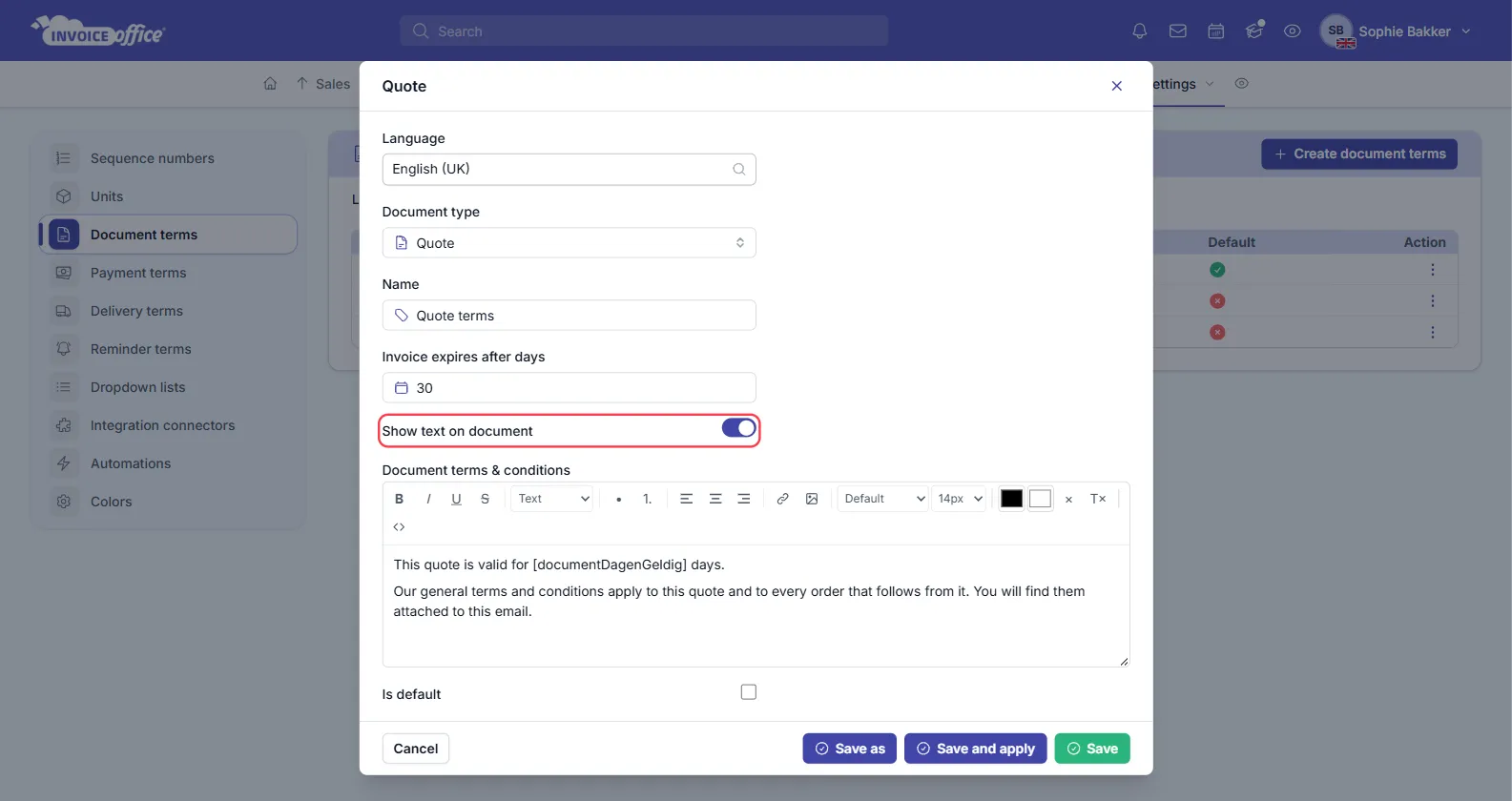
More on these settings in How to use document terms.